
All Articles
Here you’ll find practical guides, quick wins, and workflow ideas for office workers who want to save time on Windows, without installing complex tools or needing admin rights.
-

How to Search Inside Files on Windows Without Opening Them One by One
Remember the text but not the filename? Here are the Windows search methods I tested for finding words, numbers, and even ideas buried inside Office documents and PDFs.
-

The Best Microsoft Edge Shortcuts for Office Work
Learn the Microsoft Edge shortcuts that save time at work, from searching and tab management to clean pasting, screenshots, downloads, and history.
-

FastKeys vs AutoHotkey: Which Is Better for Office Automation?
Compare FastKeys and AutoHotkey for office automation. Decide between ready-made Windows features, direct scripting control, and enterprise management.
-
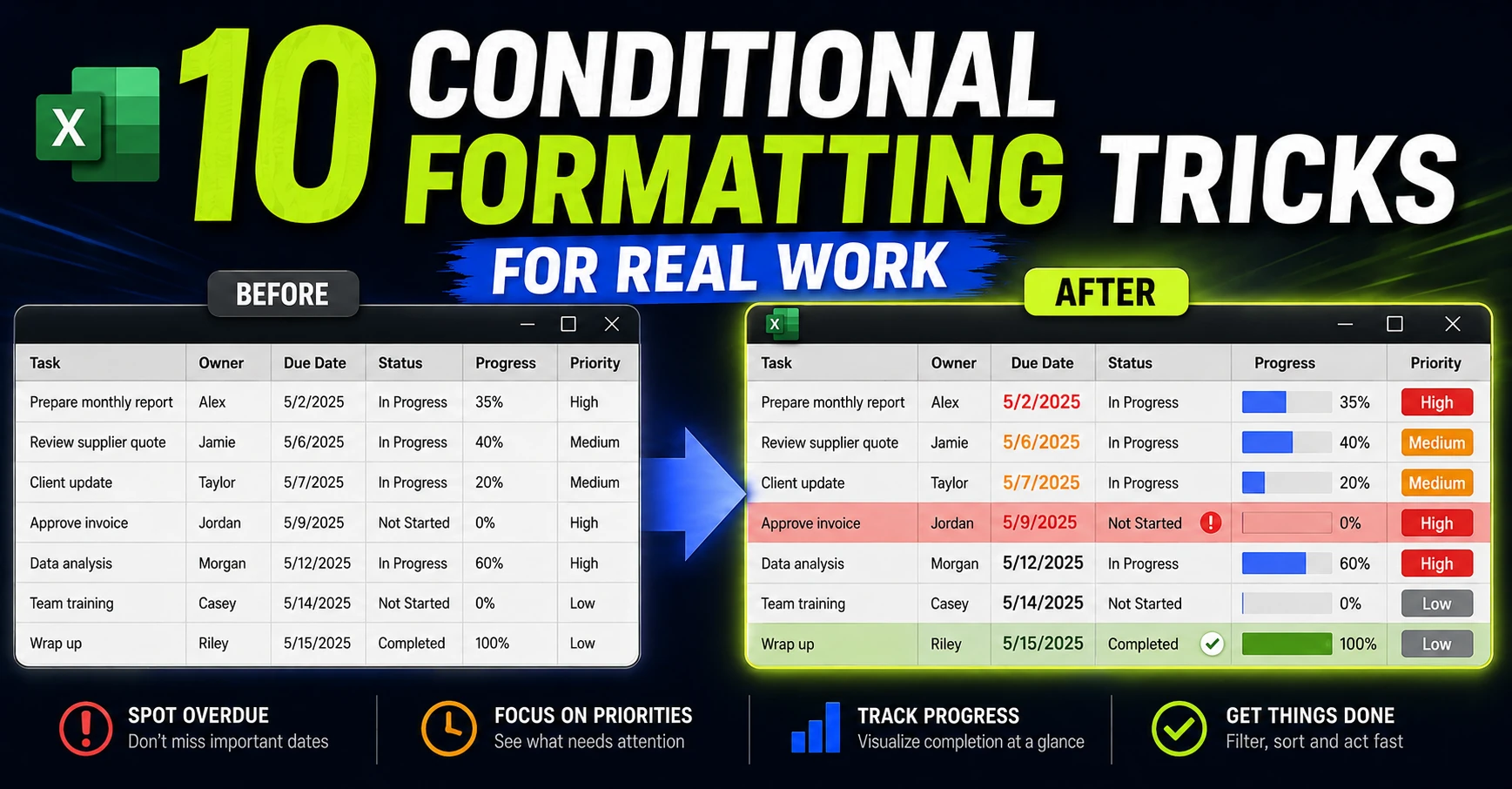
Excel Conditional Formatting: 10 Practical Examples for Real Work
See 10 practical Excel conditional formatting examples for deadlines, KPIs, progress, duplicates, workload, and focused review queues.
-
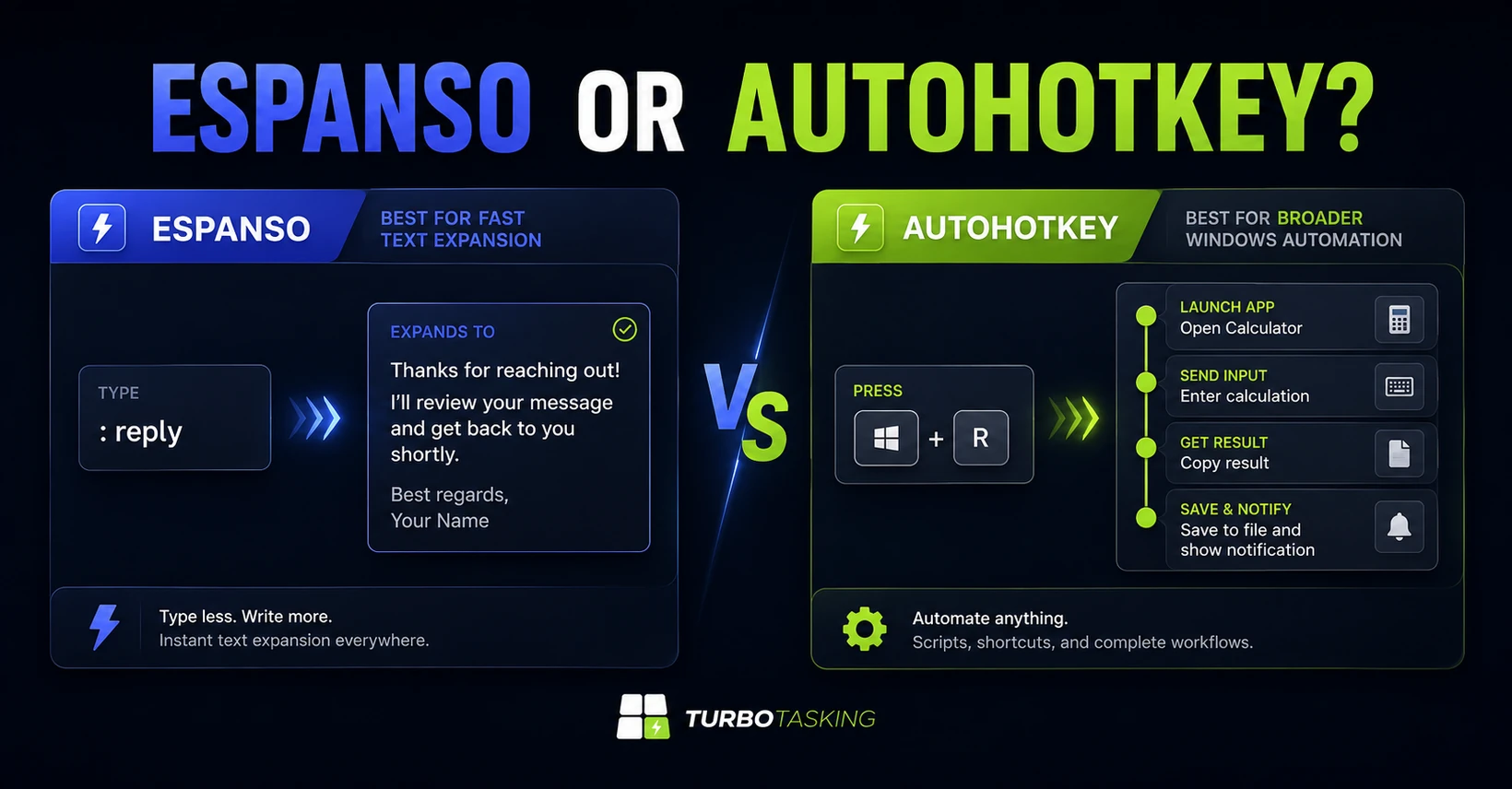
Espanso vs AutoHotkey: Which Is Better for Office Productivity?
Compare Espanso and AutoHotkey for office productivity. Learn which fits shared snippets, searchable expansions, custom hotkeys, and deeper Windows automation.
-
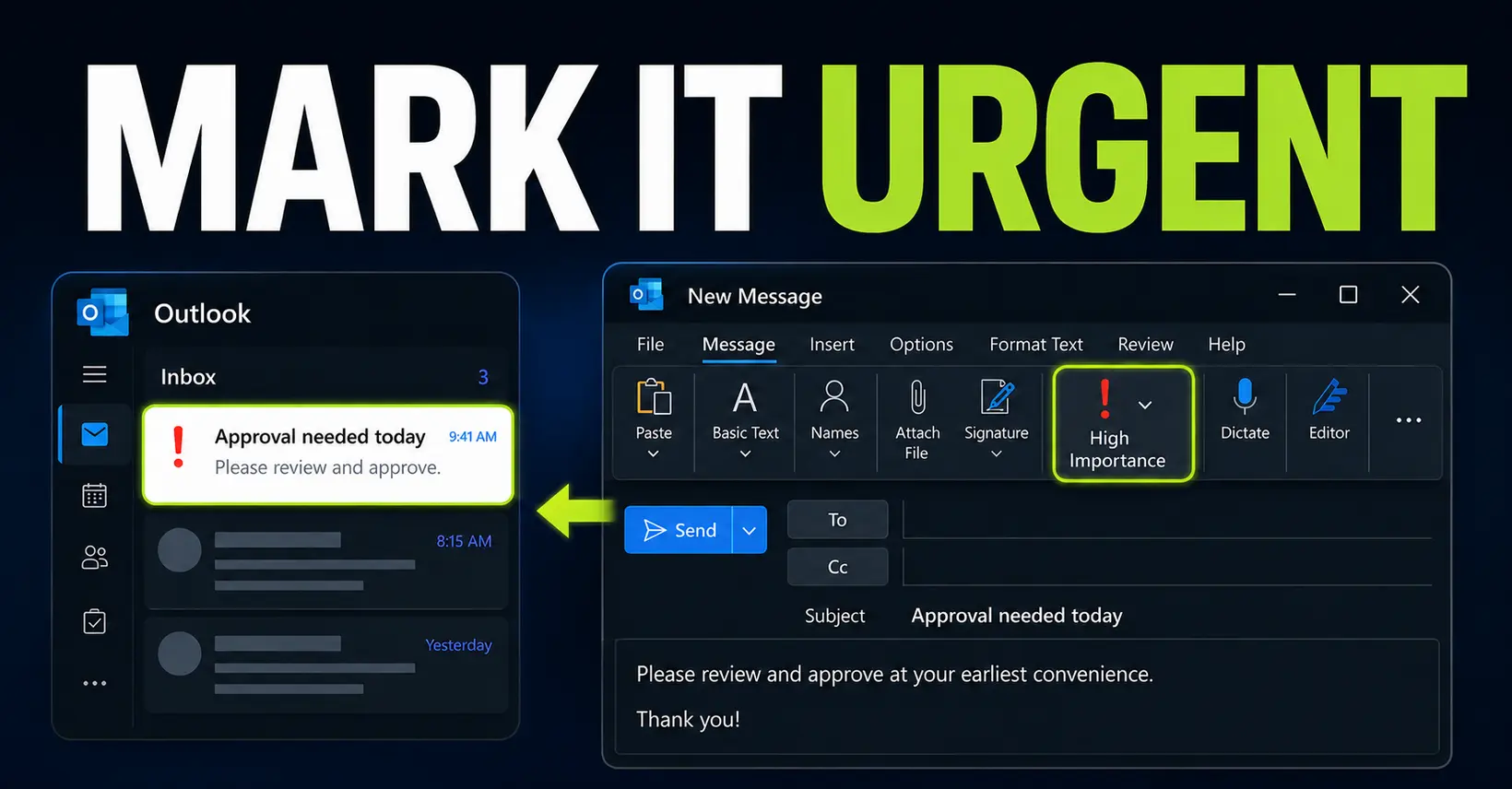
How to Mark an Email as Urgent in Outlook
Mark an Outlook email as High Importance so it stands out in the recipient’s inbox. This guide covers new Outlook, classic Outlook, the web version and Outlook mobile limitations.
-
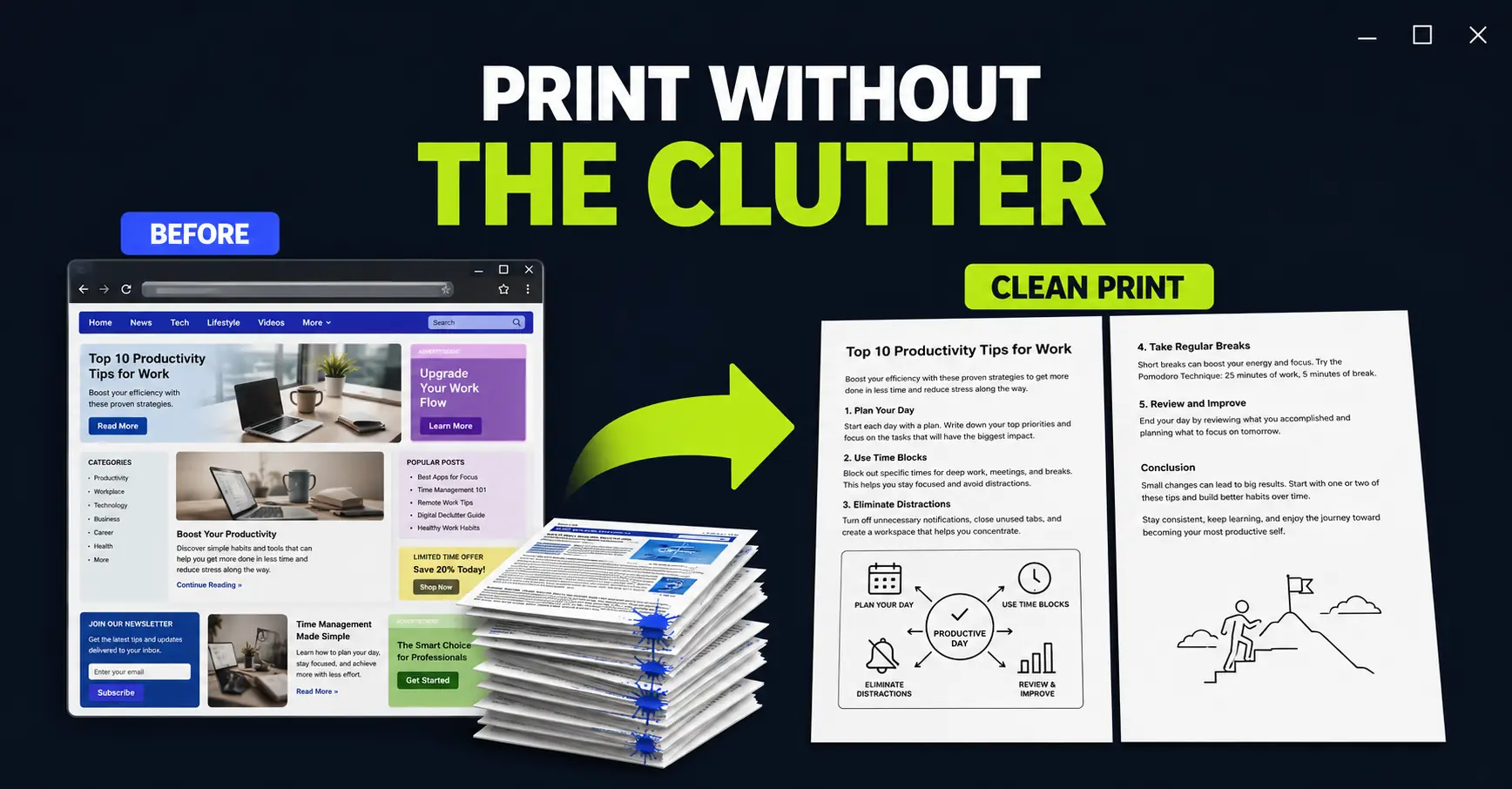
How to Print a Web Page Without Ads with PrintFriendly
Turn a messy web page into a clean, compact printout. PrintFriendly lets you remove unwanted sections and images before they consume paper and ink.
-
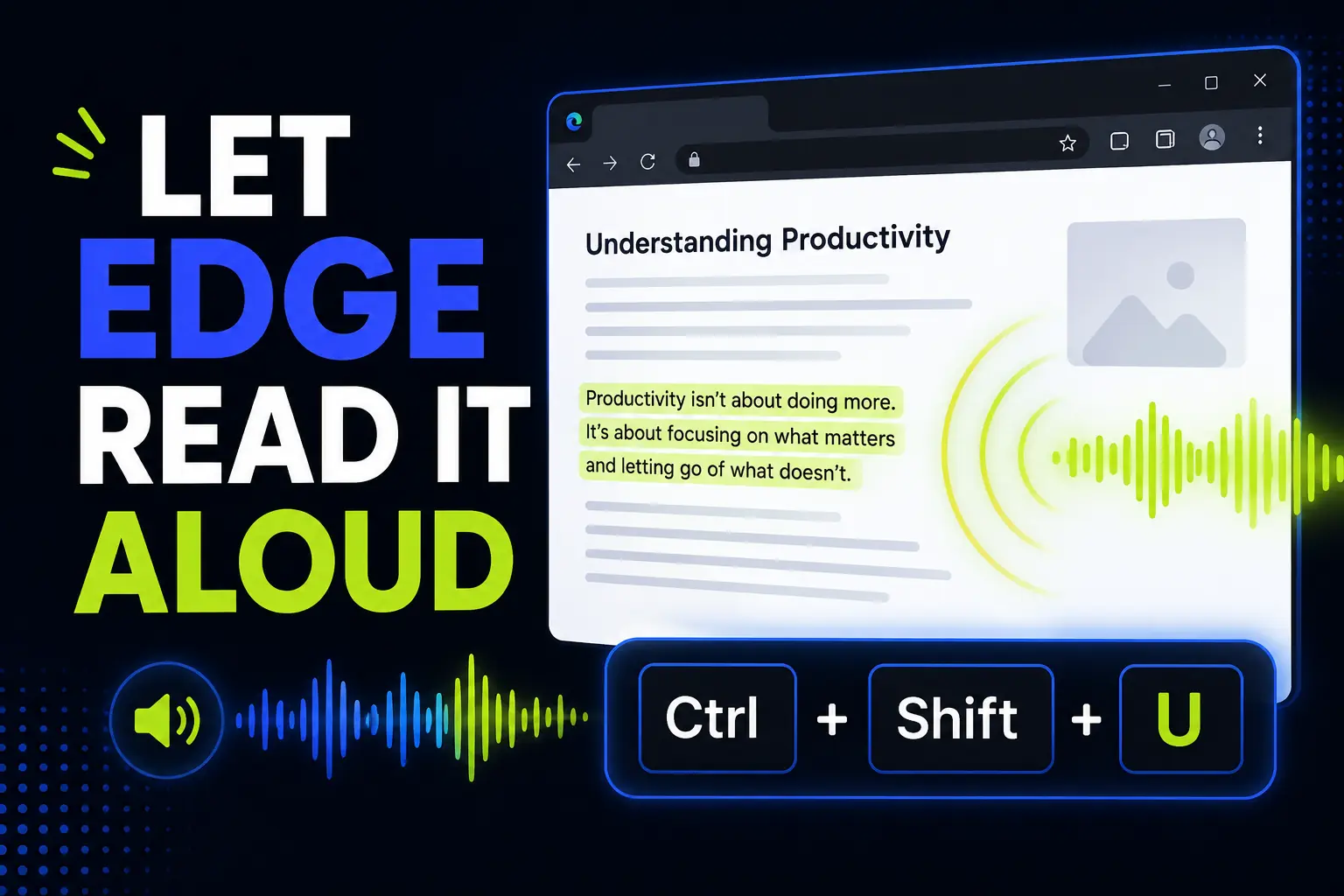
Make Microsoft Edge Read Any Web Page Aloud
Microsoft Edge can read web pages and PDFs out loud. Here’s how to start Read Aloud, use the shortcut, clean up pages with Reading Mode, and turn it into a practical office workflow.
-
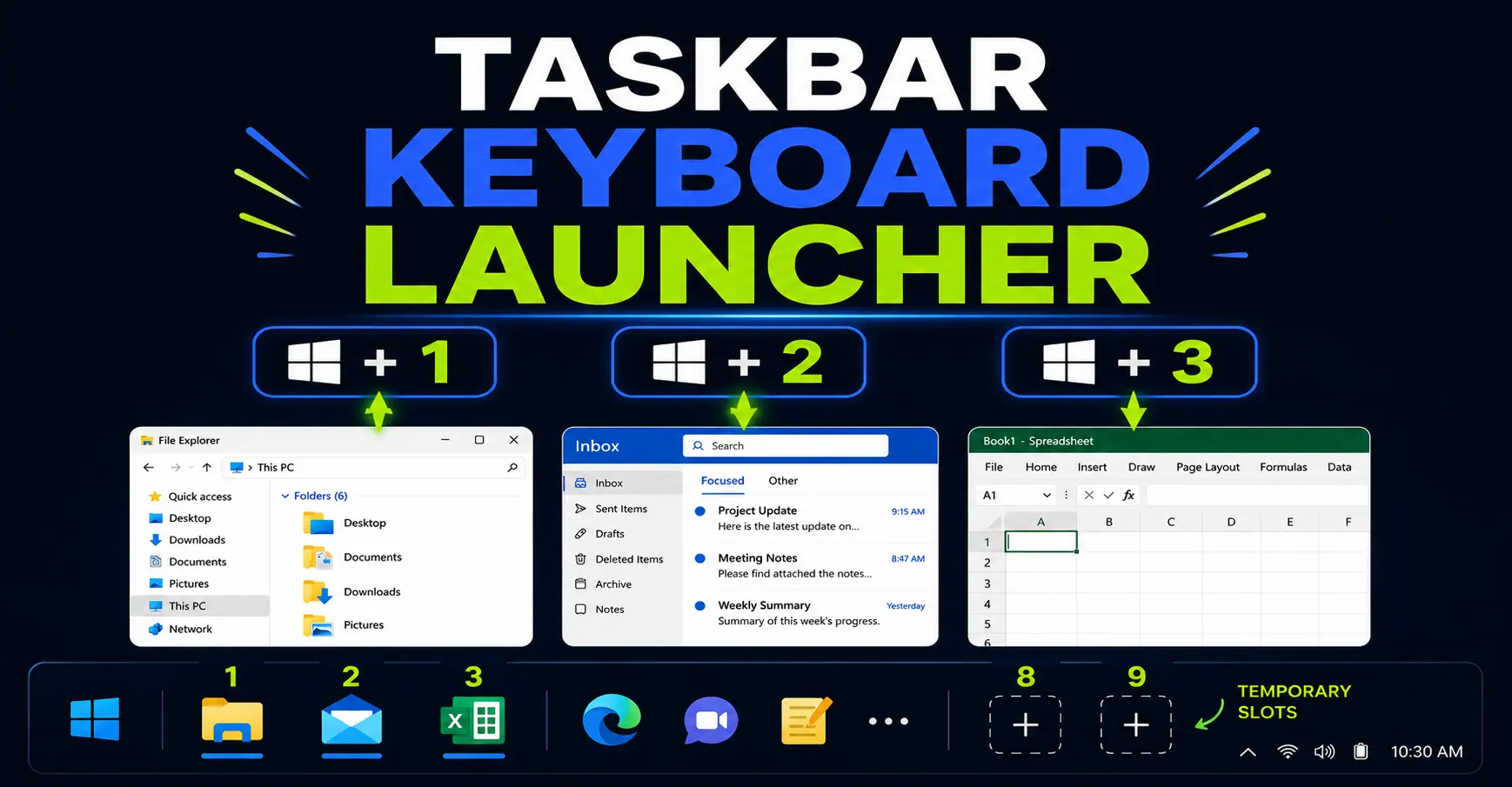
Turn Your Windows Taskbar Into a Keyboard Launcher
Your Windows taskbar can work like a keyboard launcher. Learn how Win+1, Win+2, Win+Shift+number, Win+Alt+number and Win+T help you open and switch between office apps faster.