

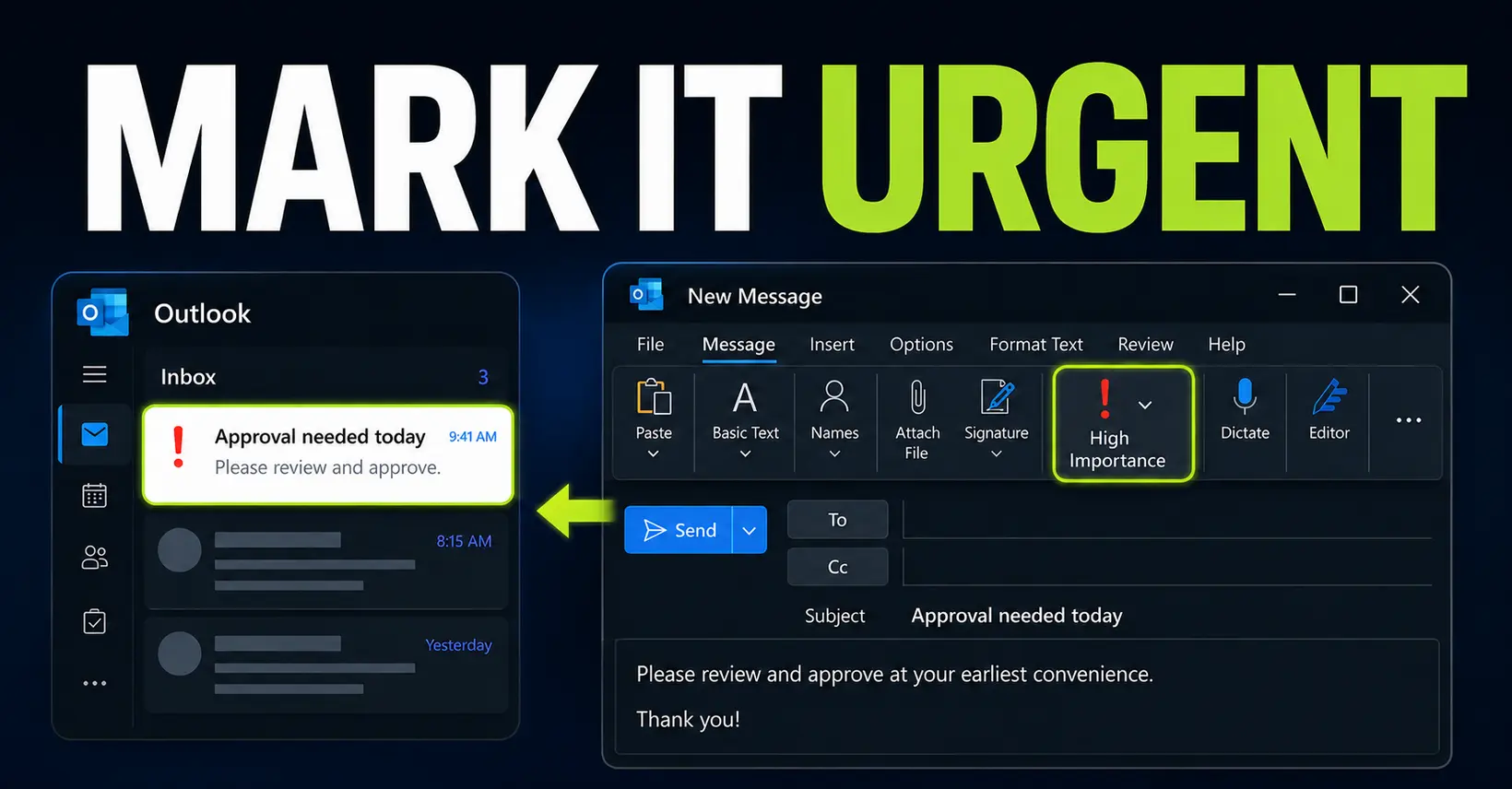
Outlook does not normally use the word Urgent for email. The feature you need is called High Importance.
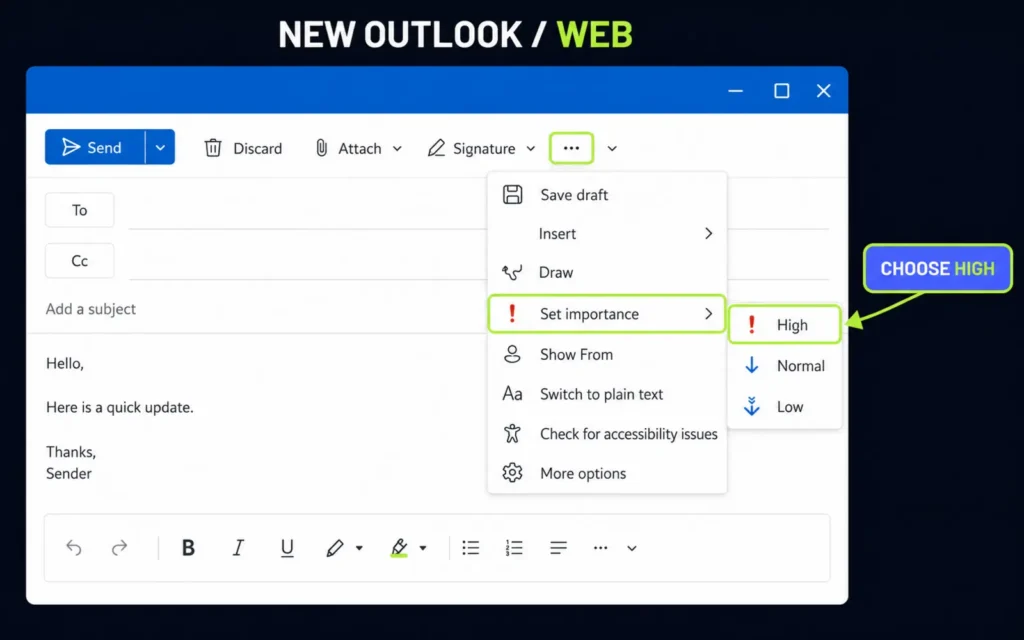
In new Outlook and Outlook on the web, compose the message, open the three-dot menu, and select Set importance → High. In classic Outlook, select the red exclamation mark labelled High Importance in the ribbon.
The recipient will normally see a special importance indicator next to the message. In Outlook, this commonly appears as a red exclamation mark.
High Importance can help a genuine priority stand out, but it does not deliver the email faster or force the recipient to reply.
Key Takeaways
- Outlook calls urgent email High Importance.
- New Outlook and Outlook on the web hide the option under the three-dot menu.
- Classic Outlook uses the red exclamation mark in the ribbon.
- Outlook mobile cannot currently add High or Low Importance to a message.
- Use High Importance selectively, and make the deadline clear in the subject line.
In this article
How to mark an email as urgent in new Outlook
New Outlook for Windows uses an interface very similar to Outlook on the web.
- Select New mail.
- Add the recipients, subject and message.
- Select the three dots at the top of the compose window.
- Select Set importance.
- Select High.
- Send the message normally.
If you change your mind before sending it, return to the same menu and change the importance back to Normal.
The same route is documented for Outlook on the web.
How to send a high-priority email in classic Outlook
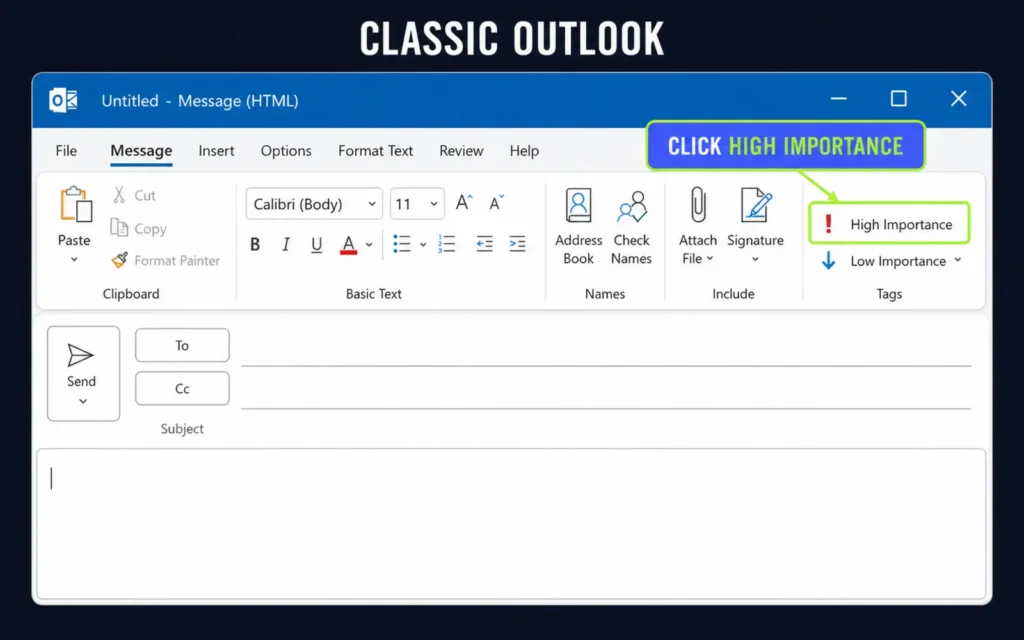
In classic Outlook for Windows, the option is more visible because it appears directly in the ribbon.
- Select New Email.
- Open the Message tab if it is not already selected.
- Find the Tags group in the ribbon.
- Select High Importance, represented by a red exclamation mark.
- Write and send the email normally.
The High Importance button remains highlighted while the setting is active. Select it again if you want to remove the setting before sending.
Microsoft provides the same steps in its official guide to marking Outlook messages as high or low importance.
What does the red exclamation mark in Outlook mean?
A red exclamation mark beside an email normally means that the sender marked the message as High Importance.
The indicator helps the message stand out in the inbox before it is opened. Outlook users can also sort messages by importance.
However, High Importance is best understood as a label, not a delivery accelerator.
- It does not make the message travel faster.
- It does not guarantee a notification.
- It does not force the recipient to open or answer it.
- It does not create a reminder for you to follow up later.
Its job is simply to communicate that the sender considers the email unusually important.
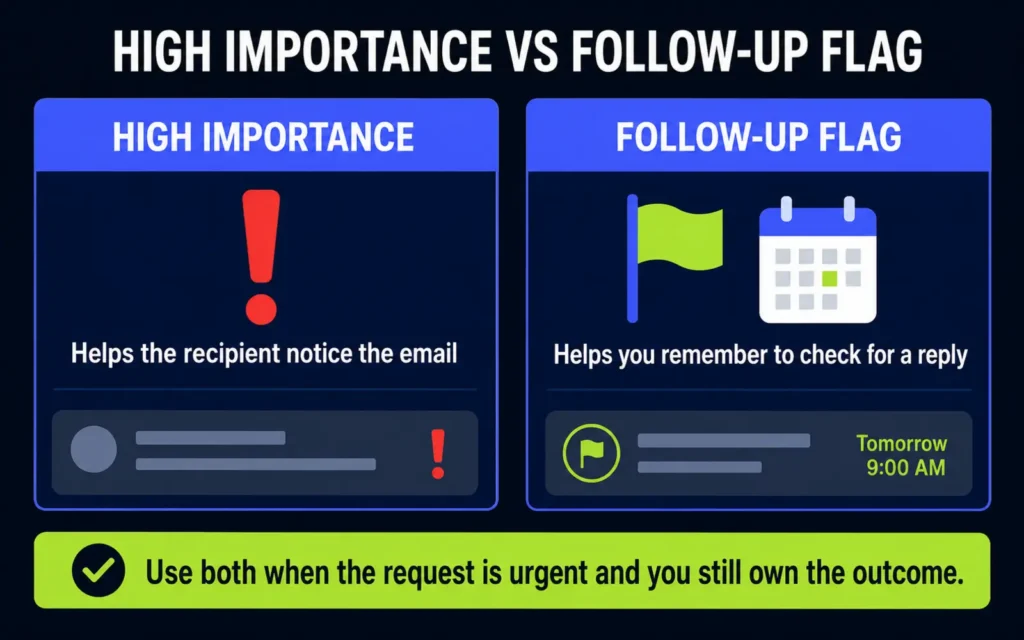
High Importance is not the same as a follow-up flag
These two Outlook features solve different problems.
| High Importance | Follow-up flag | |
|---|---|---|
| Main purpose | Tell the recipient that the message deserves attention | Remind you that the email still needs action or a reply |
| Who mainly benefits | The recipient | You |
| Typical indicator | Red exclamation mark | Flag or task reminder |
| Best use | A genuinely urgent request | Tracking an approval, answer or pending decision |
You can use both features on the same email when appropriate.
For example, you may send an urgent approval request with High Importance and then flag the sent message so you remember to check whether the approval arrived.
My guide to following up on sent Outlook emails explains how I use flags and Microsoft To Do for that second part.
Can you mark an email as urgent in Outlook mobile?
Outlook for iOS and Outlook for Android do not currently support adding High or Low Importance while composing an email.
Microsoft confirms this limitation in its Outlook mobile support documentation.
If the importance indicator is essential, open the mailbox in Outlook on the web or in the Windows desktop application and set it there.
If you must send the message immediately from your phone, make the urgency clear without relying on the icon:
- Put the required action in the subject.
- Include a specific deadline.
- Explain the consequence of missing it.
- Keep the first paragraph short.
When should you use High Importance?
High Importance is useful when the message has a real time constraint or could block important work.
- An approval is required before work can continue.
- A deadline is at risk today.
- A system or access problem is blocking someone.
- A customer or supplier issue needs immediate attention.
- A decision must be made before a specific meeting or release.
It is less useful for routine status updates, normal requests, newsletters, FYI messages or emails that only feel urgent because the subject is vague.
Microsoft specifically advises users not to attach High Importance to every message. If you use it constantly, recipients learn to ignore it. You can find that warning in Microsoft’s Outlook best-practices guide.
A clear subject line matters more than the icon
The red exclamation mark can attract attention, but the recipient still needs to understand what you need and when you need it.
A vague urgent subject such as:
Urgent!
creates pressure without useful context.
A better subject explains the action and deadline:
Action required today: approve Q3 figures by 3 PMBlocking issue: system access needed before releaseDecision needed by Tuesday: supplier delivery option
The first sentence should be just as direct:
I need your approval by 3 PM today so the finance team can submit the report before the deadline.
This tells the recipient what to do, when to do it and why it matters.
Use the urgent marker selectively
To mark an email as urgent in Outlook, set its importance to High.
In new Outlook and Outlook on the web, use the three-dot menu and select Set importance → High. In classic Outlook, select the red High Importance exclamation mark in the ribbon.
The feature works best when the email genuinely deserves special attention and the subject clearly states the required action and deadline.
If the email also requires a reply that you cannot afford to forget, add a follow-up flag after sending it. High Importance helps the recipient notice the request; the flag helps you make sure the request does not disappear.
Want more practical Windows productivity tips? If you like simple ways to make everyday work faster, I share more practical Windows productivity tricks in the TurboTasking newsletter.


