

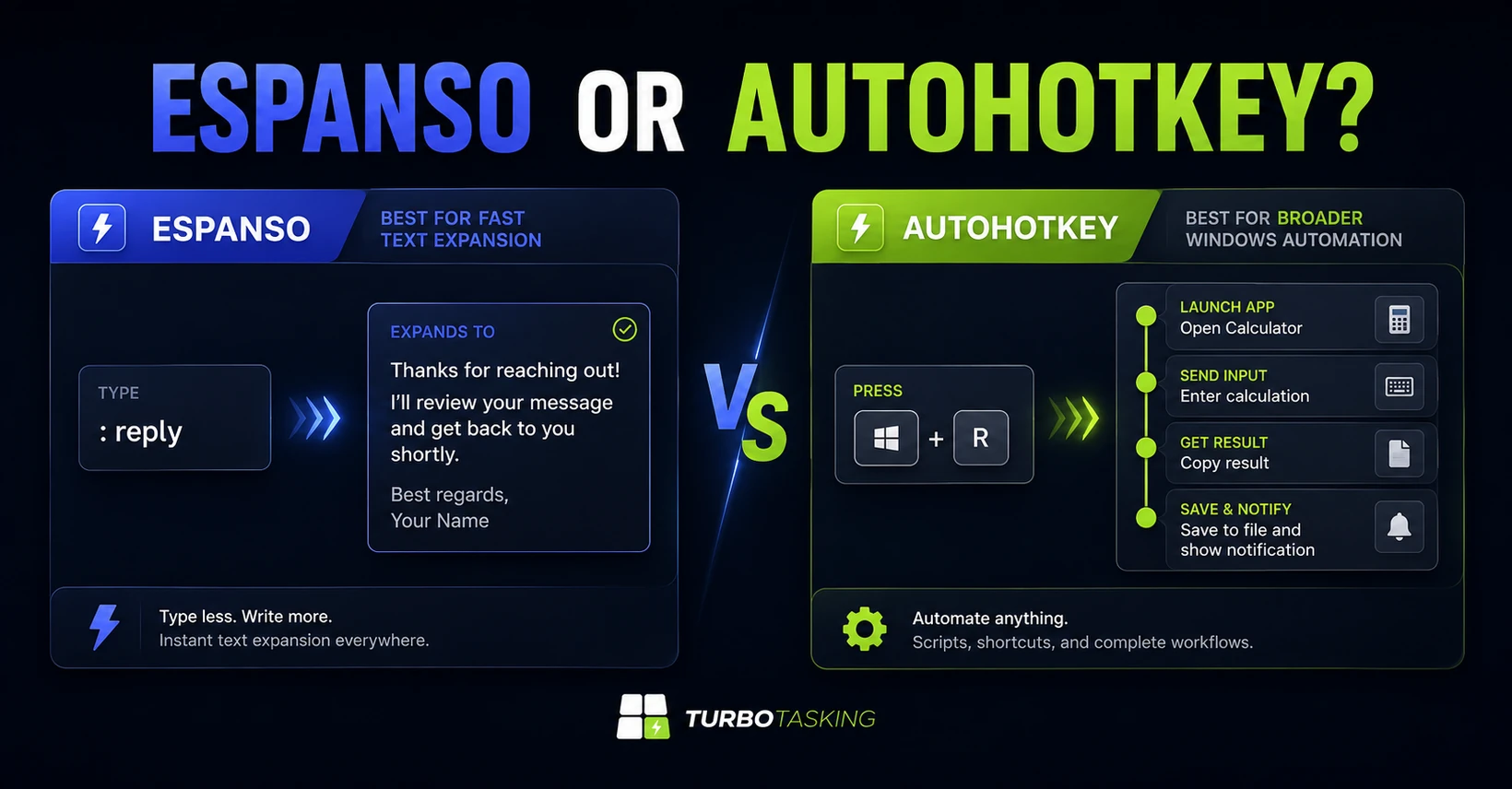
At first glance, Espanso and AutoHotkey seem interchangeable: both can expand a short trigger into a longer message. The choice becomes less obvious when one shortcut only needs to type a reusable reply, while another must transform a copied URL or open a Windows folder.
Treating those jobs as identical usually creates one of two problems: unnecessary complexity or a tool that stops just short of the workflow you need.
I use both Espanso and AutoHotkey in real office work. This comparison focuses on where their overlap ends, how search and sharing affect daily use, and which limitations matter before you standardize on either one.
Key Takeaways
- Espanso keeps text expansion focused, while AutoHotkey reaches far beyond text.
- Search and cross-platform sharing can matter more than raw automation power.
- The right choice depends on the workflow you repeat, not the longest feature list.
In this article
Espanso vs AutoHotkey at a glance
| Criterion | Espanso | AutoHotkey |
|---|---|---|
| Main purpose | Text expansion | Windows automation |
| Platforms | Windows, macOS, Linux | Windows |
| Text expansion | Core feature | Hotstrings and scripts |
| Automation scope | Focused, with extensions | Broad and programmable |
| Search | Built-in Search Bar | No comparable default workflow |
| Team sharing | Packages and Git repositories | Script files; Windows-only |
| Learning curve | YAML configuration | Scripting language |
| Best fit | Reusable personal or team text | Custom Windows actions |
| Cost | Free and open source | Free and open source |
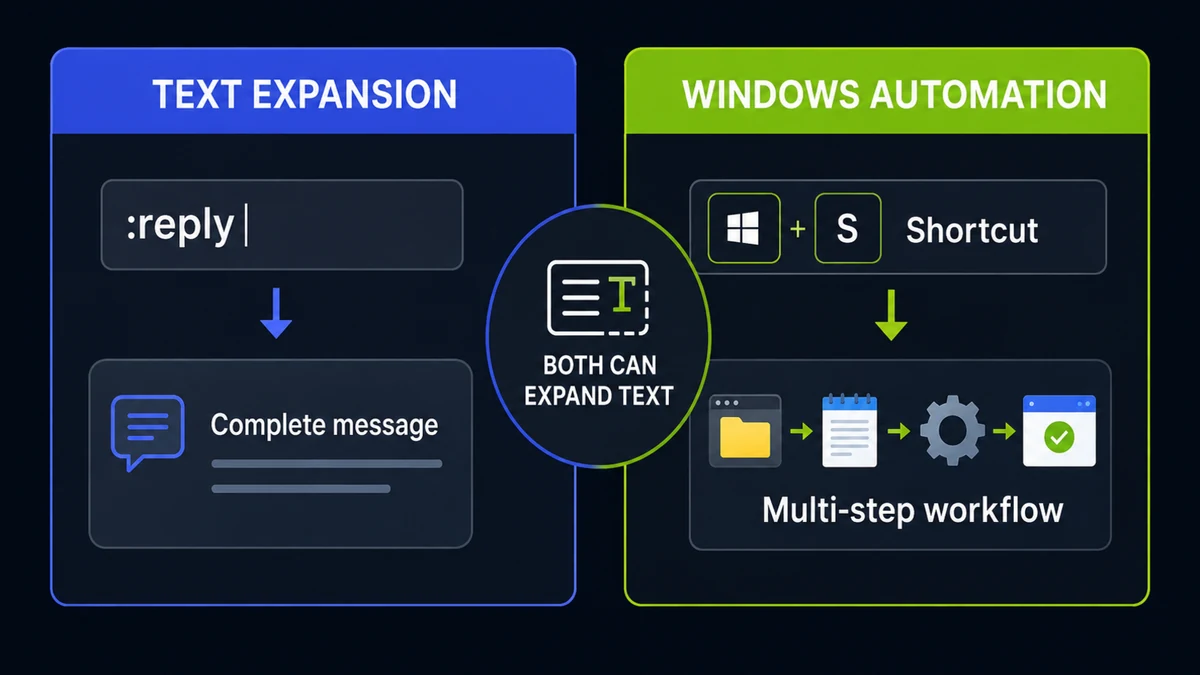
Both are capable text expanders. The practical difference appears when you ask what must happen before or after the text is inserted.
The core difference: expansion versus automation
Espanso is built around matches. You type a trigger, and it inserts approved text, a date, an image, or another defined result. That focus makes it relatively easy to understand what a shared configuration is supposed to do.
AutoHotkey is a programming language for Windows automation. Text expansion is only one possible use. A hotkey can inspect the clipboard, react to the active window, launch an application, wait for a dialog, send keystrokes, interact with controls, or combine several actions into one workflow.
That does not make AutoHotkey automatically better. If the task is simply to insert a reliable email paragraph, extra automation power may add maintenance without adding value. If the result depends on the clipboard, the current application, or several Windows actions, Espanso can become the less natural fit.
Where AutoHotkey is stronger
I have used AutoHotkey for years and recently migrated my scripts to AutoHotkey v2. Its biggest advantage is that the output can be calculated from the current context instead of being a mostly predefined expansion.
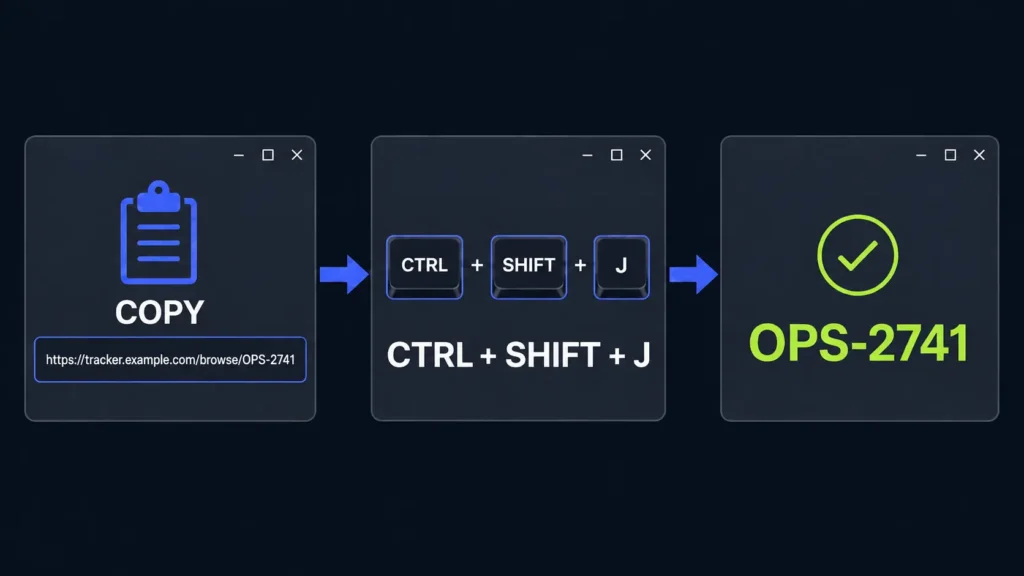
One of my useful clipboard workflows starts with a ticket URL such as https://example.atlassian.net/browse/OPS-2741. A hotkey reads the clipboard, extracts the issue key, and types only OPS-2741 into the active application. The same idea can extract document.pdf from either a web address or a Windows path.
AutoHotkey also creates system-wide hotkeys that have nothing to do with text. Ctrl+Alt+P can open a Projects folder, while Ctrl+Shift+T can open a frequently used timesheet portal. More advanced scripts can wait for windows, control applications, or automate multi-step routines.
I also use AutoHotkey to paste without formatting, although I would not install it only for that. If clean pasting is your whole requirement, PowerToys Advanced Paste is easier to set up and explain.
Choose AutoHotkey when the shortcut must perform logic or a Windows action, not merely insert saved text.
Where Espanso is stronger
Espanso becomes more attractive when reusable text has to work beyond one person’s Windows PC.
Its configurations can be packaged and distributed through GitHub, GitLab, or another Git repository. In my company, Espanso was approved, and I have shared several packages that are now used in production. Colleagues can use the same approved wording even when some work on Windows and others on macOS or Linux.
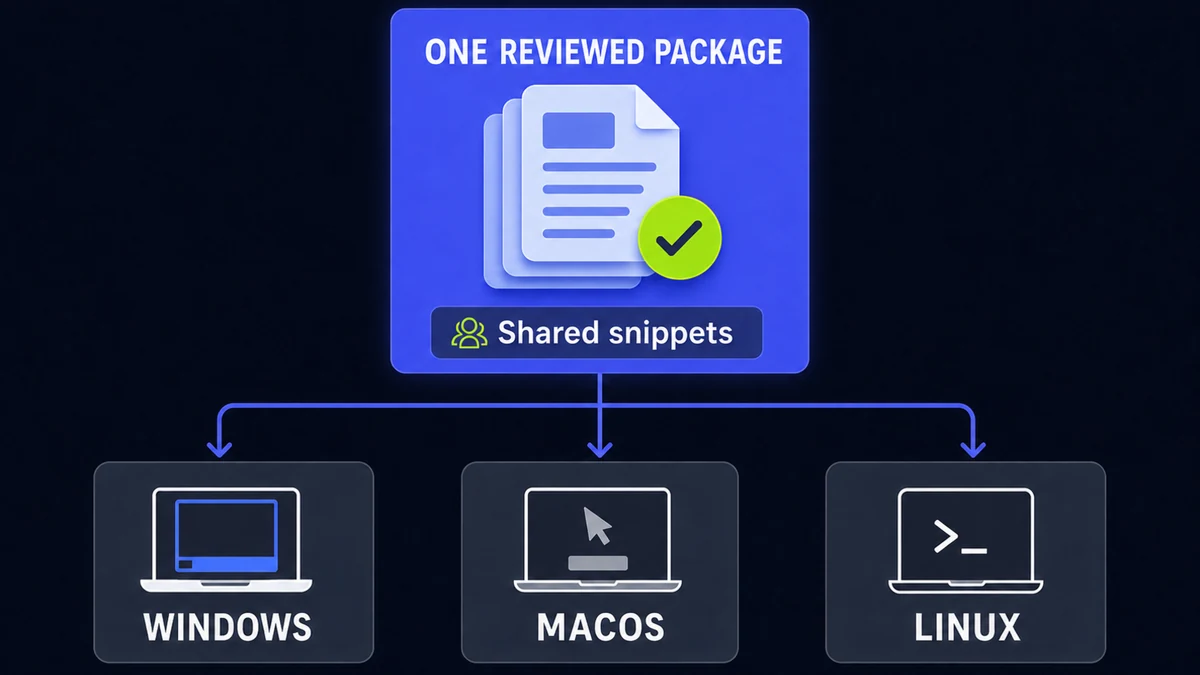
That is a concrete advantage over AutoHotkey, whose scripts run on Windows. A team can still share AutoHotkey files, but they are a less practical common standard when part of the team uses another operating system.
Espanso also has community packages, although the most valuable matches usually come from the phrases your own team repeats. For the complete setup and Git-sharing workflow, see my guide to sharing Espanso snippets across Windows and Mac. Keeping that tutorial separate lets this article stay focused on the choice.
Espanso’s Search Bar makes snippets easier to find
Search is the Espanso feature I appreciate most often.
With AutoHotkey, I had to remember each hotkey or hotstring. When I forgot one, or was unsure whether I had already created something for the task in front of me, I opened the configuration file and searched there.
Espanso lets me call its Search Bar from the application I am using, search labels and terms, and select the result without knowing the exact trigger. That makes a large snippet library far more discoverable.
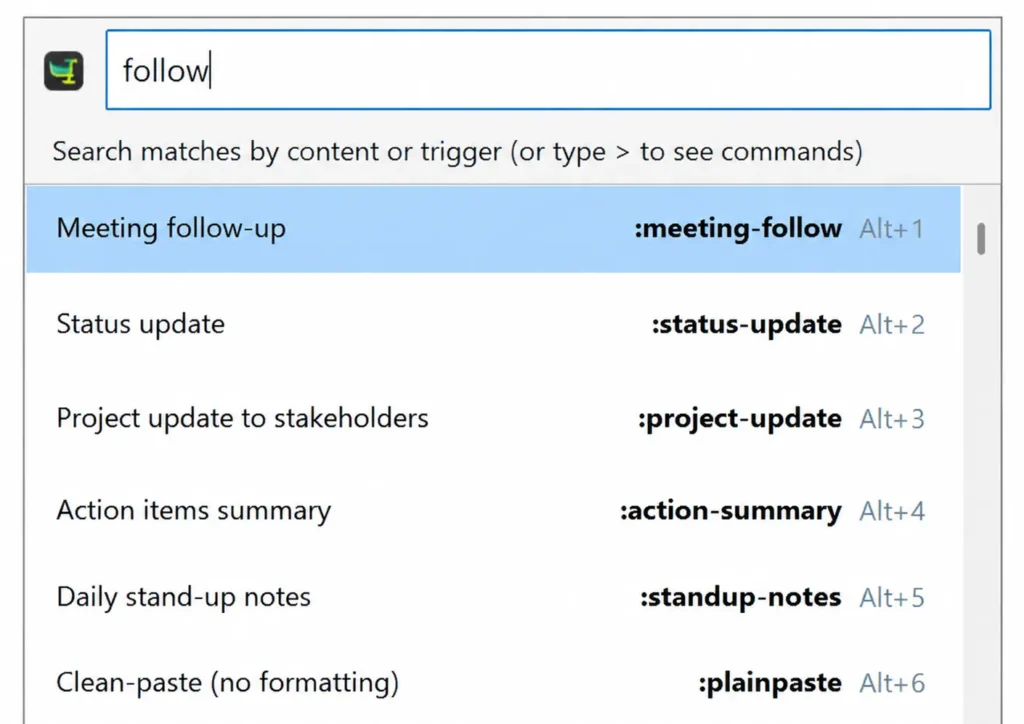
The default shortcut is Alt+Space, although it can conflict with tools such as PowerToys Run. Shortcuts can be changed, but the broader point remains: a saved automation only helps when you can find or remember it. AutoHotkey’s large community may offer custom launchers, but search was not part of the default workflow I used.
Flexibility, configuration, and maintenance
Neither tool is especially friendly to someone who expects to create every shortcut through buttons and forms. Espanso uses YAML configuration; AutoHotkey uses its own scripting language. Both can intimidate less-technical users.
The file-based design is also a strength. Configurations can be backed up, reviewed, version-controlled, and edited in bulk. AI can help generate repetitive matches or migrate syntax, but its output still needs review: a generated shortcut can conflict with an existing one, and a script can read clipboard data or run a command you did not intend.
Espanso is not limited to static sentences. It can insert formatted dates, images, choices, and random values; regex triggers can capture input; and matches can call shell commands or external scripts. I even built a Python-powered calculator as an experiment. It worked, but I almost never use it because PowerToys Run or Command Palette is more convenient.
That experiment captures the difference well. Espanso can reach beyond static text, but AutoHotkey is the more natural environment when conditional logic and broader Windows automation are the main job.
If configuration files are a deal-breaker, a GUI-based text expander may be a better fit. I would evaluate those tools separately because their trade-offs are different from the Espanso-versus-AutoHotkey choice.
Corporate approval and application reliability
My company accepted Espanso, but that does not prove that Internal IT generally prefers it. AutoHotkey’s broader capabilities may attract more scrutiny, yet Espanso can also execute commands or scripts. Approval depends on the exact configuration and business use case, not only the product name.
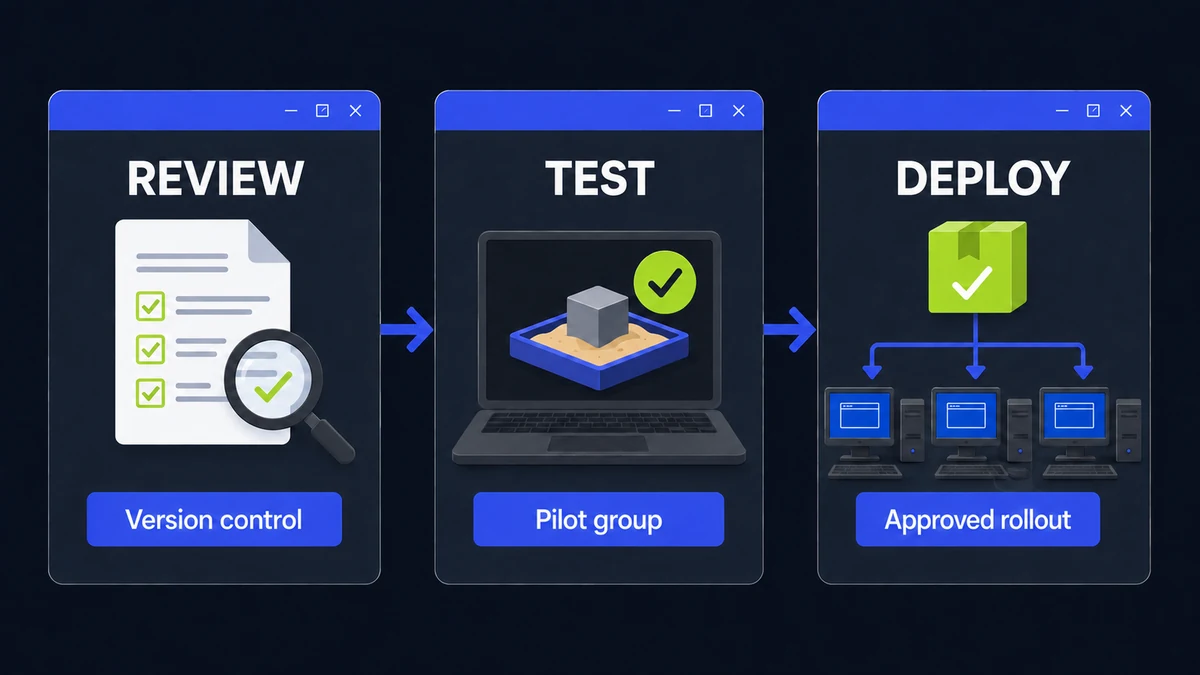
Before deploying either tool, check four things:
- Whether installation requires administrator rights or formal software approval.
- Whether the configuration runs scripts, commands, or downloaded packages.
- Who reviews and distributes shared changes.
- Whether snippets or clipboard actions could expose confidential text in the wrong application.
I have also seen an intermittent Espanso problem in Microsoft Word: a trigger sometimes fails to expand, but I cannot reproduce it reliably. This is a personal observation, not evidence of a universal Word defect.
Test important triggers in Word, Outlook, browser editors, remote desktops, and any specialized applications you depend on. AutoHotkey is not immune to application-specific behavior either, especially when scripts send simulated input or interact with elevated windows. Do not make either tool part of a business-critical workflow until it behaves consistently in the real environment.
Which tool should you choose?
Choose Espanso if:
- Reusable text is the main job.
- You need Windows, macOS, or Linux support.
- Several colleagues share approved wording.
- Finding snippets is as important as creating them.
Choose AutoHotkey if:
- Your workflow is Windows-only.
- The shortcut must transform clipboard content.
- You need custom hotkeys or application control.
- You are comfortable testing scripts.
Use both if:
- Espanso manages shared wording and AutoHotkey handles personal Windows actions.
- You can maintain clear boundaries between the two configurations.
- Your company approves both tools for those specific roles.
Start by naming the repeated job, then choose the smallest tool that completes it reliably. If that job is shared team text, continue with the Espanso team-snippet workflow; if it is only clean pasting, the PowerToys alternative may be enough.
Want more practical Windows productivity tips? If you like simple ways to make everyday work faster, I share more practical Windows productivity tricks in the TurboTasking newsletter.


