


If you are choosing between FastKeys and AutoHotkey, you probably have the same goal: automate repetitive Windows work without creating even more work for yourself.
Both tools can save you a lot of time, but they take different approaches. FastKeys gives you ready-made tools for things like text expansion, keyboard shortcuts, mouse gestures, clipboard actions, and macros. AutoHotkey lets you build the automation yourself in a script and tell Windows exactly what should happen.
I have used AutoHotkey for years. For this comparison, I also installed FastKeys 6.07 and explored its Library, built-in examples, Shortcuts, Text Expander, Auto Complete, and Gestures. So these are my hands-on first impressions of FastKeys, compared with much longer experience using AutoHotkey.
If you just want the short answer:
- Try FastKeys first if you want to automate Windows without building everything from code.
- Choose AutoHotkey if you are comfortable working with scripts, especially now that AI can help you create and maintain them.
- Take FastKeys especially seriously for teams if built-in sharing, deployment, and administration matter.
Neither is better for everyone. The question is which one fits your needs and the way you want to work.
Key Takeaways
- FastKeys gives you many useful Windows automations ready to configure instead of making you start with a blank script.
- AutoHotkey gives you more direct control, and AI now makes creating, changing, and debugging scripts much easier.
- FastKeys includes useful extras such as mouse gestures and macro recording, plus sharing and enterprise-management options.
In this article
FastKeys gives you more to start with
The biggest difference I noticed after installing FastKeys was that you are not looking at an empty workspace and wondering what to automate.
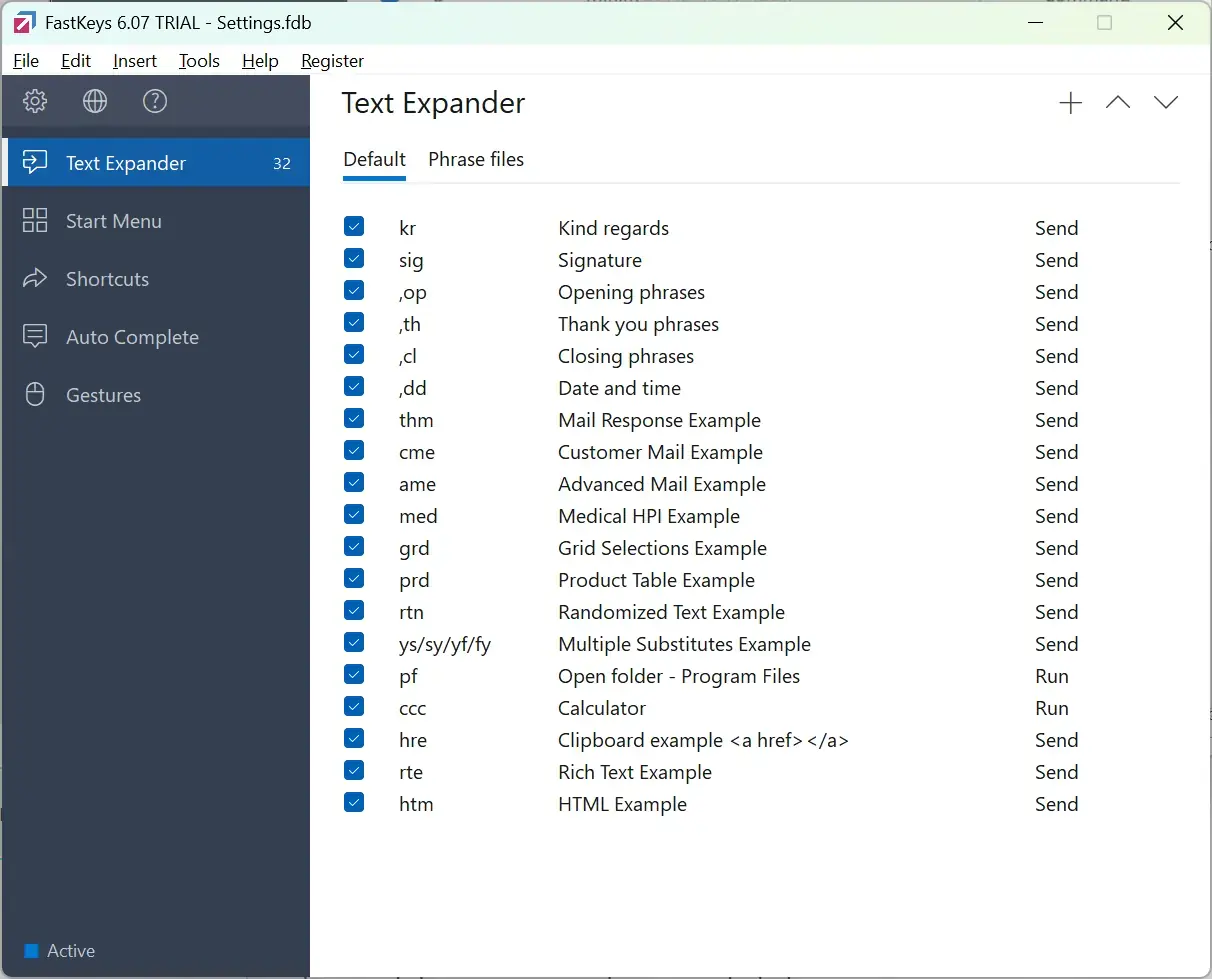
The main window already separates common jobs into Text Expander, Start Menu, Shortcuts, Auto Complete, and Gestures. Each section comes with examples that you can inspect and adapt.
FastKeys also has a Library of prepared commands. The Utility section, for example, includes actions for pasting without formatting, changing text case, removing unnecessary spaces, copying selected text, opening selected text in Notepad, and creating folders in File Explorer.
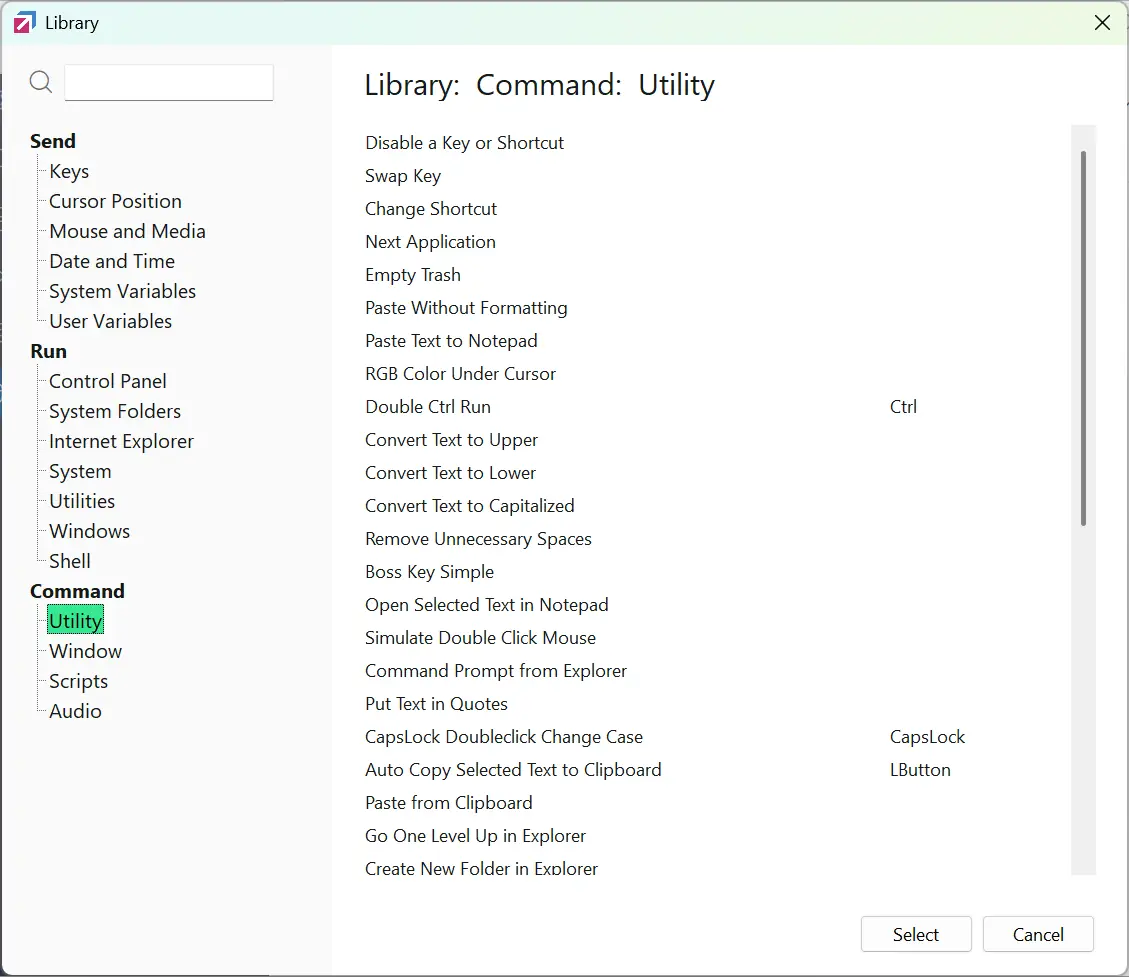
I like this because the examples are useful even before you configure anything.
With AutoHotkey, I normally start with a problem: I keep doing this manually—can I write a shortcut for it? Then I create or search for the code.
FastKeys can work the other way around. You browse the Library or the built-in examples, see something useful, and realize that a repetitive step in your own workflow could disappear.
For an office user who wants to save time rather than turn automation into a hobby, that is a meaningful advantage.
Mouse gestures are one of FastKeys’ most interesting extras
Mouse gestures were one of the features that caught my attention immediately.
I normally use StrokesPlus.net for gestures. They let me draw a simple movement with the mouse and trigger an action without reaching for a keyboard shortcut.
FastKeys includes this directly. Its example gestures can minimize the active window, mute the volume, go up one folder in File Explorer, open Calculator, launch Word, or trigger other commands.
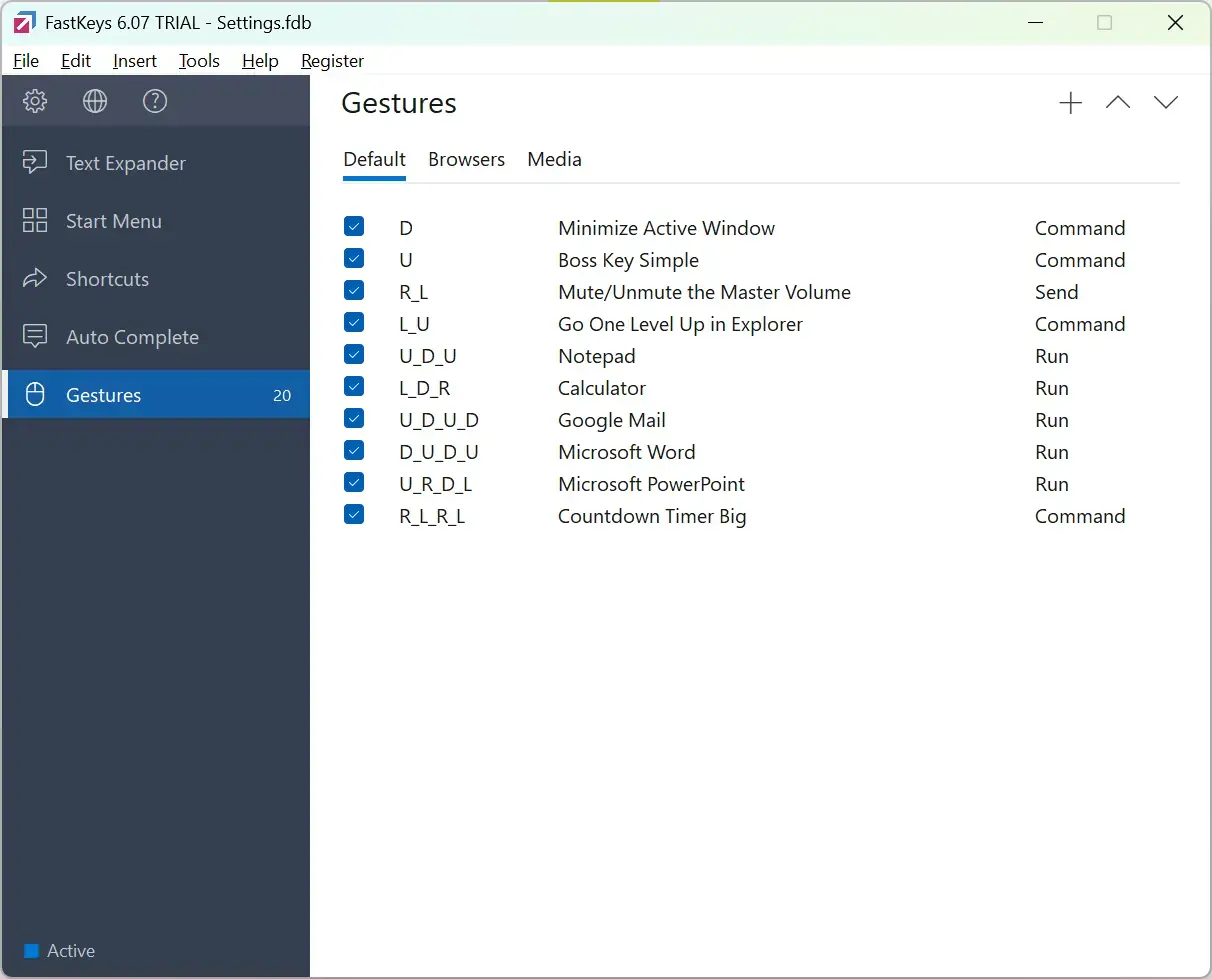
You can also build mouse-gesture systems with AutoHotkey. The difference is that with FastKeys, the gesture system and its configuration screen are already there.
This is where FastKeys starts to make more sense than buying several tiny utilities. Text expansion alone may not justify another application. Text expansion plus shortcuts, gestures, clipboard tools, macros, and menus is a much stronger package.
FastKeys also includes a Windows macro recorder
If your idea of automation is “do these same clicks and keystrokes again,” FastKeys has another useful advantage: a built-in Macro Recorder.
You perform the task once and FastKeys records keystrokes, mouse clicks, window actions, and timing. You can then replay or edit the sequence.
AutoHotkey users are not limited to writing every macro by hand either. If you have searched for an AutoHotkey macro recorder, you may have come across Pulover’s Macro Creator. It is a separate AutoHotkey-based application with its own recorder, and it can export recorded macros as AutoHotkey scripts.
So I would not describe recording as something only FastKeys can do. The practical advantage is that FastKeys includes the recorder in the same application as its shortcuts, text expansion, gestures, and other automation tools.
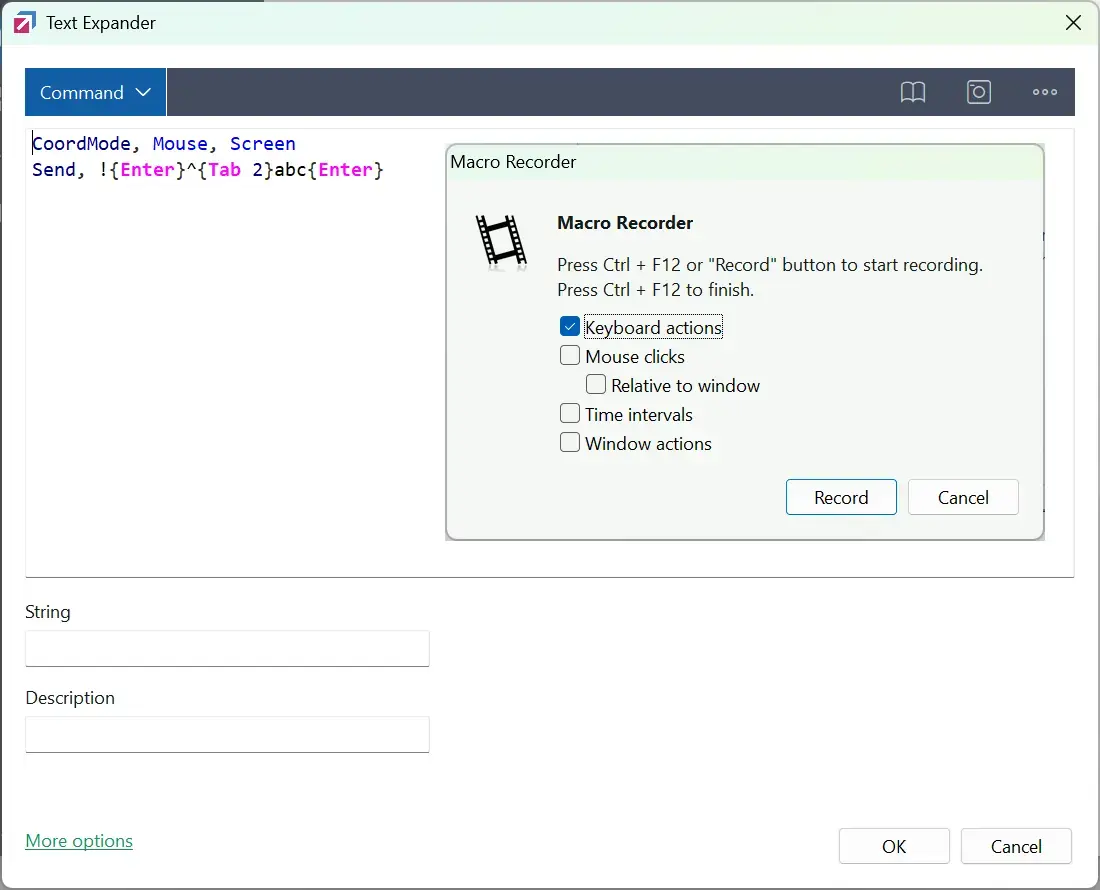
This can be much quicker than writing a script for a short routine. But recording a task does not automatically make it reliable.
Imagine a macro that right-clicks an item, moves through a menu, waits for a dialog, and confirms an option. It may work perfectly today and fail tomorrow because the menu changed, another window had focus, or the dialog took an extra second to open.
Use recorded macros for predictable routines and test them under slightly different conditions. If the macro starts accumulating waits, exceptions, and fixes, it may be time to ask whether a script would now be clearer.
FastKeys is not limited to simple automations
Do not mistake the graphical interface for a hard limit on what FastKeys can do.
The built-in examples already go beyond static snippets. FastKeys documents conditions, variables, calculations, Excel and text lookups, forms, and Grid Selection.
Grid Selection is a good example. You can present a group of radio buttons or checkboxes, let the user choose options, and then use those choices to create an output or feed later logic.
That means an “advanced” workflow is not automatically a reason to switch to AutoHotkey.
The more useful question is: is FastKeys still helping me build this faster, or would the logic now be easier to understand as a script?
When I would choose AutoHotkey instead
AutoHotkey still feels more natural to me when the custom logic is the important part of the automation.
I would normally lean toward AutoHotkey when:
- the result depends on what is currently in the clipboard;
- the shortcut needs to behave differently depending on the active window;
- I need to extract, clean, validate, or transform data;
- the workflow contains unusual conditions or exceptions;
- I want the whole automation stored as readable source code; or
- I already know exactly how to solve the task in AutoHotkey.
For example, I use AutoHotkey to transform copied Windows paths and URLs before pasting them elsewhere. I explain that workflow in my Espanso vs AutoHotkey comparison, so I will not repeat the same code here.
The advantage of AutoHotkey is not simply that it can do more. It is that the script itself is the automation. I can read it, search it, back it up, compare changes, and adjust exactly the part of the logic that needs to change.
AI makes AutoHotkey much easier to build with
There is one big reason I would not judge AutoHotkey’s learning curve the same way I did a few years ago: AI.
Many of my own AutoHotkey scripts grew little by little over years. I learned enough to add another shortcut, another condition, or another exception each time I needed one.
If I were building the same system today, I could move much faster. I can describe a workflow to an AI assistant and ask for a first AutoHotkey v2 script. I can paste in an existing script and ask it to add a feature, explain an error, simplify repeated code, or help me change how one part works.
This makes some automations realistic that I probably would not bother writing from scratch by hand. Instead of spending hours learning the syntax for a one-off idea, I can start with a working draft and improve it through several short iterations.
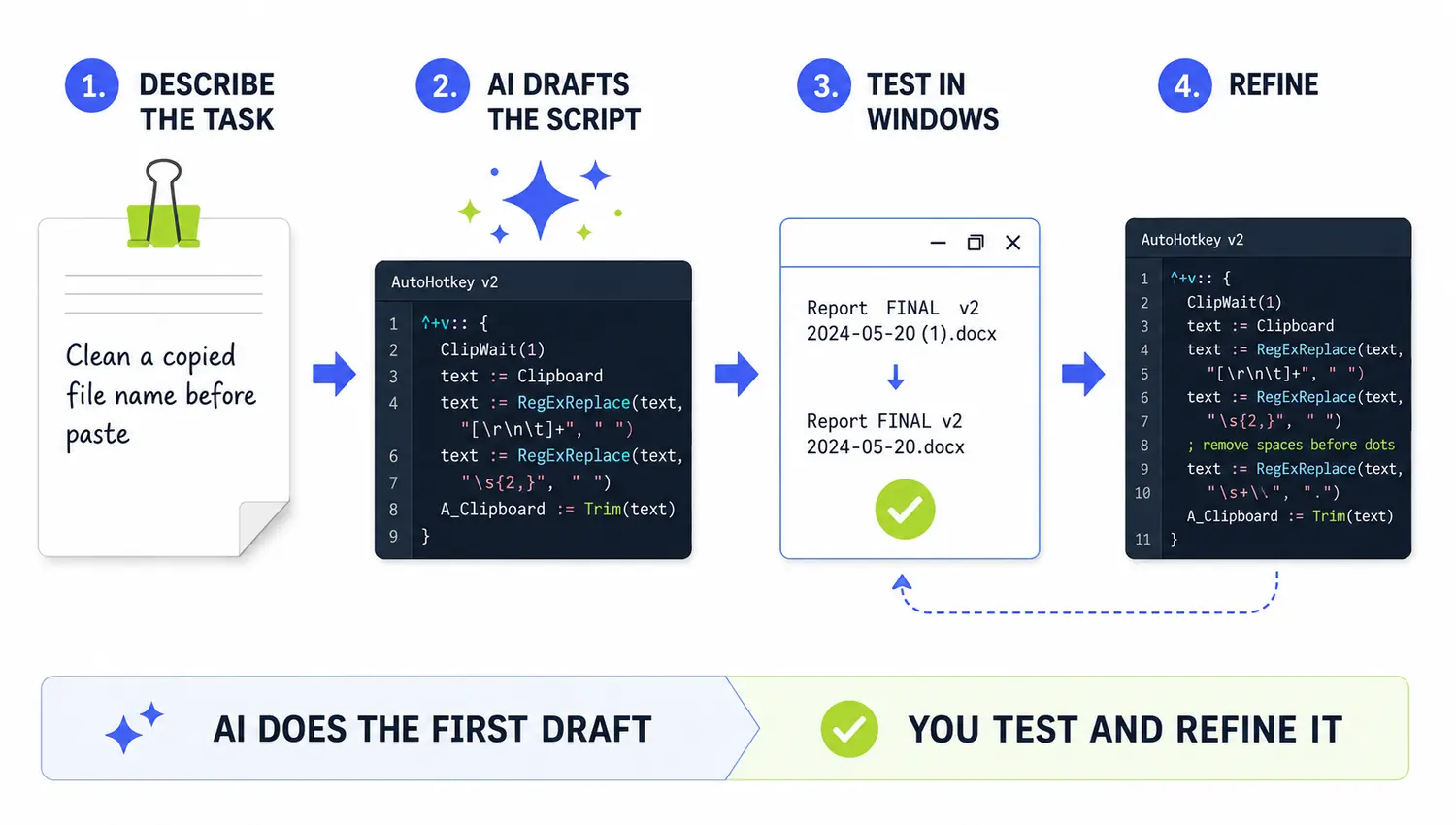
AI does not make testing optional. A generated script can still misunderstand the requirement, use the wrong command, or behave differently in the real application. I still want to understand what the script is supposed to do and test it with real inputs before trusting it.
But it changes the comparison with FastKeys. If your main reason for avoiding AutoHotkey is “I don’t want to become a programmer,” that barrier is much lower than it used to be.
FastKeys still has the advantage of showing you useful features and examples without having to invent the automation first. AutoHotkey plus AI has a different advantage: once you can describe the workflow clearly, you can create and change custom code much faster than before.
Is FastKeys a good AutoHotkey alternative?
For many Windows office users, yes.
If you mainly want hotkeys, text expansion, mouse gestures, menus, clipboard tools, and repeatable macros, FastKeys can cover a lot of the same practical territory while giving you an interface and prepared examples to work from.
I would not call it a direct replacement for every AutoHotkey user, though. AutoHotkey is still a better fit if you want a free, open-source scripting tool, if your workflows depend heavily on custom code, or if you already have a collection of scripts that works well.
And AI makes that last group larger than it once was. You no longer have to choose between “use a GUI” and “write every line yourself.”
If FastKeys already does the job in a way you find easy to maintain, the fact that the same result could be recreated in AutoHotkey does not make the script automatically better. The reverse is also true: if an AI-assisted script takes ten minutes to create and is easy for you to understand, recreating it through several configuration screens may not be an improvement.
FastKeys becomes more interesting for teams and companies
For one person, I would mainly compare convenience, flexibility, and price. For several employees, another problem appears: who maintains all these automations?
As checked on August 17, 2026, FastKeys listed perpetual Personal and Professional licenses at $29 and $39, with Enterprise pricing available by quote. Workplace users should check which license applies to their use rather than assuming that the Personal edition covers business use.
The Professional edition adds team settings sharing and advanced automation features, while FastKeys Enterprise goes further with centralized deployment, a Corporate Policy Manager, shared settings kept separate from private settings, administrative controls, and usage reporting.
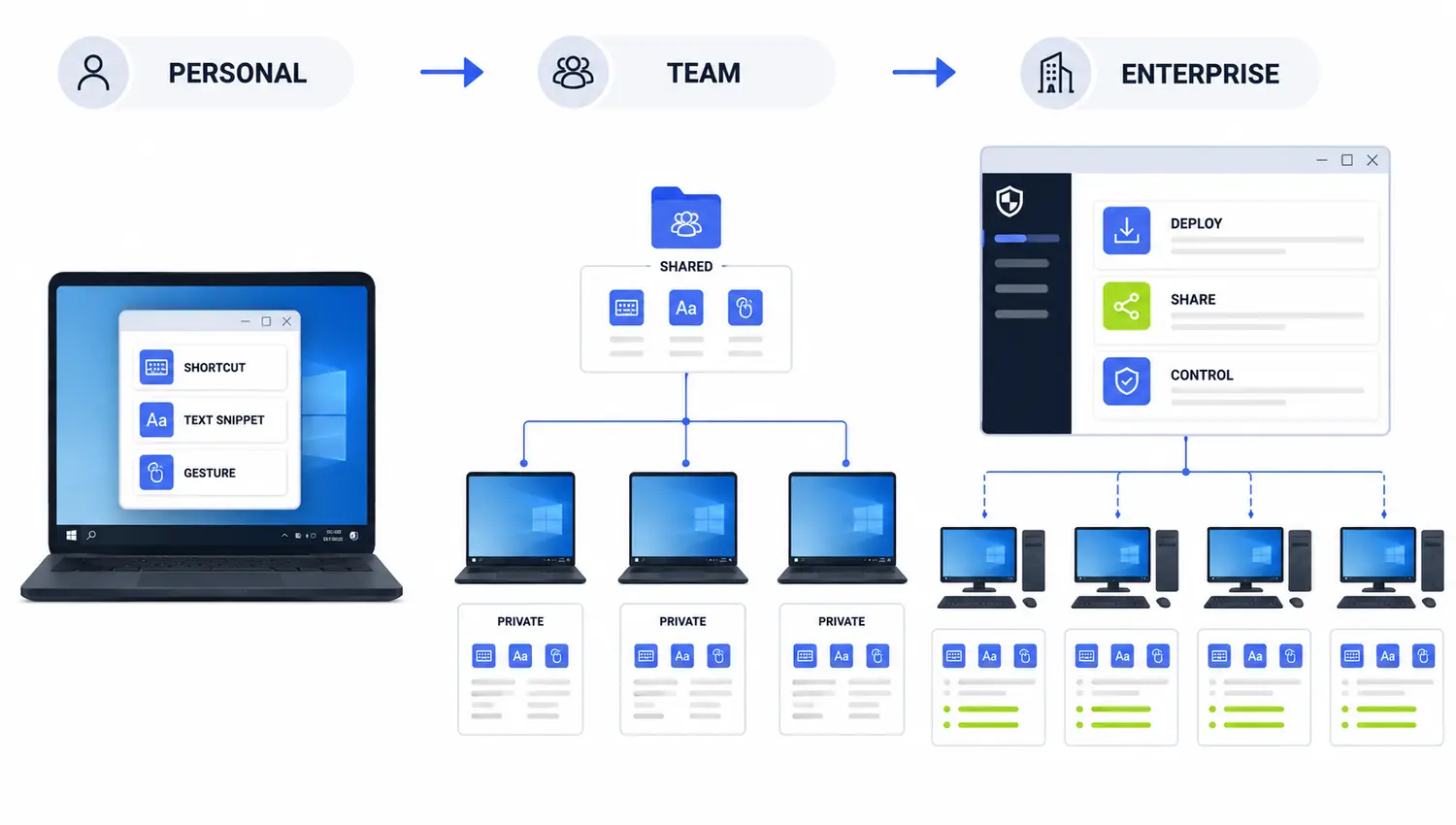
You can also manage AutoHotkey scripts inside a company. A technical team could keep them in Git, review changes, and distribute them with existing IT tools.
The difference is that AutoHotkey does not provide that management layer as a ready-made product.
This makes FastKeys particularly interesting if the goal is not just “automate my own PC,” but “give several colleagues useful Windows automations without expecting every colleague to maintain scripts.”
On a corporate PC, neither tool should be treated as automatically approved. Both can interact with windows, text, the clipboard, files, and applications. Follow your company’s software and data-handling rules even if the program itself can be installed or run easily.
Can FastKeys and AutoHotkey work together?
Yes. FastKeys can run external .ahk scripts, so you do not necessarily have to choose one tool for everything.
For example, FastKeys could handle discoverable shortcuts, gestures, text templates, and shared actions while an external AutoHotkey script handles one unusual workflow that is easier to express in code.
There is one compatibility detail if you use AutoHotkey v2. The latest explicit statement I found from FastKeys says that its built-in Command scripting still uses AutoHotkey v1 syntax.
That does not mean I would rewrite my existing AutoHotkey v2 scripts in v1. I would leave them as normal external v2 scripts. If I wanted FastKeys to trigger one of them, I would test launching that external script through my normal AutoHotkey v2 setup.
I would only move code into FastKeys’ internal Command field if I had a specific reason to do so and was happy to use the syntax FastKeys currently supports.
If you combine the tools, keep the division of work obvious. Avoid assigning the same hotkey in both applications, and keep external scripts somewhere you will still recognize six months later.
Which should you choose?
Choose FastKeys if:
- You prefer configuring automations through an interface rather than starting with code.
- You want examples and presets that can give you ideas.
- You want text expansion, shortcuts, gestures, clipboard tools, and macros in one application.
- A built-in macro recorder is useful to you.
- You are setting up automations for colleagues who do not want to maintain scripts.
- Sharing or enterprise administration matters.
Choose AutoHotkey if:
- You are comfortable reading scripts—or willing to use AI to help create and maintain them.
- You want direct control over custom Windows workflows.
- Your automation depends heavily on clipboard data, window state, transformations, or unusual conditions.
- You want your automations stored as plain source files.
- You already have an AutoHotkey setup that works well.
- You want a free, open-source tool and do not need FastKeys’ ready-made extras.
Use both if:
- FastKeys gives you a convenient front end for everyday actions.
- A few specialized workflows are easier to keep as AutoHotkey scripts.
- You can keep their hotkeys and responsibilities clearly separated.
If I were starting today and wanted a broad Windows automation tool without coding everything myself, I would try FastKeys first.
If I already knew AutoHotkey or mainly wanted a few highly customized workflows, I would probably stay with AutoHotkey—especially now that AI can do much of the tedious work involved in creating and modifying scripts.
What surprised me about FastKeys is how much it already brings together. The choice is less about which tool can technically do more and more about whether you want the software to provide the building blocks or prefer to shape the workflow yourself.
If your main need is text expansion rather than general Windows automation, see my Espanso vs AutoHotkey comparison. If you only want to paste text without formatting, PowerToys Paste as Plain Text may be all you need.
Want more practical Windows productivity tips? If you like simple ways to make everyday work faster, I share more practical Windows productivity tricks in the TurboTasking newsletter.

