

Most people use Microsoft Edge to read web pages. But Edge can also read them to you.
If you spend your day opening long articles, internal documentation, support pages, PDFs, tutorials, policies, or reports, Microsoft Edge Read Aloud is one of those built-in tools that feels almost too simple to matter. Then you start using it, and you realize it changes how you deal with long text.
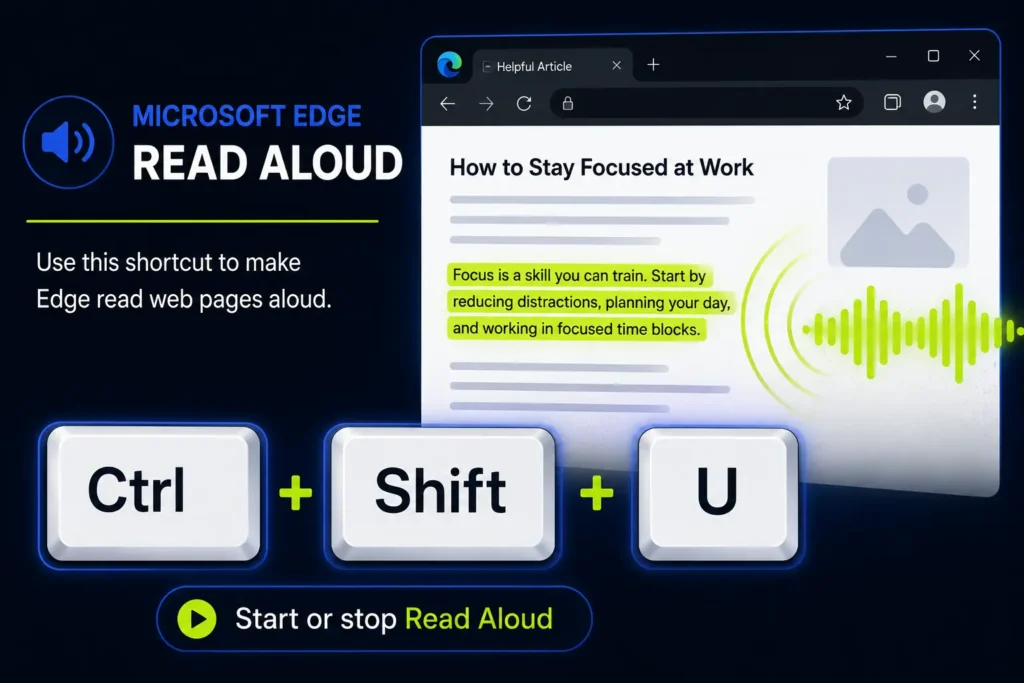
The key shortcut is simple: press Ctrl+Shift+U in Microsoft Edge to start or stop Read Aloud. That is the fastest way to make Edge read a web page aloud without installing an extension.
Use it when your eyes are tired, when you are following instructions in another app, or when you want to turn a long page into something closer to a mini audio briefing.
Key Takeaways
- Ctrl+Shift+U starts or stops Read Aloud in Edge.
- Reading Mode makes messy web pages easier to listen to.
- Read Aloud can also work with text-based PDFs.
- Select only the text you need when a page is too noisy.
- Use it to review writing, follow guides, and reduce screen fatigue.
In this article
The Edge Read Aloud shortcut
The Microsoft Edge Read Aloud shortcut on Windows is:
Ctrl+Shift+U
Open a web page in Edge, press the shortcut, and Edge starts reading the page aloud. Press it again to stop. Microsoft lists this shortcut in its official Microsoft Edge keyboard shortcuts page.
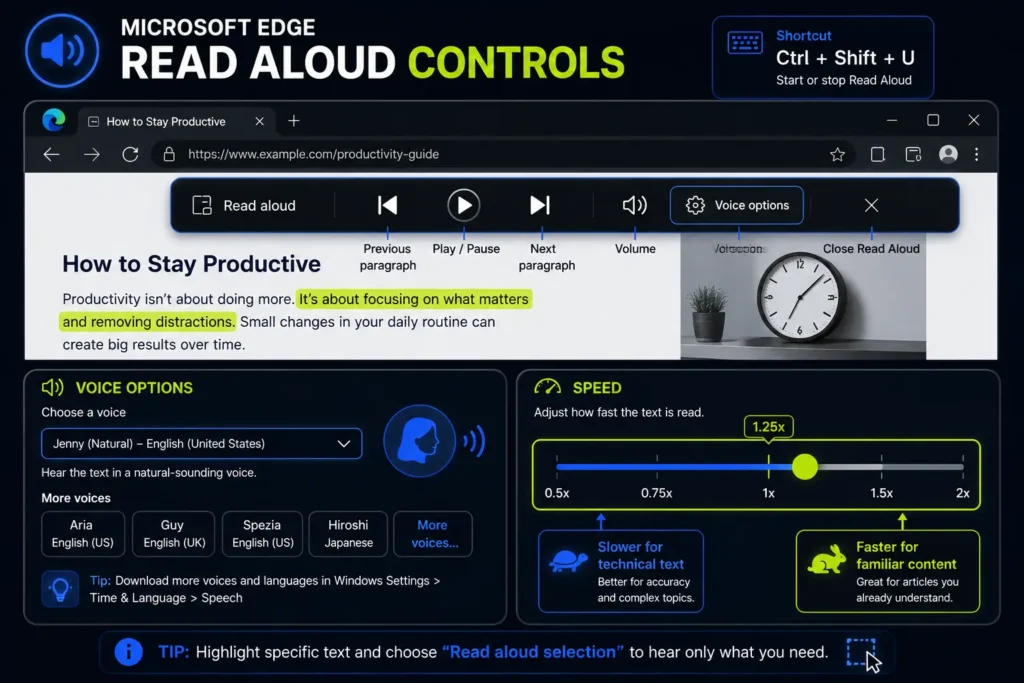
Once Read Aloud starts, a toolbar appears at the top of the browser. From there, you can pause, continue, skip to the next or previous paragraph, change the voice, and adjust the reading speed.
| Action | Shortcut or method |
|---|---|
| Start or stop Read Aloud | Ctrl+Shift+U |
| Enter or exit Reading Mode | F9 |
| Read selected text only | Select text, right-click, choose Read aloud selection |
| Open Read Aloud from the menu | Settings and more > More tools > Read aloud |
Three ways to start Read Aloud in Microsoft Edge
There are three practical ways to use Read Aloud in Edge. The best one depends on what kind of page you are reading.
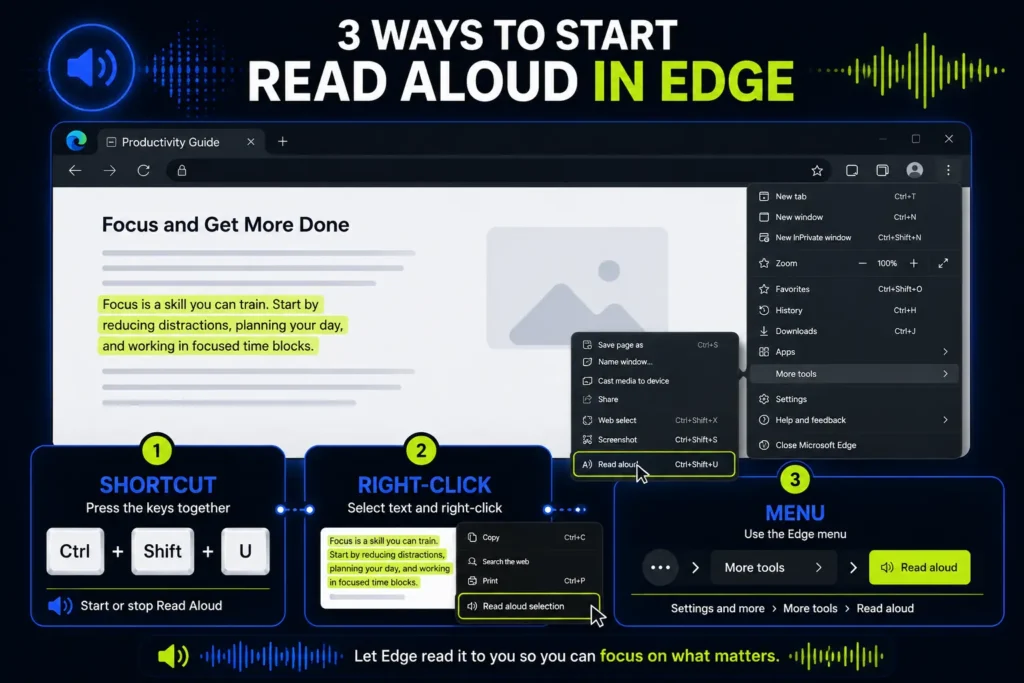
1. Use Ctrl+Shift+U for the whole page
This is the fastest option. Open the page, press Ctrl+Shift+U, and Edge starts reading.
Use this when the page is clean and article-like: blog posts, help pages, documentation, long emails opened in the browser, knowledge base articles, and standard web pages with a clear main text area.
2. Select text and use Read aloud selection
If the page has too much navigation, sidebars, comments, cookie banners, ads, or unrelated blocks, do not let Edge guess what matters. Select the exact paragraph or section you want to hear, right-click it, and choose Read aloud selection.
This is often the best method for work pages. You can make Edge read only the part you actually need, instead of listening to the page header, menu, footer, and every unrelated link.
3. Use the Edge menu
You can also open Read Aloud from the Edge menu: Settings and more > More tools > Read aloud. Microsoft documents this method on its official Microsoft Edge Read aloud feature page.
I rarely use the menu because the shortcut is faster. But it is useful if you forget the shortcut or want to show someone else where the feature lives.
Use Reading Mode first when the page is messy
Read Aloud works best when Edge can clearly identify the main text. If a page is cluttered, try Reading Mode first.
Press F9 on a supported page to enter Reading Mode. This removes much of the visual noise and gives you a cleaner reading surface. Microsoft explains that Reading Mode can simplify supported web pages and includes tools like Read Aloud, Translate, and appearance settings in its Reading Mode documentation.
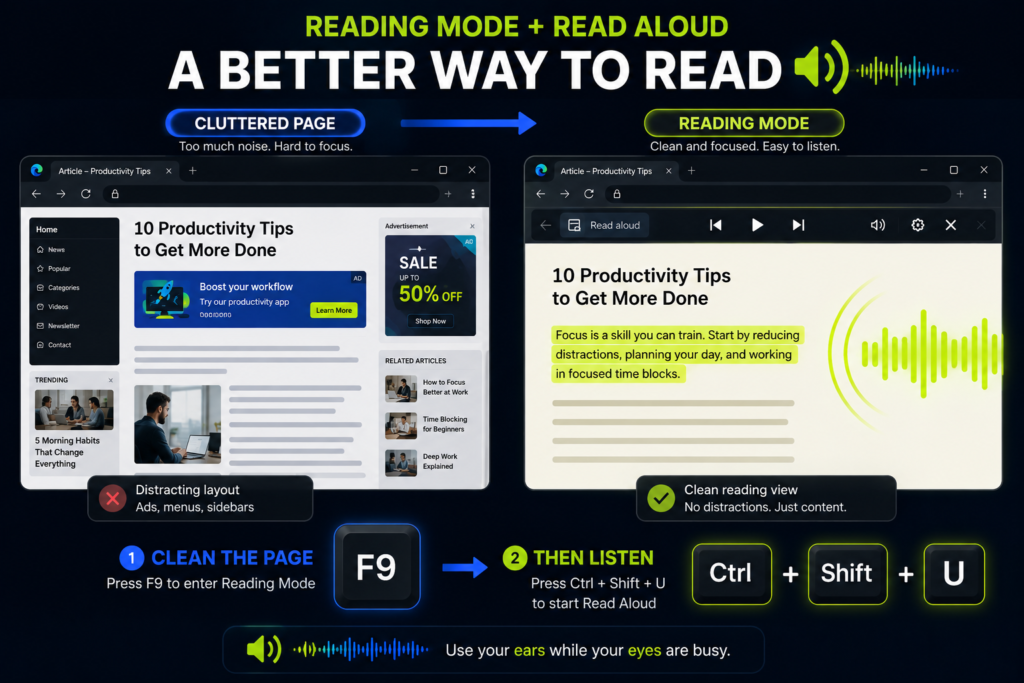
My preferred workflow is:
- Open the page in Edge.
- Press F9 if Reading Mode is available.
- Press Ctrl+Shift+U to start Read Aloud.
- Adjust the speed and voice if needed.
- Continue working, taking notes, or following the content visually.
This combination is especially useful for long articles, documentation, tutorials, policies, and support pages. Reading Mode makes the page calmer. Read Aloud makes it easier to keep moving through the text.
Use Edge Read Aloud with PDFs
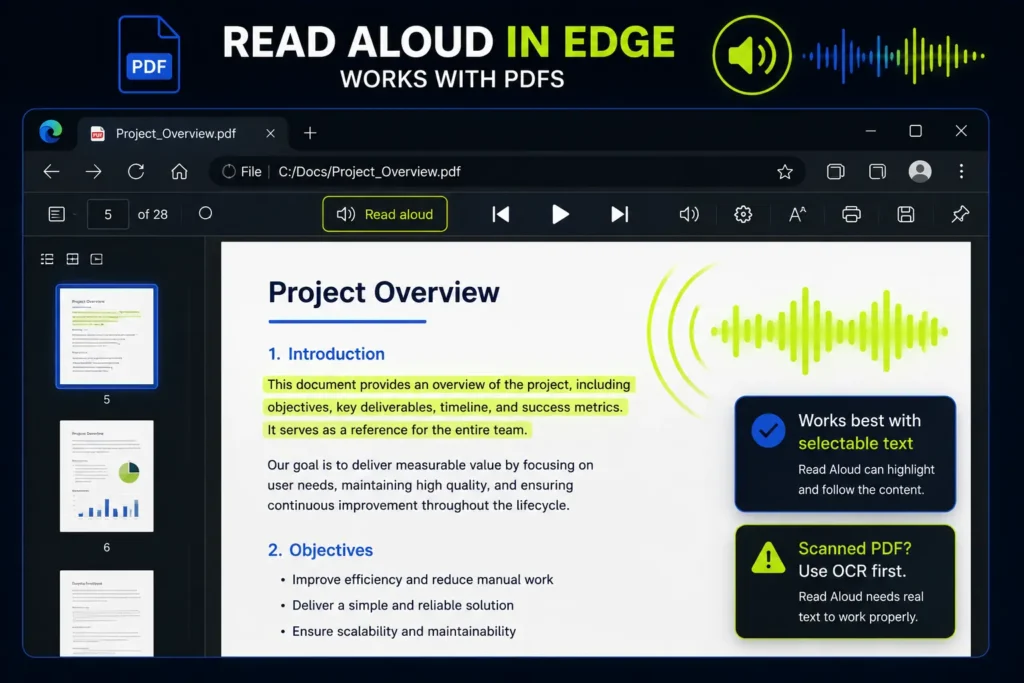
Microsoft Edge can also read PDFs aloud. Open a PDF in Edge and use the Read aloud option in the PDF toolbar. Microsoft describes Read Aloud as one of the built-in PDF reader features in Edge in its Microsoft Edge PDF reader documentation.
This is useful for:
- Reports
- Whitepapers
- Manuals
- Contracts
- Training material
- Product documentation
There is one important limitation: the PDF needs to contain real selectable text. If the PDF is just a scan or a set of images, Read Aloud may not have text to read. In that case, you may need OCR first.
A quick test: try selecting a sentence in the PDF. If you can select the words, Edge has text to work with. If you can only select a rectangular image area, it is probably a scanned PDF.
The best office use cases
Read Aloud is not just an accessibility feature. It is a practical productivity tool for office work. These are the situations where it helps most.
1. Listen to long documentation while doing small tasks
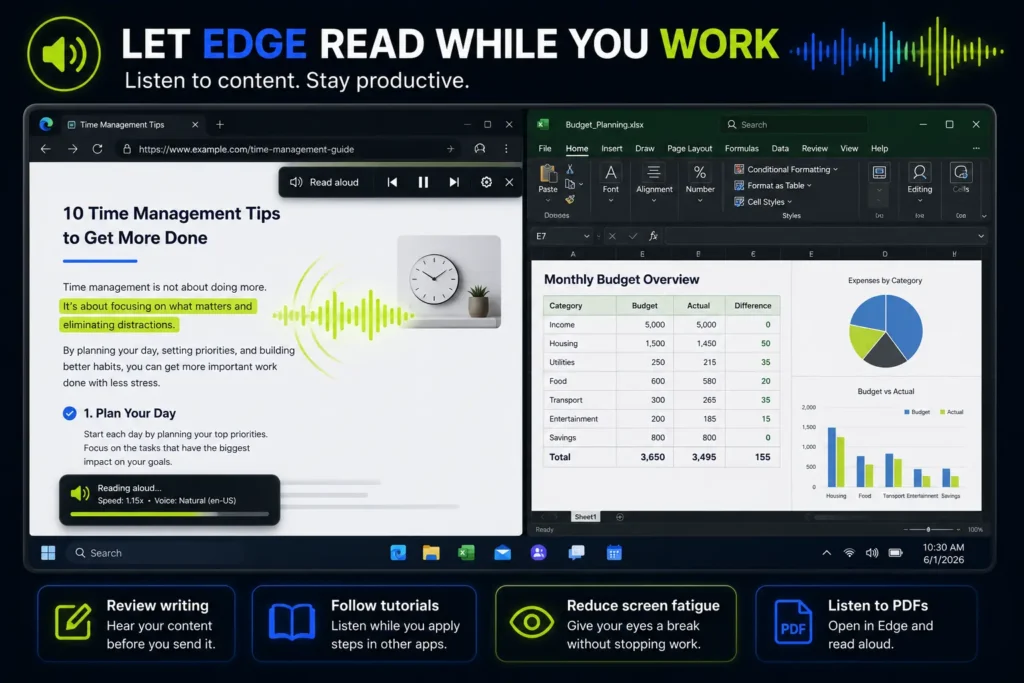
Some work pages need attention, but not full visual attention. Think of policy updates, release notes, internal documentation, long support articles, or vendor instructions.
Instead of staring at the page from start to finish, let Edge read it while you clean up your downloads folder, organize files, update a simple spreadsheet, or prepare notes.
2. Proofread your own writing
Reading your own text silently is dangerous because your brain fills in what you meant to write. Listening to it makes awkward sentences much more obvious.
Use Read Aloud before publishing a blog post, sending a long email, submitting documentation, or sharing a proposal. If a sentence sounds strange when Edge reads it, rewrite it.
This is one of the best uses of Read Aloud because it catches different problems than spellcheck: repeated words, unnatural phrasing, missing transitions, and sentences that are simply too long.
3. Follow instructions while working in another app
Read Aloud is perfect for step-by-step guides. Put Edge on one side of the screen and the app you are working in on the other side.
For example, Edge can read a tutorial while you apply the steps in Excel, Outlook, Windows Settings, PowerPoint, SharePoint, or an admin portal. You do not need to constantly switch your eyes between the instructions and the app.
4. Reduce screen fatigue
Not every productivity trick needs to make you faster in a direct way. Sometimes the win is simply using less visual energy.
If you have already spent hours reading emails, spreadsheets, chats, and documents, listening to a page can be easier than reading another wall of text manually.
5. Improve reading in a second language
If you often read work material in another language, Read Aloud can help you connect written words with pronunciation. This is useful for documentation, company pages, product manuals, and international support articles.
For language-heavy pages, keep the speed slower at first. Once you understand the topic, increase the speed slightly.
Voice and speed settings worth changing
After Read Aloud starts, open Voice options in the toolbar. You can change the voice and adjust the reading speed.
For normal work pages, I would start around the default speed. For content you already understand, try increasing the speed slightly. For technical documentation, legal text, or second-language material, keep it slower.
Microsoft says Read Aloud can work online and offline, but only some voices are available offline. If you need more text-to-speech voices in Windows, Microsoft explains how to install additional language and voice packs in its language and voice download guide.
When Read Aloud is not the right tool
Read Aloud is useful, but it is not magic. It works best with normal text. It is less useful for pages where structure matters more than sentences.
I would not rely on it for:
- Large tables
- Code snippets
- Dashboards
- Navigation-heavy web apps
- Scanned PDFs without OCR
- Pages where every word needs careful legal or financial review
For those cases, use Read Aloud as a first pass, not as your only review method.
Quick troubleshooting
If Microsoft Edge Read Aloud does not behave as expected, try these fixes:
- Try selected text: select only the paragraph you want and choose Read aloud selection.
- Try Reading Mode: press F9 on supported pages to remove clutter first.
- Check the page: some web apps and dynamic pages are harder for Edge to read cleanly.
- Check the PDF: make sure the PDF contains selectable text, not just scanned images.
- Check audio: make sure the tab, browser, output device, and Windows volume are not muted.
- Try another voice: if one voice has problems, switch to another voice in Voice options.
- Update Edge: browser updates can affect PDF and Read Aloud behavior.
My recommended workflow
If you only remember one workflow, use this one:
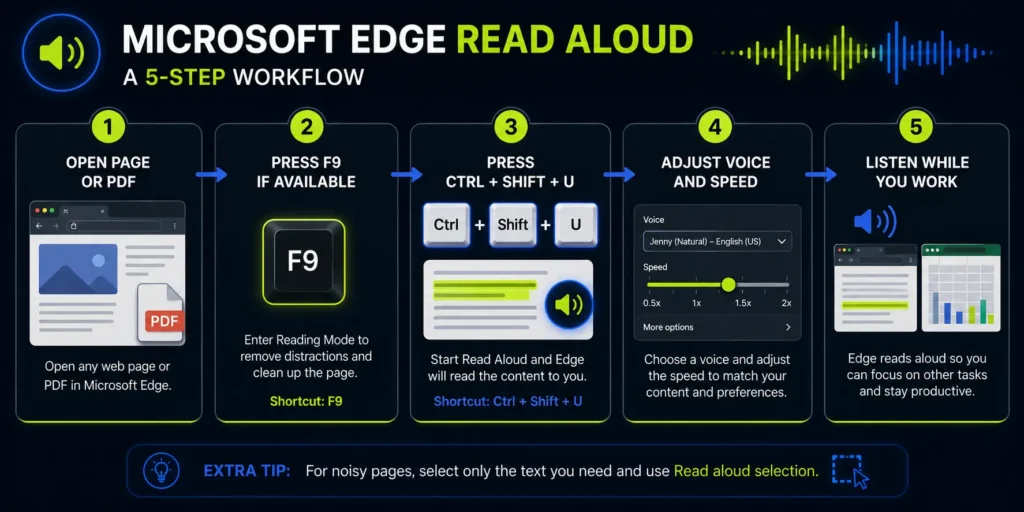
- Open the page or PDF in Microsoft Edge.
- If it is a web page and Reading Mode is available, press F9.
- Press Ctrl+Shift+U to start Read Aloud.
- Open Voice options and adjust the speed.
- If the page is noisy, select only the section you need and use Read aloud selection.
This turns Edge into a lightweight reading assistant. No extra app. No browser extension. No complicated setup.
Final takeaway
Microsoft Edge Read Aloud is not a flashy feature, but it is one of the easiest ways to make long web pages and PDFs less tiring.
Use Ctrl+Shift+U when you want Edge to read the current page. Use F9 first when the page is messy. Use Read aloud selection when you only need one specific part.
The productivity trick is simple: stop forcing your eyes to do all the work. When the task is mostly reading, let Edge read it aloud.
Want more practical Windows productivity tips? If you like simple ways to make everyday work faster, I share more practical Windows productivity tricks in the TurboTasking newsletter.


