

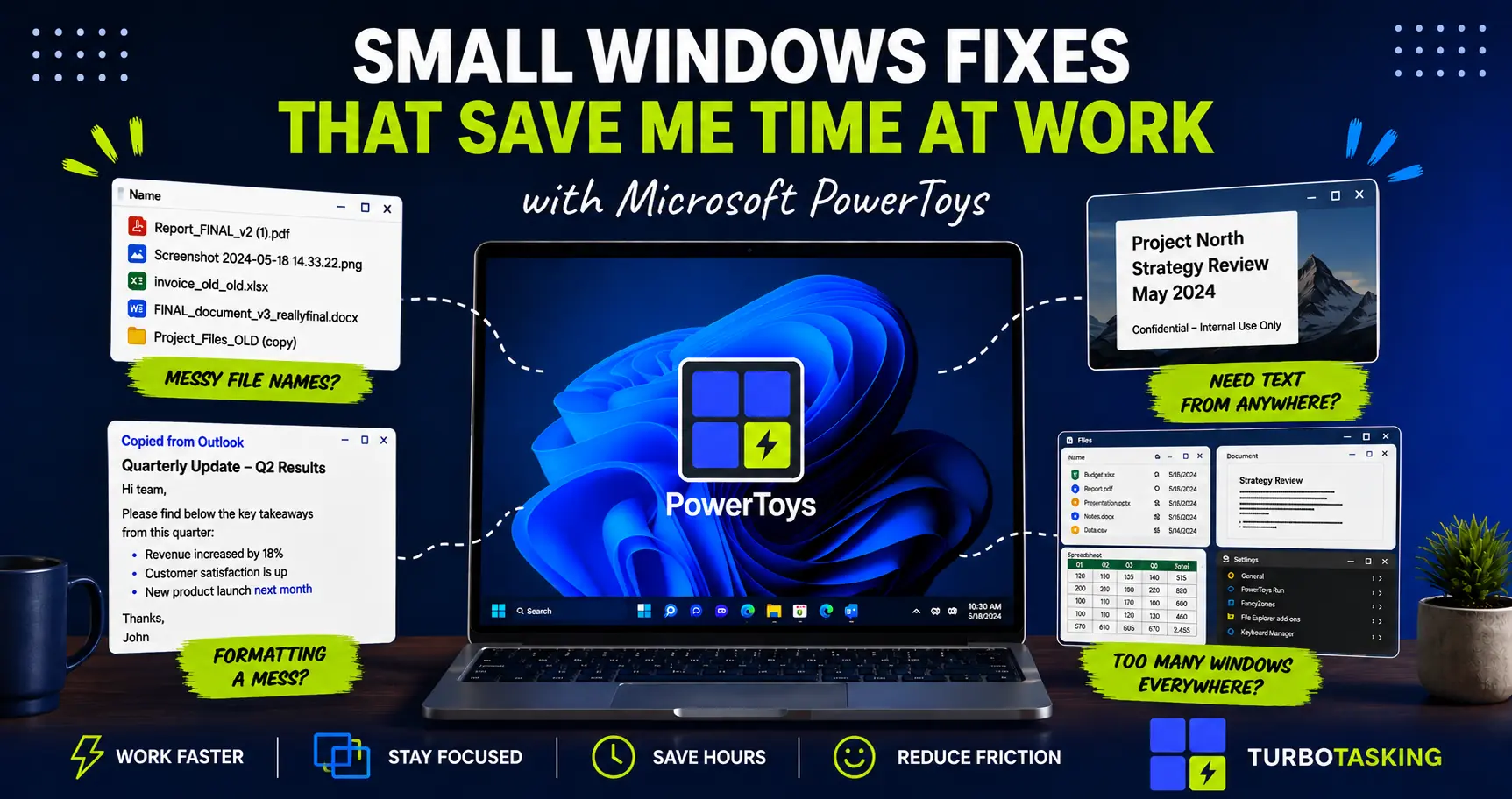
I installed Microsoft PowerToys for a few small Windows tweaks. Now I can’t imagine working without it.
It is especially useful on a corporate Windows laptop, where you usually cannot just install any random productivity app you find online.
PowerToys feels different. It is made by Microsoft, it is free, it integrates directly into Windows, and it solves many of the small daily annoyances that quietly waste time during office work.
Renaming files. Pasting text without broken formatting. Extracting text from screenshots. Launching apps faster. Keeping a reference window visible. Organizing windows across monitors.
None of these sound dramatic on their own. But if you work in Windows all day, these tiny frictions add up.
And PowerToys keeps getting better. Microsoft continues to add and improve utilities over time, which means it is not just an old Windows tweak pack. It is an active set of tools that can keep surprising you with small workflow improvements.
In this guide, I’ll explain what Microsoft PowerToys is, why I think it is worth considering for office work, and which utilities have actually made a difference in my own Windows workflow.
In this article
What Is Microsoft PowerToys?
Microsoft PowerToys is a free collection of Windows utilities.
PowerToys adds small missing features to Windows that many office workers wish had been built in by default.
It is not one single productivity app. It is more like a toolbox. You install PowerToys once, then enable the specific tools you want to use.
Some tools help with files. Some help with windows. Some help with text. Some help with shortcuts. Some are probably irrelevant to you.
You do not need to use every PowerToys utility for it to be worth installing. In my case, a handful of tools are enough to justify having it on my Windows machine.
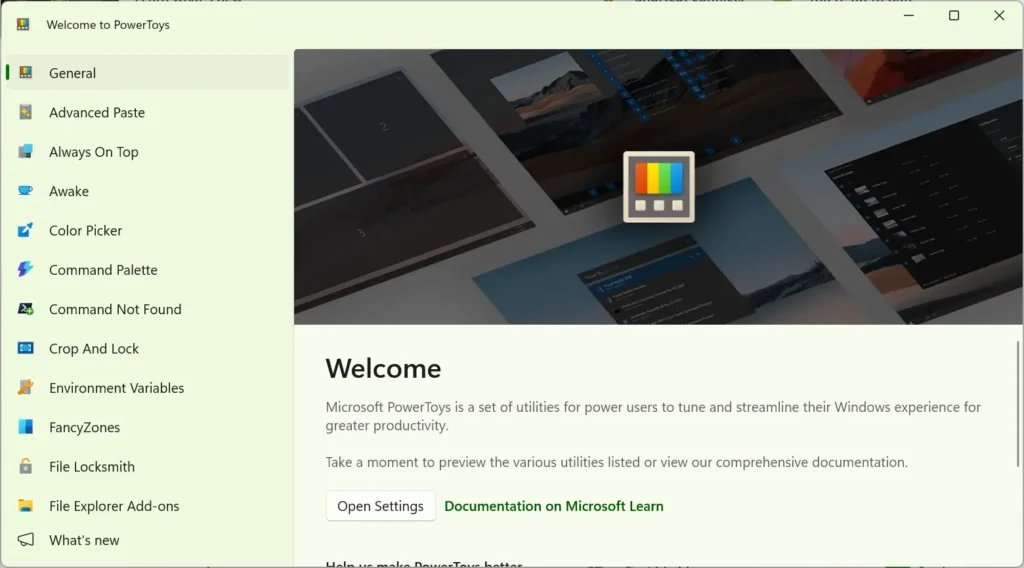
PowerToys is available from Microsoft and is actively maintained. Microsoft’s own documentation describes it as a set of utilities for customizing Windows and streamlining everyday tasks, with more than 25 utilities listed: Microsoft PowerToys documentation.
Why PowerToys Feels Different From Most Productivity Tools
There are thousands of productivity tools for Windows. Many of them are useful, but not always recommended for a corporate environment.
If you work on a company laptop, you may have to think about things like:
- whether you are allowed to install the app,
- whether IT will block it,
- whether the app looks trustworthy,
- whether it sends data somewhere,
- whether it will keep working after the next Windows update,
- and whether it is worth asking for approval.
This is where PowerToys has a real advantage.
Because it comes from Microsoft, it feels much less like “random software from the internet” and much more like an optional extension of Windows itself.
That does not automatically mean every company will allow it. Some corporate laptops are heavily locked down, and your IT policy always comes first.
But compared with many third-party productivity apps, PowerToys is much easier to justify. It is free, well known, documented by Microsoft, and focused on improving the Windows experience rather than replacing it.
That is one reason I like it for office work. It solves real productivity problems without feeling like a risky workaround.
The PowerToys Features I Actually Use for Office Work
PowerToys includes many utilities, but I would not recommend trying to learn all of them at once.
That is the fastest way to turn a useful toolbox into another distraction.
Instead, I would start with the tools that remove frequent office annoyances. These are the ones I find easiest to recommend because they solve problems that come up again and again in real work.
PowerRename
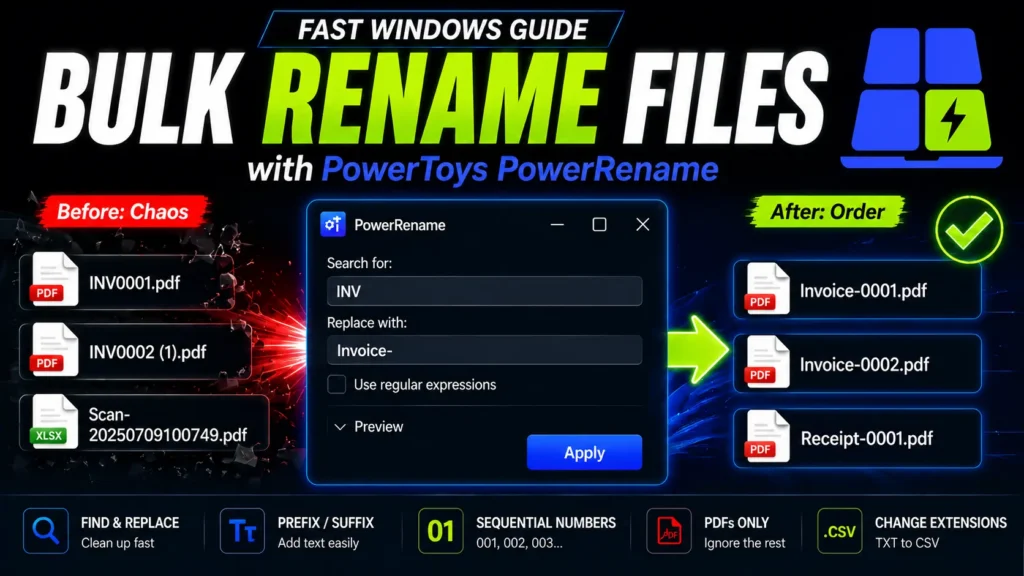
PowerRename is one of the clearest examples of a PowerToys utility that can save serious time in normal office work.
If you have ever renamed a folder full of files one by one, you already understand the problem.
Maybe you need to clean file names before sending documents to a client. Maybe you need to add dates or remove a repeated prefix. Or you downloaded files with ugly names and want to make them readable.
PowerRename lets you apply bulk renaming rules directly from File Explorer.
For example, you can search for part of a file name and replace it across many files at once. You can preview the result before applying it, which makes it much safer than manually changing dozens of file names while hoping you do not make a mistake.
This is not a tool I use every hour. But when I need it, it can turn a boring 15-minute task into a 30-second workflow.
You can also check my dedicated guide about PowerRename.
Paste as Plain Text and Advanced Paste
Copying text should be simple. In office work, it often is not.
You copy something from a website, Teams, Outlook, a PDF, or a document, then paste it somewhere else. Suddenly the font is wrong, the spacing is broken, the bullet points look strange, or the background color came with it.
This is exactly the kind of tiny problem that does not feel important until it interrupts you ten times a day.
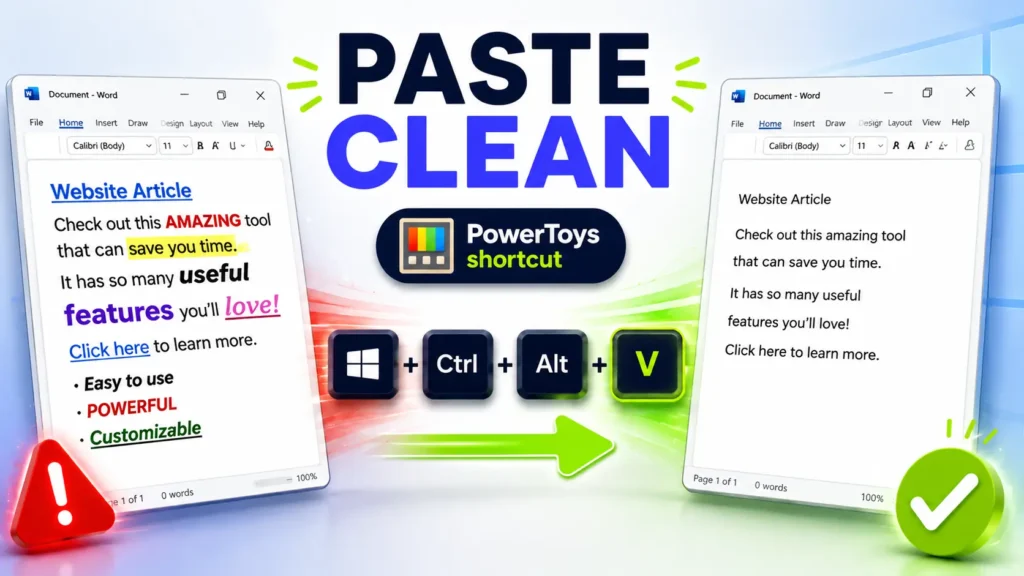
PowerToys includes clipboard-related tools that can help here, including options to paste as plain text and Advanced Paste features for transforming clipboard content.
The most practical everyday use is simple: copy formatted text, paste it cleanly, and continue working.
For office workers, this is one of the easiest PowerToys wins. It does not require a complex workflow. It just removes formatting friction from everyday copy and paste.
If your work involves copying text between emails, documents, browsers, chat tools, and internal systems, this may become one of the PowerToys features you use most.
Text Extractor
Text Extractor is useful when the text you need is visible on screen but not easy to copy.
That could be text inside:
- a screenshot,
- a locked PDF,
- an image in a presentation,
- an error message,
- a scanned document,
- or a system window where normal copy and paste does not work.
Instead of retyping the text manually, you can select the area and extract the text using OCR.
This is another example of why I like PowerToys for office work. It does not feel flashy, but it removes a very real annoyance.
If you deal with screenshots, PDFs, support tickets, internal tools, scanned documents, or slide decks, Text Extractor can be surprisingly useful.
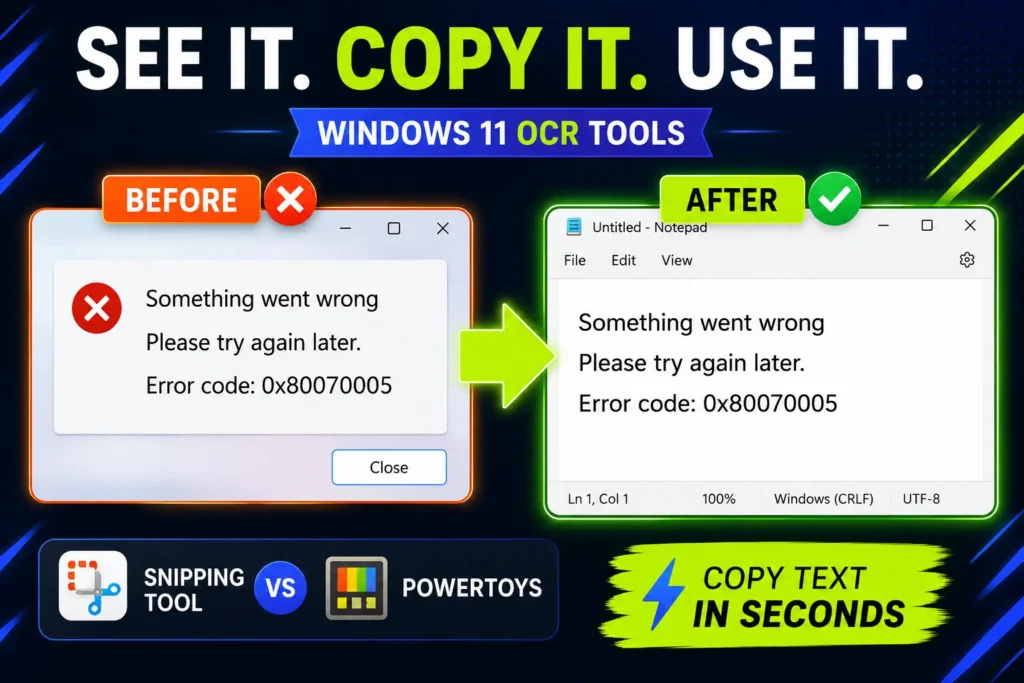
One small caveat: OCR is not magic. You should still review the extracted text, especially for numbers, names, codes, and anything you will send to someone else.
PowerToys Run and Command Palette
PowerToys Run is a quick launcher. It lets you open apps, search, run commands, and perform small actions from the keyboard.
For me, one of the most useful everyday details is using it for quick calculations. Instead of opening the Calculator app for a small calculation, I can type the calculation directly and move on.
That sounds tiny. But that is the whole point of PowerToys. It removes small steps from things you already do.
Microsoft has also been developing Command Palette, a newer interface for accessing commands, apps, and tools.
The practical idea is simple:
PowerToys can give you a faster keyboard-first way to open things, search for things, and run small actions without reaching for the mouse.
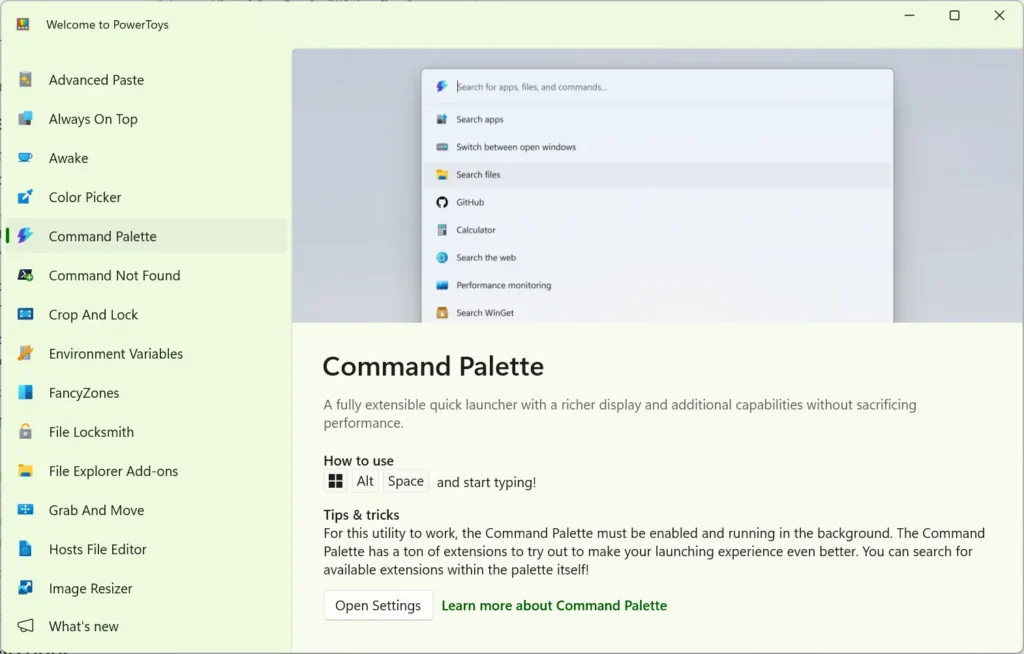
I may cover PowerToys Run and Command Palette separately because this is one area where Microsoft keeps improving the experience. If you use either of them heavily, let me know what you use them for.
FancyZones
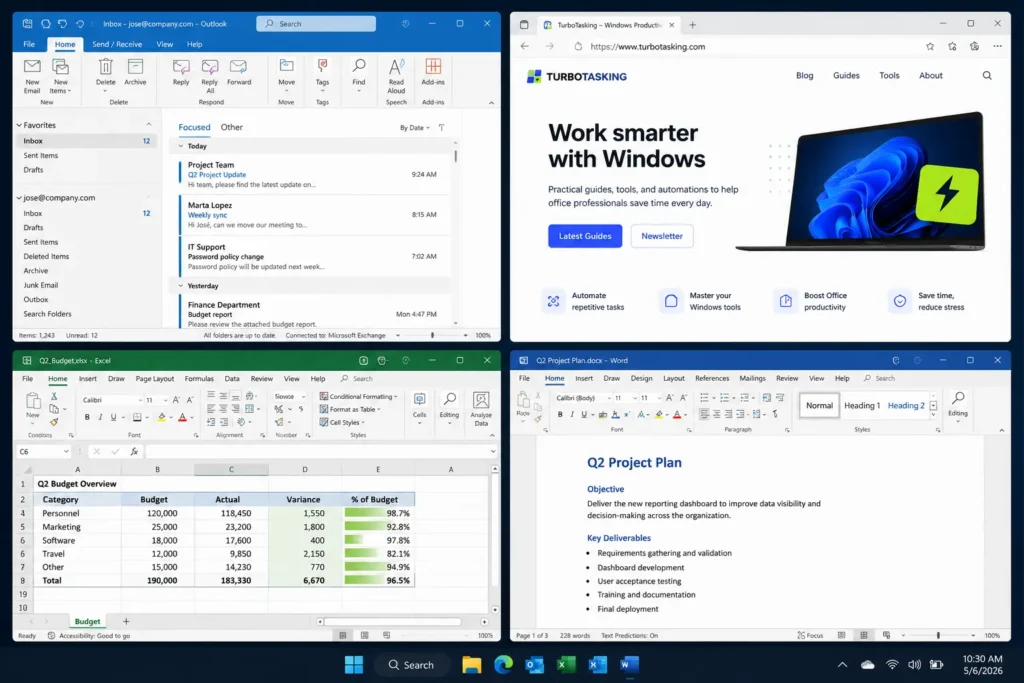
FancyZones helps you create custom window layouts.
If you use a large monitor, an ultrawide monitor, or multiple screens, this can be useful. Instead of manually resizing windows every time, you can define zones and snap windows into them.
This is especially useful if you often work with the same layout. For example:
- browser on the left, document on the right,
- email on one side, spreadsheet on the other,
- reference material above, writing area below,
- chat, calendar, and main work window arranged predictably.
I would not say every office worker needs FancyZones. Windows already has decent snapping features, and for many people that is enough.
But if you constantly rearrange the same windows, FancyZones can make your workspace feel more stable and less messy.
A Few Other Utilities Worth Exploring
There are many other PowerToys utilities, and the list changes over time as Microsoft improves the project.
I would not recommend enabling everything immediately. But these are worth knowing about:
- Always on Top: keep one window visible above the others, useful for reference material, checklists, timers, or small tools.
- Keyboard Manager: remap keys or shortcuts, useful if one shortcut keeps annoying you or if you want a more ergonomic setup.
- Peek: preview files quickly without fully opening them.
- Image Resizer: resize images directly from File Explorer.
- Mouse utilities: make the cursor easier to find, especially on large or multiple monitors.
- Workspaces: open a group of apps and windows for a specific workflow.
Some of these may be essential for your workflow. Others may be irrelevant. That is fine.
The point of PowerToys is not to use everything. The point is to find the few utilities that remove friction from your specific workday.
You Probably Won’t Use Every PowerToys Utility
This is important because PowerToys can look overwhelming when you open it for the first time.
There are many utilities. Some have settings. Some have shortcuts. Some solve problems you may not have.
That does not make PowerToys bloated. It just means you should treat it like a toolbox, not a course you need to complete.
My recommendation is simple:
- install PowerToys only if your company policy allows it,
- enable one or two utilities first,
- use them for real work,
- ignore the rest until you feel a specific need.
For most office workers, the best starting points are probably:
- Paste as Plain Text or Advanced Paste,
- PowerRename,
- Text Extractor,
- PowerToys Run or Command Palette,
- FancyZones if you use a large monitor.
That is enough. You do not need to become a PowerToys expert to benefit from it.
Is Microsoft PowerToys Worth Installing?
For me, yes.
Microsoft PowerToys is worth installing if you spend a lot of time on Windows and regularly run into small workflow annoyances.
It is especially useful if you:
- work on a Windows laptop every day,
- handle many files,
- copy and paste text between different apps,
- use screenshots or PDFs,
- switch between apps constantly,
- use multiple windows or monitors,
- prefer keyboard shortcuts,
- or want practical productivity improvements without installing several separate tools.
It is probably less useful if you only use Windows for very basic tasks, rarely customize anything, or work on a locked-down machine where you cannot install it.
But if you are the kind of person who notices small inefficiencies and wants to remove them, PowerToys is one of the first Windows tools I would check.
The key is not that every utility is useful.
The key is that one or two utilities may save you enough time and frustration to justify the whole installation.
Final Thoughts
PowerToys will not completely change the way you work overnight.
That is not why I like it.
I like it because it removes many of the small Windows annoyances that interrupt real office work.
Renaming files becomes easier. Copying text becomes cleaner. Extracting text from screenshots becomes faster. Launching apps and running quick actions can take fewer steps. Window layouts can become less chaotic.
Those are not dramatic changes. But in a normal workday, they matter.
And because PowerToys is active, free, and maintained by Microsoft, it is one of the rare productivity tools I feel comfortable recommending to people who work on Windows in a professional environment.
Start with one or two utilities. Use them in real work. Ignore the rest until you need them.
That is usually the best way to make PowerToys useful instead of turning it into another productivity rabbit hole.
Want more practical Windows productivity tips? If you like simple ways to make everyday work faster, I share more practical Windows productivity tricks in the TurboTasking newsletter.


