

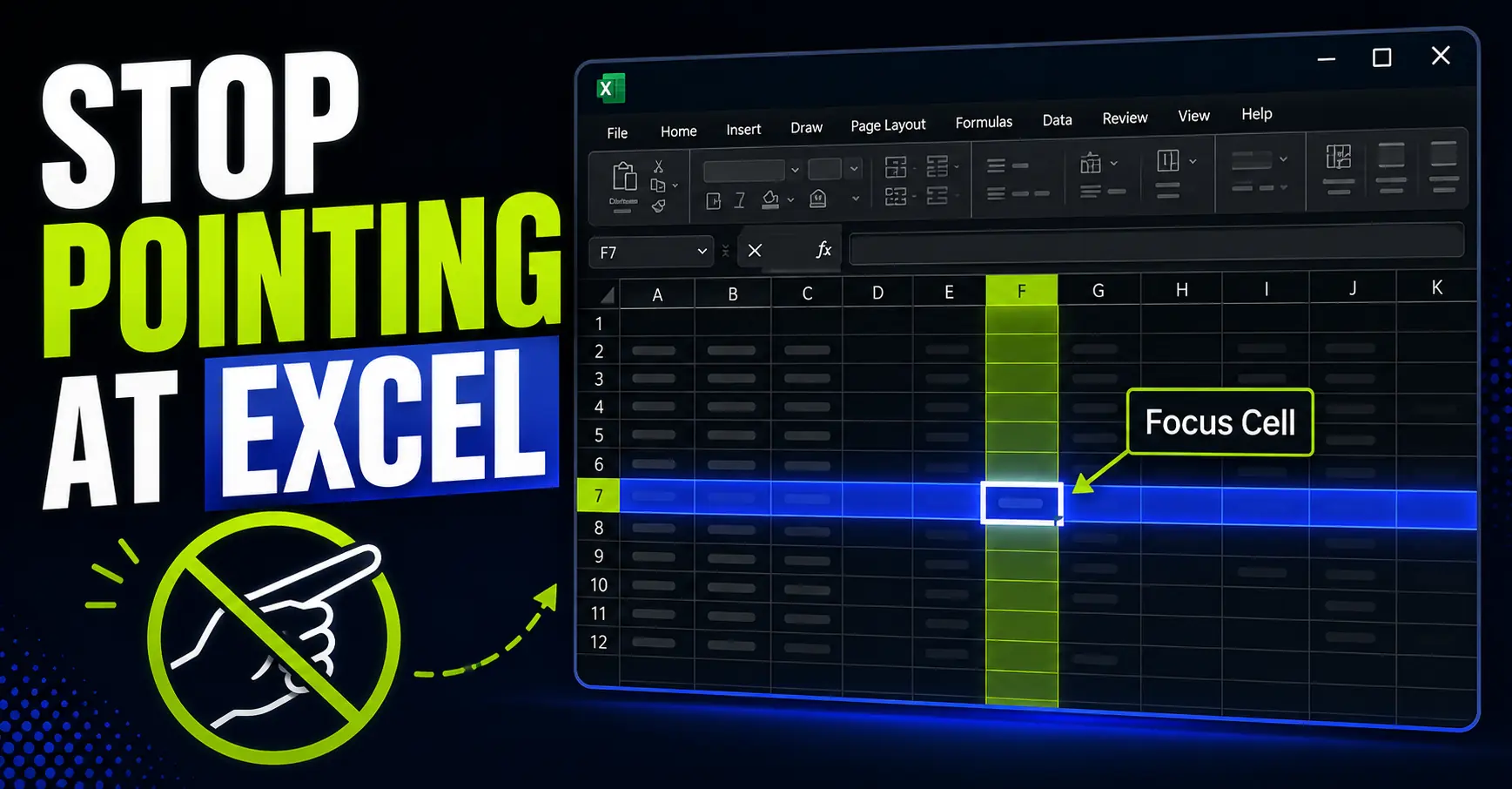
If you have ever followed an Excel row across the screen with your finger, this feature is for you.
It sounds ridiculous, but it happens all the time. You are reading a wide spreadsheet, you look from one column to another, and suddenly you are not completely sure whether you are still on the right row.
Excel has a small built-in feature that makes this much easier: Focus Cell.
It highlights the active row and column in Excel, so you can see exactly where the selected cell belongs without pointing at the screen, dragging your mouse across the sheet, or manually checking the row number again.
Key Takeaways
- Excel Focus Cell highlights the active row and column.
- It helps you read wide spreadsheets without tracking rows manually.
- You can turn it on from View → Focus Cell.
In this article
What Excel Focus Cell does
Excel Focus Cell is a simple view feature that highlights the row and column of the currently selected cell.
Think of it as a visual crosshair for your spreadsheet. Click a cell, and Excel makes the active row and active column stand out immediately.
This is useful when you want to highlight the active row in Excel without adding formulas, conditional formatting, VBA, or helper columns.
It does not change your data. It does not change your spreadsheet structure. It simply makes the current position easier to see.
How to turn on Focus Cell in Excel
To enable it, go to:
View → Focus Cell
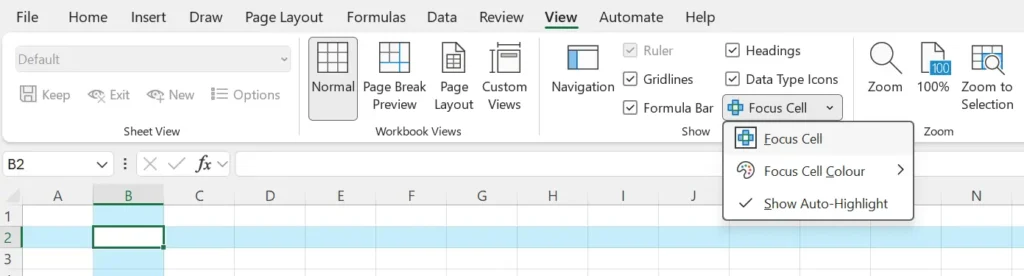
Once it is active, click around your spreadsheet. The selected cell should now have its row and column highlighted automatically.
You can also change the Focus Cell color from the dropdown menu. This is worth checking if your spreadsheet already uses colored tables, banded rows, or conditional formatting.
The best Excel Focus Cell color is simply the one that stands out without making the sheet harder to read.
When this helps most
This is not a feature you need for every tiny spreadsheet.
But it becomes useful very quickly when you are reviewing large tables, reading across many columns, checking exported reports, comparing numbers during a meeting, or sharing your screen with someone else.
It is especially helpful in those spreadsheets where the important value is far away from the first column. Instead of checking the row label, moving your eyes across the screen, and hoping you stayed aligned, Excel keeps the active row visible for you.
Why I like this feature
I like small Excel features that remove friction without creating a new system to maintain.
Focus Cell is exactly that kind of feature.
You do not need to learn a new formula. You do not need to prepare the workbook. You do not need to explain a complex setup to anyone else.
You just turn it on, and Excel becomes easier to read.
That is the whole trick.
If you do not see Focus Cell
If the Focus Cell option is missing, your Excel version may not have it yet, or your company may be using a slower Microsoft 365 update channel.
In that case, check whether Excel is fully updated, or ask your IT team if the feature is available in your organization.
But if you already have it, turn it on and try it with the next large spreadsheet you review.
It will not make you an Excel expert. But it might stop you from pointing at your monitor like Excel is printed on paper.
Want more practical Windows productivity tips? If you like simple ways to make everyday work faster, I share more practical Windows productivity tricks in the TurboTasking newsletter.


