

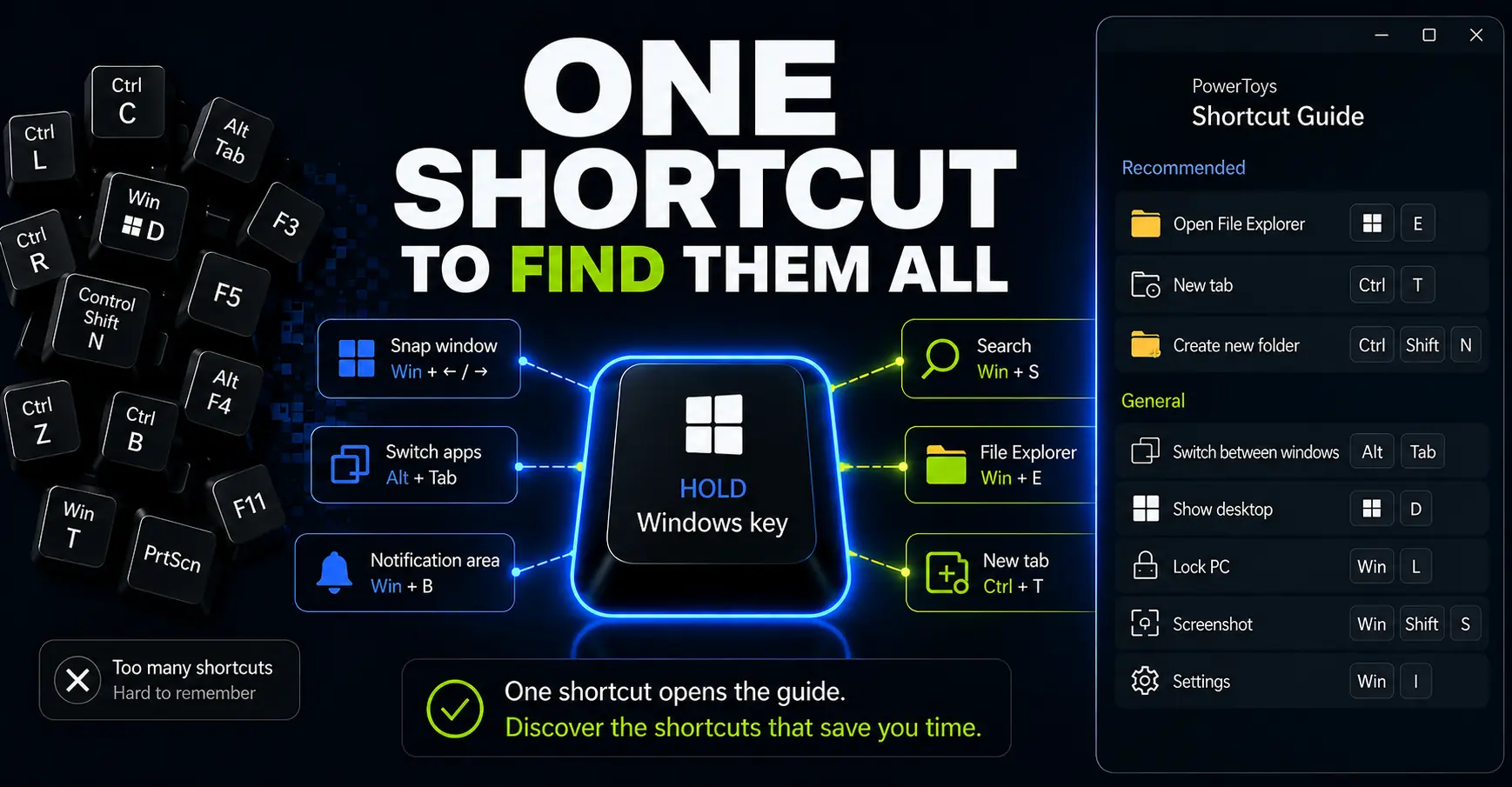
Keyboard shortcuts can make Windows much faster.
But they are hard to use when you do not remember the one you need.
That is the real problem.
You may know there is probably a shortcut for switching windows, opening a folder, selecting the address bar, or controlling part of the system with the keyboard.
But in the middle of a workday, you are not going to stop everything and search through a long shortcut reference page.
This is where PowerToys Shortcut Guide becomes useful.
It does not remove the problem completely.
But it does something more practical: it puts the shortcuts one keyboard action away, in the context where you need them.
Key Takeaways
- Shortcut Guide helps you discover shortcuts while you work.
- It is useful, but some lists are still too long.
- It works best with Windows and Microsoft apps.
- You only need to remember one shortcut: the one that opens the guide.
In this article
What is PowerToys Shortcut Guide?
PowerToys Shortcut Guide is a Windows utility included in Microsoft PowerToys.
When you open it, it shows a side panel with keyboard shortcuts that are relevant to your current context.
Depending on what you are doing, it can show shortcuts for Windows, File Explorer, supported Microsoft apps, and enabled PowerToys utilities.
That makes it more useful than a static shortcut list.
Instead of searching the web for “Windows keyboard shortcuts” every time you vaguely remember that something exists, you can open Shortcut Guide and check what is available right where you are working.
How to open Shortcut Guide
The most important shortcut is the one that opens Shortcut Guide itself.
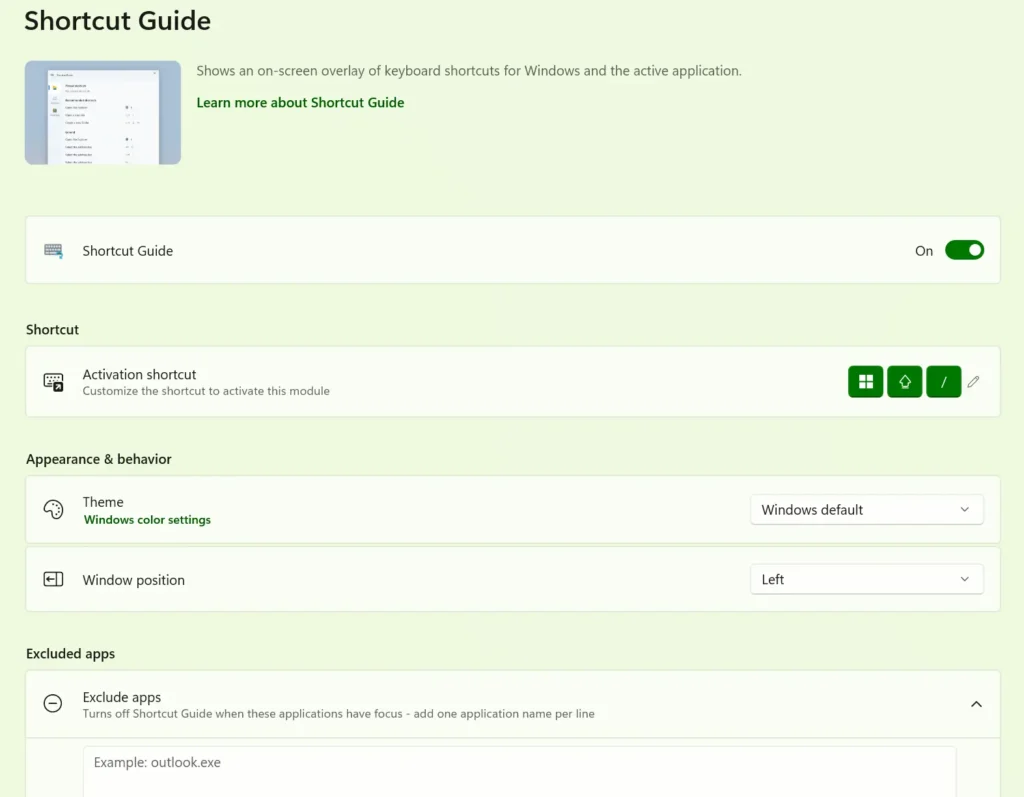
In my setup, the default shortcut is Win + Shift + /. In previous versions, the guide could be open by holding the Windows key for about one second.
You can change this activation method in PowerToys settings, so the exact shortcut may depend on your configuration.
That is why I like the idea behind the tool: you do not need to remember every Windows shortcut. You mainly need to remember how to open the guide, and then use it as an on-demand reminder.
The real value: one shortcut that reminds you of the rest
The best way to think about Shortcut Guide is simple:
You do not need to memorize every shortcut. You only need to remember how to open the guide.
That is the part I like most.
Shortcut Guide does not magically make you faster. You still need to decide which shortcuts are worth using.
But it lowers the effort required to find them, test them, and slowly add them to your normal workflow.
This is especially useful if you work in Windows all day but do not want to study keyboard shortcuts like a separate subject.
You can use it as a reminder system:
- Open the guide when you feel friction.
- Pick one shortcut that solves a real problem.
- Use it a few times during normal work.
- Keep it only if it actually helps.
That is a much better approach than reading a massive list and pretending you will remember everything tomorrow.
The downside: long lists still take time to scan
Shortcut Guide is useful, but it is not perfect.
The biggest issue I noticed is that some lists can still be very long.
For general Windows shortcuts, you may need to scroll through a large list before you find the shortcut you are looking for.
That is better than searching random pages on the web, but it still creates friction.
A keyword filter would make the tool much better.
For example, if I am looking for a shortcut related to windows, tabs, taskbar, folders, search, notifications, or screenshots, I would like to type that word and immediately narrow the list.
Right now, the best workaround is to use Shortcut Guide in two different ways:
- Do one full exploration session when you have time.
- Use it later as a quick reminder during real work.
Option 1: scan the full list once
If you like getting the most out of new tools, open Shortcut Guide once and go through the full list.
Not to memorize it.
Just to see what is possible.
This can take some time, especially in Windows itself, but it is worth doing once if you are the kind of person who likes finding hidden productivity tricks.
Try the shortcuts that look interesting. Ignore the ones that do not fit your work. The goal is not to become a shortcut encyclopedia. The goal is to notice which shortcuts could remove small repeated annoyances from your day.
After that first scan, you can use Shortcut Guide more casually. Open it when you need it, pick one shortcut, and keep working.
Option 2: learn shortcuts only when you feel friction
For most people, this is the better method.
Do not open Shortcut Guide because “learning shortcuts” sounds productive.
Open it when you notice a repeated manual action.
For example:
- You keep switching between several windows.
- You keep reaching for the mouse to open pinned apps.
- You keep navigating folders manually in File Explorer.
- You remember there is a shortcut for something, but not which one.
- You want to use the keyboard more, but only where it actually saves time.
This keeps the tool practical.
Instead of collecting shortcuts, you are solving small workflow problems one by one.
Pinning Shortcuts
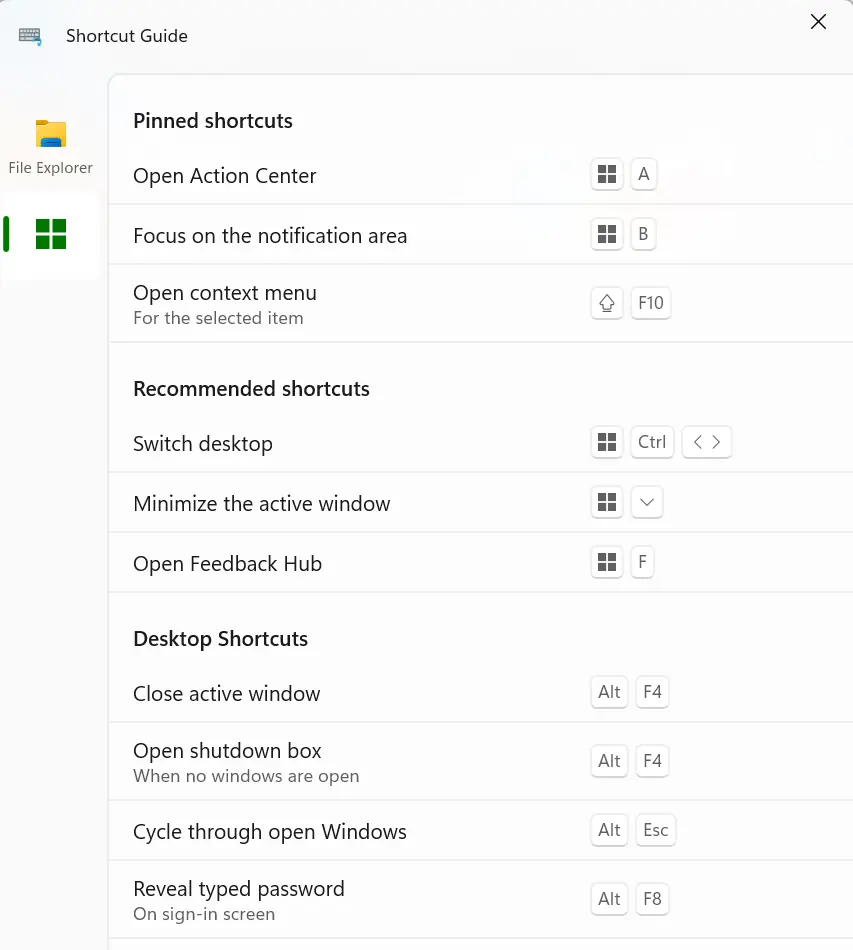
One useful detail is that you can also pin shortcuts inside Shortcut Guide.
This is perfect for shortcuts you have just discovered and want to practice. Instead of trying to remember them immediately, you can pin them, keep them visible in the guide, and come back to them the next time you open it.
That makes Shortcut Guide more useful as a learning tool: not just a list of shortcuts, but a place where you can collect the shortcuts you are actively trying to add to your workflow.
In the screenshot below, you can also see several pinned shortcuts at the top. That is how I would use the feature: pin the shortcuts I have just discovered, or the ones I keep forgetting, and treat them as a small practice list.
Shortcuts I discovered even after years of using Windows
I have used Windows shortcuts for years, and I thought I knew most of the useful ones.
Shortcut Guide still showed me shortcuts I either did not know or had completely forgotten.
I am not saying these are the most important Windows shortcuts. Basic shortcuts like copy, paste, search, and window switching are probably more useful for most people.
But that is exactly why Shortcut Guide is interesting: even if you already know many shortcuts, it can still surface a few that you missed.
Ctrl + Alt + Tab: keep the window switcher open
Most Windows users know Alt + Tab.
But Ctrl + Alt + Tab behaves differently.
It opens the window switcher and keeps it visible. You can then use the arrow keys to select the window you want.
This is useful when you have many windows open and do not want to keep holding Alt while deciding where to go next.
Alt + Esc and Alt + Shift + Esc: cycle through open windows
Alt + Esc cycles through open windows.
It is different from Alt + Tab.
Alt + Tab is great when you want to jump between the two most recent windows. If you press it once, you usually move back and forth between the same two windows.
Alt + Esc feels more like stepping through open windows in one direction.
You can use Alt + Shift + Esc to go in the opposite direction.
I would not use this every minute, but it is a good example of the kind of shortcut that is easy to miss if you never explore beyond the usual Alt + Tab.
Win + B: control the notification area with the keyboard
Win + B moves focus to the notification area.
That means you can interact with tray icons using the keyboard instead of immediately reaching for the mouse.
This is not a shortcut I had built into my daily workflow before testing Shortcut Guide.
But it is useful to know, especially if you often interact with background apps, sync tools, VPN clients, audio controls, or other icons in the system tray.
File Explorer is one of the best places to use Shortcut Guide
File Explorer is where Shortcut Guide felt especially practical to me.
That makes sense. A lot of office work happens in folders:
- Opening project folders.
- Searching for files.
- Creating new folders.
- Copying files between locations.
- Renaming documents.
- Moving between tabs or windows.
Some File Explorer shortcuts are obvious. Others are easy to forget because you do not use them every day.
In my test, Shortcut Guide surfaced shortcuts such as:
- Win + E to open File Explorer.
- Ctrl + T to open a new tab.
- Ctrl + Shift + N to create a new folder.
- Alt + D, Ctrl + L, or F4 to select the address bar.
- Ctrl + E, F3, or Ctrl + F to select the search box.
- F5 to refresh the window.
- F6 to cycle through elements in the active window.
- F11 to maximize or restore the active window.
I already knew several of these. Some were new to me. Others were shortcuts I had seen before but was not actively using.
That is a good use case for Shortcut Guide: not only learning brand-new shortcuts, but also bringing forgotten shortcuts back into view.
Shortcut Guide does not work equally well with every app
One expectation is worth setting clearly.
Shortcut Guide is not a universal shortcut database for every application installed on your PC.
In my testing, it was most useful with Windows itself and Microsoft apps.
For example, I got useful results in places like:
- Windows
- File Explorer
- Microsoft Edge
- Notepad
- Microsoft Word, Excel and other Office apps
With many other apps, it did not show any shortcut list.
That does not make Shortcut Guide useless. It just changes how I would position it.
I would treat it mainly as a Windows and Microsoft-app shortcut helper, not as a complete shortcut guide for every tool you use.
Settings worth checking
You do not need to spend much time configuring Shortcut Guide.
But I would check the settings at least once, especially the activation method.
The tool only becomes useful if opening it feels natural. If the activation method is annoying, you will stop using it.
The settings worth checking are:
- Activation method: choose how you want to open Shortcut Guide.
- Press duration: adjust how long you need to hold the Windows key if you use that method.
- Theme: choose light, dark, or Windows default.
- Background opacity: make the guide easier to read over your desktop.
- Excluded apps: prevent Shortcut Guide from appearing in apps where it gets in the way.
You can find the current Microsoft documentation here: official PowerToys Shortcut Guide documentation.
How Shortcut Guide fits into PowerToys
Shortcut Guide is not the most spectacular PowerToys utility.
It does not rename hundreds of files. It does not extract text from images. It does not pin windows on top. It does not reorganize your desktop layout.
But it fits perfectly into the bigger reason PowerToys is useful: it removes small bits of friction from Windows.
That is why I like PowerToys in general. It is a collection of practical Windows utilities that can make everyday office work faster without changing your whole system.
If you are new to it, start with my main guide here: what Microsoft PowerToys is and whether it is worth installing for office work.
Final thoughts
PowerToys Shortcut Guide is useful, but only if you use it with the right expectation.
It is not there to turn you into someone who knows every Windows shortcut by heart.
It is better than that.
It gives you a shortcut reminder when you need one.
My recommendation is simple: do one full scan if you are curious, but do not try to memorize the whole list. After that, open Shortcut Guide when you notice friction in your workflow.
Pick one shortcut. Try it. Keep it if it helps.
That is how Shortcut Guide can actually make you faster on Windows.
Not by showing you every possible shortcut, but by helping you find the next one worth using.
You are interested to see other ways to use Microsoft PowerToys for office productivity, check the following article:
Want more practical Windows productivity tips? If you like simple ways to make everyday work faster, I share more practical Windows productivity tricks in the TurboTasking newsletter.


