

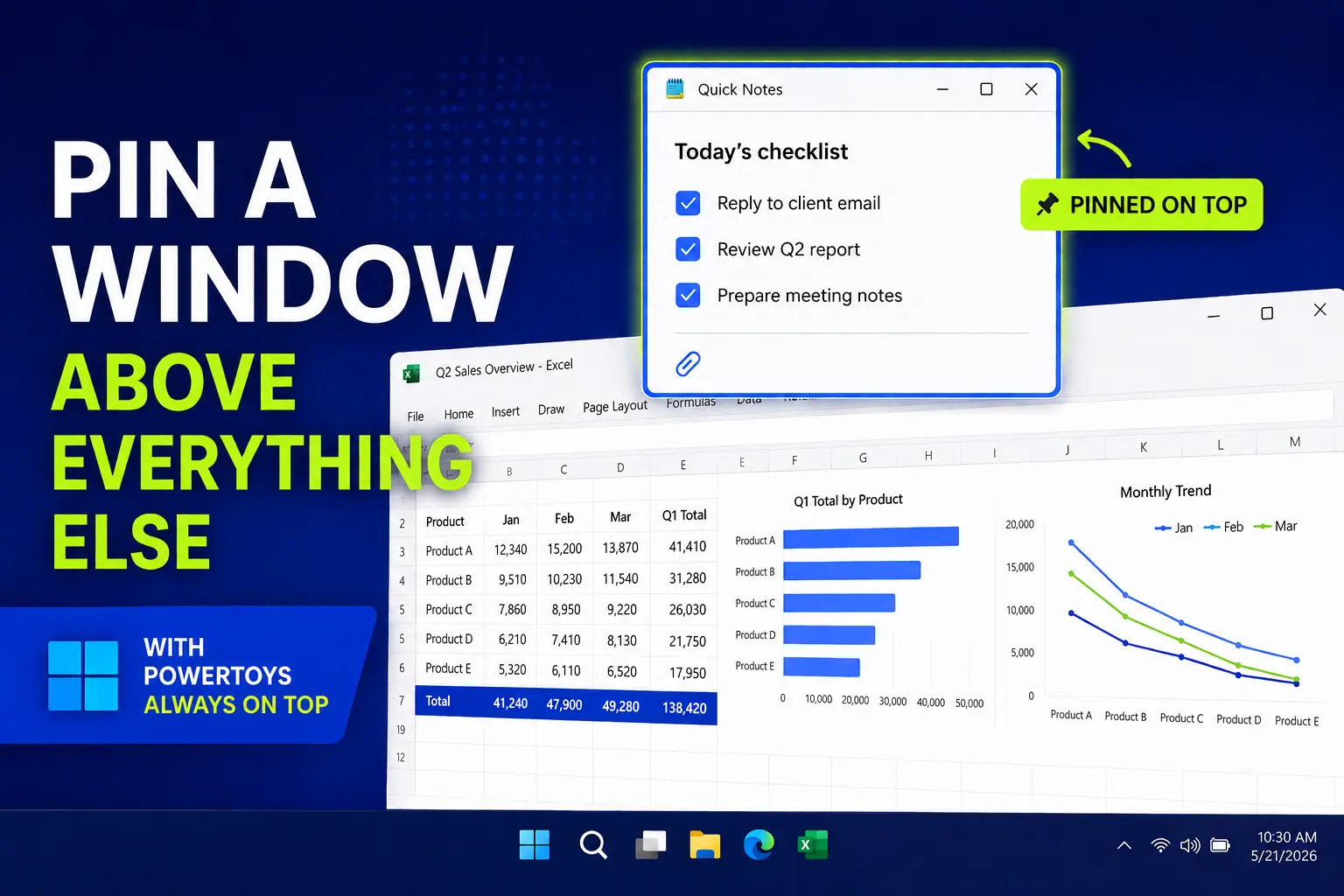
I do not use PowerToys Always On Top every day.
But when I need it, it solves a very specific Windows annoyance: keeping one small window visible while I work somewhere else.
Instead of switching back and forth between windows, you can pin one window above everything else and keep using your main app normally.
In this guide, I will show you what Always On Top does, how to use the shortcut, when it is useful, and when Windows Snap layouts are still the better choice.
In this article
What is PowerToys Always On Top?
PowerToys Always On Top is a Microsoft PowerToys utility that lets you pin the active window above other windows.
Once a window is pinned, it stays visible even when you click another app.
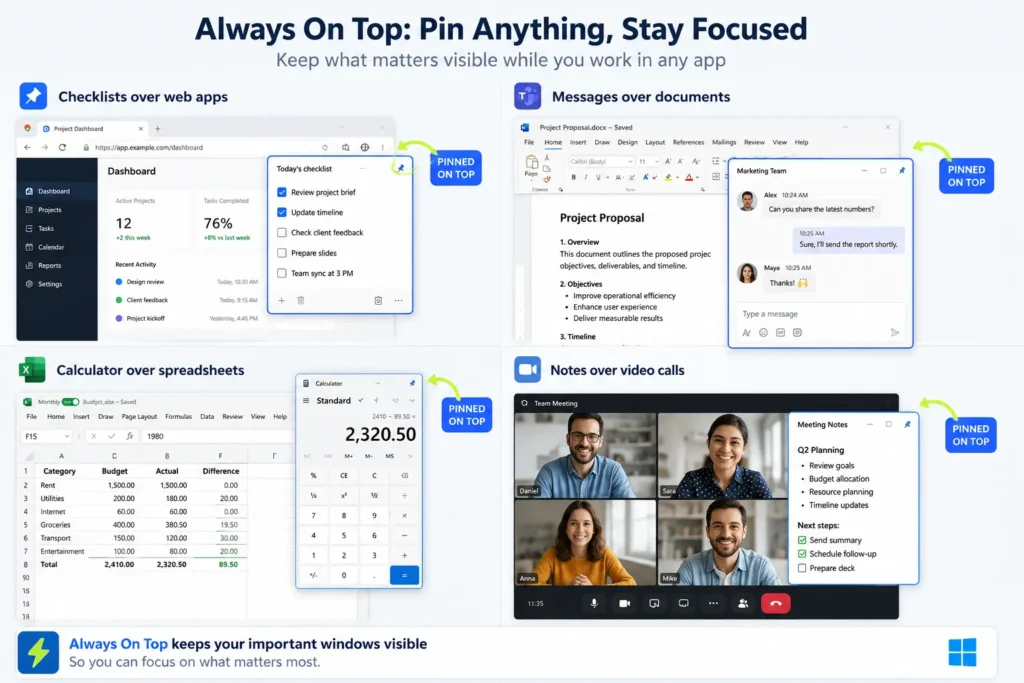
That makes it useful when you need a small reference window in front of your main work. For example, you might want to keep a calculator, checklist, Teams message, ticket, browser page, or instruction window visible while working in Excel, Word, Outlook, or a web app.
This is not a full window management system. It is a small fix for a small but recurring problem: the window you need keeps disappearing behind the window you are using.
How to pin a window on top in Windows
First, make sure Microsoft PowerToys is installed and that Always On Top is enabled in PowerToys settings.
Then use this simple workflow.
1. Open the window you want to keep visible
Open the app or window you want to pin.
This could be something small, such as:
- a Calculator window
- a Notepad checklist
- a Teams or Slack message
- a ticket or support request
- a browser page with instructions
- a PDF with a reference number
Click that window so it becomes the active window.
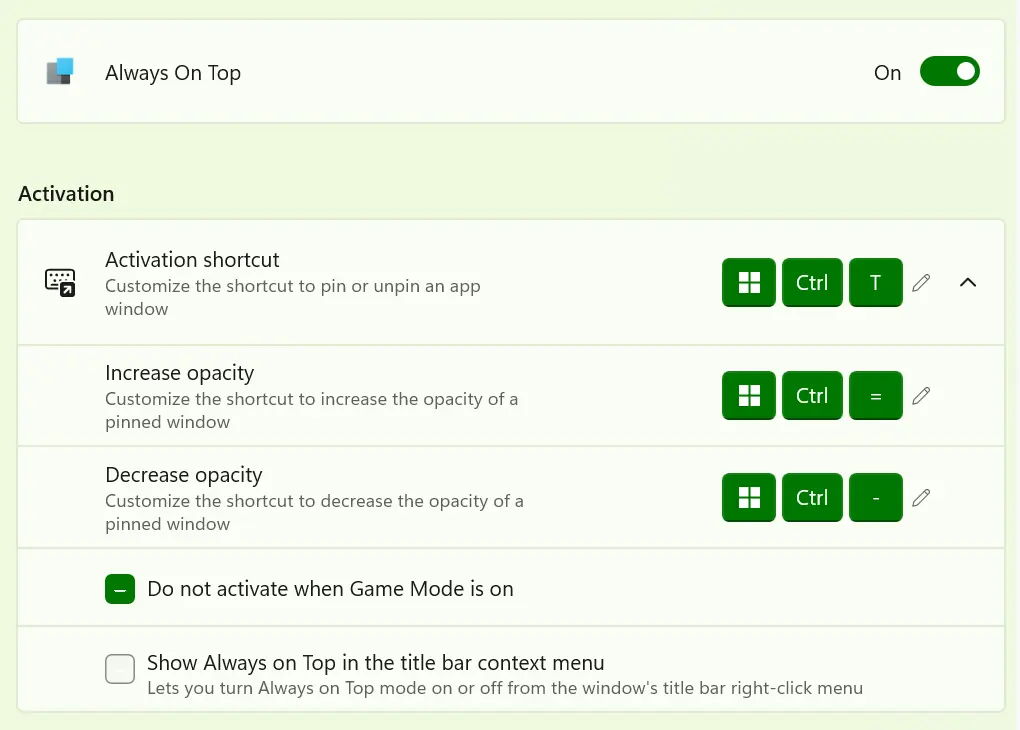
2. Press Win + Ctrl + T
The default PowerToys Always On Top shortcut is:
Win + Ctrl + T
After pressing it, the active window is pinned above your other windows.
PowerToys can also show a colored border around the pinned window so you can quickly see that Always On Top is active. If you find the outline distracting, you can turn it off or customize its appearance in the settings.
3. Work in another window
Now click your main work window.
The pinned window stays above it.
This is the whole point of Always On Top: you can keep one small piece of information visible without constantly switching windows.
4. Press Win + Ctrl + T again to unpin it
When you are finished, click the pinned window and press the same shortcut again:
Win + Ctrl + T
That turns off Always On Top for that window.
How to remove or customize the Always On Top border
PowerToys can draw a colored border around a pinned window so you can see at a glance that Always On Top is active. If that outline looks distracting, for example because it appears as a bright blue border on your PC, you can hide it without unpinning the window.
To remove the border:
- Open PowerToys Settings.
- Select Always On Top.
- Scroll to Appearance & behavior.
- Turn off Show a border around the pinned window.
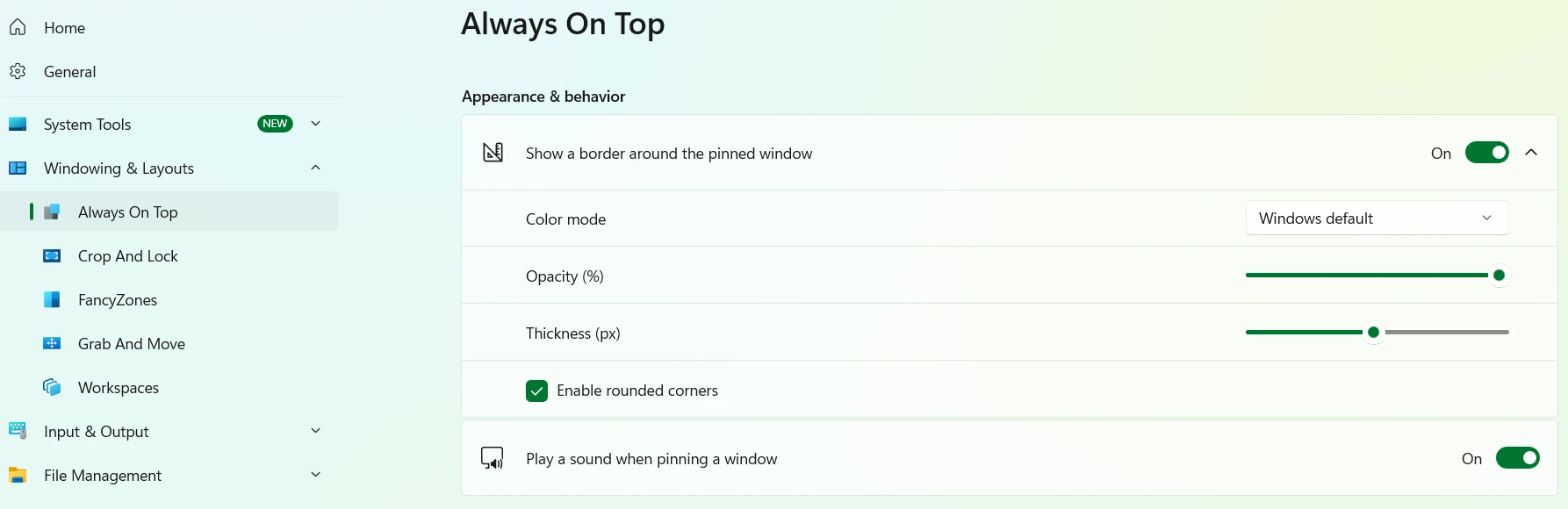
The window will remain pinned; PowerToys only removes the visual indicator. If you prefer to keep the border, you can use Color mode, Color, Opacity, and Thickness (px) to make it less noticeable.
If you have the pinning sound enabled, you can also turn off Play a sound when pinning a window in the same section.
What happens if you minimize a pinned window?
A pinned window still behaves like a normal Windows window in one important way: you can minimize it.
If you minimize a window that is set to Always On Top, it disappears from the screen like any other minimized window.
But when you restore it, it keeps its Always On Top behavior.
That is useful because you can temporarily hide the pinned window without losing your setup. When you bring it back, it will still stay above your other windows.
Useful Always On Top shortcuts
Always On Top is mostly about one shortcut, but there are a couple of related shortcuts worth knowing.
| Shortcut | What it does |
|---|---|
| Win + Ctrl + T | Pin or unpin the active window |
| Win + Ctrl + = | Increase the opacity of the pinned window |
| Win + Ctrl + - | Decrease the opacity of the pinned window |
The opacity shortcuts are a nice extra.
If the pinned window covers too much of your main work, you can reduce its opacity so it stays visible without fully blocking what is behind it.
When Always On Top is actually useful
Always On Top is best when one window is important, but not important enough to deserve half your screen.
Here are a few office-friendly examples.
Keep instructions visible while you work
Sometimes you need to follow a process while doing the actual work in another app.
For example, you might have an internal guide, checklist, SOP, or help page open in a browser window.
Instead of switching between the guide and your work app, you can pin the guide on top and keep following the steps while you work.
Keep a ticket, email, or Teams message visible
This is one of the most practical uses.
Imagine someone sends you a request with a customer name, reference number, deadline, or list of changes.
You can pin that message above your main app and work through the request without opening the message again and again.
Keep Calculator on top
Windows Calculator already has its own compact mode, but Always On Top is useful when you want the same idea for other small windows too.
For example, you can pin Calculator above Excel, a browser form, or an internal finance tool while doing quick checks.
Keep notes visible during a meeting or task
A small Notepad window can be enough for a quick agenda, reminder, or list of action items.
Pin it on top, keep it small, and you can glance at it while working in another window.
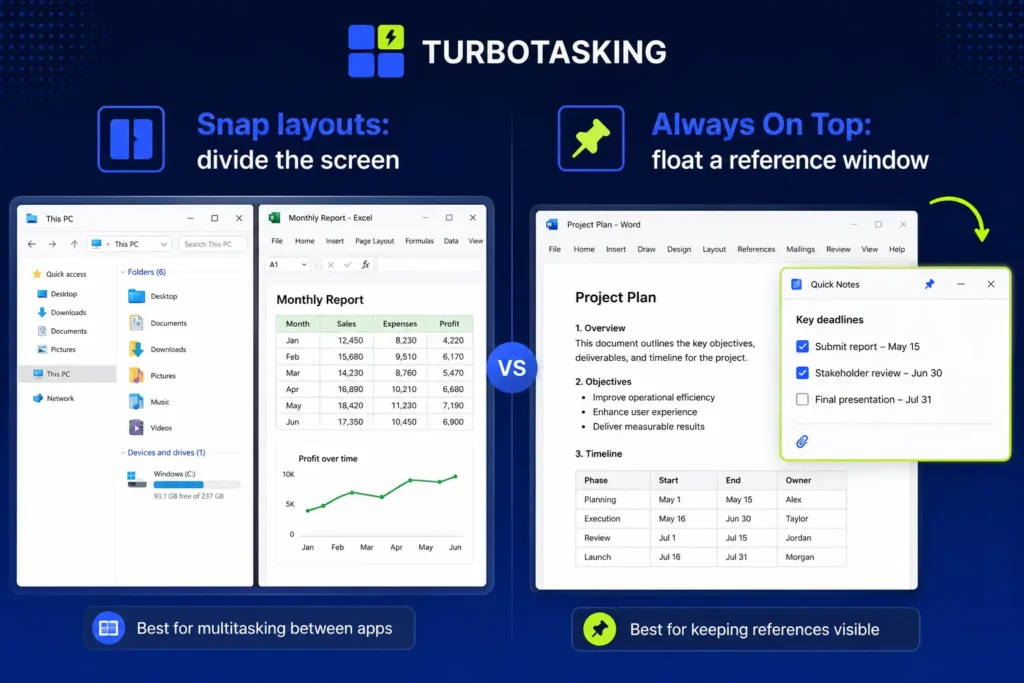
Always On Top vs Snap layouts
Always On Top is not the same as Windows Snap layouts.
Snap layouts are the Windows feature that lets you arrange windows into fixed areas of the screen. For example, one window on the left and another window on the right.
That is great when both windows deserve proper screen space.
Always On Top is better when one window is just a small reference.
Use Snap layouts when you want a stable side-by-side layout
Use Snap layouts when you want to properly divide your screen.
For example:
- Word on the left, browser on the right
- Excel on the left, PDF on the right
- email on one side, calendar on the other
In those cases, both windows are part of your workspace.
Use Always On Top when one window is just a small reference
Use Always On Top when you do not want to rearrange your whole desktop.
For example:
- a small instruction window above a web app
- a reference number above an internal tool
- a checklist above Outlook
- a calculator above a spreadsheet
The difference is simple:
Snap layouts divide your workspace. Always On Top floats one reference window above your workspace.
That is why Always On Top can feel faster for small tasks. You do not have to rebuild your screen layout. You just pin one window, do the task, and unpin it when you are done.
My take: I do not use it often, but I keep it enabled
Always On Top is not one of those tools I use constantly.
Most of the time, normal window switching, Snap layouts, or a second monitor are enough.
But that is exactly why I like it.
It is not trying to become a complete productivity system. It solves one narrow problem very well: keeping a useful window from disappearing when I need it as a reference.
When that situation appears, pressing Win + Ctrl + T is much faster than moving windows around or switching back and forth repeatedly.
Final thought
PowerToys Always On Top is a small Windows fix.
But small fixes matter when they remove repeated friction from everyday office work.
If you often need one small window to stay visible while you work in another app, Always On Top is worth enabling.
You may not use it every day. But when you need it, it feels like exactly the right tool.
You are interested to see other ways to use Microsoft PowerToys for office productivity, check the following article:
Want more practical Windows productivity tips? If you like simple ways to make everyday work faster, I share more practical Windows productivity tricks in the TurboTasking newsletter.


