

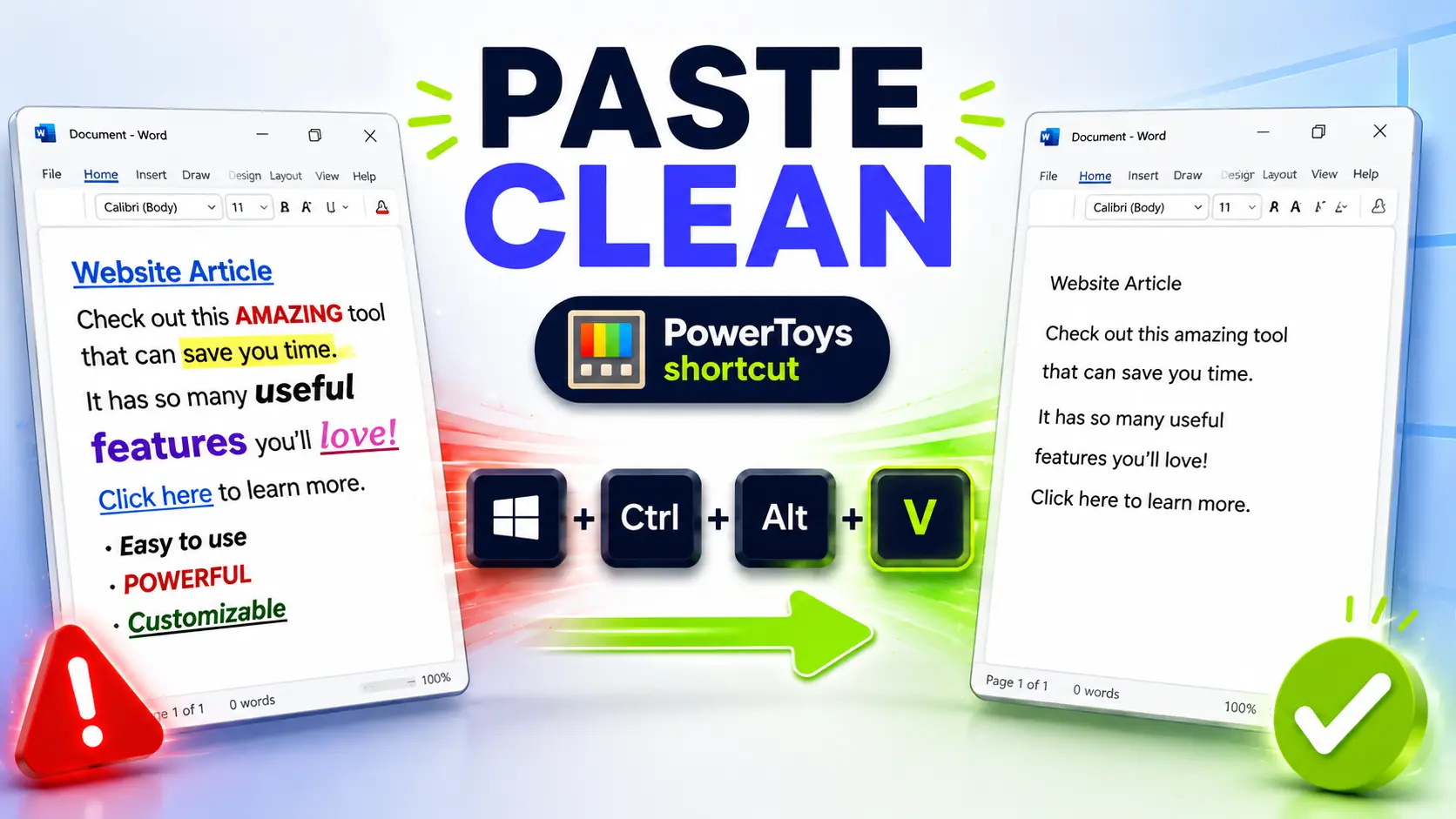
You copy a paragraph from a website and paste it into Word.
Suddenly, your document has a different font, a different size or blue links.
That is the small problem this article solves: how to paste without formatting on Windows when you only want the words, not the mess around them.
My favorite way to do it is with PowerToys Advanced Paste. Once it is set up, you get a dedicated shortcut to paste as plain text whenever copied formatting gets in the way.
Key Takeaways
- Paste clean text without bringing unwanted fonts, links, colors, or spacing.
- Try Ctrl + Shift + V first, but do not expect it everywhere.
- PowerToys Advanced Paste gives you a dedicated, configurable plain-text shortcut.
- Use normal paste for formatting, and plain-text paste when formatting gets in the way.
In this article
Why pasted text gets messy
When you copy text, many apps do not copy only the words. They can also copy rich formatting: font family, font size, colors, links, bold text, spacing, tables, and sometimes hidden styling you do not notice until it lands in your document.
That can be useful when you actually want to preserve the original formatting. But in normal office work, I usually want the opposite.
If I copy a sentence from a website into an email, I want it to look like the rest of the email. If I paste a paragraph into Word, I want it to follow my document style. If I paste something into a form, ticket, or internal tool, I want clean text, not imported formatting.
In other words: most of the time, I want the words, not the formatting.
Why I use PowerToys Advanced Paste
Before installing or configuring anything, try this first: in some apps, Ctrl + Shift + V already pastes as plain text.
If that works in the apps where you usually paste text, great. You may not need anything else for this specific problem.
The catch is that it is not a universal Windows setting that forces every paste to be plain text everywhere. Some apps support it, some do not, and apps like Word also have their own paste behavior and settings.
That is why I still like the PowerToys approach. PowerToys Advanced Paste gives you a dedicated, configurable shortcut for pasting as plain text. It also fits nicely into a broader Windows productivity setup, especially if you already use other PowerToys tools.
It is also cleaner than reaching immediately for more technical solutions. I used to solve this kind of problem with AutoHotkey because I wanted more control. That worked, and I still use AutoHotkey for more advanced automations. But scripting tools can be too technical for many users, and they may be blocked or difficult to justify on corporate computers.
For this specific job, pasting clean text, PowerToys is now the simpler starting point.
How to set up Paste as Plain Text in PowerToys
1. Install or open PowerToys
If you already have PowerToys installed, open it from the Start menu or system tray.
If you do not have it yet, install PowerToys from the official Microsoft site. In many corporate environments, you may need permission from your IT department before installing it.
This is one reason I like PowerToys for office productivity: it is not a random clipboard utility from an unknown source. It is a Microsoft toolset for improving Windows workflows. That does not mean every company will allow it, but it is usually easier to explain than a collection of unofficial tools.
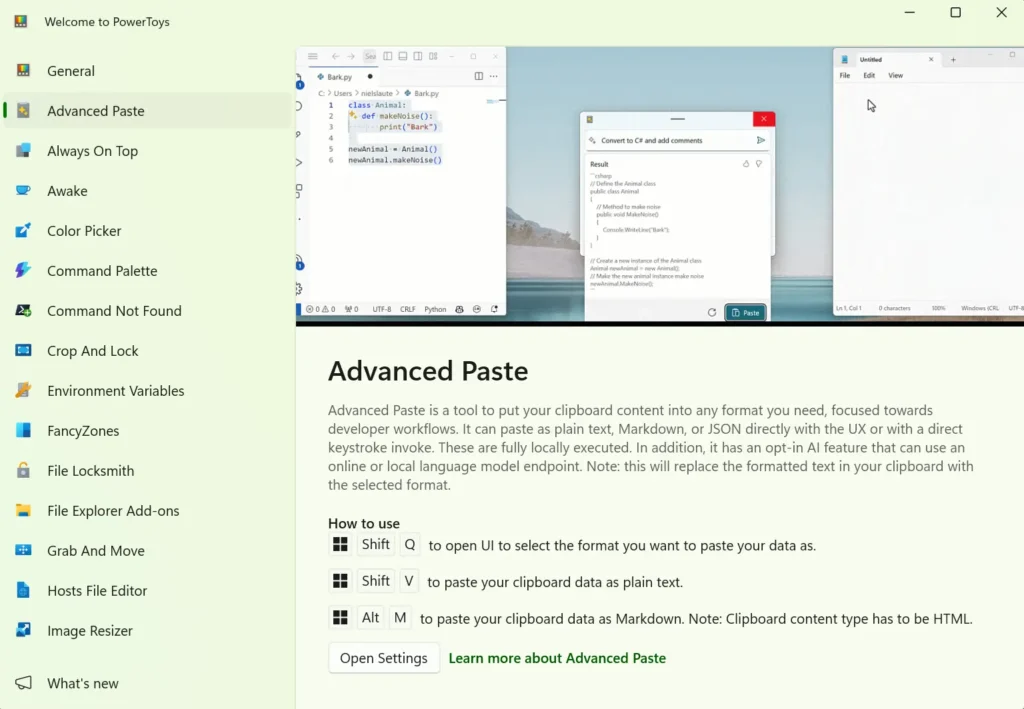
2. Activate Advanced Paste
In PowerToys, go to Advanced Paste.
Advanced Paste can do more than paste as plain text, but you do not need to care about every option right now. In this case, the only thing we want is a fast way to paste copied text without formatting.
Make sure Advanced Paste is enabled.
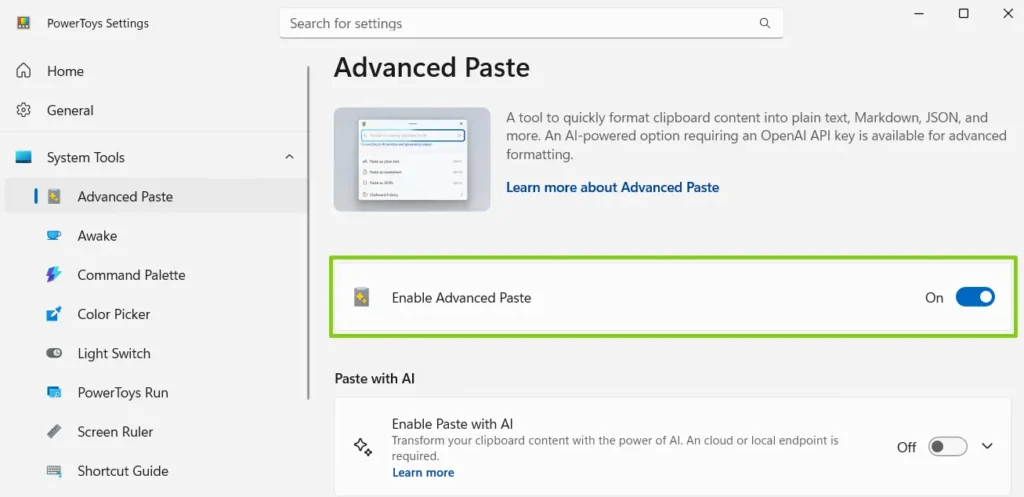
3. Check the plain text paste shortcut
This is the part that matters most.
PowerToys Advanced Paste can open a paste window, but it can also give you a direct shortcut for Paste as Plain Text. That direct shortcut is the one I want for daily use.
The goal is simple:
- Use normal paste when you want to keep formatting.
- Use the PowerToys plain text shortcut when you want clean text only.
I would not recommend replacing Ctrl + V unless you are completely sure you want that behavior. Normal paste is still useful, and changing such a basic shortcut can create confusion later.
I personally use Win + Shift + V, but you can set any shortcut that is easy for you to remember. The default is Win + Ctrl + Shift + V.
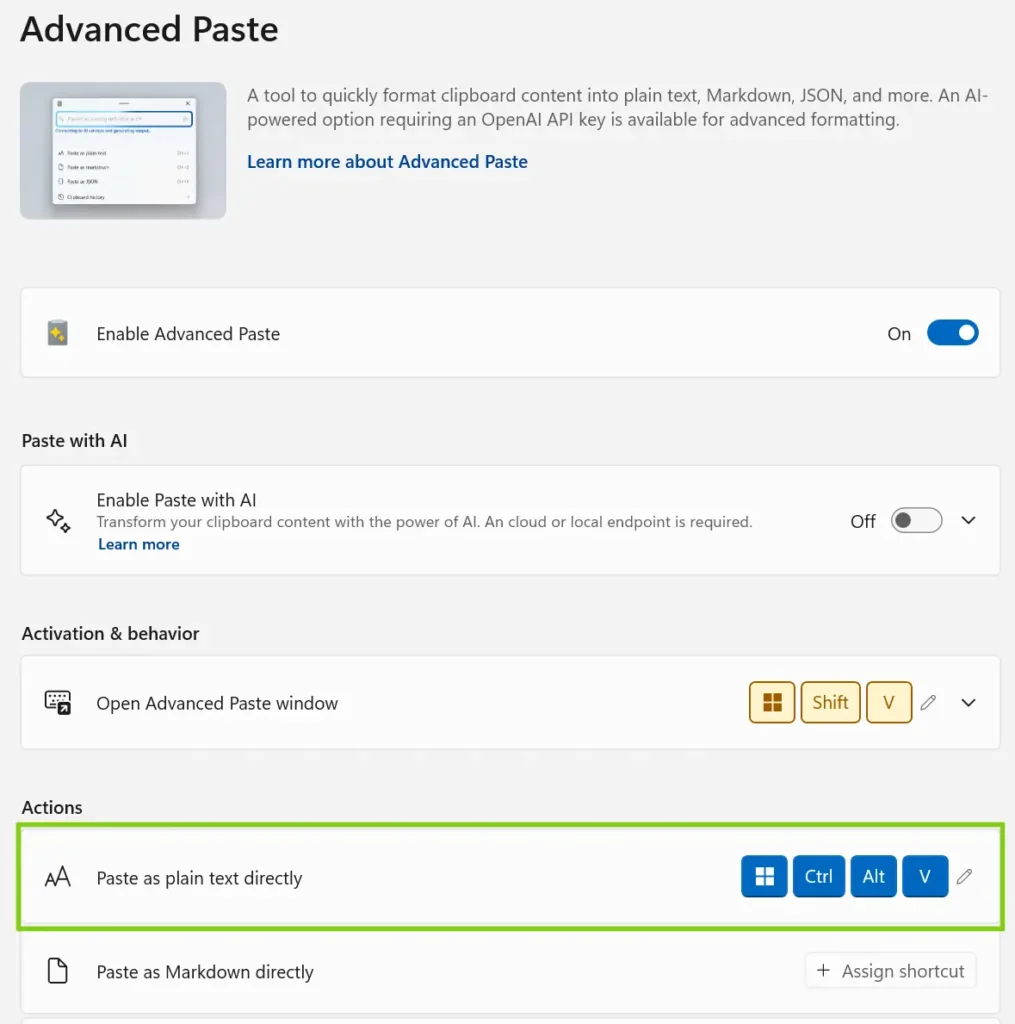
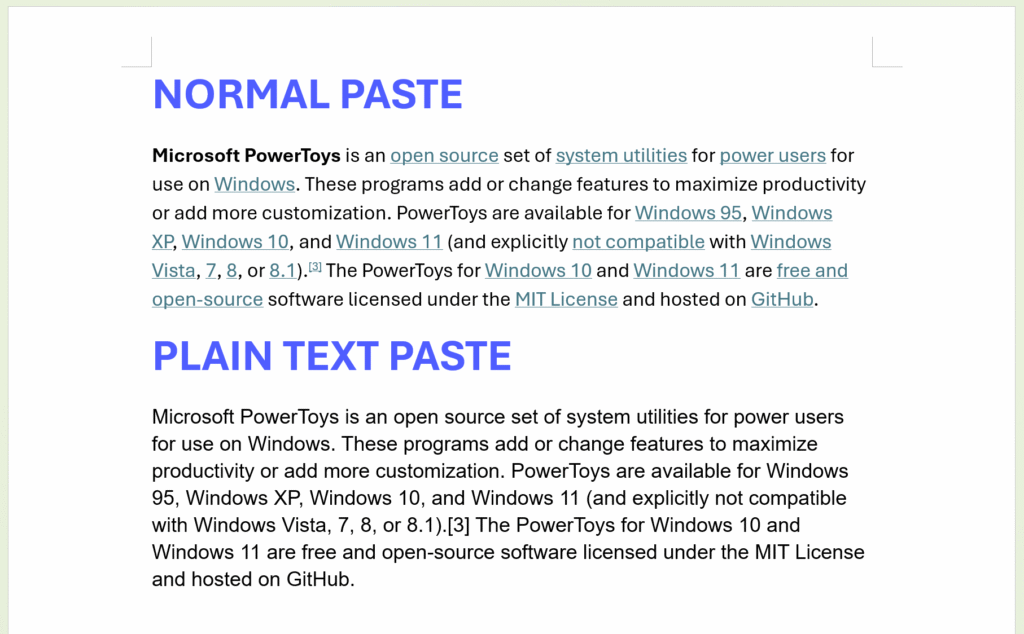
4. Test it with messy copied text
Now test the shortcut with a real example.
- Copy a paragraph from a webpage with visible formatting.
- Paste it normally into Word or an email.
- Paste it using the PowerToys plain text shortcut.
The second version should appear as clean text. No strange font. No unexpected colors. No formatting that fights your document.
Where this shortcut saves the most time
The best example is copying text from websites into Word.
This happens all the time in office work. You copy a paragraph from a web page, a help article, a legal page, a product description, or internal documentation. Then you paste it into a Word document and the formatting suddenly looks wrong.
With a plain text paste shortcut, you do not need to paste, notice the formatting problem, undo it, open paste options, and fix it manually. You just paste clean text from the beginning.
It is also useful for emails. If you paste a sentence into Outlook and it uses a different font size or color, the email immediately looks less professional. Plain text paste avoids that problem.
I also use this kind of shortcut when pasting from PDFs, AI tools, documentation pages, Teams messages, tickets, forms, and internal systems. Anywhere formatting gets in the way, plain text paste is usually the safer option.
When you may not need PowerToys for this
PowerToys is useful, but it is not always necessary.
If Ctrl + Shift + V already works in the apps you use every day, that may be enough.
If your only problem is Word, you may prefer changing Word’s paste settings instead. Word has its own options for controlling how pasted text behaves, including options to keep text only.
And if your company blocks PowerToys, do not fight your IT policy for a small shortcut. Use the app-specific options available to you.
But if you want a dedicated Windows workflow for pasting clean text, and PowerToys is allowed on your machine, Advanced Paste is the option I would set up.
A small shortcut, but a daily one
This is not a spectacular automation. It will not reorganize your whole workday or save hours in one click.
But that is exactly why I like it.
Pasting text is something you do constantly. If copied formatting annoys you even a few times per week, a dedicated plain text paste shortcut is worth setting up.
For me, this is the kind of small Windows productivity upgrade that actually sticks: simple, practical, and useful in real office work.
You are interested to see other ways to use Microsoft PowerToys for office productivity, check the following article:
Want more practical Windows productivity tips? If you like simple ways to make everyday work faster, I share more practical Windows productivity tricks in the TurboTasking newsletter.


