

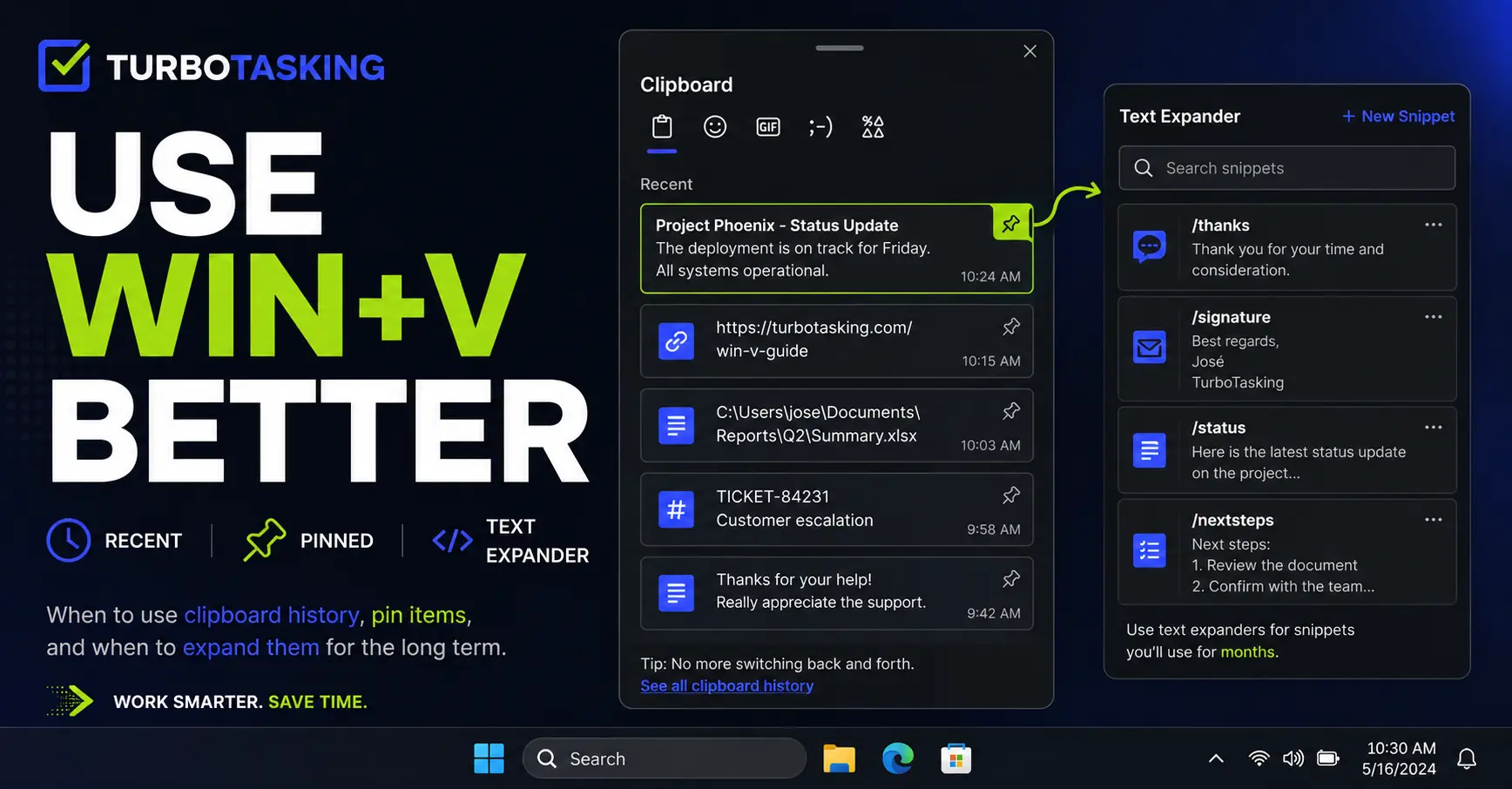
You probably know Win+V.
Maybe you have used it a few times. Maybe you enabled Windows clipboard history months ago. Maybe you even remember it exists when someone mentions it.
But that is not the same as actually using it well.
For a lot of office workers, Windows clipboard history sits in that awkward category of shortcuts that are obviously useful, but somehow never become automatic.
The trick is not just learning what Win+V does. The trick is knowing how to use it as part of a small text reuse system.
Key Takeaways
- Use Win+V for things you copied recently and may need again soon.
- Copy several items first, then paste them one by one with Win+V instead of switching apps for every field.
- Pin clipboard items for temporary text you need repeatedly during a project, task, or week.
- Use a text expander for snippets you expect to reuse for months.
- Be careful with clipboard sync, pinned items, and sensitive data, especially on work devices.
In this article
What Win+V actually gives you
Normally, when you press Ctrl+V, Windows pastes the last thing you copied.
When you press Win+V, Windows opens your clipboard history. Instead of only having access to the latest copied item, you can choose from several items you copied recently.
That can include text, links, file paths, small snippets, and images, depending on the app and your Windows settings. For screenshots or copied images, the clipboard panel can show a thumbnail before you paste, which is useful when you have copied more than one visual item.
If clipboard history is not enabled yet, Windows will usually prompt you to turn it on the first time you press Win+V.
There are also two settings worth knowing about. Microsoft explains these options on its official Windows clipboard help page.
- Clipboard sync: Windows can sync clipboard history across devices when this is enabled and your account supports it.
- Pinned items: clipboard history is usually cleared when you restart the PC, but pinned items can remain available.
Those features can be useful. They also make the privacy side more important. If copied content can stay longer or appear on another device, you should be more selective about what you copy, pin, or sync.
That is the basic feature set. But the real productivity gain comes from changing how you copy and paste during normal work.
The real habit: press Win+V before copying again
The main problem Win+V solves is not “I need a fancy clipboard”.
The real problem is this:
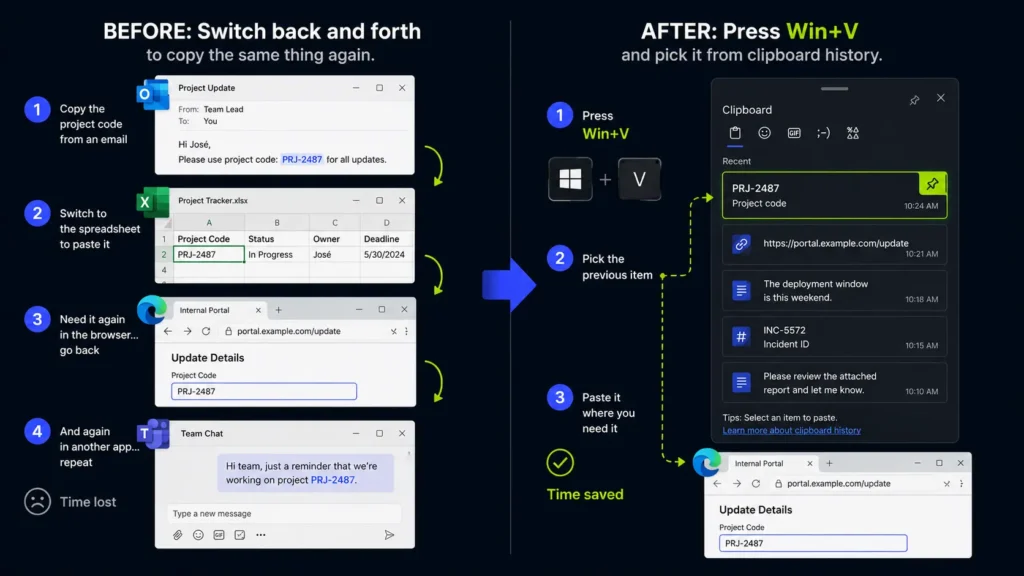
You copied something, used it once, moved on, and then needed the same thing again two minutes later.
Without clipboard history, you go back to the original email, spreadsheet, browser tab, PDF, ticket system, or document. Then you find the same text again. Then you copy it again. Then you return to the place where you needed it.
That is a tiny waste of time. But it happens all day.
So the habit I recommend is simple:
Before you go back to copy something again, press Win+V first.
If the item is still there, you saved yourself a context switch. If it is not there, you can still go back and copy it again. The shortcut costs almost nothing to try.
A better trick: copy several items first, then paste with Win+V
The most useful Win+V workflow is not just recovering one old item.
It is copying several items from one place first, then pasting them one by one somewhere else.
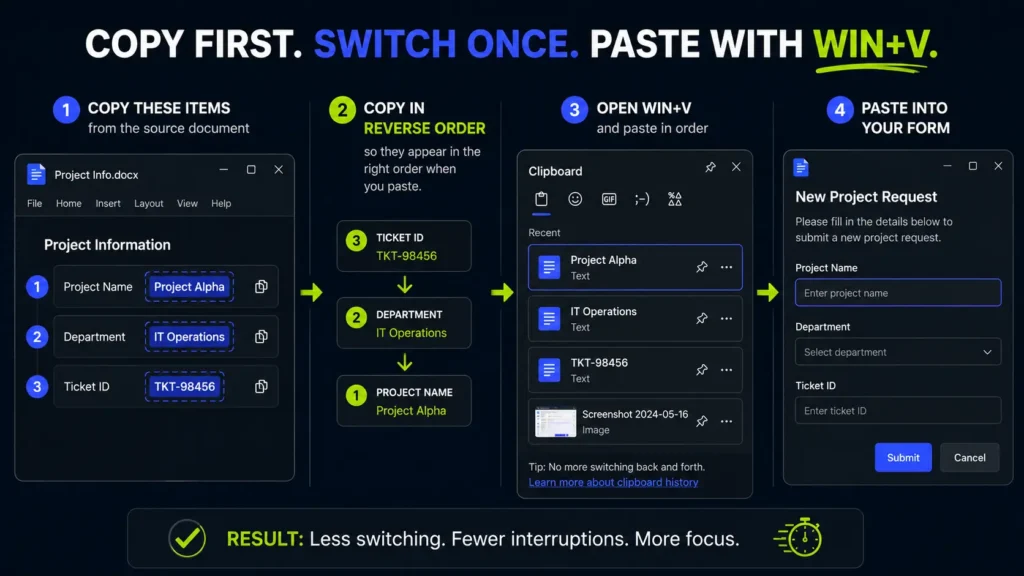
Imagine you need to copy three values from a document into a form:
- Project name
- Department
- Ticket ID
The slow way is to copy the project name, switch to the form, paste it, switch back, copy the department, switch to the form, paste it, switch back again, and so on.
The better way is to copy all the values first, then move to the form and paste each one from Win+V.
There is an extra detail that makes this smoother: clipboard history shows the most recent item at the top. So if you want the items to appear in the order you will paste them, copy them in reverse order.
For example, if the form needs:
- Project name
- Department
- Ticket ID
Copy them like this:
- Ticket ID
- Department
- Project name
Then, when you open Win+V in the destination app, the list is ready from top to bottom in the order you need to paste.
This is not always worth doing. For two tiny values, it may not matter. But when you are filling forms, updating records, preparing reports, or moving information between systems, it can remove a lot of unnecessary switching.
Use Win+V for recent items, pins, and text expanders differently
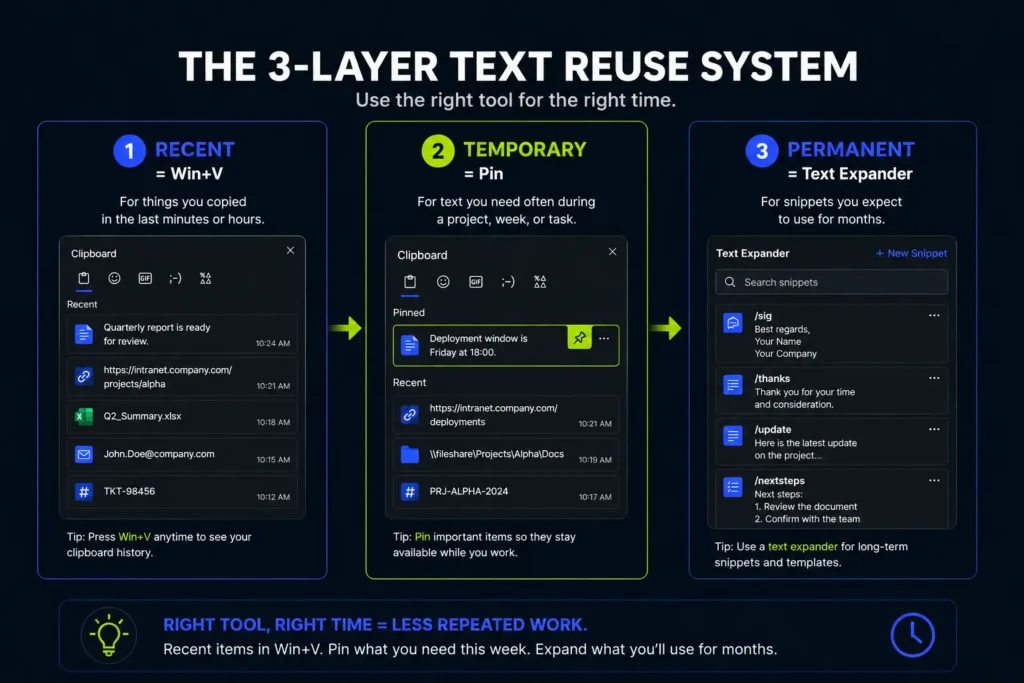
Use recent clipboard history for things you just copied. Use pinned clipboard items for temporary text you need again during the next few days. Use a text expander for snippets you expect to reuse for months.
A pinned clipboard item means an item you keep available inside Windows clipboard history instead of letting it disappear when the list changes. A text expander is a tool that inserts saved text snippets when you type a short trigger, for example turning a shortcut like ;thanks into a full reply.
Once you start thinking about it that way, Win+V becomes more than a shortcut. It becomes the first layer of a practical workflow for reusing text, links, paths, IDs, and even images.
I like to think about copied text in three layers:
| Layer | Best tool | Best for |
|---|---|---|
| Recent | Win+V clipboard history | Things copied in the last few minutes or hours |
| Temporary repeated | Pinned clipboard items | Text you need often during a project, week, or task |
| Permanent repeated | Text expander | Snippets you expect to use for months |
This distinction matters because clipboard history can become messy if you use it for everything.
Win+V is excellent as a temporary working memory. It is not the best place to build a permanent library of standard replies, templates, or long snippets.
Use Win+V for recent items
This is the most natural use case.
You copied a link, then a sentence, then a file name, then a ticket number. A few minutes later, you need the link again.
Instead of going back to the browser tab, press Win+V and select the link from the list.
This works especially well when you are moving between several office apps: Outlook, Teams, Excel, a browser, a PDF viewer, an internal tool, and a document.
Use pinned clipboard items for temporary repeated text
Windows clipboard history lets you pin items. A pinned item can stay available even when the rest of the clipboard history changes, and it can remain after restarting the PC.
I would not use pinned items as a permanent snippet system. I see them more as a temporary workbench.
For example, pinning can be useful when you need the same text many times over the next few days, but probably not next month.
- A project code you are using all week.
- A temporary status sentence for a report.
- A folder path you need while documenting a process.
- A short message you are sending repeatedly during a migration.
- A reference number you need while working across several systems.
When the task is done, unpin it.
That is the key. Pinned clipboard items are useful when they stay temporary. If you pin everything forever, the list becomes another messy drawer.
Use a text expander for long-term snippets
If you expect to use a piece of text for months, it probably does not belong in clipboard history.
It belongs in a text expander.
A text expander is better for things like:
- Standard email replies.
- Repeated explanations.
- Signatures.
- Support answers.
- Compliance text.
- Markdown or HTML snippets.
- Templates with variables.
My rough rule is this:
If I need it today, Win+V is enough. If I need it this week, I might pin it. If I need it for months, it should become a text expander snippet.
That simple rule keeps clipboard history useful instead of turning it into a bad version of a snippet manager.
Win+V also works for screenshots and copied images
Clipboard history is not only useful for text.
If you copy or capture an image, Windows clipboard history can show a small preview in the Win+V panel. That makes it easier to choose the right item before pasting.
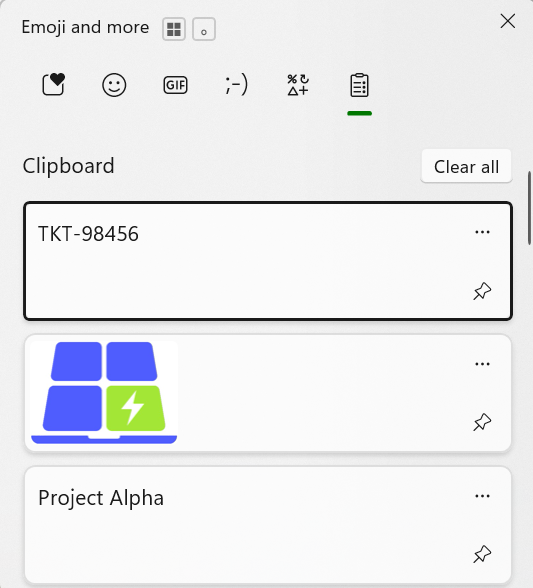
This is useful when you are collecting several screenshots for documentation, bug reports, internal instructions, or a quick explanation in Teams.
For example, instead of taking a screenshot, pasting it immediately, then going back for the next screenshot, you can capture several images first and then paste them from clipboard history in the destination document.
The same caution applies here: do not treat clipboard history as a safe place for sensitive screenshots. A screenshot can contain more information than you notice at first glance.
The missing feature I notice most: search
Windows clipboard history is useful, but it has one limitation I notice often:
There is no search box.
That means Win+V works best when the item you need is still easy to spot.
If your clipboard history is short, this is fine. If your clipboard history is long, scrolling through the list can become almost as annoying as going back to copy the text again.
This is why I would not try to use the built-in Windows clipboard history as a full clipboard manager.
For most office work, the default Windows feature is enough. But if you regularly need searchable clipboard history, folders, categories, a much longer history, or advanced snippet management, then a dedicated clipboard manager may be worth considering.
Still, I would start with Win+V first.
It is already built into Windows. It is simple. And for many people, the biggest improvement is not adding another app. It is finally using the feature they already have.
A few safety rules for clipboard history
Clipboard history is convenient, but convenience can be risky if you copy sensitive information.
That matters even more if you enable clipboard sync across devices or keep items pinned so they remain available for longer.
I would avoid relying on clipboard history for anything like:
- Passwords.
- API keys.
- Customer data.
- HR information.
- Financial information.
- Medical or legal information.
- Confidential company content.
- Screenshots that may contain private or internal data.
The exact risk depends on your device, your account, your company policies, and your Windows settings. But as a general habit, I prefer to keep sensitive content out of clipboard history whenever possible.
If you work with confidential content, check your company rules before enabling clipboard history, syncing it across devices, or using pinned items heavily.
My simple Win+V rule
Here is the rule that makes Win+V useful in daily work:
Before you switch back to copy something again, press Win+V.
And when you need to move several items from one place to another, use this variation:
Copy first, switch once, then paste from Win+V.
If the item is there, you saved yourself a context switch.
If you keep needing the same item for a few days, pin it.
If you still need it next month, move it into a text expander.
This is a small workflow, but it removes a surprising amount of repeated copying during office work.
Final thought
Win+V will not transform your whole productivity system.
But it can remove one of those tiny frictions that happens again and again: copying the same text, link, ID, path, screenshot, or sentence more than once.
Use it for recent items. Copy several items before switching apps. Pin temporary snippets when needed. Move stable repeated text to a text expander.
That is how you actually use Win+V well.
Want more practical Windows productivity tips? If you like simple ways to make everyday work faster, I share more practical Windows productivity tricks in the TurboTasking newsletter.


