

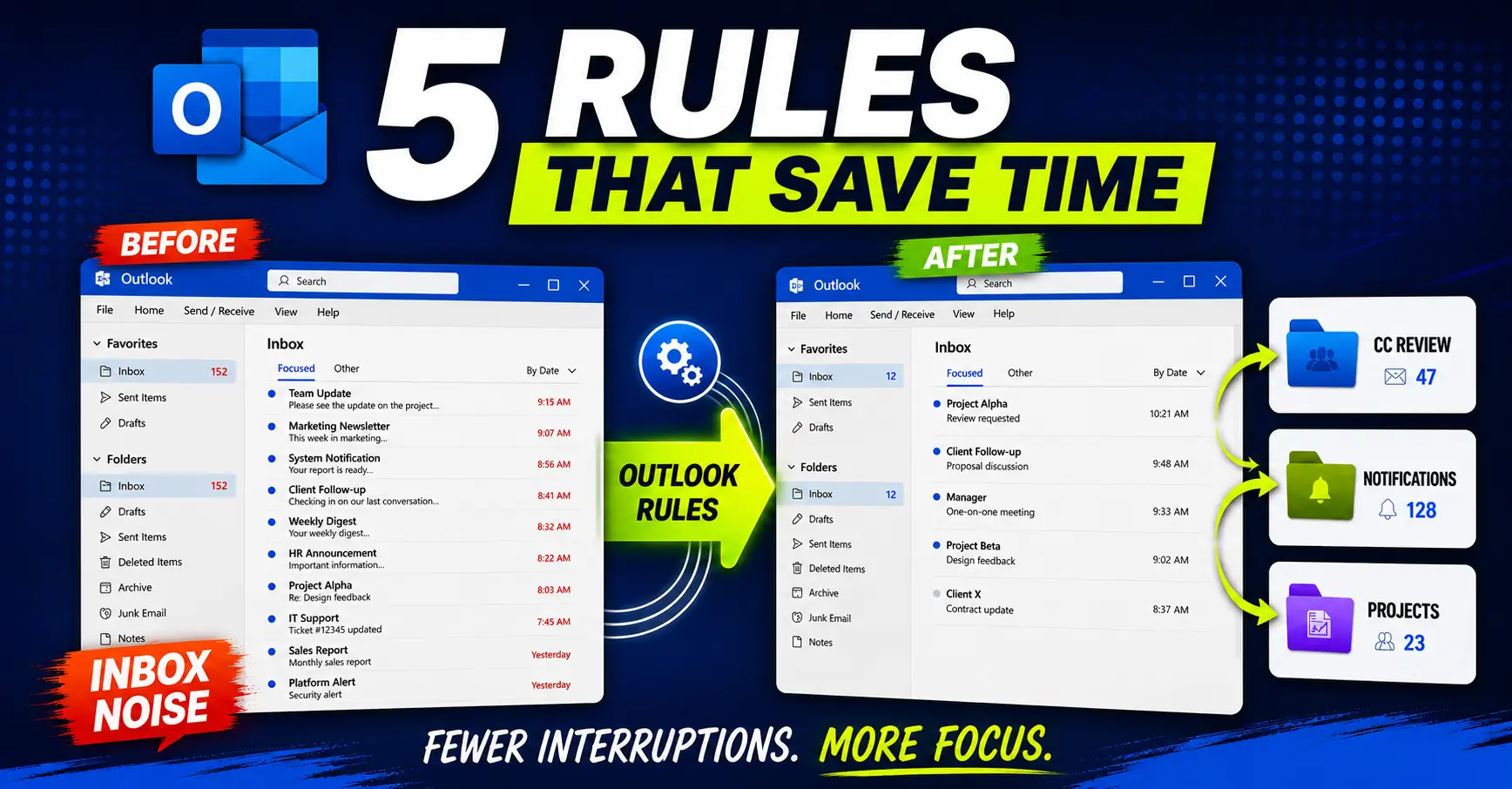
Outlook rules can save time.
But only if you use them carefully.
The goal is not to build a complicated folder system that hides half your email.
The goal is simpler: make the right emails easier to process, and keep the wrong emails from interrupting your day.
In this article, I will show you five Outlook rules examples that are actually worth copying at work.
More importantly, I will also show you when not to use a rule.
Key Takeaways
- Good Outlook rules reduce decisions without hiding important emails.
- Move CC emails and low-value notifications out of the main inbox.
- Route shared addresses and projects into the right work context.
- Use categories or flags when moving an email feels risky.
- Start with one rule, test it, then add more carefully.
What Outlook rules should actually do
An Outlook rule is basically a small automation for your inbox.
If an email matches a condition, Outlook performs an action.
For example:
- If the email is from a specific sender, move it to a folder.
- If the subject contains a certain word, assign a category.
- If you are on CC, move the email to a review folder.
- If the email comes from an automated system, keep it out of your main inbox.
Microsoft describes Outlook rules as a way to automatically move, flag, and respond to email messages. You can read the official Microsoft guide here: Set up rules in Outlook.
That sounds simple, but there is a trap.
A rule is only useful if it makes your inbox easier to understand.
If a rule makes important emails harder to find, it is not saving time. It is creating another place you need to remember to check.
So before creating any Outlook rule, I like to ask one question:
Will this rule reduce noise, separate context, or protect my attention?
If the answer is no, I probably do not need the rule.
How to create rules in Outlook
The exact steps depend on whether you use classic Outlook, new Outlook, or Outlook on the web.
But the basic idea is usually similar:
- Open Outlook.
- Select an email that represents the type of message you want to automate.
- Open the rules option.
- Choose the condition, such as sender, subject, recipient, or CC.
- Choose the action, such as move to folder, categorize, flag, or mark as read. For more control, open Advanced Options to choose specific conditions, actions, and exceptions.
- Save the rule.
- Test it before relying on it.
In new Outlook, Microsoft also lets you manage rules from Settings > Mail > Rules. You can edit rules, disable them, change their order, and run rules on existing messages. Microsoft explains this in its guide to managing email messages with rules in Outlook.
Now let’s look at the examples worth copying.
Outlook rule example 1: Move CC emails to a review folder
This is probably the most useful Outlook rule for busy office workers.
Emails where you are directly in the To field usually deserve more attention than emails where you are only in CC.
That does not mean CC emails are useless.
It means they are often a different type of work.
Direct emails usually mean:
- someone expects you to read it,
- someone may expect a response,
- the topic is probably closer to your responsibility.
CC emails often mean:
- you should be aware of something,
- someone wants to keep you in the loop,
- you may need it later, but not immediately.
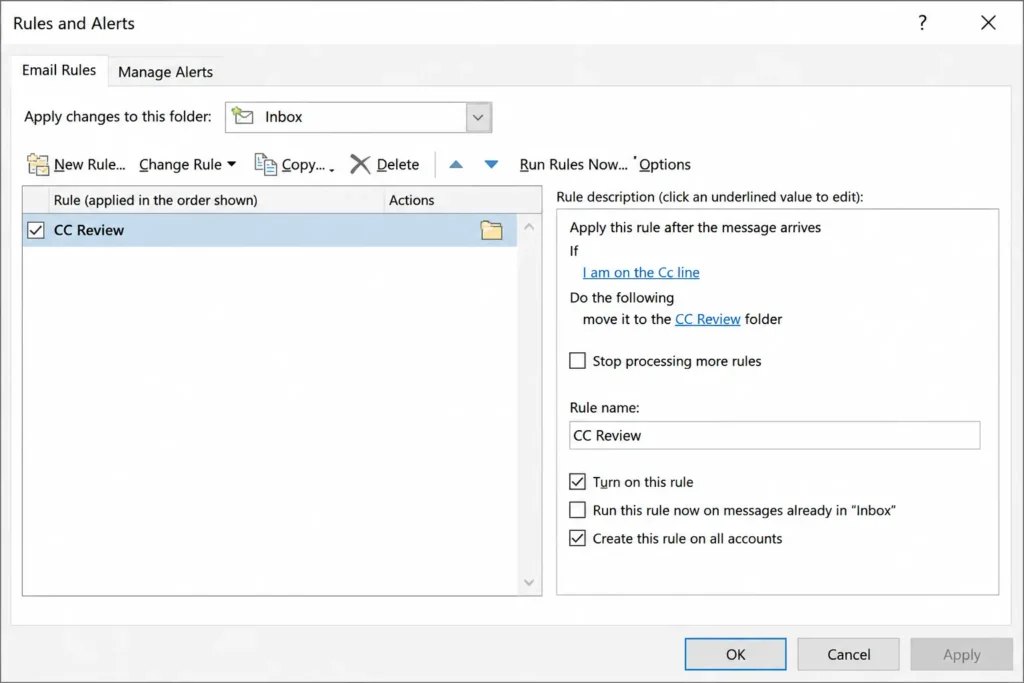
So one simple rule is:
- Condition: I am on the CC line.
- Action: Move the email to a folder called “CC Review”.
- Optional: Keep it unread.
I would be careful with marking CC emails as read automatically.
Some people recommend it. For example, Scott Hanselman has written about keeping direct emails in the inbox and moving CC emails elsewhere: One Email Rule: Have a Separate Inbox and an Inbox CC.
I like the idea, but I would use a safer version at work.
Move CC emails to a review folder, but keep them unread until you know your company culture and your role well enough.
This gives you the benefit without making the system too aggressive.
Outlook rule example 2: Move newsletters and system notifications out of your inbox
Not every email deserves to arrive in your main inbox.
Some messages are useful, but not urgent.
For example:
- internal newsletters,
- software notifications,
- automated reports,
- ticket updates,
- system alerts,
- HR announcements,
- low-priority digests.
These emails can quietly turn your inbox into a notification feed.
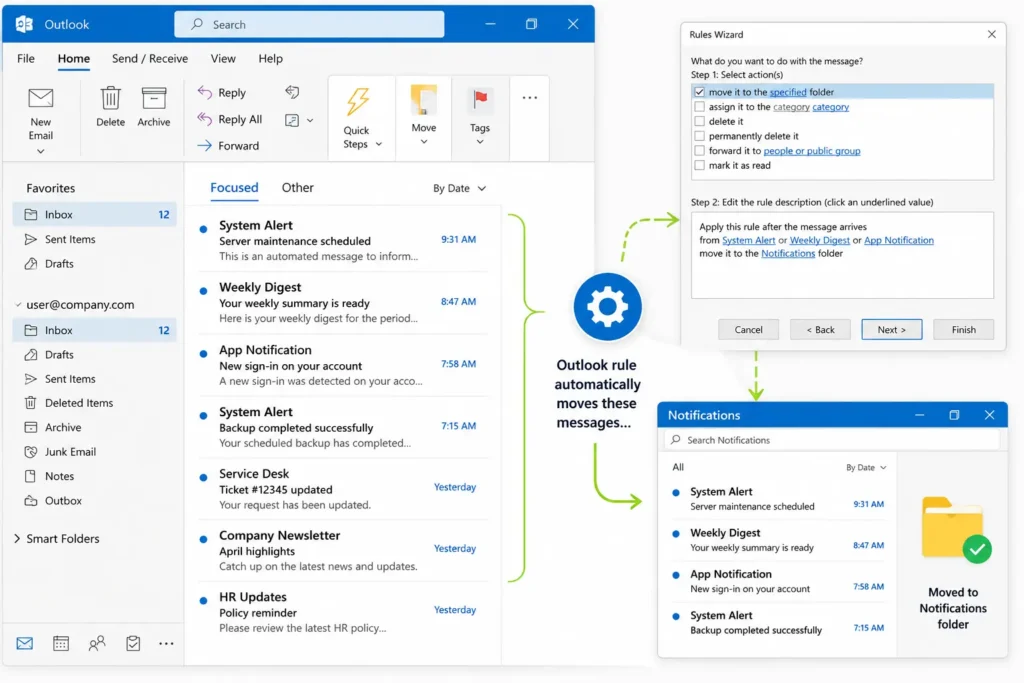
A good rule can move them into a folder you check on purpose.
Example rule:
- Condition: Sender contains “no-reply”, “newsletter”, or a specific system address.
- Action: Move to a folder called “Notifications” or “Read Later”.
- Optional: Keep unread if you still want a visible count.
For some very low-value messages, I go one step further. If the email is useful as a record but not as an action signal, you can create a rule to mark low-value emails as read automatically. I would only do this for messages you are confident do not need manual attention.
This rule works best when the folder has a review habit attached to it.
For example, you might check it once after lunch and once near the end of the day.
Without that habit, the rule can become a hiding place.
With that habit, it becomes a batching system.
Outlook rule example 3: Route team or shared address emails to a dedicated folder
Some work emails do not belong in the same mental bucket as your personal inbox.
For example, you may receive emails sent to:
- a shared team address,
- a project mailbox,
- a role-based alias,
- a department inbox,
- a support address,
- a committee or working group address.
Those messages may still matter, but they usually require a different context.
That is exactly where an Outlook rule helps.
Example rule:
- Condition: Sent to a specific team address or shared alias.
- Action: Move to a dedicated folder.
- Optional: Apply a category such as “Team”, “Project”, or “Shared Inbox”.
I use a version of this idea for role-based emails at work.
The key is that those messages are not mixed with my normal personal inbox. They have their own place, and I process them in the right context.
This is especially useful if the emails are important, but not always personally urgent.
Outlook rule example 4: Categorize project emails automatically
Not every rule needs to move email to a folder.
Sometimes, moving emails is too risky.
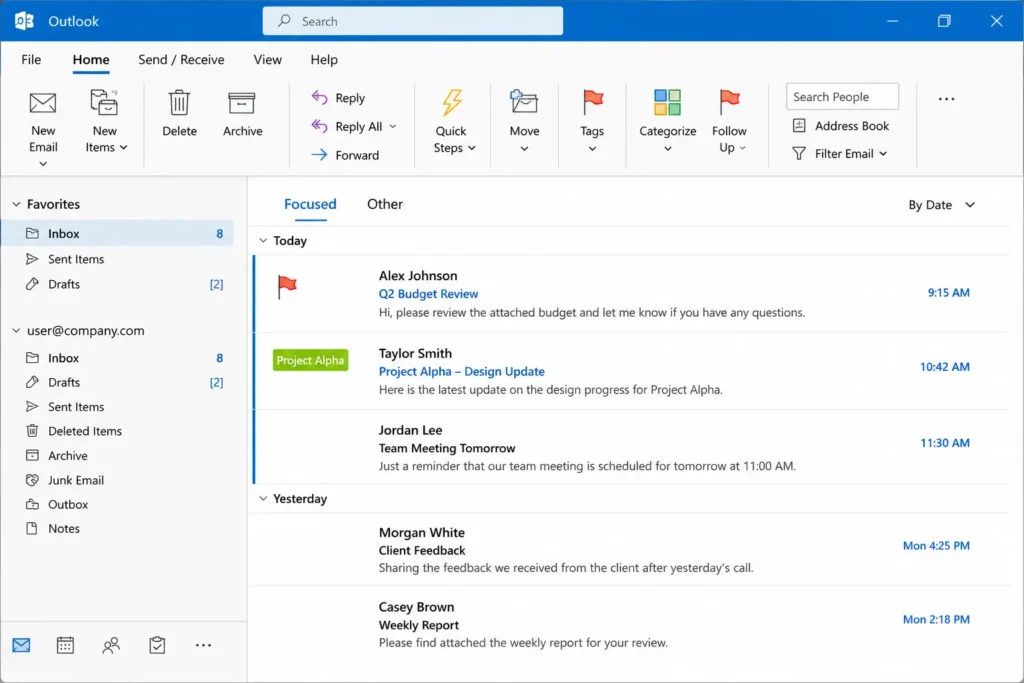
A safer option is to leave the email in your inbox but add a category automatically.
This is useful for projects, clients, recurring topics, or internal initiatives.
Example rule:
- Condition: Subject contains a project name, client name, internal code, or recurring keyword.
- Action: Assign a category.
- Optional: Do not move the email.
This gives you a visual signal without hiding the message.
For example, if a project name appears in the subject line, Outlook can assign the right category automatically. Then you can still process the email from your inbox, but you immediately know what context it belongs to.
This pairs well with conditional formatting.
If you want to make certain emails stand out visually without moving them, see my separate guide on Outlook conditional formatting.
Outlook rule example 5: Flag important senders without moving their emails
Some emails should not be moved out of your inbox.
They should become more visible.
For example, emails from:
- your manager,
- a key client,
- a project lead,
- a small number of critical stakeholders.
For these senders, I would usually avoid moving the email to a folder.
Instead, use a flag or category.
Example rule:
- Condition: From a specific important sender.
- Action: Flag for follow-up or assign an “Important” category.
- Optional: Keep the email in the inbox.
The danger is overusing this.
If you create an “important sender” rule for 25 people, the rule stops being useful.
Keep this list short.
Three to five senders is usually enough.
Rules I would not copy blindly: forwarding and auto replies
Outlook rules can do more than move or categorize email.
They can also forward messages or send automatic replies in some setups.
That does not mean you should use those features casually.
Be careful with automatic forwarding
Automatic forwarding can be useful in specific workflows, but it can also create security, privacy, and compliance problems.
In a corporate environment, I would not create forwarding rules unless your company allows it and the use case is clearly approved.
Examples where forwarding may be risky:
- forwarding work email to a personal account,
- forwarding client messages outside your company,
- forwarding messages that may contain confidential information,
- forwarding emails without telling the people involved.
For most office workers, moving, categorizing, or flagging is safer than forwarding.
Use automatic replies only for narrow cases
Automatic replies can be useful in some jobs.
For example:
- a support inbox that confirms receipt,
- a shared mailbox with a standard process,
- a recurring internal request with a known next step,
- a form-based workflow where the same confirmation is always appropriate.
But I would avoid automatic replies for normal human communication.
If a message is sensitive, political, emotional, ambiguous, or client-facing, an automatic reply can easily create more problems than it solves.
So my default rule is simple:
Use auto replies for process confirmation, not for relationship management.
If your Outlook rules are not working, check these first
Outlook rules are useful, but they can be surprisingly easy to misconfigure.
If a rule does not behave the way you expected, do not rebuild everything yet.
Check these basics first.
1. Check the rule order
Outlook rules run in order.
If one rule acts on a message before another rule sees it, you may get unexpected results.
Microsoft explains that inbox rules are applied based on their order in the rules list in its guide to managing email messages with rules in Outlook.
Put your most specific rules above your broad rules.
For example:
- Specific project rule first.
- Specific sender rule second.
- General notification rule later.
- Broad CC rule near the bottom, depending on your setup.
2. Use “stop processing more rules” when needed
Sometimes you want Outlook to apply one rule and then stop.
For example, if a message has already been moved to a project folder, you may not want another rule to move it again.
That is where “Stop processing more rules” can help.
Microsoft has a dedicated guide for this setting: Stop processing more rules in Outlook.
This setting prevent messy rule conflicts.
3. Check whether the rule is available in your version of Outlook
Classic Outlook, new Outlook, and Outlook on the web do not always behave exactly the same.
Some options may appear in one version and not another.
If you are following a tutorial and cannot find the same menu, you may simply be using a different Outlook version.
4. Test the rule on existing messages
Do not trust a new rule immediately.
Create it, run it on existing messages if your Outlook version supports that option, and check the result.
If it moved too much, the condition was too broad.
If it moved nothing, the condition was probably too narrow or not matching the emails the way you expected.
5. Keep the rule name clear
A rule called “Rule 1” will be useless two months from now.
Use names like:
- Move CC to Review Folder
- Move System Notifications
- Tag Project Phoenix
- Flag Manager Emails
- Move Shared Team Address
The name should tell you what the rule does without opening it.
Start with one Outlook rule, not a full system
The biggest mistake is trying to fix your entire inbox in one afternoon.
That usually creates too many folders, too many rules, and too many exceptions.
Start with one rule.
If your inbox is full of CC noise, start with the CC review folder.
If your inbox is full of automated notifications, start with the notifications rule.
If you receive messages through a shared address, start there.
One working rule is better than ten clever rules you do not trust.
This also fits a broader email management workflow.
Rules can reduce incoming noise, but they do not decide your priorities for you. You still need a simple way to process email, turn real work into tasks, and leave the inbox when you are done.
Final thought
Outlook rules are not about having a perfect inbox.
They are about reducing unnecessary decisions.
A good rule should make your workday calmer, not make your email system harder to understand.
Start with one rule that removes a real source of friction.
Then add another only when you know exactly what problem it solves.
Want more practical Windows productivity tips? If you like simple ways to make everyday work faster, I share more practical Windows productivity tricks in the TurboTasking newsletter.


