
Email is useful, but it can quietly turn your day into a reaction loop.
You open Outlook to check one message, then answer another, scan a third, follow a link, and suddenly your attention is no longer on the work you planned to do.
The problem is not email itself. The problem is letting your inbox decide what deserves your attention next.
There are many good ways to avoid that. Inbox Zero works well for some people. Others rely on search, folders, labels, rules, flags, or a separate task manager.
This article is not about proving that one email system is better than the rest.
It is simply the workflow I use to spend less time in Outlook while still keeping important emails visible.
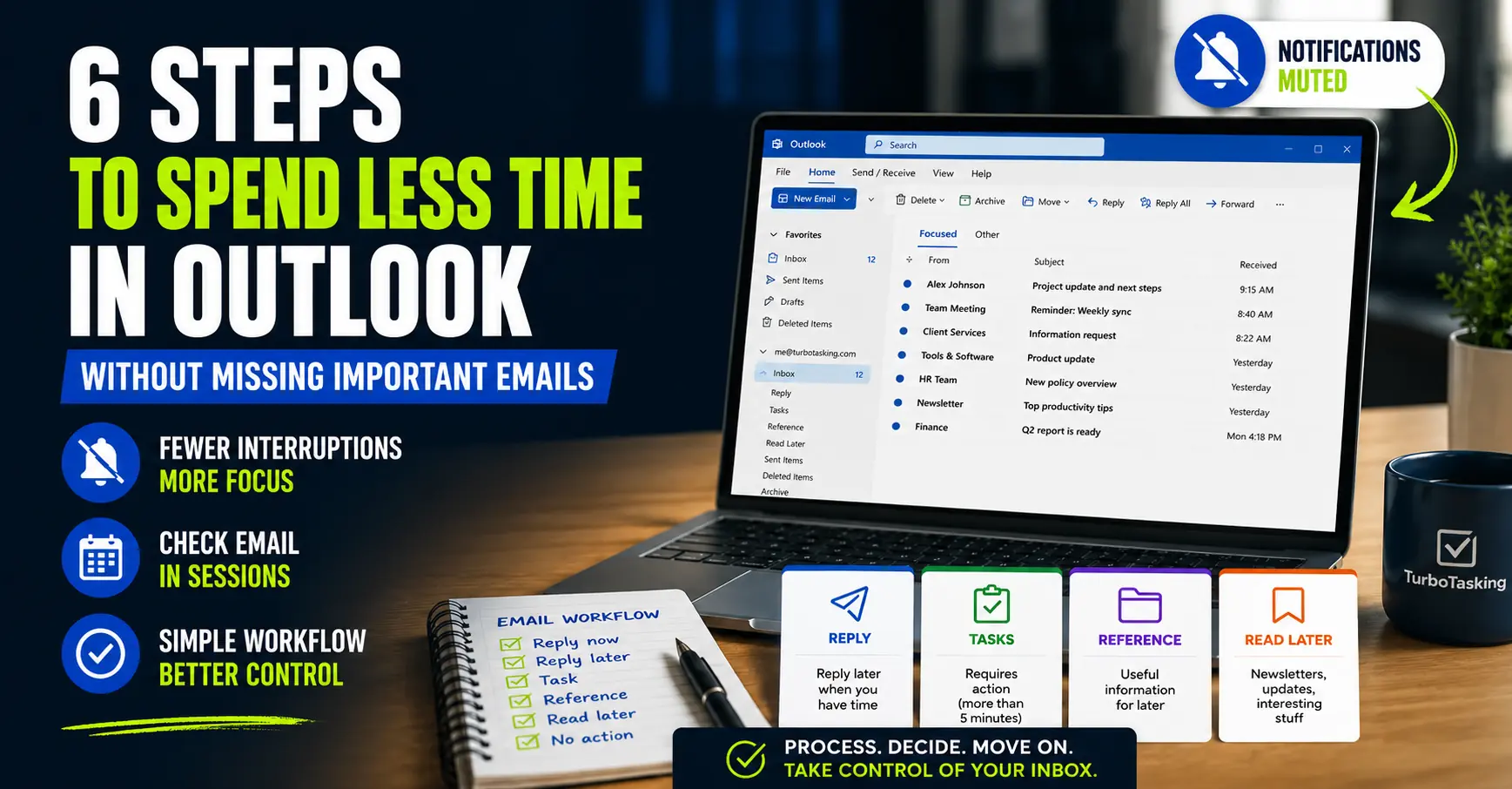
The workflow is built around 6 simple steps.
You can adapt the same idea to Gmail, Apple Mail, or other tools too, but I will use Outlook as the main example because that is what many corporate Windows users have in front of them all day.
Key Takeaways
- You can spend less time in Outlook without missing important emails.
- Batching email helps protect focused work from constant interruptions.
- Unread emails can become a reliable pending-action signal.
- Folders define the work. Flags define the timing.
Get more practical ways to reduce Outlook friction
Get the free 7 Corporate-Safe Windows Quick Wins guide and one practical office-work tip each week.
Check your inbox to confirm your subscription. You can unsubscribe anytime.
My goal is not Inbox Zero
Inbox Zero can be a very effective system.
An empty inbox feels clean, reduces visual noise, and gives many people a clear sense of control. If that works for you, there is no reason to stop using it.
My own workflow follows a different philosophy.
I do not use Outlook to keep my inbox empty. I use it to make sure every important email has a clear next step.
For me, a controlled inbox does not mean there are zero emails inside it. It means I know which emails still need action from me and which ones do not.
The key distinction is this:
- Unread means there is still an action pending for me.
- Read means there is no pending action left for me.
That rule makes the whole workflow easier because unread emails become a reliable signal, not just a label for new messages.
Step 1: Turn off Outlook notifications
The first step is also the simplest: turn off Outlook notifications.
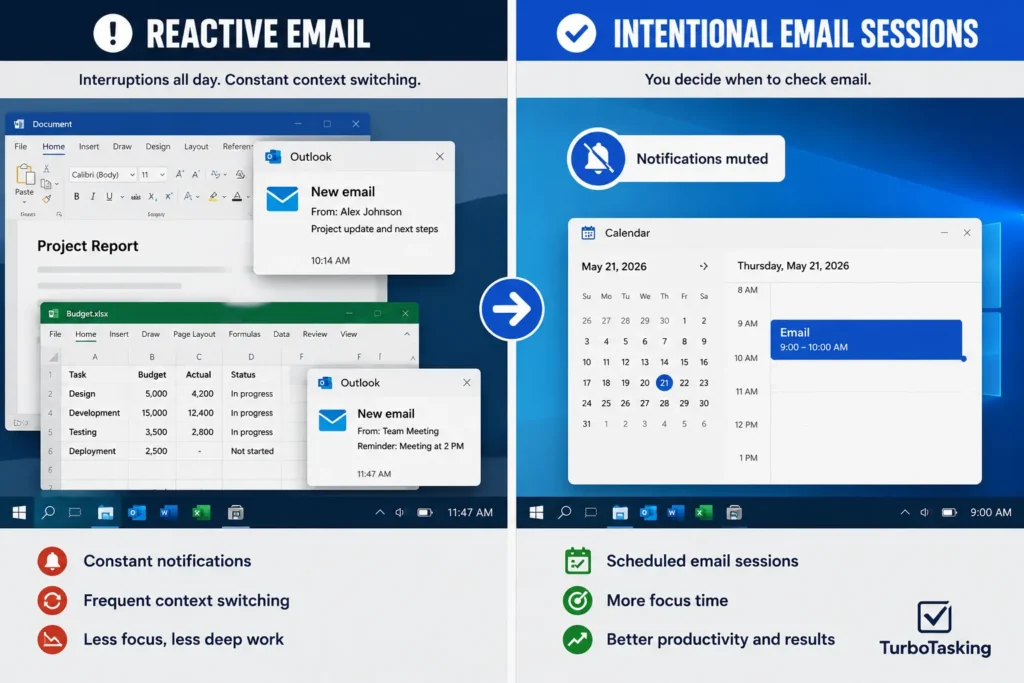
Email notifications are expensive because they do not just show you information. They interrupt whatever your brain was doing before.
You may be writing a document, reviewing a spreadsheet, preparing a report, or trying to understand a difficult problem. Then Outlook flashes a new message on your screen and your attention is gone.
Even if you do not reply, part of your mind has already switched context.
This is the same basic idea behind deep work: if you want to do focused work, you need to reduce the number of things that pull your attention away.
In Outlook, I would start by disabling:
- Desktop pop-up notifications
- Email notification sounds
- Preview banners that appear over your work
- Any non-essential email alerts
This does not mean ignoring email. It means you decide when Outlook gets your attention, instead of letting every new message decide for you.
There are exceptions. If you work in customer support, sales, incident response, or another role with strict response-time expectations, you may need some alerts. But even then, you can usually reduce the number of notifications that are allowed to interrupt you.
Step 2: Check email in sessions, not all day
Once notifications are off, the next step is to stop treating email like a live dashboard.
I prefer to process email in sessions.
A simple version could look like this:
- Morning: process new email, urgent replies, and anything that affects the day.
- Midday: do a quick scan only if your job needs it.
- End of day: reply, clean up decisions, and prepare anything needed for tomorrow.
This is a form of email batching. Instead of checking email every few minutes, you process email in blocks.
The benefit is not only the time saved inside Outlook. The bigger benefit is that you stop breaking your attention every time a new message arrives.
Of course, this needs to fit your job.
Some roles require quick replies. Some teams use email for urgent operational decisions. Some managers expect fast answers. If that is your situation, do not blindly copy someone else’s schedule.
But if your work allows it, even a small shift helps.
Instead of “I am checking email all day”, try “I process email at specific moments, and I do quick urgent checks only when needed.”
If your calendar is crowded with consecutive calls that leave no time between email sessions, you can also set Outlook to end meetings early automatically to protect small buffers throughout the day.
Step 3: Stop Outlook from marking emails as read automatically
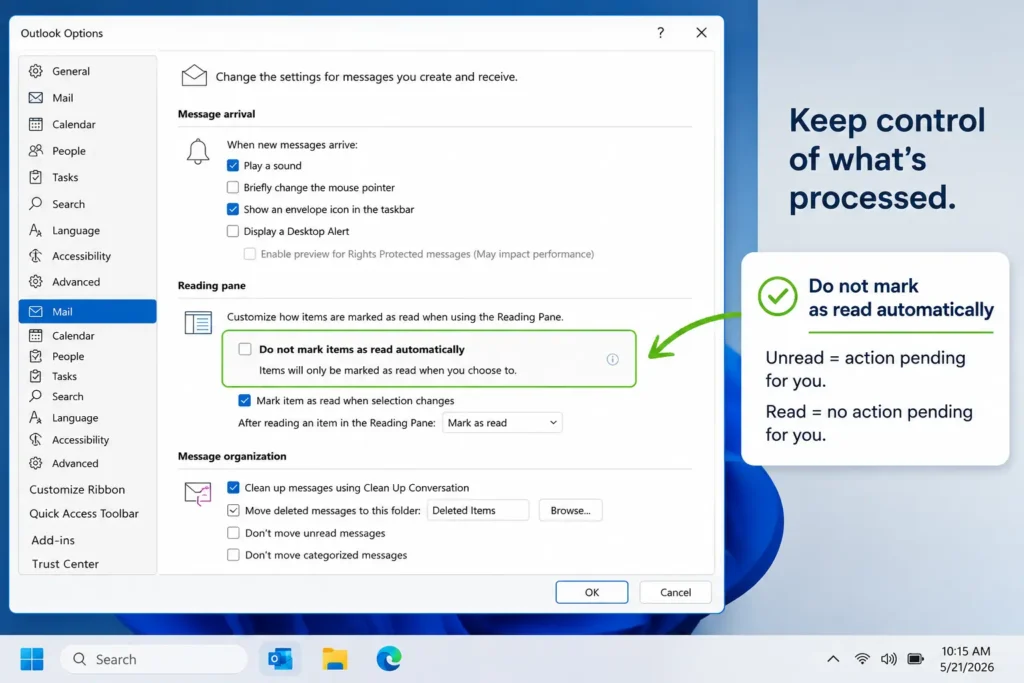
This is one of the most useful Outlook settings if you use unread emails as a processing signal.
By default, Outlook may mark an email as read just because you clicked it, previewed it, or stayed on it for a short moment.
That sounds harmless, but it can break your system.
Imagine this:
- You click an email by accident.
- Outlook marks it as read.
- You get interrupted.
- You never actually process the email.
- Later, it no longer stands out in your inbox.
That is how important messages get lost.
My preference is simple: an email should only become read when I decide it is processed.
In Outlook, look for the reading pane or mark-as-read settings and adjust them so emails are not automatically marked as read just because you preview them.
The exact setting can differ between classic Outlook, new Outlook, and Outlook on the web. But the principle is the same:
Do not let Outlook decide that an email is processed just because it appeared on your screen.
Build a calmer Outlook workflow
Get the free Windows Quick Wins guide plus short, practical ideas for handling email and repetitive office work with less friction.
Check your inbox to confirm your subscription. You can unsubscribe anytime.
Step 4: Use unread emails as your pending-action signal
Once automatic mark-as-read is disabled, unread emails become much more useful.
In my workflow, unread does not simply mean “new”.
Unread means there is still an action pending for me.
That action might be small, such as replying later. Or it might be larger, such as checking a document, preparing an answer, reviewing information, or deciding where the email belongs.
Read means the opposite: there is no pending action for me anymore.
In practice, this means I manually change the read status all the time.
The fastest way is with keyboard shortcuts:
Ctrl+Qmarks the selected email as read, andCtrl+Umarks it as unread.
You can also do the same with the mouse by right-clicking the message and choosing the read or unread option.
If I open an email and immediately understand that nothing is required from me, I press Ctrl+Q to mark it as read. It can stay in the inbox. That is fine.
If I read an email and something is still expected from me, I do not mark it as read just to make the inbox look cleaner.
Instead, I decide what kind of pending action it represents.
To make those decisions visible, I use a few simple Outlook folders that I created manually.
These are not special Outlook features, rules, or categories. They are just normal mail folders with practical names: Reply, Tasks, Reference, and Read Later.
The folder name tells me what kind of pending action the email represents.
- If it only needs a reply, I move it to Reply.
- If it requires real work, I move it to Tasks.
- If it contains information I may need later, I move it to Reference.
- If it is interesting but not urgent, I move it to Read Later.
- If timing matters, I use a flag or reminder.
This is why I do not need my inbox to be empty.
I can have old read emails in the inbox and still feel in control because they are no longer asking anything from me.
The emails that still need my attention are either unread or placed in a folder that clearly tells me what kind of action is pending.
This only works if you are disciplined about one rule:
Do not mark an email as read until there is no pending action left for you.
Step 5: Give every email one next action
This is the heart of the workflow.
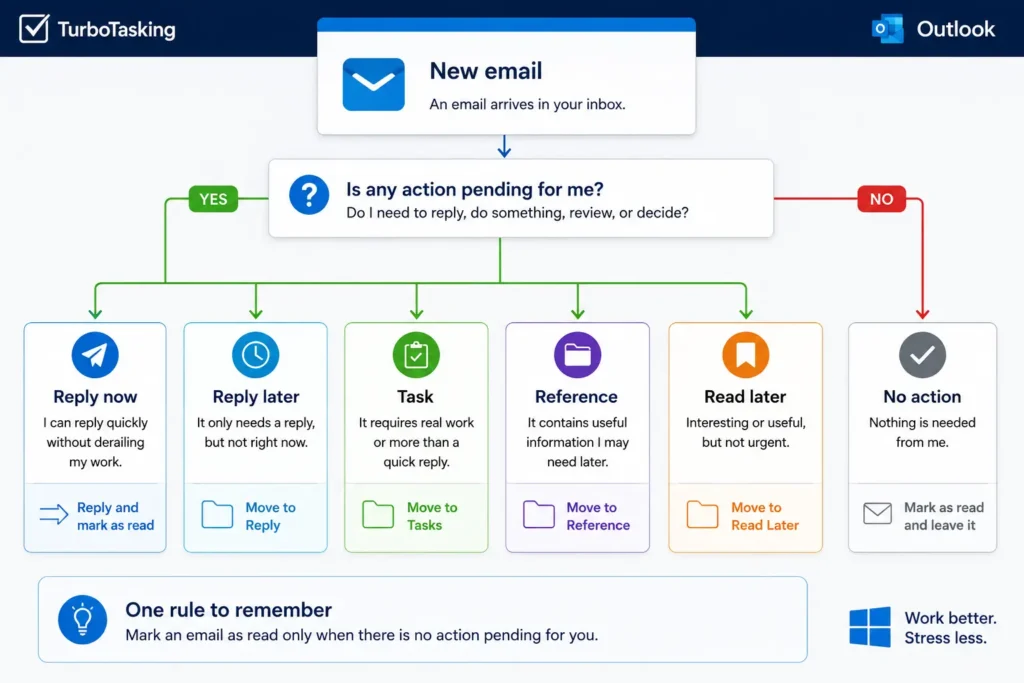
When you process email, do not just read messages. Decide what each email means.
For me, most emails fall into one of these options.
Reply now
If an email needs a short reply and I can answer it without derailing my current work, I reply immediately.
This prevents small emails from becoming a fake task list.
But I try to be careful with this. “It only takes two minutes” can become a full hour of small interruptions.
Mark as read and leave it
Some emails need no action.
Maybe it is an FYI message. Maybe it is a confirmation. Maybe it is an email I only needed to understand once.
In that case, I mark it as read and usually leave it in the inbox.
I do not move every single email to a carefully named archive folder. That may work for some people, but for me it adds more maintenance than value.
Move it to Reply
This folder is for emails that need a response, but not right now.
Maybe the answer needs more thought. Maybe I want to reply later in a dedicated email session. Maybe I do not want one reply to pull me into 20 minutes of related work.
The point of the Reply folder is simple: this email only needs a response.
Move it to Tasks
This folder is for emails that require real work.
Not just “write back”.
Examples:
- Review a document
- Prepare information
- Check something in a system
- Update a file
- Coordinate with another person before replying
If the email creates work that will take more than a few minutes, I do not want it mixed with normal inbox noise.
Move it to Reference
Some emails contain useful information, but do not require action.
For example:
- Instructions you may need later
- Project details
- Policy information
- Vendor information
- Decisions you may need to find again
These go to Reference.
You can still search for them later, but moving them out of the active email flow makes your inbox easier to read.
Move it to Read Later
This is for useful but non-urgent information.
Examples:
- Newsletters
- Software updates
- Product announcements
- Internal news
- Interesting articles or resources
This folder protects your actual work from “interesting” work.
There is nothing wrong with reading useful updates. But if you read them every time they arrive, your inbox becomes a random content feed.
Step 6: Use Outlook flags for emails with a date or follow-up
Outlook flags are useful when an email needs to come back to your attention at a specific time.
In my workflow, I use folders to define what kind of work an email represents, and flags to define when I need to see it again.
I prefer this rule:
Use folders for the type of work. Use flags for timing.
For example, I may flag an email if:
- It has a deadline
- I need to follow up on a specific day
- I am waiting for someone
- I need to complete the action before a meeting
- It should appear in my task list for this week
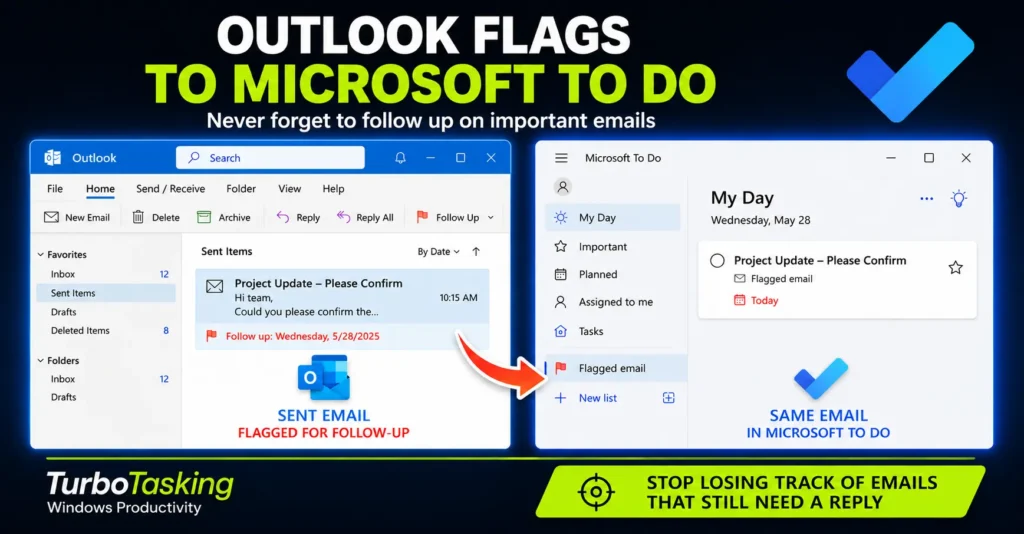
This is especially useful in Microsoft 365 environments because flagged Outlook emails can appear in Microsoft To Do.
That gives you a simple bridge between email and task management.
I would still be careful with it. Outlook does not need to become your entire task management system.
A better way to think about it is this:
Outlook is the capture point for email-driven work. It does not have to become the place where you manage all you tasks.
If you already use Microsoft To Do, this connection can be very practical. You can flag the email, see it in To Do, and mark it complete when the work is done.
I have written an article about flagging Outlook emails in Microsoft To Do:
My simple Outlook folder setup
You do not need many folders to make this work.
In fact, too many folders can make email management slower because you spend too much time deciding where things belong.
A small folder system is easier to maintain.
| Folder | What goes there |
|---|---|
| Reply | Emails that need a response, but not right now |
| Tasks | Emails that require a longer action |
| Reference | Useful information with no immediate action |
| Read Later | Interesting updates, newsletters, or non-urgent reading |
The exact folder names do not matter.
You can call them Action, Reply Later, Waiting, Info, Archive, or anything else that fits your work.
You can also define the folders differently. This setup is only an example of what works for me, not a rule everyone needs to follow.
What matters is that each folder helps you answer a clear question about the email.
- Do I need to reply?
- Do I need to do work?
- Do I need this as reference?
- Do I only want to read this later?
Your questions may be different depending on your role, your team, and the type of emails you receive.
If a folder helps you make faster decisions, it is useful. If it only adds more sorting work, you probably do not need it.
When this workflow may not work
This workflow is not universal.
It works best when your job allows you to process email in batches and when most emails do not require an immediate answer.
It may need adjustment if you work in:
- Customer support
- Sales
- Incident response
- Executive assistance
- Shared inbox management
- Operational teams with strict response times
In those situations, email may be part of the real-time workflow. You may not be able to check it only twice per day.
But even then, parts of the system can still help.
You might still turn off non-essential notifications. You might still prevent Outlook from marking emails as read automatically. You might still use a Reply folder for non-urgent answers or a Tasks folder for longer actions.
The point is not to follow the system perfectly. The point is to stop treating every email as equally urgent.
The full 6-step Outlook workflow
Here is the workflow in one place:
- Turn off Outlook notifications so email stops interrupting your focused work.
- Check email in sessions instead of watching your inbox all day.
- Stop Outlook from marking emails as read automatically so unread remains reliable.
- Use unread emails as your processing signal, not just as a “new email” label.
- Give every email one next action: reply, task, reference, read later, or no action.
- Use flags only for dated follow-up, especially if you use Microsoft To Do.
This system is intentionally simple.
Email already creates enough noise. Your email management workflow should not add more.
Final thoughts
You do not need a perfect email system.
You need a system that stops Outlook from controlling your attention.
For me, that means fewer notifications, email sessions instead of constant checking, unread emails as a reliable signal, a few action folders, and flags only when timing matters.
That is enough to spend less time in Outlook without feeling like important messages are slipping through the cracks.
Want more practical Windows productivity tips? If you like simple ways to make everyday work faster, I share more practical Windows productivity tricks in the TurboTasking newsletter.