

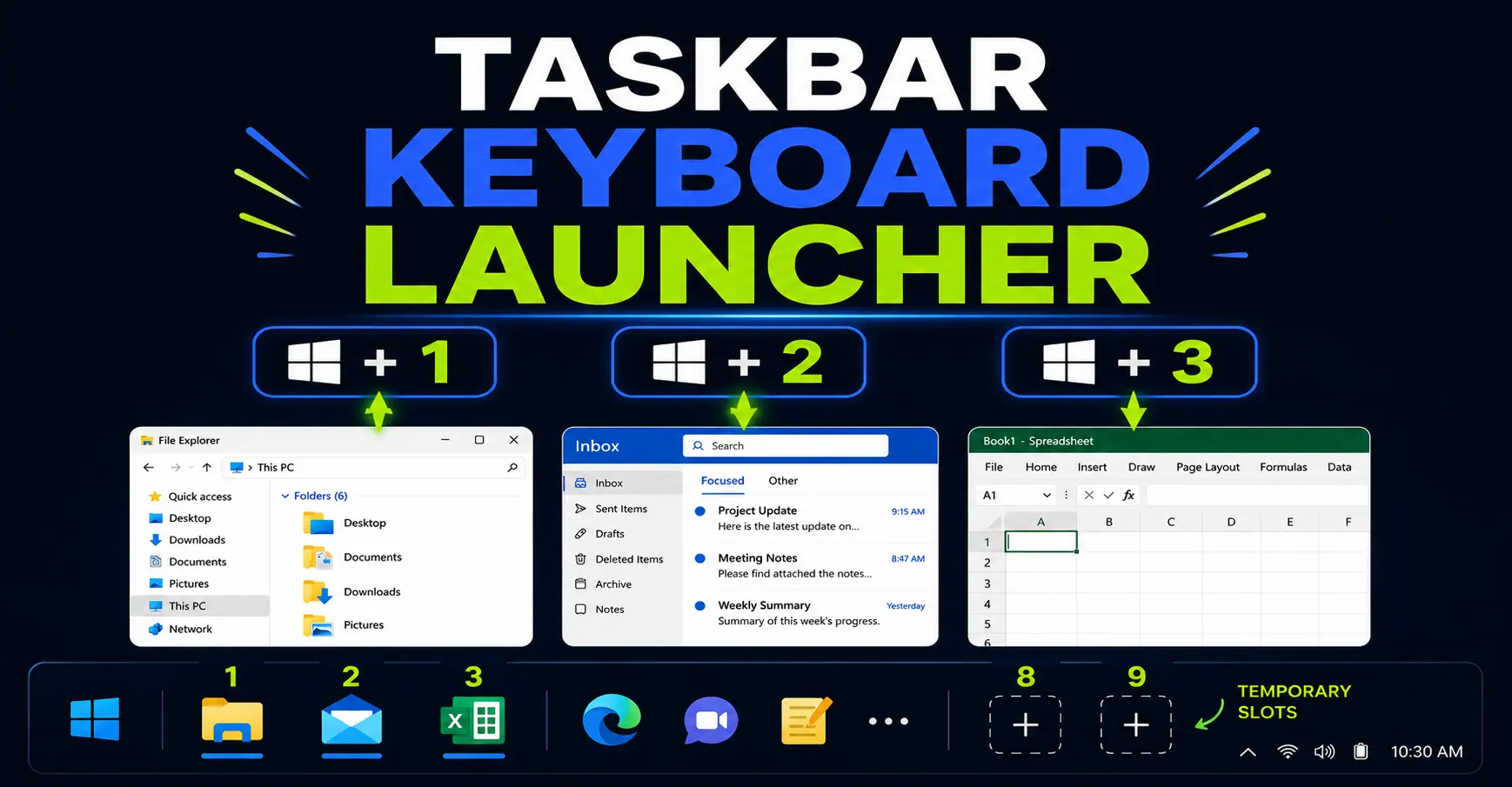
Your Windows taskbar can work like a keyboard launcher.
Most people pin their favorite apps to the taskbar, then still open them with the mouse. That works, but it also means you are constantly looking down, aiming at icons, and breaking your keyboard flow.
The faster way is to treat your pinned apps as numbered slots.
Win+1 opens the first pinned app. Win+2 opens the second. Win+3 opens the third.
Once you arrange your taskbar intentionally, those shortcuts become muscle memory. For example, these are my first three taskbar slots:
- Win+1 for File Explorer
- Win+2 for Outlook
- Win+3 for Excel
They are not my only pinned apps, but they are the ones I use so often that I want them in the easiest positions to remember.
Your apps will be different. The point is not to copy my order. The point is to stop treating your most-used apps as things you need to find.
Key Takeaways
- Win+number turns pinned apps into keyboard shortcuts.
- Win+T lets you navigate the entire taskbar with your keyboard when you do not know an app’s number.
- Win+Shift+number opens a new app window.
- Win+Alt+number opens the app’s Jump List.
In this article
How the Win+number shortcuts work
The number refers to the position of the app on your taskbar, from left to right.
Win+1 controls the first pinned app. Win+2 controls the second. This continues up to Win+9. Win+0 controls the tenth app.
That means Windows gives you ten built-in taskbar launcher slots.
If you want more than ten, Windows does not provide a built-in Win+number shortcut for the eleventh app and beyond. I wish it did. For now, my practical workaround is to reserve the first positions for permanent apps and use other launchers, search, or temporary taskbar slots for everything else.
The basic shortcut: Win+1, Win+2, Win+3…
The basic behavior is simple:
| Situation | What Win+number does |
|---|---|
| The app is closed | It opens the app. |
| The app has one window open | It switches to that window. |
| The app has several windows open | It shows the window previews for that app, similar to hovering over the taskbar icon. |
The multi-window behavior is the part that many people miss.
If app number 1 has several windows open, Win+1 shows those open windows while you keep holding the Windows key. Press 1 again while still holding Win, and Windows cycles through those windows.
If you press Win+1 and release the keys immediately, Windows brings one of those windows to the front, usually the first preview in that group.
This makes the shortcut useful both as an app launcher and as a window switcher.
The useful variations
The basic Win+number shortcut is already useful, but the variations make it much more powerful.
| Shortcut | What it does | When it is useful |
|---|---|---|
| Win+number | Open or switch to the app in that taskbar position. | Your everyday app launcher. |
| Win+Shift+number | Open a new instance of that app. | Opening a second File Explorer window, another browser window, or a new app instance. |
| Win+Ctrl+number | Switch to the last active window of that app. | Jumping back to the exact window you were using before. |
| Win+Alt+number | Open the app’s Jump List. | Accessing recent files, pinned folders, or app-specific actions. |
| Win+Ctrl+Shift+number | Open a new instance as administrator. | Advanced admin workflows. Use only when you actually need elevated permissions. |
Microsoft also lists these taskbar shortcuts in its official Windows keyboard shortcuts reference.
Win+Alt+number is basically right-click for your keyboard
Win+Alt+number is easy to ignore until you realize what it does.
It opens the Jump List for the app in that taskbar position. In practical terms, think of it as the keyboard version of right-clicking the app icon on the taskbar.
For office work, this can be surprisingly useful:
- Recent Excel files.
- Frequent File Explorer folders.
- Pinned documents.
- Recent Outlook items, depending on your setup.
- App-specific shortcuts.
It is not something I use every minute, but it is worth knowing because it turns the taskbar into more than just an app switcher.
How to navigate and control the Windows taskbar with your keyboard (Win+T)
While Win+number is the fastest way to open your primary tools, Windows also includes built-in shortcuts to navigate and control the entire taskbar directly from your keyboard.
The primary shortcut is Win+T:
- Press Win+T to move keyboard focus to the taskbar.
- Use the Left and Right arrow keys (← / →) to move between taskbar items. You can also press Win+T repeatedly to cycle forward, or Win+Shift+T to cycle backward.
- Press Enter to open the selected app or restore its active window.
Windows 11 tip: after pressing Win+T, you can also type the first letter of an app to jump to it. Home and End move to the first and last taskbar items.
I still prefer Win+1, Win+2, and Win+3 for my most-used apps, because they are faster. But Win+T is a nice fallback when the app is not in one of your memorized positions.
How to reach the system tray without the mouse
Win+B moves keyboard focus to the notification area on the right side of the taskbar. Use the arrow keys to move between icons such as network, volume and background apps, then press Enter to interact with the selected item.
My practical setup: permanent slots and temporary slots
The shortcut only becomes powerful when your taskbar order stays stable.
If you keep moving icons around, Win+1 will mean one thing today and another thing tomorrow. That destroys the whole benefit.
My recommendation is to divide your taskbar into two zones.
Permanent slots
Use the first positions for apps you open every single day.
- File Explorer
- Outlook
- Excel
- Your browser
- Teams
- OneNote
- PowerPoint
Do not choose these positions based on what looks nice. Choose them based on how often you use the app.
The first three positions matter most, because they are the easiest to memorize and press.
Temporary slots
I also like using some later positions, especially 8 and 9, for temporary apps.
For example, maybe this week you are working heavily with Power BI, a project folder, a reporting tool, a browser app, or a specific internal tool. Pin it to slot 9 for the week. Use Win+9 constantly. Then remove it when the project is over.
This keeps your core launcher stable while still giving you flexibility.
Office use cases
This is not just a “keyboard nerd” trick. It is useful in normal office work.
Open File Explorer without reaching for the mouse
If File Explorer is in slot 1, Win+1 becomes your file shortcut.
Need another File Explorer window? Use Win+Shift+1.
Jump back to Outlook instantly
If Outlook is in slot 2, Win+2 becomes your “back to email” shortcut.
This is especially useful when you are moving between email, attachments, browser pages, and documents.
Open a second Excel window faster
If Excel is in slot 3, Win+3 switches to Excel.
If you want a new instance or another window, try Win+Shift+3. Some apps handle new instances differently, but when it works, it is much faster than right-clicking the taskbar icon.
Switch between several windows of the same app
If you have three File Explorer windows open, hold Win and press 1 repeatedly to cycle through those previews.
If you simply want the last active window of that app, use Win+Ctrl+1.
How to start using this without memorizing everything
Do not try to memorize all combinations at once.
Start with only three:
- Win+1
- Win+2
- Win+3
Put your three most-used apps there and use those shortcuts for one week.
After that, add Win+Shift+number when you need a new window.
Then add Win+Alt+number for Jump Lists.
Then add Win+T and Win+Shift+T as your keyboard fallback for navigating the whole taskbar.
The limitation: only ten built-in slots
The annoying limitation is that this system only covers the first ten taskbar positions.
Win+1 through Win+9 cover the first nine apps. Win+0 covers the tenth.
As far as I know, Windows does not provide a built-in way to extend the same shortcut pattern to app number 11, 12, 13, and beyond.
That is why I would not try to turn the taskbar into a launcher for every app you use. Use it for your most important apps only.
For everything else, use Windows Search, PowerToys Run, Listary, or another launcher-style workflow. The taskbar shortcut system is best when it stays small, stable, and memorable.
If you want a deeper launcher workflow for files, folders, and web searches, you may also like my guide to using Listary on Windows.
Final thought
This shortcut is not powerful because it is hidden.
It is powerful because it turns your most-used apps into muscle memory.
Once File Explorer is always Win+1, Outlook is always Win+2, and Excel is always Win+3, opening apps stops being a visual task.
You no longer search for the icon. You just press the number.
Want more practical Windows productivity tips? If you like simple ways to make everyday work faster, I share more practical Windows productivity tricks in the TurboTasking newsletter.


