

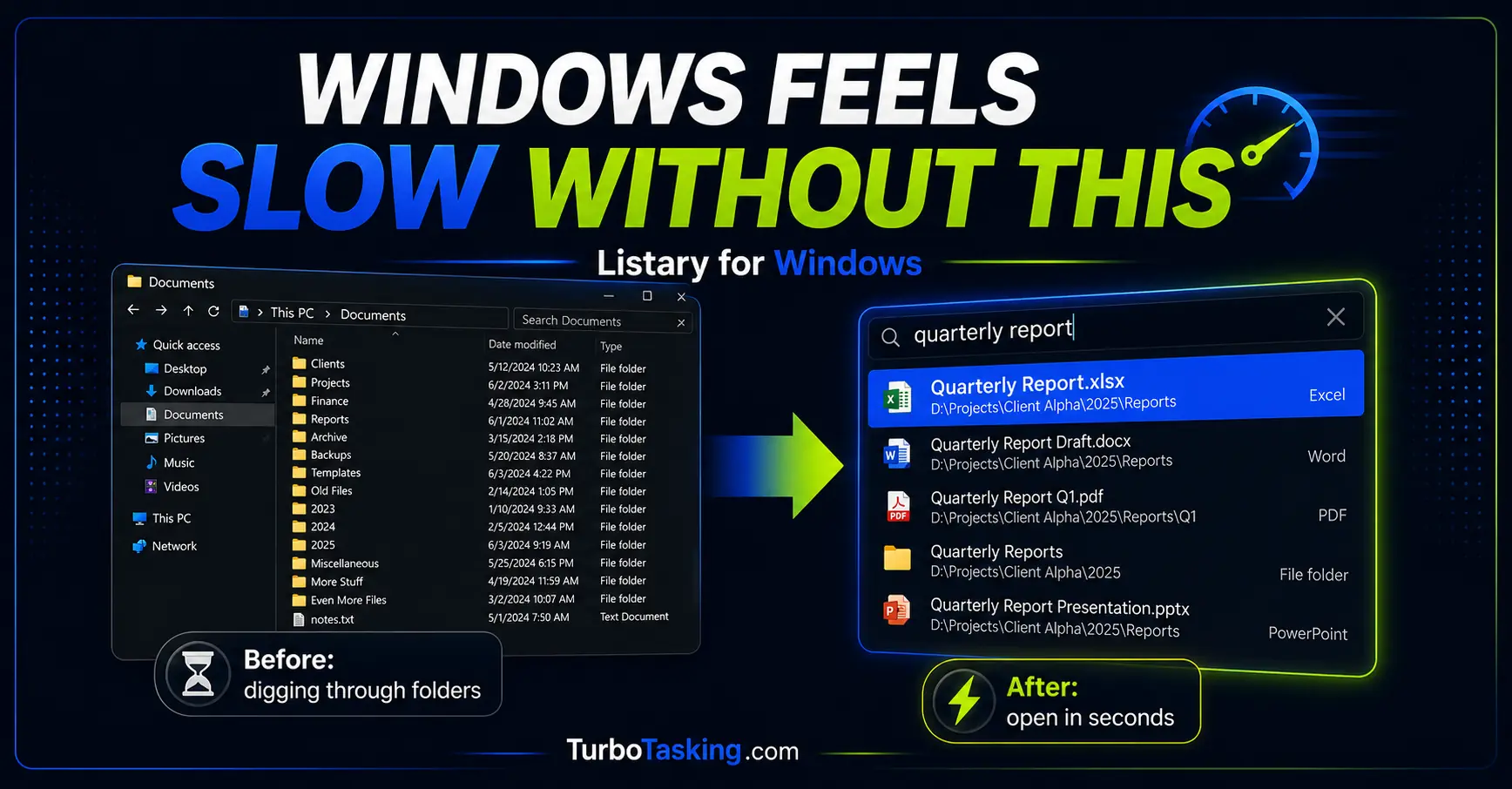
Using a Windows PC without Listary feels a bit like working without Ctrl+C and Ctrl+V.
Technically, you can still work. You can still open files, save documents, attach PDFs, search folders, and launch websites manually.
But everything around files feels slower.
I notice it every time I use a computer that does not have Listary installed. I open File Explorer more often. I click through folders more often. I lose small bits of attention every time I need to save, upload, attach, or find something.
That is why I do not think of Listary as just a Windows file search tool. For me, it is a faster file workflow for Windows.
In this guide, I will show the main ways I use Listary in real office work: finding files, jumping to the right folder when saving or opening files, using file actions, and launching web searches or work shortcuts directly from the keyboard.
Key Takeaways
- Listary makes Windows file work feel faster because you can search, open, save, and act on files without digging through folders manually.
- The shortcut I use most is pressing
Ctrltwice to search for files, folders, apps, and shortcuts. - The most underrated feature is Quick Switch, which helps you jump to the right folder inside Open and Save dialogs.
- Listary is not built into Windows, so you need to install it and check your company’s software policy before using it at work.
In this article
What is Listary?
Listary is a Windows search utility and launcher. It helps you find files, open folders, launch apps, switch to folders in file dialogs, and run web searches from a small command bar.
The basic idea is simple: instead of opening File Explorer, clicking through folders, using Windows Search, or manually typing a website address, you call Listary, type what you need, and jump there faster.
This guide focuses on Listary’s essential daily workflow. While Listary 7 continues to evolve in beta with search improvements and interface refinements, the core keyboard habits remain similar even if some visual details differ from Listary 6.
It is not a standard Windows feature. You have to install it separately. There is a free version for personal use, and Listary Pro is required for commercial use according to the current Listary pricing page. At the time of writing, Listary Pro is listed as a one-time payment of $19.95 USD with lifetime free updates.
If you want to use it on a work computer, check your company’s IT policy first. Some companies allow small productivity tools. Others block any software that is not managed by IT.
Why Windows file workflows feel slow
Windows already has built-in search. You can press the Windows key, start typing, and often find a file, app, or setting.
That is fine for occasional searches.
But file work in an office is not just “search for one file”. It is a chain of small actions:
- Find the file you need.
- Open the folder where it lives.
- Attach it to an email.
- Save a new document in the same project folder.
- Copy the file path for a ticket or message.
- Open a related website, ticket, dictionary, or internal tool.
Each step is small, but the interruptions add up. The problem is not only that Windows search can feel slow or inconsistent. The bigger problem is that normal file workflows make you navigate manually too often.
Listary reduces that navigation.
That is the reason I miss it so much when it is not there. It removes the small folder-hunting moments that normally break your flow.
1. Search files by pressing Ctrl twice
The Listary shortcut I use most is simple:
Ctrl twice.
Press Ctrl two times, start typing part of a file name, and Listary shows matching files, folders, apps, and shortcuts.
For example, instead of opening File Explorer and going through:
Documents > Clients > Client Name > 2026 > Reports > Final
I can press Ctrl twice, type a few characters from the file name, and open the result directly.
This is especially useful when you remember the file name better than the folder path. And that is often the case in real work. You may remember “invoice summary”, “Q3 report”, or “template approval”, but not the exact folder where someone saved it six months ago.
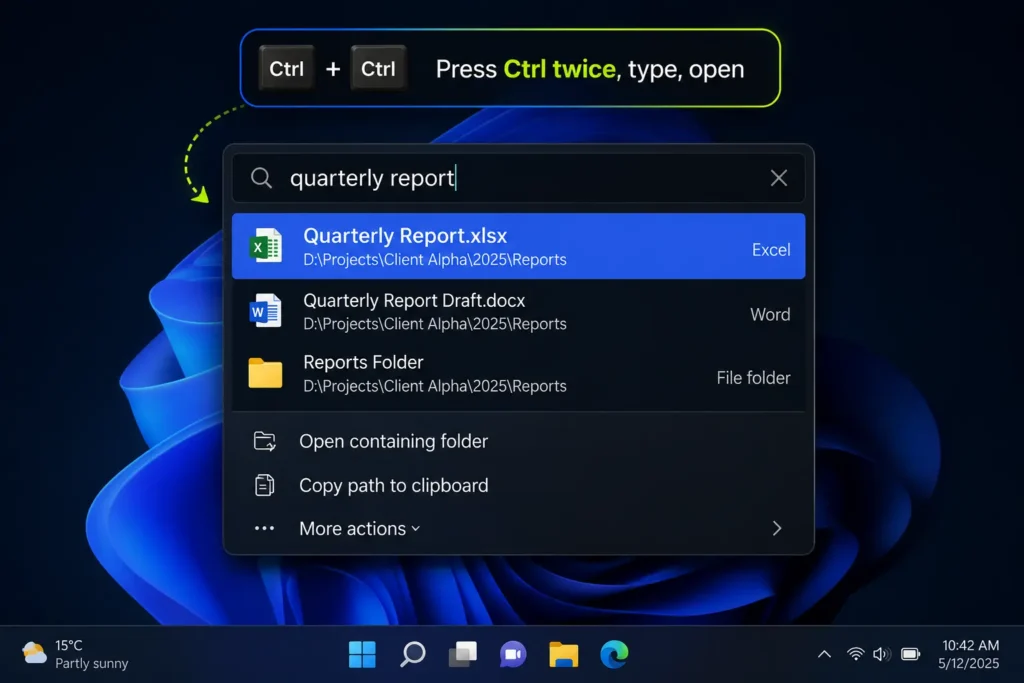
Listary also supports useful refinements when the result list gets too long. For example, you can narrow results by file type, use filters such as documents or folders, and use path matching to search inside a specific part of a folder path.
I do not use all advanced search options every day. But I like knowing they are there, because the basic habit is always the same:
Call Listary, type what you remember, open the result.
2. Use Listary Quick Switch when saving or opening files
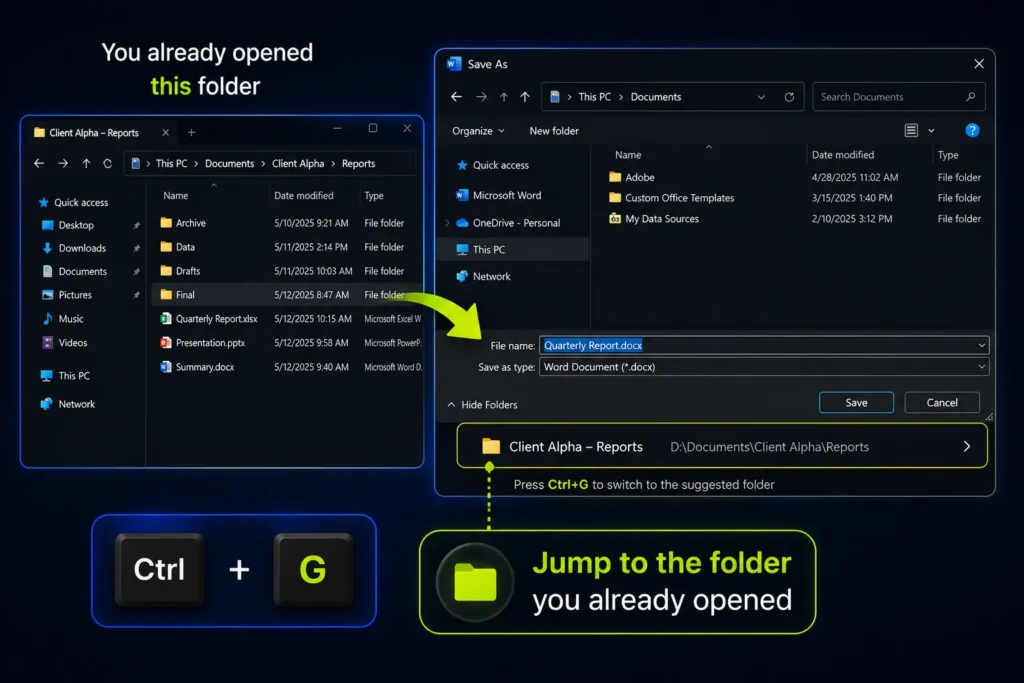
The most underrated Listary feature is not raw file search, it is Listary Quick Switch. In most Windows Open or Save dialogs, pressing Ctrl+G lets you jump directly to the active folder you already have open in File Explorer.
Quick Switch helps when you are inside a Windows file dialog, such as:
- Save As in Word, Excel, PowerPoint, or Adobe Acrobat.
- Open File inside another program.
- Attach File in an email client or browser.
- Upload a document to a web app.
- Import a file into a business tool.
Normally, those dialogs force you to navigate manually. You may already have the right folder open in File Explorer, but the Save As window starts somewhere else, such as Downloads, Documents, or the last random folder you used.
With Listary, you can jump to the folder you actually want.
There are two ways I use this.
The first one is the explicit shortcut:
- Open the folder you need in File Explorer.
- Go back to the app where you are saving, opening, uploading, or attaching a file.
- Open the Windows file dialog.
- Use Listary’s Quick Switch suggestion or press
Ctrl+G. - The dialog jumps to the folder you were already using.
The second one feels almost automatic:
- Open the Save As or Open dialog.
- Switch to File Explorer and open the folder where you want to save or open the file.
- Switch back to the Save As or Open dialog.
- Listary updates the dialog to that folder automatically.
This is one of those details that sounds small until you use it for a few days. You do not have to rebuild the same folder path twice. If the folder is already open in File Explorer, Listary can help bring the file dialog there too.
Saving one document in the right folder is not a big deal. But saving, exporting, uploading, attaching, and importing documents all day is different. Quick Switch removes the repetitive part: finding the same folder again and again.
For office work, this is often more valuable than raw file search speed.
3. Use actions without opening File Explorer first
Finding a file is often only the first step.
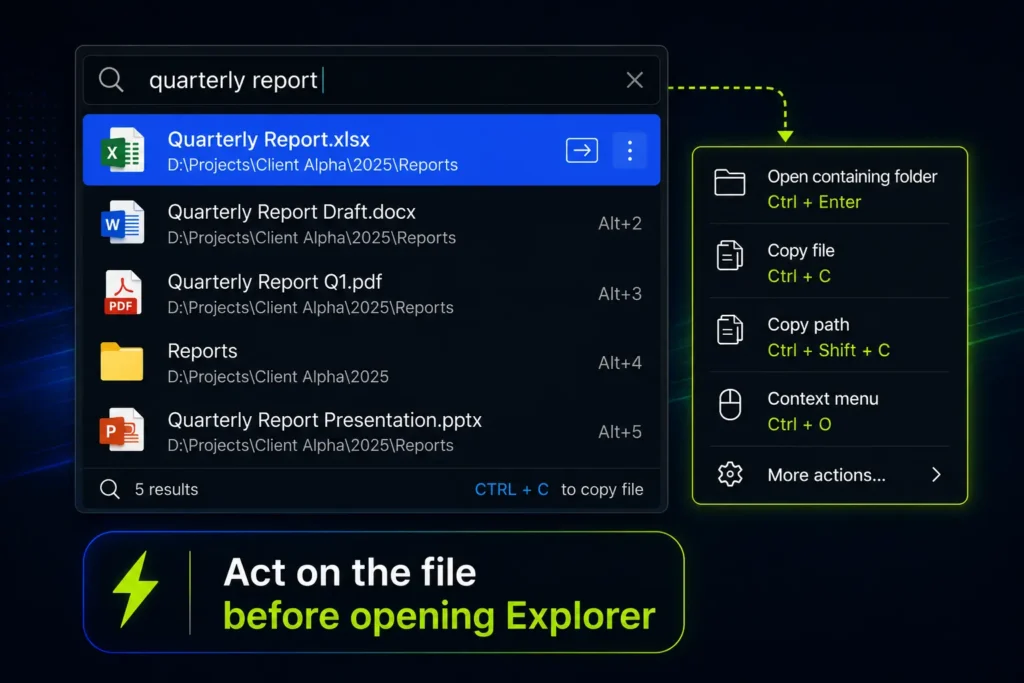
Sometimes you do not want to open the file. You want to open the folder that contains it, copy its path, use the right-click menu, or perform another action.
Listary lets you do that from the result list.
For example, after finding a file, you can use actions such as:
- Open the containing folder.
- Copy the file path.
- Copy, cut, or delete the file.
- Open the Windows context menu.
- Use other configured actions if you have customized Listary.
The context menu part is useful because it gives you access to many actions you would normally reach with a right-click in File Explorer.
For example, depending on your installed software, you may be able to compress a file, send it somewhere, convert it, print it, open it with another app, or run a custom action from the same place.
This matters because it turns Listary from “a thing that finds files” into “a place where file work starts”.
4. Search inside the right project, not the whole computer
One of my favorite advanced uses is limiting the search to the right working area.
Imagine you have a folder for a client, a project, a department, or a recurring task. Searching the entire PC may return too many files. Searching only inside that project area is much faster.
This is where filters, folder scopes, and path-based searches become powerful.
For example, instead of searching for “report” across your whole machine, you may want to search only inside one client folder. Or instead of seeing every PDF on your PC, you may want only PDFs related to one project.
I am not going to turn this guide into a full advanced Listary filters tutorial, because that deserves its own article.
But the important point is this: Listary becomes much more useful once you stop seeing it as a global search box and start seeing it as a way to jump into the right context.
If you want to set up targeted searches for specific folders or projects, see my step-by-step guide to Listary filters.
5. Launch web searches and work shortcuts from the same place
Listary can also work as a small web command bar.
Instead of opening your browser, typing a URL, clicking into the search field, and then typing your query, you can type a website keyword directly in Listary.
For example, you can use shortcuts for websites such as Google, Wikipedia, YouTube, Maps, or other search engines. Listary also lets you create custom web searches if the website uses a predictable search URL.
This is especially useful for online tools you search all the time:
- Dictionary websites.
- Documentation sites.
- Internal knowledge bases.
- Ticketing systems with predictable URLs.
- Search pages for tools you use every day.
For example, if a dictionary search URL accepts a word at the end, you can create a keyword that sends your query there directly. Then you type the keyword, a space, and the word you want to search.
You can do something similar with work systems if their URLs are predictable. For example, a ticketing system may use a URL pattern where the project key and ticket number are enough to open the right ticket.
This is not useful for everyone. But if you repeatedly open the same websites, dictionaries, tickets, documentation pages, or internal tools, it can save a surprising amount of micro-navigation.
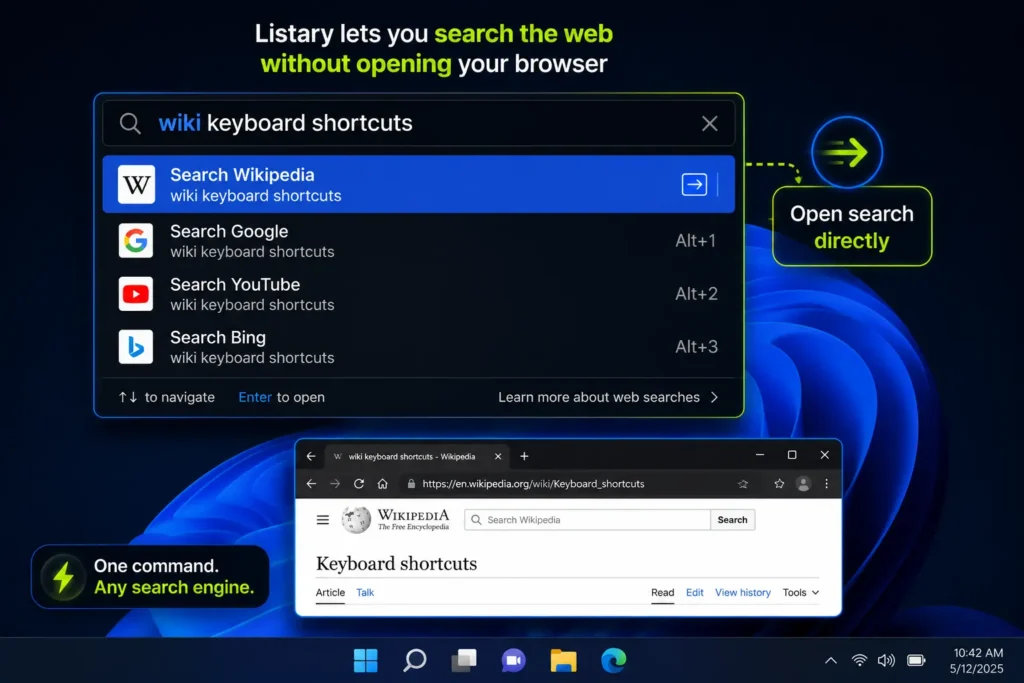
For a complete walkthrough of setting up shortcuts for dictionaries, documentation, tickets, and other websites, see my guide to Listary web search shortcuts.
A simple Listary workflow for office work
Here is the practical workflow I would start with if you are new to Listary:
- Use
Ctrltwice when you need to find a file or folder. - Use
Enterto open the result. - Use the action menu when you need the folder, path, or context menu instead of opening the file.
- Use Quick Switch when you are inside an Open or Save dialog and need to jump to the right folder.
- Add custom web searches only after the basic file workflow feels natural.
That last point matters.
Listary can do many things, but you do not need to configure everything on day one. The real productivity gain comes from making one or two shortcuts automatic.
For me, those are:
Ctrltwice to search.Ctrl+Gor Quick Switch suggestions when saving or opening files.
Once those are part of your muscle memory, the advanced features become much easier to add.
Listary vs Windows Search
I do not think you need to hate Windows Search to like Listary.
Windows Search is convenient because it is already there. Press the Windows key, type something, and you may find what you need.
But Listary feels better when files are part of your work all day.
The difference is not only speed. It is also where Listary appears and what you can do from it. It can help in File Explorer, from the desktop, and inside file dialogs. It can also connect searching with actions, folder jumping, and web shortcuts.
That makes it feel more like a workflow layer than a normal search box.
Listary is strongest when you remember something about the file or folder itself. If the problem is that you remember text inside a Word document, spreadsheet, PDF, or scanned file instead, that is a different kind of search. I tested several approaches in my guide to searching inside files on Windows, including Windows Search, Agent Ransack, DocFetcher, and Gety, and I also explain where filename tools such as Listary and Everything fit.
When I would not use Listary
Listary is one of my favorite Windows productivity tools, but I would not recommend it blindly to everyone.
I would think twice in these situations:
- Your company does not allow external software. In that case, do not install it without approval.
- You rarely work with local files. If most of your work is inside browser apps and cloud tools, Listary may be less important.
- You only need occasional search. Windows Search may be enough if you search for files once in a while.
- You need advanced content search inside documents. If your main problem is searching text inside PDFs, Word documents, or large archives, you may need a more specialized tool.
- You already use another file search tool heavily. For example, some people prefer Everything for pure file search.
The main reason to use Listary is not that it has the longest feature list. The reason is that it reduces friction in everyday file work.
Should you try Listary?
If you work with many files, folders, downloads, attachments, exports, reports, PDFs, templates, or client folders, I think Listary is worth trying.
The best test is simple:
- Install it on a computer where you are allowed to test it.
- Use only
Ctrltwice and Quick Switch for a few days. - Notice how often you avoid opening File Explorer manually.
- Then use another PC without it.
That last step is usually when the difference becomes obvious.
For me, Listary is one of those tools that disappears when it works. I stop thinking about folder navigation and start thinking about the file, folder, or action I need.
That is why a Windows PC without Listary feels incomplete to me.
Not broken. Not unusable.
Just slower than it needs to be.
Want more practical Windows productivity tips? If you like simple ways to make everyday work faster, I share more practical Windows productivity tricks in the TurboTasking newsletter.


