

I use Listary mostly to find files faster on Windows.
But one of the most useful Listary features for daily office work has nothing to do with finding files.
It is called Web Search.
With Web Search, you can type a short keyword in Listary, add what you want to search or open, and jump directly to the right website, search result, ticket, map, dictionary entry or internal tool.
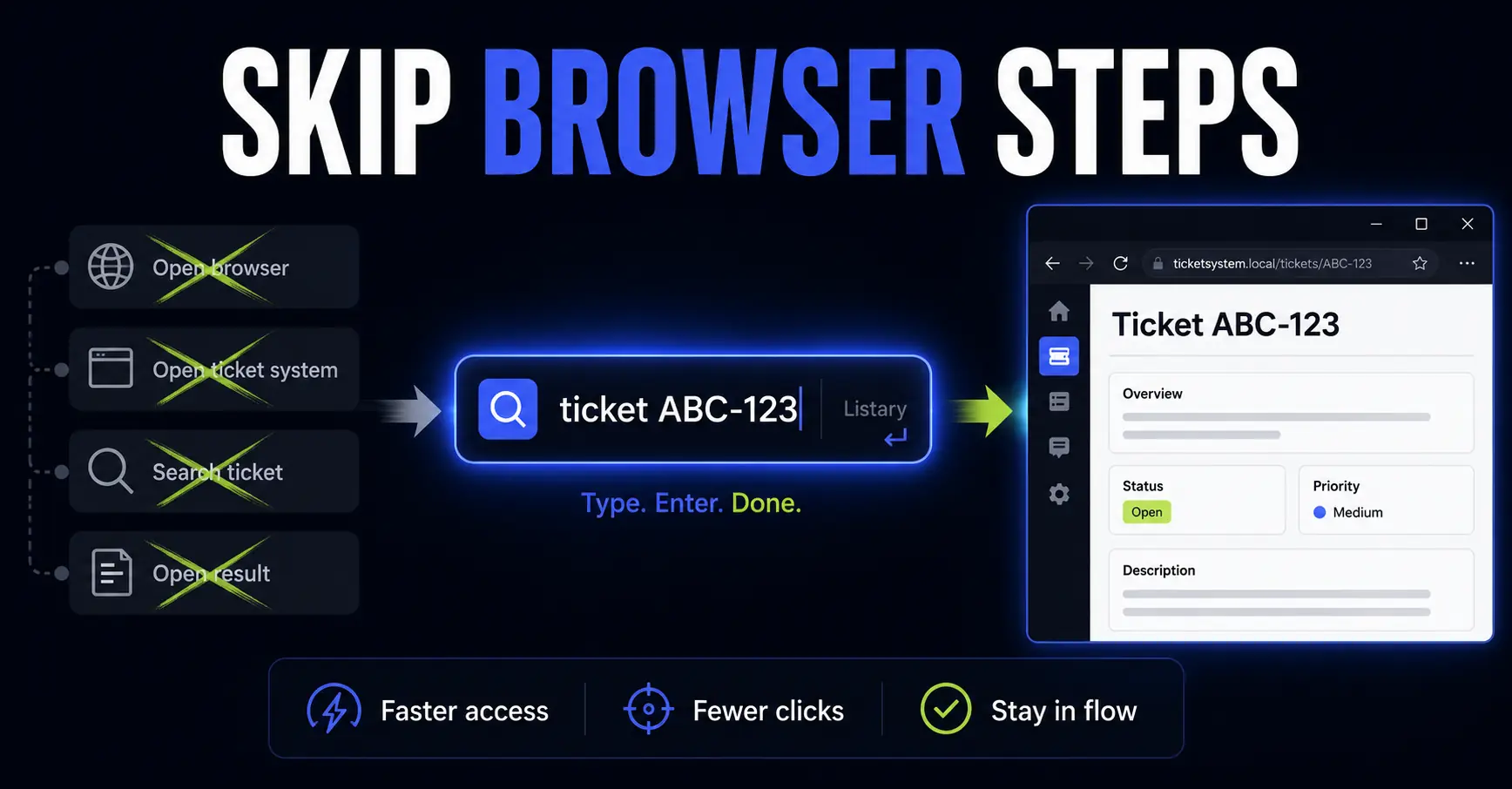
Instead of doing this:
- Open your browser.
- Open the website.
- Find the search box.
- Type the same thing again.
- Open the result.
You can often do this:
ticket ABC-123
Or this:
maps Berlin Hauptbahnhof
Or this:
wiki keyboard shortcuts
That sounds small, but it removes a surprising amount of repetitive browser navigation.
Key Takeaways
- Listary Web Search lets you open web searches from Listary using a keyword and a query.
- It is useful for websites you search many times a week, such as tickets, documentation, maps, dictionaries and internal tools.
- The best shortcuts are not fancy. They are the boring ones that remove repeated browser steps.
- For folders, I still prefer Listary’s normal file search, filters or saved shortcuts, but the habit is the same: type the destination instead of browsing to it manually.
The browser navigation problem
A lot of office work is not difficult. It is just repetitive.
You open the same project tool. You search for the same type of ticket. You check the same documentation portal. You translate the same kind of words. You open the same map service. You search the same internal system.
The problem is not that any single step takes long.
The problem is that you repeat the same navigation pattern all day:
- Open a new tab.
- Type the URL or click a bookmark.
- Wait for the site to load.
- Click the search box.
- Type your query.
- Open the result.
After a while, this becomes invisible. You stop noticing the cost because it feels normal.
Listary Web Search is useful because it turns many of those repeated patterns into a single command.
What Listary Web Search does
Listary Web Search lets you run searches directly from the Listary search bar.
The basic structure is simple:
keyword query
For example:
g quarterly report template
In that example, g is the keyword and quarterly report template is the query.
Listary sends the query to the website you configured for that keyword and opens the result in your default browser.
Listary includes several built-in Web Search entries, such as Google, Wikipedia, Stack Overflow, Bing, YouTube and Google Maps. But the real value is creating your own entries for the websites you use constantly.
That can include public websites, internal company tools, documentation portals, ticket systems, translation tools, project dashboards or anything else that accepts a search query in the URL.
My basic workflow
My workflow is usually:
- Open Listary with my hotkey.
- Type the Web Search keyword.
- Press Space.
- Type the ticket, word, place, file name or search query.
- Press Enter.
For example, if I have a Web Search keyword for tickets, I can type:
ticket ABC-123
Instead of opening the browser first, opening the ticket system, searching for the ticket and then clicking the result.
The important point is not the exact keyword. The important point is that repeated navigation becomes searchable.
Examples of useful Listary Web Searches
Here are the types of Web Search shortcuts that are worth setting up.
| Example command | What it can do | Why it saves time |
|---|---|---|
ticket ABC-123 | Open or search for a work ticket | You skip the ticket system homepage and search box. |
kb password policy | Search a knowledge base | You jump directly to internal documentation. |
docs invoice template | Search a document library | You avoid manually browsing folders or portals. |
maps client office Berlin | Open a place in Google Maps | You do not need to open Maps first. |
yt excel power query | Search YouTube | You go straight to video results. |
wiki keyboard shortcuts | Search Wikipedia | You skip a normal browser search. |
dict productivity | Open a dictionary or translation tool | You can look up words without switching context first. |
You do not need all of these.
Start with the two or three websites you search every working day. Those are the ones most likely to pay off.
How to create a custom Web Search in Listary
The setup is simple once you understand the URL pattern.
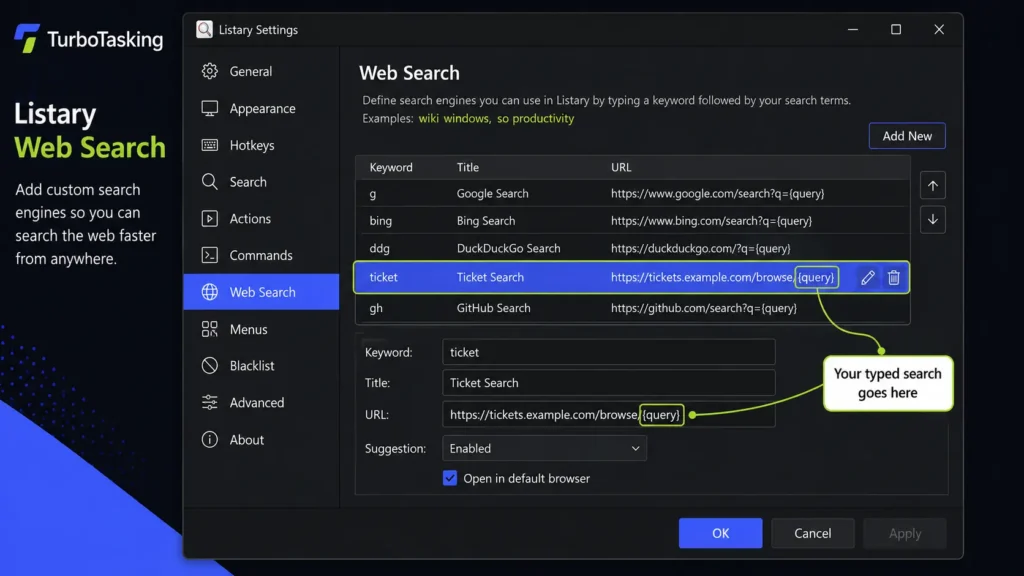
- Open Listary Options.
- Go to Web Search.
- Click the plus button to add a new search.
- Choose a short keyword.
- Give it a clear title.
- Paste the search URL.
- Use
{query}where your typed search should go. - Apply the change.
For example, a Google search URL can look like this:
https://www.google.com/search?q={query}
A YouTube search URL can look like this:
https://www.youtube.com/results?search_query={query}
A generic ticket search could look like this:
https://tickets.example.com/search?q={query}
The exact URL depends on the website.
The easiest way to find it is to search for something manually on the website, look at the resulting URL, and replace your search term with {query}.
For example, if you search a documentation site for onboarding and the URL becomes:
https://docs.example.com/search?q=onboarding
You can probably create this Listary Web Search URL:
https://docs.example.com/search?q={query}
Example 1: open work tickets faster
This is one of the best use cases.
Many office teams live inside ticket systems, issue trackers, support tools or project management platforms.
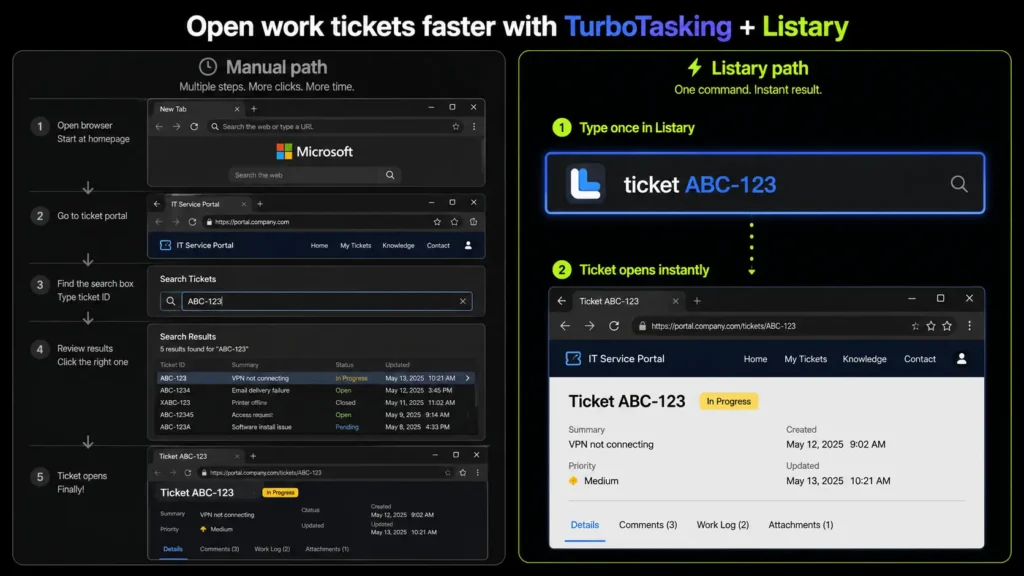
If you often receive messages like “Please check ABC-123”, you should not need to manually open the ticket system and search for that ID every time.
A generic Web Search shortcut can turn this into a direct command:
ticket ABC-123
This is flexible because the same shortcut can work for any project, ticket prefix or issue ID. You only need to remember one keyword: ticket.
If you work with one project all the time, you can make it even faster with a project-specific shortcut.
For example, instead of typing:
ticket ABC-123
You could type:
ABC 123
That only makes sense if you open tickets from project ABC many times a week. Otherwise, the generic ticket shortcut is usually better because it is easier to maintain and works across projects.
Depending on your system, this can either open the exact ticket or search for it.
The direct version is better if your ticket URLs are predictable.
For example:
https://tickets.example.com/browse/{query}
The search version is safer if your ticket system has different project formats, archived items or slightly inconsistent URLs.
For example:
https://tickets.example.com/search?q={query}
You can create project-specific shortcuts if you work on the same projects all the time, but I would not overdo this at the beginning. A general ticket shortcut is easier to remember and easier to maintain.
Example 2: search a knowledge base without opening it first
Another good use case is internal documentation.
This could be SharePoint, Confluence, Notion, a help center, an internal wiki or any other company knowledge base.
If you often need to search for policies, templates, procedures or project notes, create a keyword for that system.
Examples:
kb password policykb travel expenseskb onboarding checklistdocs invoice template
This is more useful than a normal bookmark.
A bookmark opens a starting point. A Web Search shortcut opens the starting point and carries your search with it.
That small difference matters when you already know what you are looking for.
Example 3: open dictionaries and translation tools
Web Search is also useful if you work in more than one language.
You can create shortcuts for dictionaries, translation tools, terminology databases or language resources.
For example:
dict workflowdeepl please find attachedrae productividadwiki kanji search
The exact tools depend on your work.
The point is not to create a huge list of language shortcuts. The point is to remove friction from the lookups you already do every day.
If you translate between the same two languages constantly, a dedicated shortcut can be worth it.
If you only use a dictionary once a month, a normal browser search is probably enough.
Example 4: use maps, YouTube and standard websites faster
Not every shortcut needs to be work-specific.
Some built-in searches are useful because they remove a common first step.
For example:
maps Frankfurt airportyt excel power querywiki spaced repetitionso python list comprehension
This is not revolutionary, but it keeps your hands on the keyboard and lets you start from the same place every time.
That consistency is the value.
When every repeated search starts from Listary, you do not need to think about which tab is open, where the browser is, or whether you already have the right website loaded.
Advanced tip: combine Listary with DuckDuckGo bangs
This part is optional, but power users may like it.
DuckDuckGo has a feature called bangs. Bangs are shortcuts that send your search directly to another site.
For example, a DuckDuckGo search like this can send you directly to a specific site search:
!w keyboard shortcuts
You can combine that idea with Listary by creating a Web Search shortcut for DuckDuckGo.
For example:
ddg !m Berlin airport
In that workflow, Listary opens DuckDuckGo, and the bang redirects the query to the target site.
I would treat this as an advanced trick, not as the main workflow.
For websites you use every day, a direct Listary Web Search is usually cleaner and easier to remember. DuckDuckGo bangs are more useful as a flexible fallback when you want access to many possible sites without creating a separate Listary entry for each one.
What about folders?
Web Search is mainly for URLs and searchable websites.
For folders, I normally use Listary’s normal file search, folder search, filters or saved shortcuts instead.
If that is the problem you are trying to solve, start with my full guide to Listary for Windows, where I explain how I use Listary to open folders, find files and move around Windows faster.
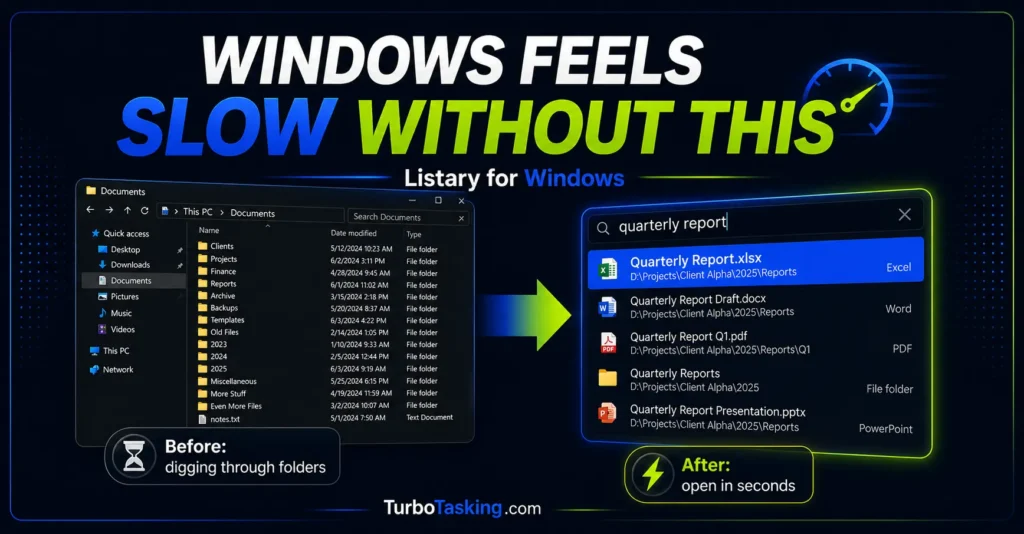
The habit is similar, though.
Instead of manually opening File Explorer and clicking through folders, I type the folder name, project name or filter directly in Listary.
For example, if I work with the same project folders every day, I do not want to browse from Documents to Clients to Year to Project to Subfolder every time.
I want to type enough to identify the destination and open it.
That is the bigger lesson behind this feature:
If you can name the destination, you should not need to manually navigate to it.
When a Web Search shortcut is worth creating
Do not create shortcuts for everything.
If you create too many, you will forget them and stop trusting the system.
I would create a Web Search shortcut when at least one of these is true:
- You search the same website several times per week.
- The website is slow to navigate manually.
- The website search box is annoying to reach.
- You often receive IDs, names or terms that belong in that website.
- You can explain the shortcut in one sentence.
I would not create one when:
- You only use the website occasionally.
- The keyword would be hard to remember.
- The URL pattern breaks often.
- The site requires too many manual clicks after opening.
- The shortcut saves one second but adds mental overhead.
The goal is not to build a clever system.
The goal is to remove repeated friction from real work.
A simple naming system for Web Search keywords
The hardest part is not the URL. It is choosing keywords you will actually remember.
Here is the naming approach I would use:
- Use short keywords for websites you use constantly.
- Use descriptive keywords for tools you use less often.
- Avoid keywords that look like normal file searches.
- Do not use the same first letter for too many unrelated tools.
- Prefer boring names over clever names.
For example:
| Good keyword | Use case | Why it works |
|---|---|---|
ticket | General ticket search | Easy to remember under pressure. |
kb | Knowledge base | Short, but still meaningful. |
docs | Document portal | Clear and flexible. |
maps | Map search | Obvious. |
dict | Dictionary lookup | Descriptive enough. |
Bad keywords are usually too abstract.
If you have to stop and remember what a keyword means, it is probably not a good keyword.
The small setup that makes the biggest difference
If you want to try this, do not start by building a complete shortcut system.
Start with one website.
Choose a website that annoys you because you search it constantly.
Then create one Listary Web Search entry for it.
Use it for a few days.
If you keep using it without thinking, create another one.
That is the best test. A good shortcut disappears into your workflow. You stop admiring it and simply use it.
This is why I like Listary Web Search. It does not try to replace the browser. It just removes the boring part before the browser becomes useful.
Open Listary, type the destination, press Enter.
For repeated browser navigation, that is often enough.
Want more practical Windows productivity tips? If you like simple ways to make everyday work faster, I share more practical Windows productivity tricks in the TurboTasking newsletter.


