

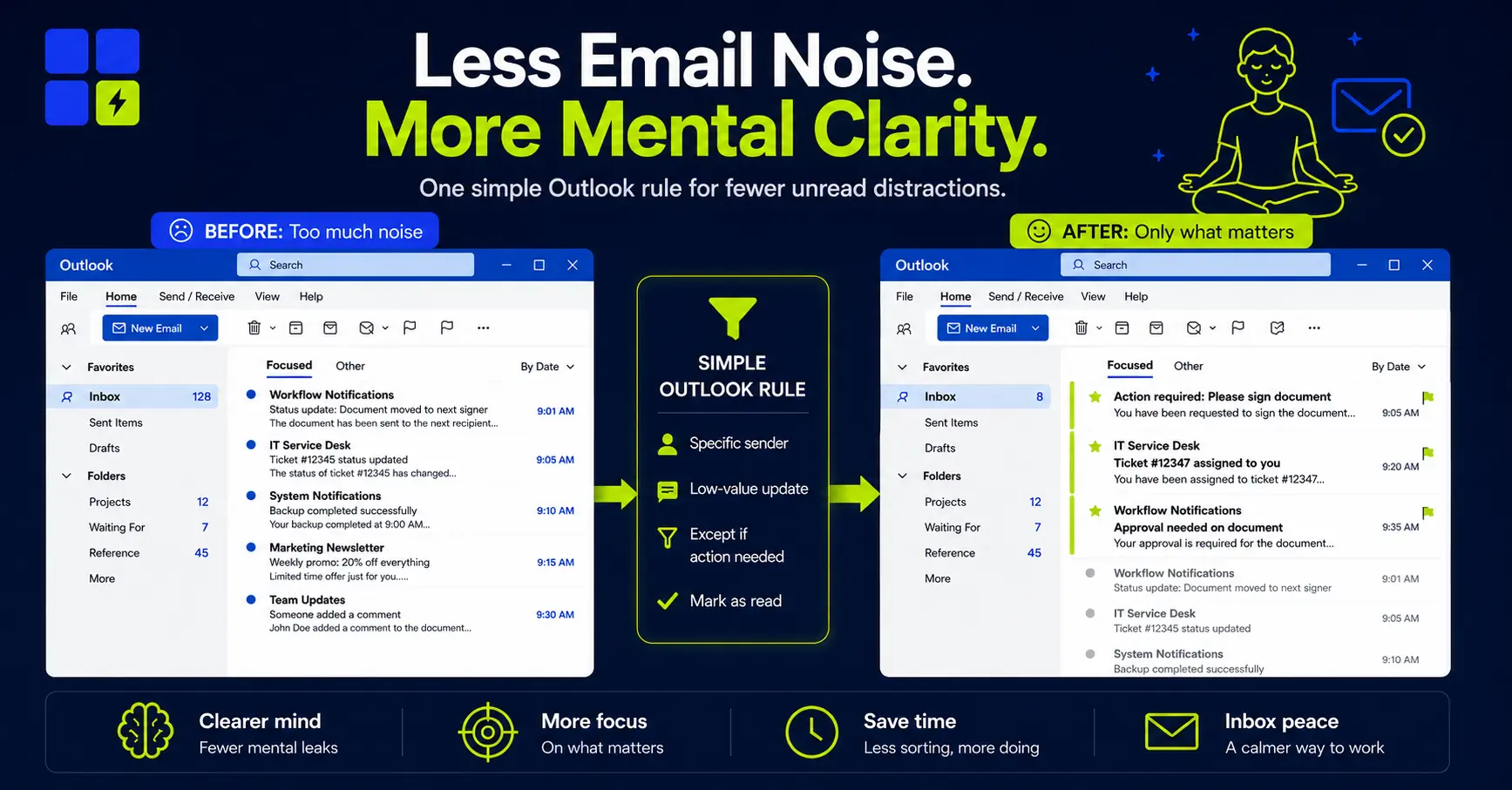
How I Use Outlook Rules to Automatically Mark Low-Value Emails as Read
Some emails deserve your attention.
Many automated emails only pretend to.
They come from tools you need, systems you cannot fully silence, and senders you may still want to hear from. One email is harmless. Dozens of them quietly turn your unread count into noise.
This is the small Outlook workflow I use to fix that.
Instead of deleting emails or unsubscribing from everything, I use a simple rule to make selected low-value emails stop shouting for attention while keeping the useful ones visible.
In this article, I will show how the workflow works, how to make it safer, and 5 common situations where it can make your inbox feel calmer without hiding useful information.
The goal is simple:
Make unread emails mean something again.
Key Takeaways
- Make “unread” mean something needs your attention.
- Quiet low-value emails without hiding useful ones.
- One simple rule can make Outlook feel calmer.
This Is Not About Ignoring Email
This workflow is not about pretending email does not exist.
It is also not about deleting emails automatically, which I usually avoid. A bad delete rule can remove something important before you even notice it existed.
And it is not always as simple as unsubscribing.
In a perfect world, every tool would let you choose exactly which notifications you want. In reality, many platforms give you rough settings: all emails, no emails, or a few broad categories that do not match how you actually work.
That is where Outlook rules help.
You can let the email arrive, keep it searchable, and even leave it in your inbox if you want. But you can remove the unread badge when the message is only informational.
For me, this is a small but useful difference.
An unread email should have a reasonable chance of needing attention. If it does not, it should not be shouting from my inbox.
This rule works best when it is part of a simple email management system, not an isolated trick. I explain my broader approach here: how I spend less time in Outlook without missing important emails.
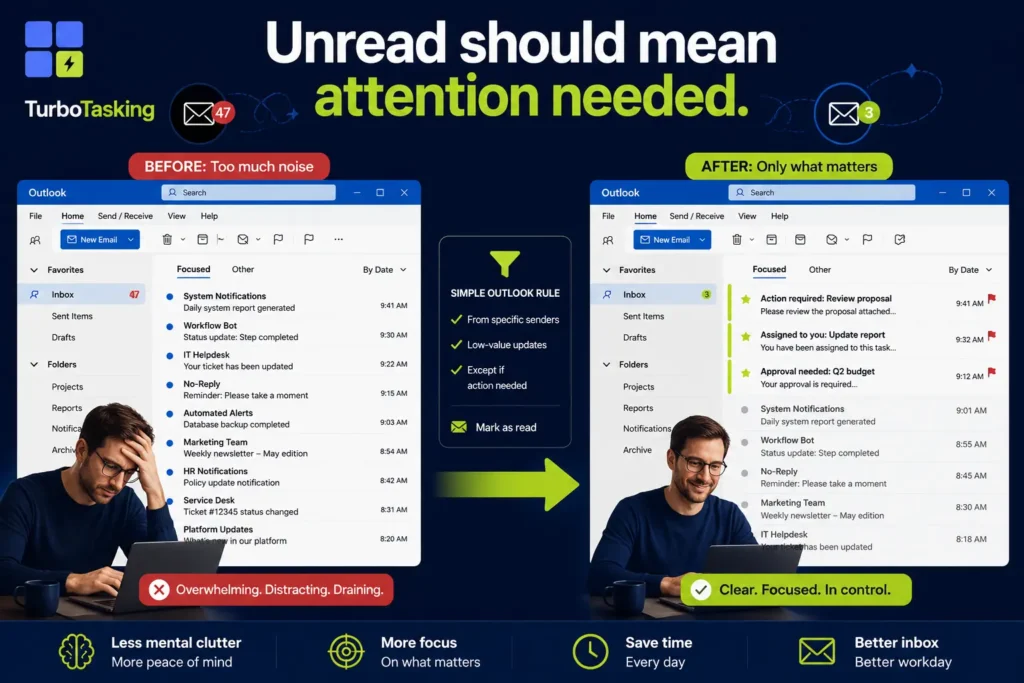
The Basic Idea
The basic rule is this:
Do not create a rule for the sender. Create a rule for the pattern.
That distinction matters.
If a work platform sends both important and unimportant emails, filtering everything from that sender is risky. You might mark an email as read even though you needed to act on it.
A safer Outlook rule looks for a more specific pattern, such as:
- The sender
- A repeated phrase in the subject line
- A repeated phrase in the message body
- A notification type
- An exception for words like “action required”, “assigned to you”, “approval needed”, or “signature required”
For example, this would be risky:
From: notifications@example.com
Action: mark as read
This is safer:
From: notifications@example.com
Subject contains: status update
Except if subject contains: action required
Action: mark as read
And this is even safer:
From: notifications@example.com
Subject contains: status update
Except if subject contains: action required, approval needed, assigned to you, signature required
Action: mark as read
The more important the email source is, the more careful you should be.
Example 1: Document Signing Notifications
Document signing tools are a good example because they often send several emails for the same workflow.
Some of those emails matter.
- You need to sign a document
- You need to approve something
- A document you started has been completed
- A workflow failed or was declined
Other emails may be useful as a record, but not important enough to stay unread.
- Someone else viewed the document
- Someone else signed their part
- The document moved to the next recipient
- A reminder was sent to another signer
- The workflow status changed, but no action is needed from you
That is exactly the kind of situation where a blanket unsubscribe may not work.
You still want the important document emails. You just do not want every system update to compete with real work.
A careful Outlook rule could mark only the low-value status updates as read, while keeping action emails unread.
For example:
From: document-signing-tool@example.com
Subject contains: viewed, reminder sent, sent to next recipient
Except if subject contains: please sign, action required, completed, declined
Action: mark as read
You would need to adapt the exact words to your own emails. The point is not the specific phrases. The point is the structure.
Look at real emails you receive, find the repeated wording, and build the rule around that pattern.
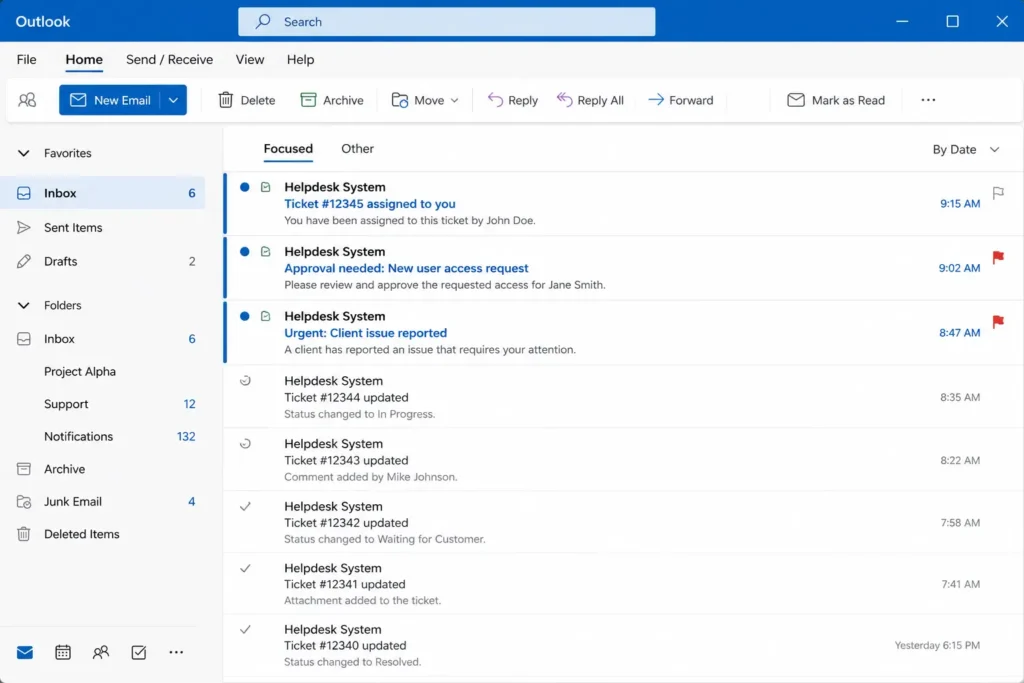
Example 2: Ticketing System Updates
Ticketing systems can be even noisier.
Depending on your role, you may receive emails when a ticket is created, updated, assigned, commented on, escalated, reopened, closed, or changed by someone else.
Again, some of these emails matter.
- A ticket is assigned to you
- Someone mentions you
- Approval is needed
- The ticket is waiting for your input
- A customer or internal stakeholder is blocked
But other updates may not deserve immediate attention.
- A minor field was changed
- A label was added
- A background status update was posted
- Someone else changed the priority
- A ticket you only follow for visibility received another generic update
In this case, you have two good options.
The first option is to mark low-value updates as read automatically.
The second option is to keep them unread, but make the important ones visually stand out with conditional formatting.
I covered that second approach in Outlook Conditional Formatting: How I Automatically Color-Code Emails to Spot What Matters Faster.
These two workflows can also work together.
You can use Outlook rules to reduce obvious noise, then use conditional formatting to make the remaining important emails easier to spot.
Example 3: Microsoft Teams Missed Activity Emails
Microsoft Teams can also send missed activity emails when you have been away from Teams.
Before creating an Outlook rule, I would first check the Teams notification settings. Microsoft lets you choose how often you receive missed activity emails, and you may be able to reduce or disable them directly there.
You can find Microsoft’s official instructions here: Manage notifications in Microsoft Teams.
But if those settings are not enough, or if your company setup limits what you can change, Outlook rules can still help.
For example, you may want to mark certain missed activity summaries as read if they are only digests and you already process Teams directly during the day.
Be careful here, though.
If Teams emails are your only reliable way to catch missed messages, do not hide them too aggressively.
Example 4: Newsletters Where Only Some Emails Matter
This trick is not only useful for internal tools.
It can also help with newsletters.
Sometimes you like a newsletter, but not every email from that sender is equally useful.
Maybe you want to read practical tutorials, weekly tips, templates, or case studies. But you do not care about every promotion, webinar reminder, partner offer, or “last chance” campaign.
You could unsubscribe, of course. And if a newsletter is mostly noise, that is usually the best move.
But if the newsletter sometimes contains useful material, a rule can be a softer option.
For example:
From: newsletter@example.com
Subject contains: sale, last chance, partner offer, webinar reminder
Action: mark as read
This is not perfect. Newsletters change their subject lines all the time.
But for predictable senders, it can reduce attention leaks without fully cutting off a source you still value.
Example 5: Receipts, Invoices, Reports, and Confirmations
Some emails are not really meant to be read in the normal sense.
They are records.
- Receipts
- Payment confirmations
- Invoices
- Export completed messages
- Report generated emails
- Backup completed notifications
- Request submitted confirmations
For these, I often prefer a folder rule.
Instead of only marking the email as read, you can move it to a dedicated folder, optionally mark it as read, and keep it searchable for later.
For example:
From: billing@example.com
Subject contains: receipt, invoice, payment confirmation
Action: move to folder “Receipts” and mark as read
This works especially well when the email is mainly for reference and you rarely need to act on it immediately.
But be careful with finance-related emails. If invoices sometimes require approval, review, or payment, do not mark them all as read automatically.
How to Create the Outlook Rule
The exact steps depend on whether you use new Outlook, classic Outlook, Outlook on the web, or a company-managed setup.
Microsoft has a full guide here: Manage email messages by using rules in Outlook.
But the practical workflow is usually this:
- Find a few examples of the email you want to control.
- Check the sender, subject line, and repeated wording.
- Open Outlook rules.
- Create a new rule.
- Add a condition, such as sender or subject contains.
- Add exceptions for important phrases.
- Choose the action, such as mark as read.
- Optionally add another action, such as move to folder.
- Save the rule.
- Test it carefully before relying on it.
The testing step is important.
I do not recommend creating a rule and immediately trusting it forever.
For the first few days, check the messages affected by the rule. Make sure it is only marking the emails you actually wanted to mark as read.
If you are not sure, start with a narrower rule.
You can always expand it later.
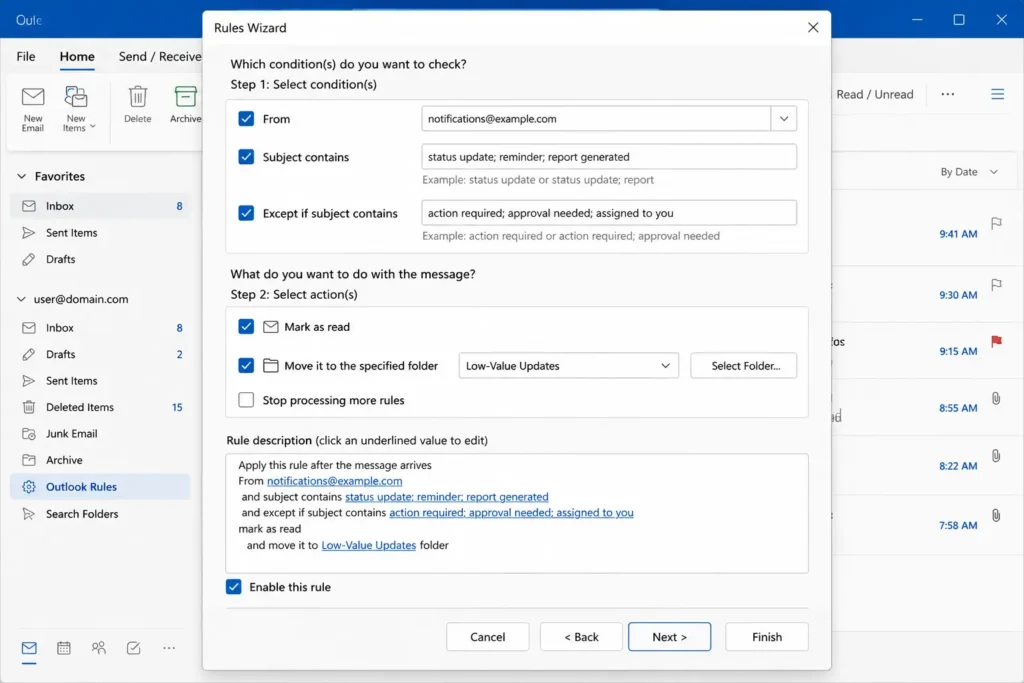
A Simple Rule Template You Can Adapt
Here is the basic structure I would use for most automated email sources:
Condition: From a known automated sender
Condition: Subject or body contains a low-value update phrase
Exception: Subject or body contains an action phrase
Action: Mark as read
Optional action: Move to a reference folder
For example:
From: workflow-notifications@example.com
Subject contains: status update, viewed, reminder sent
Except if subject contains: action required, assigned to you, approval needed, please sign, completed
Action: mark as read
That is much safer than marking everything from the platform as read.
It also matches how many real work tools behave. The same sender can send both low-value updates and genuinely important action emails.
Mark as Read vs Move to Folder
Marking an email as read is not the only option.
Sometimes it is enough. Sometimes moving the email to a folder is better. Sometimes both actions make sense.
Use “mark as read” when you still want the email visible
This is useful when you still want the email to remain in your inbox, but you do not want it to inflate your unread count.
For example, status updates from a workflow tool may be worth seeing later, but not worth treating as unread.
Use “move to folder” when the email is mostly for reference
This is useful for receipts, invoices, confirmations, reports, and other emails that you mainly need to keep for search or documentation.
A dedicated folder can keep those emails out of your main inbox without deleting them.
Use both when you are confident
If a type of email is predictable and low-risk, you can move it to a folder and mark it as read at the same time.
But I would only do this after watching the pattern for a while.
Avoid automatic delete rules
I almost never recommend automatically deleting work emails.
Marking as read is reversible. Moving to a folder is usually safe. Deleting is much more dangerous, especially in a corporate environment.
If a rule is slightly wrong, a marked-as-read email can still be found. A deleted email may create a much bigger problem.
How to Find Good Rule Candidates
The best candidates usually have three traits.
- They come from an automated sender
- They follow a predictable pattern
- They rarely require immediate action
To find them, scan your inbox for senders that appear again and again.
Then ask:
- Do I need to read every email from this sender?
- Are some emails useful while others are noise?
- Do the low-value emails share subject line patterns?
- Do the important emails contain clear warning words?
- Could I safely mark only the low-value pattern as read?
If the answer is yes, you may have a good Outlook rule candidate.
Common candidates include:
- Document signing updates
- Ticketing system notifications
- Teams missed activity emails
- Newsletter promotions
- Receipts and confirmations
- Report generated messages
- Training platform reminders
- System status notifications
- Internal workflow updates
What I Would Not Automate
This trick is useful, but it is not for every email category.
I would be very cautious with:
- Security alerts
- Legal emails
- HR emails
- Payroll or tax emails
- Customer complaints
- Escalations
- Emails from real people
- Anything involving approvals, deadlines, or compliance
I would also avoid automating any email pattern I do not fully understand yet.
There is no prize for creating the most aggressive Outlook rule.
The point is to reduce obvious noise while keeping important signals visible.
A Good First Rule to Try
If you want to try this without taking much risk, start with one small rule.
Pick one automated sender that creates obvious low-value emails.
Do not start with finance. Do not start with security. Do not start with anything where missing one email would create a real problem.
Start with something boring and predictable.
For example:
A newsletter that sends both useful articles and promotional reminders.
Or:
A workflow tool that sends repeated “status update” emails that never require action.
Create a narrow rule. Watch it for a few days. Adjust it if needed.
Once you trust the pattern, you can decide whether to expand it or create similar rules for other sources.
Final Thought
Email becomes harder to manage when everything looks equally important.
Automated emails make that worse because they can create a constant stream of unread messages that do not really need your attention.
Outlook rules are not exciting. But used carefully, they can make your inbox more honest.
Important emails stay visible.
Low-value updates stay available.
And your unread count becomes a little more useful again.
Want more practical Windows productivity tips? If you like simple ways to make everyday work faster, I share more practical Windows productivity tricks in the TurboTasking newsletter.


