

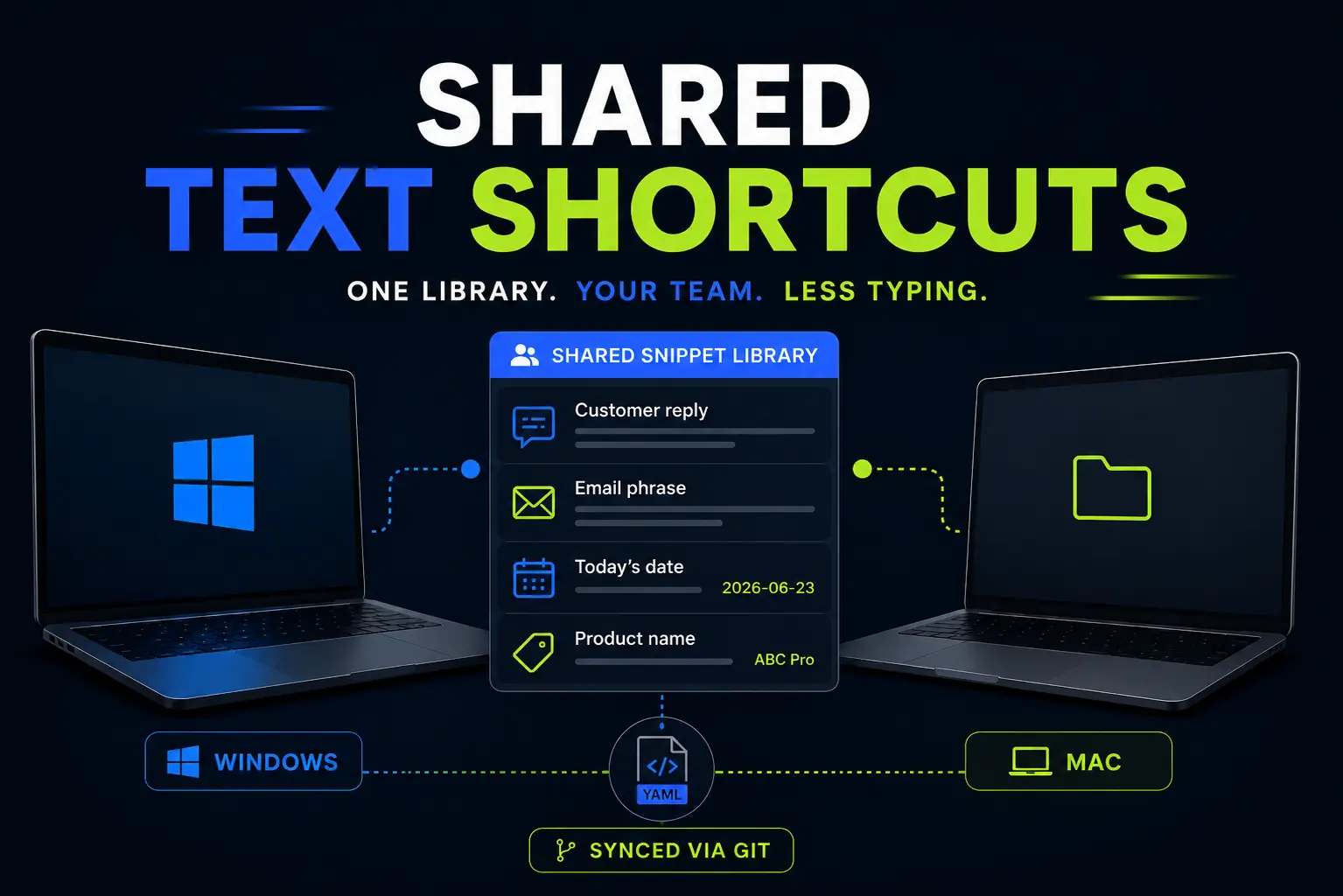
I used AutoHotkey for years because it can automate almost anything on Windows.
Text shortcuts, keyboard shortcuts, mouse actions, opening programs, custom workflows, small automations. If you are willing to write the script, AutoHotkey can probably do it.
But I eventually ran into a different problem.
I did not just want text shortcuts for myself. I wanted a way to share repeated answers, email phrases, internal notes, product names, and process comments with other people.
Some of those people used Windows. Some used Mac. And the snippets had to stay consistent over time.
That is where Espanso became the better fit for this specific job.
Espanso is a free, open-source text expander for Windows, macOS, and Linux. You type a short trigger, and Espanso replaces it with a longer piece of text.
For example, I can type something like br\ and expand it into:
Best regards,
José
That is the simple version.
The more interesting version is using Espanso as a shared snippet system for a team.
Key Takeaways
- Espanso is more useful as a shared snippet system than just a personal text expander.
- It is a strong fit for teams that need the same text shortcuts on Windows and Mac.
- Shared snippets help teams answer repeated questions faster and more consistently.
- AutoHotkey is more powerful for Windows automation, but Espanso is easier to share across a team.
- The best snippets usually come from real repeated work, not from trying to build a huge library upfront.
In this article
What is Espanso?
Espanso is a text expander.
A text expander watches what you type. When it detects a specific trigger, it replaces that trigger with predefined text.
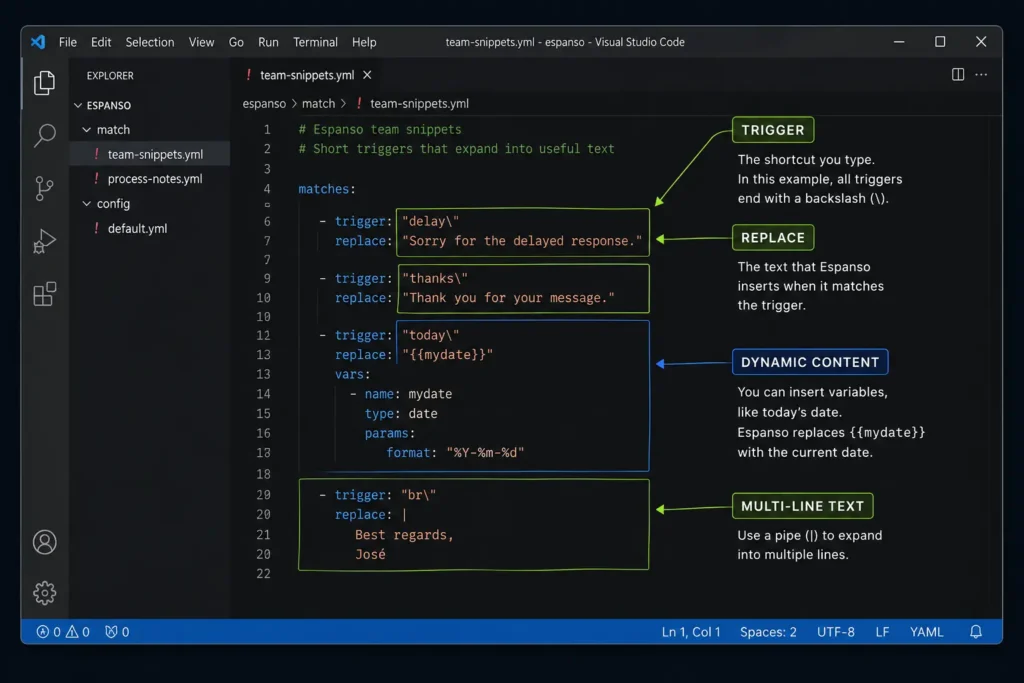
Espanso calls these rules matches. Each match connects a trigger with the text that should replace it. The official Espanso documentation explains the basic structure if you want to check the exact syntax.
That could be a short email phrase, a full paragraph, a date, a product name, a code snippet, or a standard answer you use again and again.
A basic Espanso snippet looks like this:
matches:
  - trigger: 'br\'
    replace: "Best regards,\nJosé"
After that, whenever I type br\, Espanso replaces it with my sign-off.
That alone can save small amounts of time every day. But the real value appears when you stop thinking of Espanso as a personal shortcut tool and start thinking of it as a shared library of reusable wording.
Why I chose Espanso for shared team snippets
I still like AutoHotkey.
For Windows automation, it is much more powerful than Espanso. AutoHotkey can move the mouse, press keyboard shortcuts, open programs, manipulate windows, automate repetitive workflows, and do many things that go far beyond text expansion.
But that power comes with a limitation: AutoHotkey is mainly a Windows tool.
That is fine if the shortcuts are only for me. It is not ideal when I want to share the same text shortcuts with a mixed team where some people use Windows and others use Mac.
Espanso solved that problem better.
It works across Windows and Mac, it uses simple configuration files, and those files can be stored in a shared repository. That means several people can suggest changes, review wording, update snippets, and keep a history of what changed.
For me, that changed the purpose of the tool.
It was no longer just “how can I type faster?”
It became “how can we answer repeated questions consistently as a team?”
The real benefit: shared snippets for teams
Most office teams have repeated text everywhere.
Customer replies. Internal explanations. Status updates. Review comments. Email phrases. Product names. Links to templates. Short instructions that everyone keeps rewriting from memory.
The problem is not only that this wastes time.
The bigger problem is that everyone writes a slightly different version.
One person gives a short answer. Another person gives a more careful answer. Someone else uses an old phrase. Someone forgets a detail. Someone writes the product name slightly differently.
Espanso can reduce that friction.
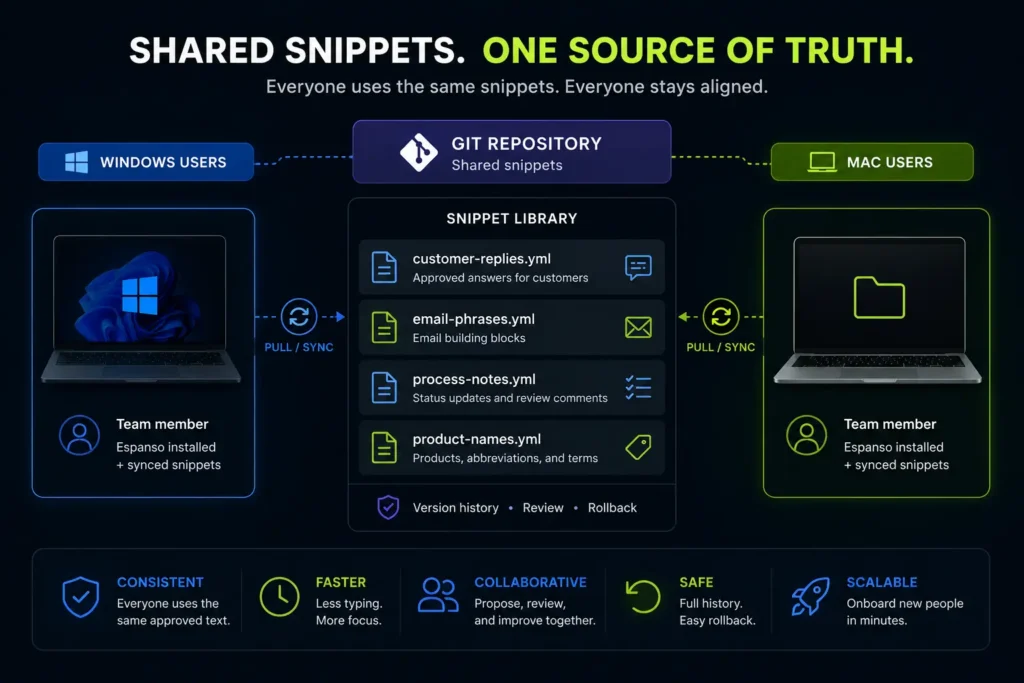
Instead of keeping repeated answers in old emails, scattered documents, private notes, or someone’s memory, you can turn them into snippets.
When the wording changes, you update the snippet once. If the snippets are stored in a shared repository, the team can review and reuse the same version.
That makes Espanso useful not only as a text expander, but also as a small keyboard-accessible knowledge base.
Use case 1: repeated customer answers
The most valuable use case I have found is repeated customer answers.
Many teams answer similar questions again and again:
- How does your process work?
- Where can I find this document?
- What is your standard response to this topic?
- Can you confirm that this has been reviewed?
- Can you explain this product feature?
Instead of rewriting those answers every time, you can create approved snippets.
matches:
  - trigger: 'followup\'
    replace: "Thanks for the reminder. I will check the current status and come back to you once I have a confirmed update."

  - trigger: 'reviewed\'
    replace: "This has been reviewed, and I do not have any further comments from my side."

  - trigger: 'nextsteps\'
    replace: "The next step is to review the attached information and confirm whether anything needs to be updated."
These examples are intentionally generic. The point is not the exact wording. The point is the workflow.
If your team often answers the same kind of question, the best answer should not live only in one person’s head.
It should be reusable.
Use case 2: internal answers for colleagues
Text expansion is not only useful for customer communication.
It is also useful for internal questions from colleagues.
For example:
- Where is the latest template?
- Which document should I use?
- What does this abbreviation mean?
- How do we usually phrase this?
- What is the standard internal note for this process?
You could create snippets like:
matches:
  - trigger: 'template\'
    replace: "Please use the latest version of the template from the shared project folder."

  - trigger: 'handover\'
    replace: "I have added the relevant context below so the next person can continue without having to reconstruct the full history."

  - trigger: 'checksource\'
    replace: "Please check the source document before updating the final answer, because the wording may depend on the latest version."
This does not replace proper documentation.
But it helps with the small repeated explanations that interrupt your day and make you type the same thing again and again.
Use case 3: email building blocks
Most people think of text expanders for email signatures.
That works, but it is not the most interesting part. Outlook and Gmail already handle signatures quite well.
The better use case is email building blocks.
Small reusable phrases like:
matches:
  - trigger: 'delay\'
    replace: "Sorry for the delayed response."

  - trigger: 'attached\'
    replace: "Please find the document attached."

  - trigger: 'letmeknow\'
    replace: "Please let me know if you have any questions."

  - trigger: 'thankscontext\'
    replace: "Thanks for the context. That helps clarify the situation."
These snippets are small, but they remove friction.
You do not need to automate the whole email. Sometimes saving three seconds on a sentence you write ten times a week is enough to make the tool worth using.
Use case 4: review comments and process notes
Another practical use case is repeated process text.
Many office workflows require small comments like:
- Review completed.
- Checked on today’s date.
- No further action required.
- Updated based on the latest information.
- Done after final confirmation.
These comments are easy to type, but they add up. They are also boring, which makes them perfect candidates for text expansion.
matches:
  - trigger: 'done\'
    replace: "Done."

  - trigger: 'nfa\'
    replace: "No further action required."

  - trigger: 'reviewok\'
    replace: "Review completed. No issues found."

  - trigger: 'updated\'
    replace: "Updated based on the latest available information."
Espanso can also insert dynamic values, such as today’s date.
matches:
  - trigger: 'today\'
    replace: "{{mydate}}"
    vars:
      - name: mydate
        type: date
        params:
          format: "%Y-%m-%d"

  - trigger: 'doneon\'
    replace: "Done on {{mydate}}."
    vars:
      - name: mydate
        type: date
        params:
          format: "%Y-%m-%d"
That means you can type doneon\ and get something like:
Done on 2026-06-25.
For process-heavy work, this is surprisingly useful.
Use case 5: product names, abbreviations, and official wording
Every company has names, abbreviations, and internal terms that people write slightly differently.
A text expander can help standardize them.
matches:
  - trigger: 'mfa\'
    replace: "multi-factor authentication"

  - trigger: 'sso\'
    replace: "single sign-on"

  - trigger: 'qms\'
    replace: "quality management system"

  - trigger: 'prodname\'
    replace: "Official Product Name"
This is not glamorous automation.
But it prevents small inconsistencies. And in customer-facing work, small inconsistencies can make a team look less aligned than it actually is.
Why I use triggers ending in backslash
Many Espanso examples use triggers that start with a symbol, such as :date, :br, or :sig.
That is perfectly fine. You can use that style if you like it.
I prefer a different convention: I put the special character at the end.
For example:
br\
date\
doneon\
reviewok\
followup\
There are two reasons.
First, the backslash is easy for me to type on the keyboard layouts I use, and I rarely need it in normal writing.
Second, suffix triggers make it easier to create related shortcuts that start with the same word.
For example, I can have:
review\
reviewok\
reviewlater\
reviewsource\
If the trigger starts with a symbol, shorter triggers can sometimes get in the way when you want to create longer related triggers.
With my suffix style, I type the word first and only trigger the expansion when I finish with \.
This is just a personal convention. The important rule is to choose a trigger style that is easy to type, hard to trigger accidentally, and consistent across your snippet library.
Why sharing snippets through Git matters
The biggest difference between personal shortcuts and team snippets is maintenance.
If you create shortcuts only for yourself, you can keep them in your own files and change them whenever you want.
But once a team uses the same snippets, you need more control.
- Who changed this answer?
- When was it updated?
- Why did the wording change?
- Can we recover the previous version?
- Can someone review the change before everyone uses it?
This is where file-based configuration becomes useful.
Espanso snippets can live in text files. Those files can be stored in a Git repository. Espanso’s documentation also explains how to use external packages from Git repositories, which is especially useful when you want to share private snippets inside a team or company.
That gives you version history, review workflows, and a clear source of truth.
For a personal productivity tool, that might sound excessive.
For a team that repeatedly answers similar questions, it is very useful.
The snippets become more than shortcuts. They become a maintained library of approved wording.
Why Espanso is not always the right tool
Espanso is useful, but it is not perfect.
The first limitation is that it is less versatile than AutoHotkey.
If you want to automate Windows deeply, AutoHotkey is still the more powerful tool. It can do things Espanso is not designed to do.
The second limitation is application behavior.
Most of the time, text expansion works as expected. But in some applications, especially complex editors or word processors, text replacement can occasionally behave strangely.
That does not make Espanso unusable. But it does mean you should test your most important snippets in the applications where you actually work.
The third limitation is installation.
Espanso needs to be installed on each computer. In some companies, that means asking IT or an administrator for approval.
You can find the official installers on the Espanso installation page.
That is worth considering before you design a team-wide system around it.
Where Espanso fits in my workflow
I would not frame this as Espanso replacing AutoHotkey.
They solve different problems.
| Use Espanso when… | Use AutoHotkey when… |
|---|---|
| You mainly want text expansion | You want deeper Windows automation |
| You need snippets on Windows and Mac | You only need the workflow on Windows |
| You want a shared team snippet library | You want personal scripts and custom hotkeys |
| You want file-based snippets that can be reviewed | You want to automate mouse, windows, apps, and complex actions |
| You want coworkers to reuse approved wording | You want maximum control over Windows behavior |
For my own Windows-only workflows, AutoHotkey is still excellent.
For shared text snippets across a mixed team, Espanso is the better fit.
If you are deciding between the two tools more broadly, see my complete Espanso vs AutoHotkey comparison.
Public Espanso packages are a useful bonus
You do not have to build every snippet yourself.
Espanso also has public packages for common use cases, such as emojis, symbols, autocorrection, accents, code snippets, greetings, and other reusable text patterns. You can browse them in the Espanso Hub, and the official package documentation explains how packages work.
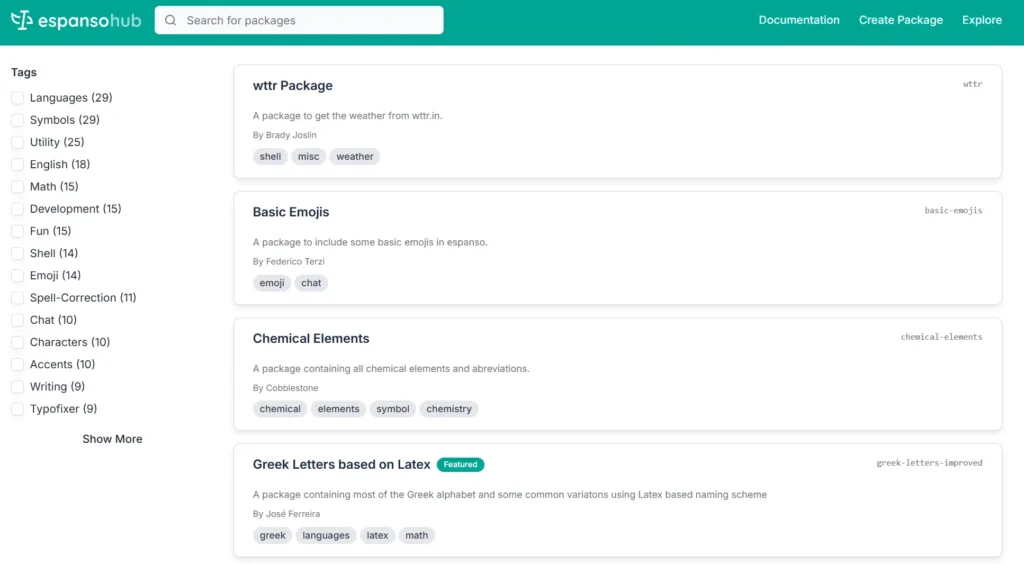
I would treat packages as a bonus, not the main reason to use Espanso.
The most valuable snippets are usually the ones that match your own work.
A generic emoji package can be useful. But a carefully maintained set of customer replies, internal notes, product names, and process comments can save much more time in a real office workflow.
How I would start with Espanso
If you want to try Espanso, I would not start by creating a huge library.
Start with ten snippets you actually use.
- Your email sign-off.
- One common “thank you” phrase.
- One delayed response phrase.
- Today’s date.
- One review comment.
- One “no further action” comment.
- One product name.
- One internal abbreviation.
- One repeated customer answer.
- One repeated answer to a colleague.
Use them for a week.
Every time you notice yourself writing the same thing again, add it to your list.
That is the safest way to build a useful snippet library. Not from theory, but from repeated friction.
Final thoughts
Espanso is not the most powerful automation tool I use.
AutoHotkey is more powerful for Windows automation.
But Espanso solves a different problem better: shared text expansion across Windows and Mac.
That matters when snippets are not only personal shortcuts, but shared answers, standard phrases, internal notes, and small pieces of reusable team knowledge.
If you only want to save a few keystrokes, Espanso is useful.
If you want a team to answer repeated questions faster and more consistently, Espanso becomes much more interesting.
Want more practical Windows productivity tips? If you like simple ways to make everyday work faster, I share more practical Windows productivity tricks in the TurboTasking newsletter.


