


You know that a document contains the number, sentence, customer reference, or decision you need. The problem is that you have no idea which document it was.
Opening Word files, Excel workbooks, and PDFs one by one is the wrong way to solve that problem. What you need is file-content search: searching the text inside multiple files at once.
Windows can already do this under the right conditions. I also tested Agent Ransack, DocFetcher, and Gety against the same controlled set of Office documents and PDFs. The differences were larger than I expected.
This distinction explains why tools such as Listary can feel unbelievably fast while still solving a different problem from DocFetcher or Gety. If I know that a file is called something like archive_a17.docx, filename search is enough. If I only remember a sentence buried on page 34, it is not.
How I tested Windows file-content search
Rather than compare feature lists, I created a controlled folder of fake office documents. That way I knew exactly what every search method should find.
- A Word document containing the unique string
TTSEARCH-4827. - An Excel workbook containing the same string inside a cell.
- A normal PDF containing selectable text with the same string.
- An image-only PDF that visibly contained the string but had no text layer.
- A second Word document describing a delayed shipment without using the words supplier, delivery, delay, or late shipment.
The semantic query was:
late shipment from supplier
The target Word document actually said that a vendor postponed dispatch because critical components were unavailable. A normal keyword search therefore had no exact phrase to match.
This is not a scientific benchmark, and your results can depend on Windows configuration, file handlers, hardware, and software versions. The point was simpler: can each method solve the kind of search problem I actually have in office work?
Option 1: Search inside files with Windows
Windows Search is the obvious place to start because it is already installed and may be the only option allowed on a locked-down corporate PC.
There is one important catch: simply typing the text into File Explorer did not search file contents reliably in my test.
Searching for:
TTSEARCH-4827
returned nothing. The content-search syntax that worked was:
content:TTSEARCH-4827
or, for an exact phrase:
content:"TTSEARCH-4827"
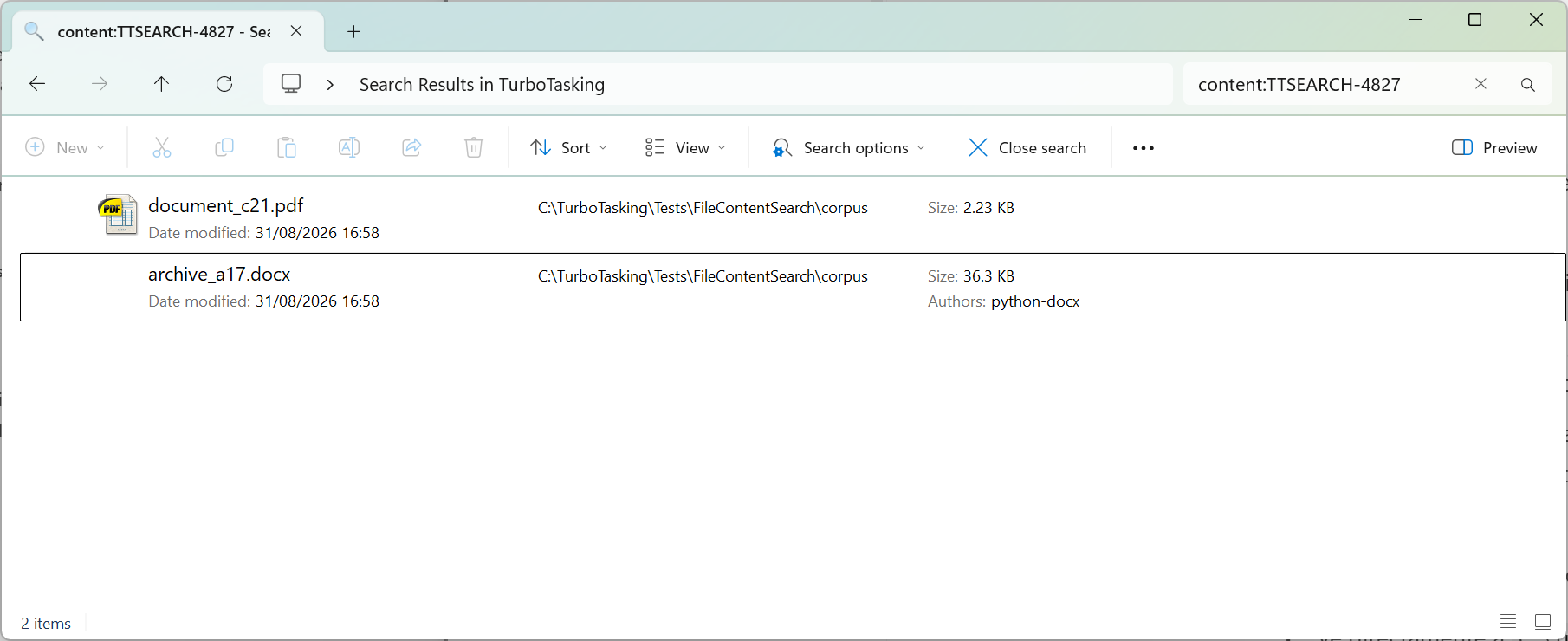
From C:\TurboTasking\, that search felt instant and found the Word document and normal PDF. It did not find the Excel workbook, even though the workbook definitely contained the same string.
I also explicitly added the test folder to Windows’ search index, waited until Windows reported Indexing complete, and confirmed that the relevant file types were configured to index properties and file contents. The practical result did not change enough to make Windows Search behave the way I wanted.
The search scope matters a lot
Searching the entire C:\ drive was a very different experience. Windows spent several minutes showing Working on it… without returning a useful result.
Once I navigated to the relevant parent folder, the same content search was effectively immediate.
That is my main problem with Windows Search for this workflow. It can work, but I do not want to remember special syntax, reason about the current search scope, and troubleshoot indexing before I can trust a document search.
If your documents all live in a known indexed folder, Windows may be all you need. If you regularly need to search across a larger archive and simply expect the tool to find the text, I would test another option before investing much time in tuning Windows Search.
Configure Windows indexing before judging it
If you do want to use the native method, check Settings → Privacy & security → Searching Windows and open the advanced indexing options. Add the folders you genuinely need to search rather than indexing unrelated parts of the PC.
Under Advanced → File Types, verify that important extensions such as DOCX, XLSX, and PDF are configured to Index Properties and File Contents.
Microsoft’s current Windows Search indexing documentation explains how indexed locations and file types affect the results.
Copilot+ PCs are an important exception
On supported Copilot+ PCs, Windows can also use local semantic indexing for compatible Office documents and PDFs. That means a query can potentially match the meaning of a document rather than requiring the same literal words.
I did not include Copilot+ semantic search in this hands-on comparison, so I would try it before installing another semantic-search tool if your PC supports it.
Option 2: Agent Ransack searches the files directly
Agent Ransack takes a different approach. The Lite version I tested does not require you to build a search index first. You tell it where to look and what text the files should contain, and it scans them directly.
That makes the setup pleasantly simple:
- Enter the folder in Look in.
- Enable Subfolders if needed.
- Enter the phrase in Containing text.
- Run the search.
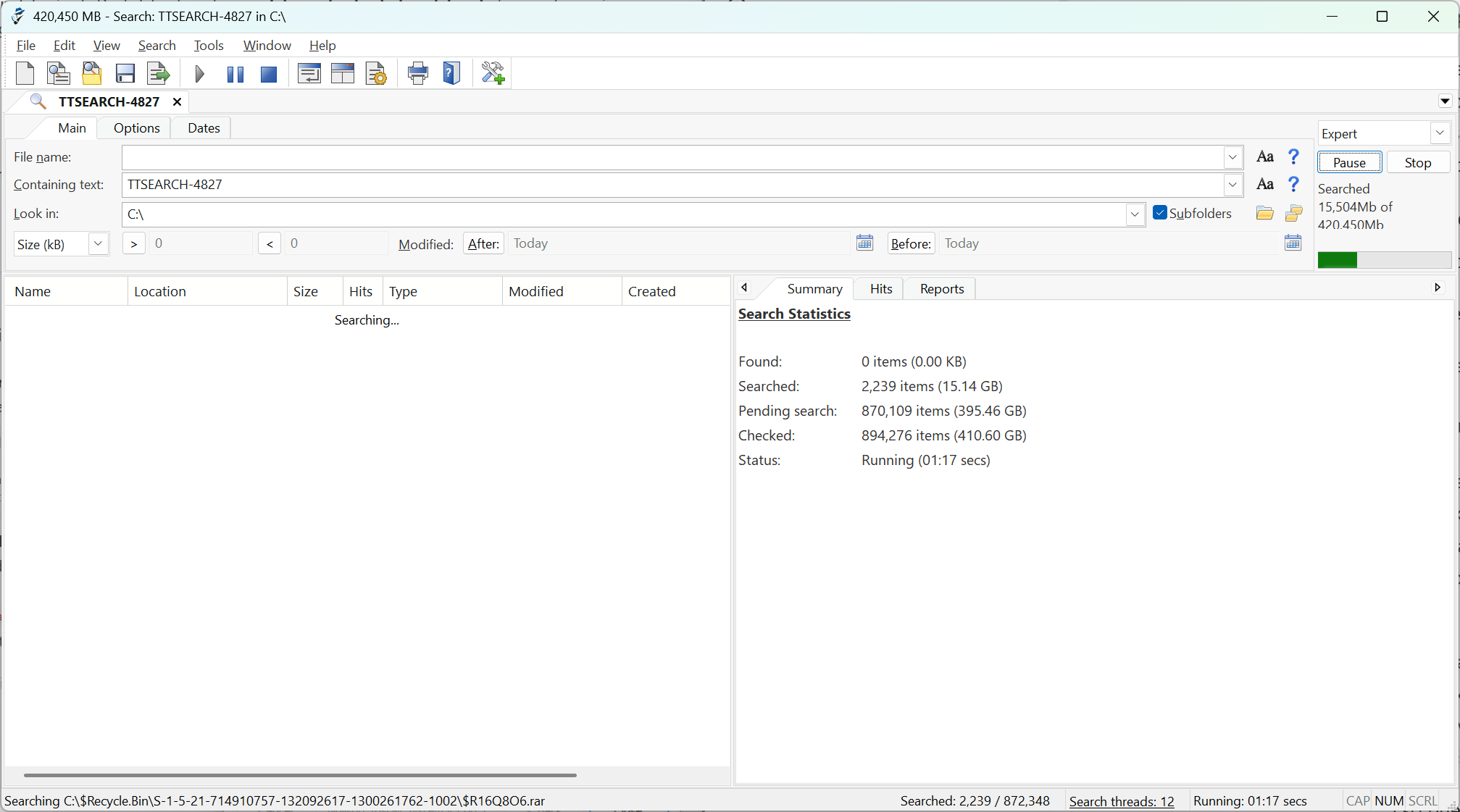
When I searched the relevant TurboTasking test folder, the result felt immediate. The experience changed dramatically when I pointed Ransack at the entire C:\ drive: it had to work through hundreds of gigabytes and hundreds of thousands of items because there was no prebuilt content index to query.
That trade-off is easy to understand:
- No index: nothing to prepare and newly saved files can be searched immediately.
- Direct scanning: the larger the scope, the more work every search has to do.
This makes Agent Ransack particularly attractive when you know approximately where the document is but not which document contains the phrase.
Agent Ransack has a surprisingly corporate-friendly version
The first installer screen also surprised me. Agent Ransack has Professional editions, but Lite is free for both personal and commercial use.
Mythicsoft also distributes the Lite product under the more conventional name FileLocator Lite. The developer explains that the alternative branding exists for environments where “Agent Ransack” is not an ideal software name.
That is a small detail, but a useful one in a corporate environment. Software approval is often about more than technical capability. Documentation, licensing, deployment, support, and even how understandable a tool is to IT can matter.
None of this means an employee should install it without approval. “Free for commercial use” and “approved by my employer” are two completely different statements.
Option 3: DocFetcher is still my choice for repeated work searches
DocFetcher is the tool I already use at work when I need to search across collections of documents.
Unlike Agent Ransack Lite, DocFetcher expects you to create an index first. That initial step is the price you pay for much faster repeated searches afterward.
The basic workflow is:
- Select the folders that contain the documents you want searchable.
- Create a DocFetcher index for them.
- Wait for the initial indexing to finish.
- Search the index instead of rescanning every file from scratch.
Do not automatically point it at your entire system drive. When I started indexing all of C:\, the process was still running more than nine minutes later. Indexing only the small controlled test folder took seconds.
For actual work, I would normally index document libraries, project folders, archives, or other locations where useful office files live—not Windows, application directories, caches, and everything else on the computer.

Once the index existed, searching for TTSEARCH-4827 was effectively instant. Unlike Windows Search in my test, DocFetcher also returned the Excel workbook.
The index can update automatically, but not literally instantly
An index raises an obvious question: what happens to a file you saved five seconds ago?
DocFetcher can watch indexed folders for changes and update its index automatically. My first test was unfairly aggressive: I searched almost immediately after saving a new document and did not see it. In a second test, the new file became searchable without a manual index update after roughly 20 seconds.
That delay is acceptable for the way I use DocFetcher. I search reference material and work documents repeatedly; I am not normally trying to find a file seconds after creating it.
The important trade-off is therefore:
- Initial cost: build an index.
- Ongoing benefit: very fast searches across all indexed documents.
- Freshness: newly changed files may need a short moment before the index catches up.
The free edition I tested currently also advertises a commercial DocFetcher Pro edition. I did not need Pro for the tests in this article.
One important limitation remains: the image-only scanned PDF in my corpus was not searchable as normal text. For that, you need OCR.
Option 4: Gety can search by meaning and inside scans
Gety is the newest tool in this comparison and the one I have used the least. It comes from the team behind Listary, and I have only tested it on my personal laptop. I have not used it on corporate documents.
That means I would not put it in the same “battle-tested at work” category as DocFetcher yet. But technically, it did two things in my tests that made it genuinely interesting.
Gety found the document even when my query used different words
I searched Gety for:
late shipment from supplier
The target Word document did not contain those words. Its relevant sentence was:
The vendor postponed dispatch because several critical components were unavailable.
Gety still returned the intended notes_e13.docx and labeled it an AI Semantic Match.
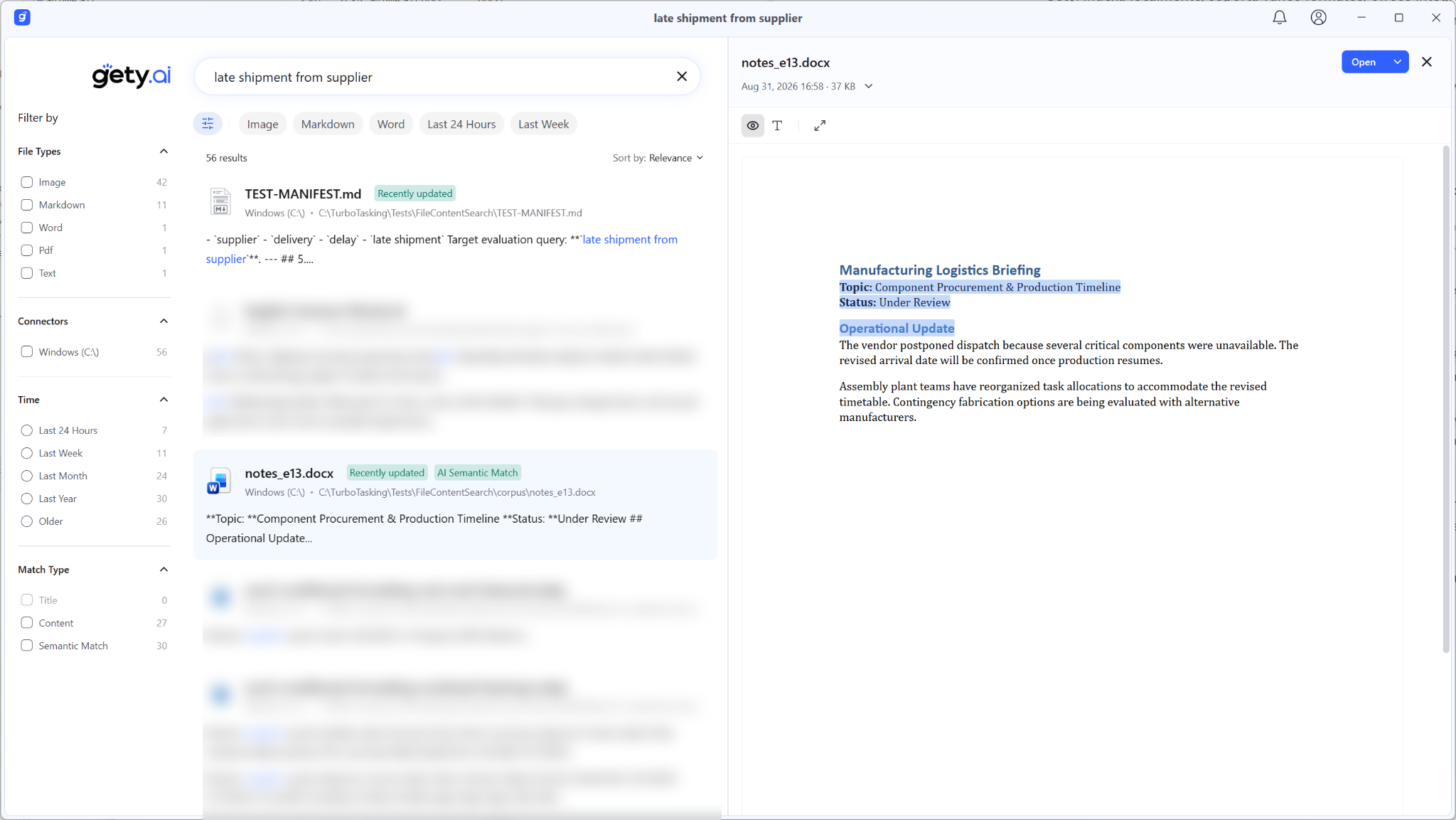
The ranking was not perfect. Other results appeared above the intended document. That matters: semantic search is not mind reading.
But the result still demonstrates the capability I care about. I can remember an idea from a document without remembering the exact wording used when it was written.
Gety’s preview pane also lets me inspect the matching document without immediately opening Word. When several results look plausible, that can save another round of opening and closing files.
Gety found text inside my image-only PDF
The OCR test was even clearer.
I generated a PDF that visually showed TTSEARCH-4827 but deliberately contained no selectable text layer. Windows, Agent Ransack Lite, and DocFetcher did not retrieve it as ordinary file content in my test.
Gety found it.
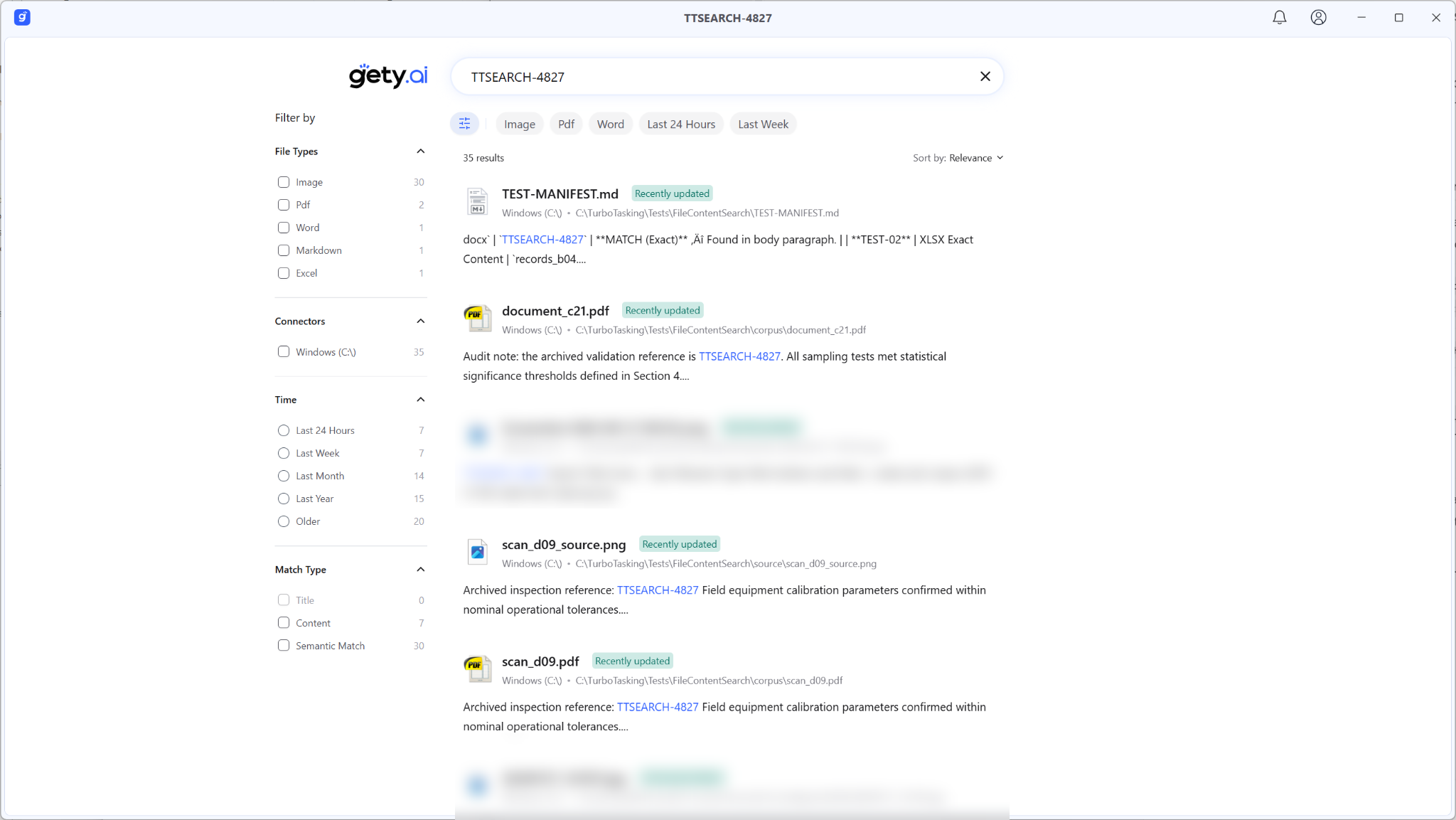
That is a meaningful distinction if your archive includes scanned invoices, signed documents, old paperwork, screenshots, or PDFs produced from images instead of text.
Gety also handled normal Excel content
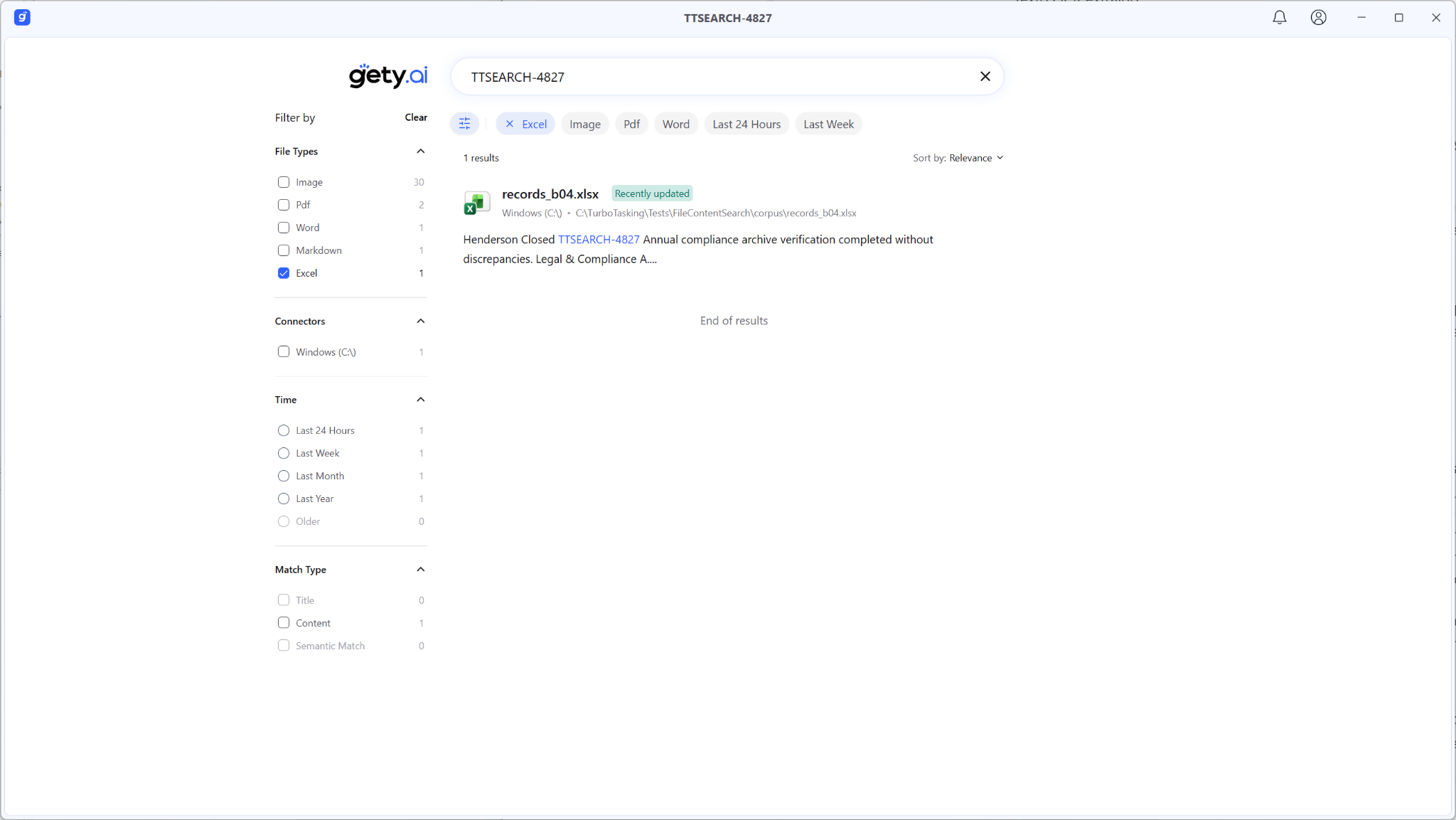
For the conventional exact-text test, Gety found the Excel workbook containing TTSEARCH-4827. Filtering the results to Excel left records_b04.xlsx as the expected match.
Semantic search also creates noise
Gety’s broader matching is not automatically better for every search. In my tests, exact strings could also produce semantically related images or other results that I did not care about.
That is why I would not replace every traditional search with semantic search. If I know the exact project reference, an exact-text engine gives me a cleaner question and often a cleaner answer. Semantic search becomes valuable when I do not know the words.
Be careful with corporate data and AI integrations
Gety’s documentation describes local file indexing and search, which is attractive for private document libraries. Its current application also offers optional AI integrations through mechanisms such as MCP/API connections.
Those are separate questions from whether the core search index is local. If you connect a local-file search tool to Claude, another AI service, or a corporate assistant, review exactly what file content can be requested and where that content may go.
Before using Gety (or any third-party search tool) with work files, check your employer’s software, data-classification, confidentiality, and AI policies. “Runs locally” does not automatically mean “approved for confidential company data.”
Gety’s current privacy information and documentation are the right places to verify the current behavior before deployment.
What about Listary and Everything?
If you remember the filename, I would solve that problem differently.
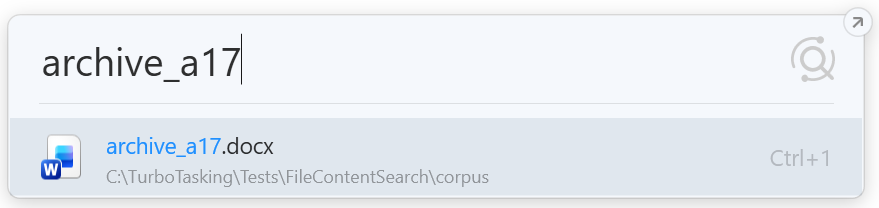
In my test, Listary found archive_a17.docx immediately when I typed the filename. That is exactly the kind of job Listary is good at: locate a known file or path quickly and open it.
That does not make Listary worse than DocFetcher or Gety. It solves a different problem.
Everything belongs in the same conversation because it is exceptionally well known for fast filename and path search. Its documentation also includes content-search capabilities, but I did not install and benchmark Everything for this article. Adding another tool would have made the comparison longer without changing the main decision.
My rule is simple:
- If I remember the filename, use a filename-search tool such as Listary or Everything.
- If I remember the text inside the document, use a content-search tool.
Windows vs Agent Ransack vs DocFetcher vs Gety
| Situation | My starting point | Why |
|---|---|---|
| I occasionally need to search inside a known folder | Windows Search | Already installed; content: can be enough when indexing and file types cooperate |
| I know roughly which folder contains the file and remember the exact text | Agent Ransack Lite | No index to maintain; direct exact-text search is simple and fast in a sensible scope |
| I repeatedly search a stable library of Office files and PDFs | DocFetcher | Initial indexing takes time, but repeated searches are effectively instant |
| I remember the idea but not the exact wording | Gety | Semantic matching can retrieve conceptually related documents |
| I need to search inside scanned/image-only PDFs | Gety | Its OCR found the deliberately image-only PDF in my test |
| I remember the filename | Listary or Everything | This is a filename/path-search problem, not a full-text-search problem |
Which one would I actually use at work?
For my current workflow, I still prefer DocFetcher.
The reason is not that it wins every feature comparison. Gety is more capable when OCR or semantic search matters, and Agent Ransack avoids maintaining an index entirely.
DocFetcher fits the job I actually have: I repeatedly search a known collection of Office documents and PDFs, and most of the time I remember an exact name, number, phrase, or technical term. I can index those document folders once and then search them quickly whenever I need them.
I would use Agent Ransack Lite when I know roughly where to look and want a direct one-off text search without preparing anything.
I would investigate Gety further if scanned material and “I remember what it said, but not how it was worded” became common problems. Its semantic and OCR results were the most distinctive part of this test, but I would want corporate approval before pointing it at a work document library.
And I would use Windows Search when installing another tool is not possible or when the occasional search works reliably enough in the folders already indexed by Windows.
The best option is therefore not the tool with the longest feature list. It is the one that matches what you normally remember when you start searching.
FAQ: searching inside files on Windows
Can Windows search for text inside files?
Yes. Windows can index and search the contents of supported file types. In File Explorer, the content: property worked in my test, for example content:"TTSEARCH-4827". Results depend on the file type, indexed locations, filters installed on the system, and where you start the search.
Can Windows search inside Word documents and PDFs?
It did in my controlled test. Windows found the matching DOCX and normal text-based PDF when I searched from the relevant folder with content:. The same test did not return the XLSX workbook.
Can Windows search inside scanned PDFs?
A scanned PDF may contain only images rather than machine-readable text. Standard content search therefore needs OCR somewhere in the workflow. My deliberately image-only PDF was not retrieved by the traditional tools in this test, while Gety found the visible text through OCR.
Does Agent Ransack need an index?
Agent Ransack Lite did not require me to build one. It searched the selected folder directly. That makes small or targeted searches convenient, but searching an entire large drive requires it to inspect much more data on every run.
Does DocFetcher update its index automatically?
DocFetcher can watch indexed folders for changes. In my test, a newly saved document was not available literally seconds later, but it became searchable automatically after roughly 20 seconds without me manually rebuilding the index.
What is semantic file search?
Traditional full-text search looks for the same words or patterns that exist in the document. Semantic search tries to match meaning. In my Gety test, the query late shipment from supplier found a document that instead talked about a vendor postponing dispatch because components were unavailable.
Stop opening files just to find out what is inside them
If you already know what the document is called, use a fast filename-search tool and move on.
If the filename is the thing you do not remember, search the content instead.
Windows can handle occasional searches. Agent Ransack gives you a direct no-index alternative. DocFetcher remains my practical choice for repeatedly searching a known work archive. Gety adds a genuinely different layer when exact keywords are no longer enough.
The important productivity change is not which application you choose. It is replacing “open document, scan it, close document, repeat” with one search across the files that may contain the answer.
Want more practical Windows productivity tips? If you like simple ways to make everyday work faster, I share more practical Windows productivity tricks in the TurboTasking newsletter.

