

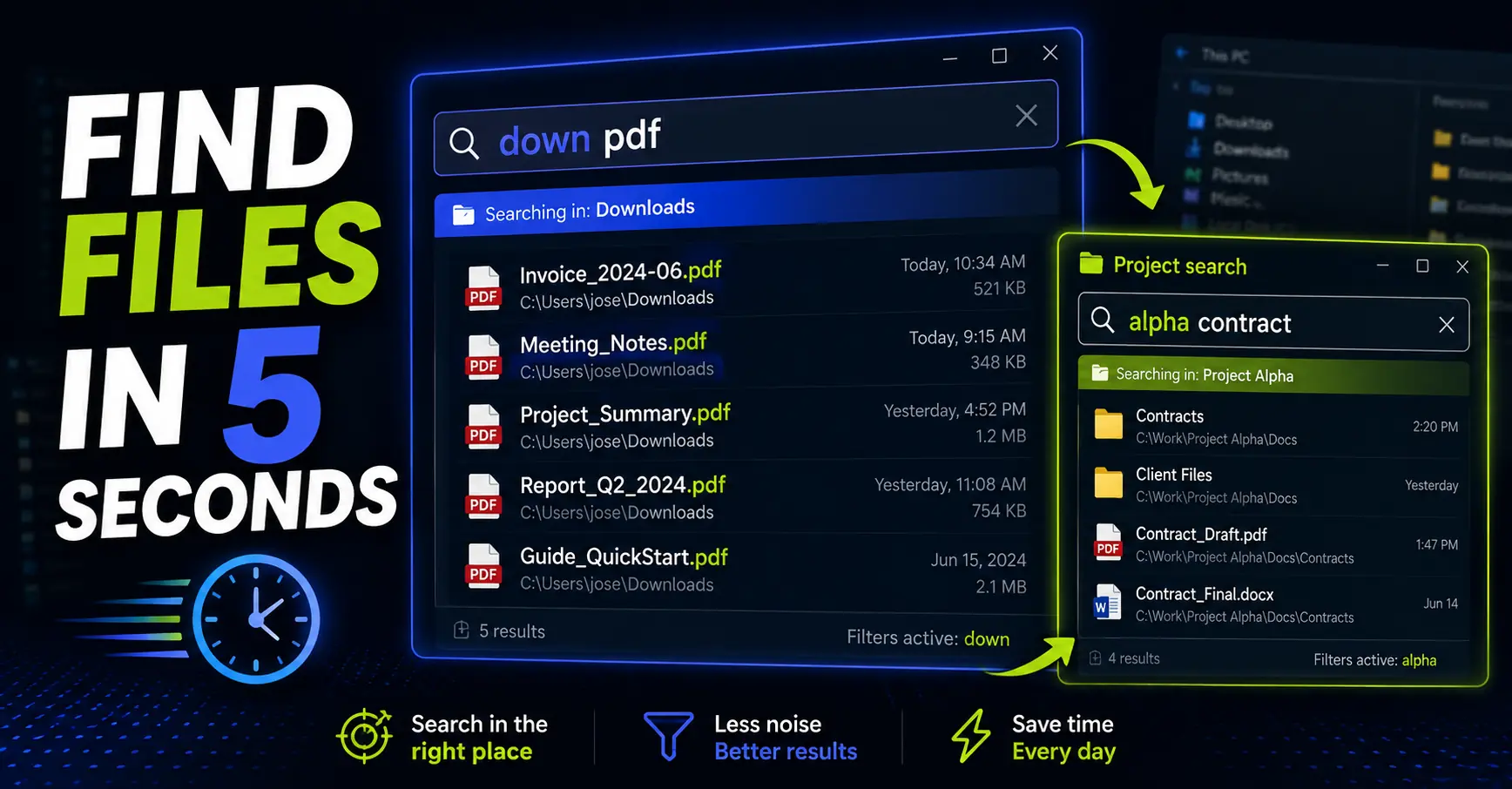
Finding files quickly is not always about having a better search tool.
Sometimes the real trick is telling the search tool where to look before you start typing.
That is why I like Listary filters.
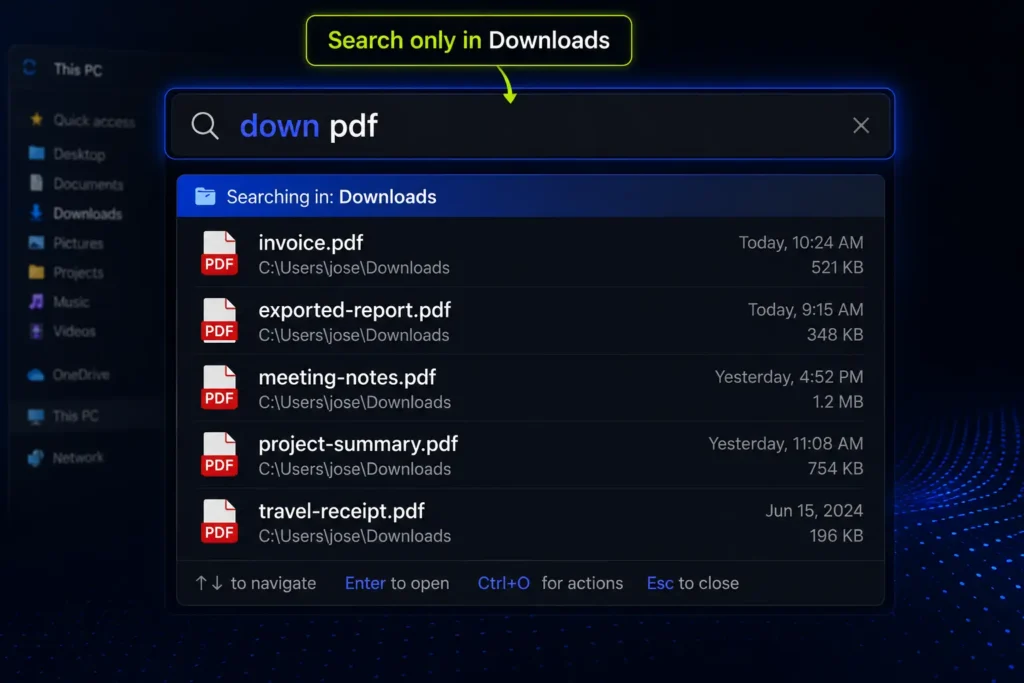
Instead of searching your whole PC every time, you can create short keywords for the places and file types you use most often. For example, I have a filter for my Downloads folder. I type down, press Space, and then search only inside:
C:\Users\Jose\Downloads
That means I can search for a PDF, installer, ZIP file, screenshot, or recently downloaded document without opening Downloads, sorting the folder, and scanning a messy list manually.
The same idea becomes even more useful for project folders. If different projects or clients have files with similar names, a Listary filter lets you search only inside the project you actually mean.
This guide shows how I use Listary filters for Downloads, project folders, and file types, without turning the system into another thing to maintain.
Key Takeaways
- Listary filters help you search in the right place first.
- A Downloads filter is useful for files you saved earlier or files saved by apps like Teams.
- Project filters are the best use case if clients or projects have similar file names.
- Do not create too many filters. A few obvious keywords are better than a complicated system.
In this article
What Listary filters do
A Listary filter is a shortcut that narrows your search before you type the actual file name.
Depending on how you configure it, a filter can limit the search by:
- folder location;
- file type or extension;
- files only;
- folders only;
- files and folders together.
That sounds small, but it changes the search workflow.
Without filters, you start with a vague query and hope the right result appears near the top. With filters, you first tell Listary the search area, then you type the thing you are looking for.
For example, instead of searching your whole PC for:
invoice
You can search only inside Downloads:
down invoice
Or only inside a project folder:
projectx invoice
The search term can be the same. The difference is that Listary is no longer looking everywhere.
That is the main benefit: less noise before you even start searching.
Built-in filters vs custom filters
Listary includes several filters by default. These are useful when you want to search by general type:
folder:for folders;file:for files;doc:for documents;pic:for pictures;video:for videos;audio:for audio files.
One detail is worth mentioning: some built-in filters require the colon to work properly. For example, the default folder filter works as:
folder: reports
For my own custom filters, I usually use the keyword at the beginning of the search. For example:
down pdf
That tells Listary to use my Downloads filter first, then search for PDF-related results inside that location.
This distinction matters because filters are not just a list of magic words. They are small search scopes you can build around the way you actually work.
The built-in filters are nice to have. The custom filters are where the real productivity gain starts.
My most useful filter: Downloads
The first custom filter I would create is a Downloads filter.
Downloads is usually one of the messiest folders on a Windows PC. It contains PDFs, installers, screenshots, ZIP files, temporary exports, attachments, random documents, and files you needed once but never organized.
That sounds like a bad place to search.
But it is also predictable.
If I downloaded something recently and I have not moved it yet, there is a good chance it is still in Downloads.
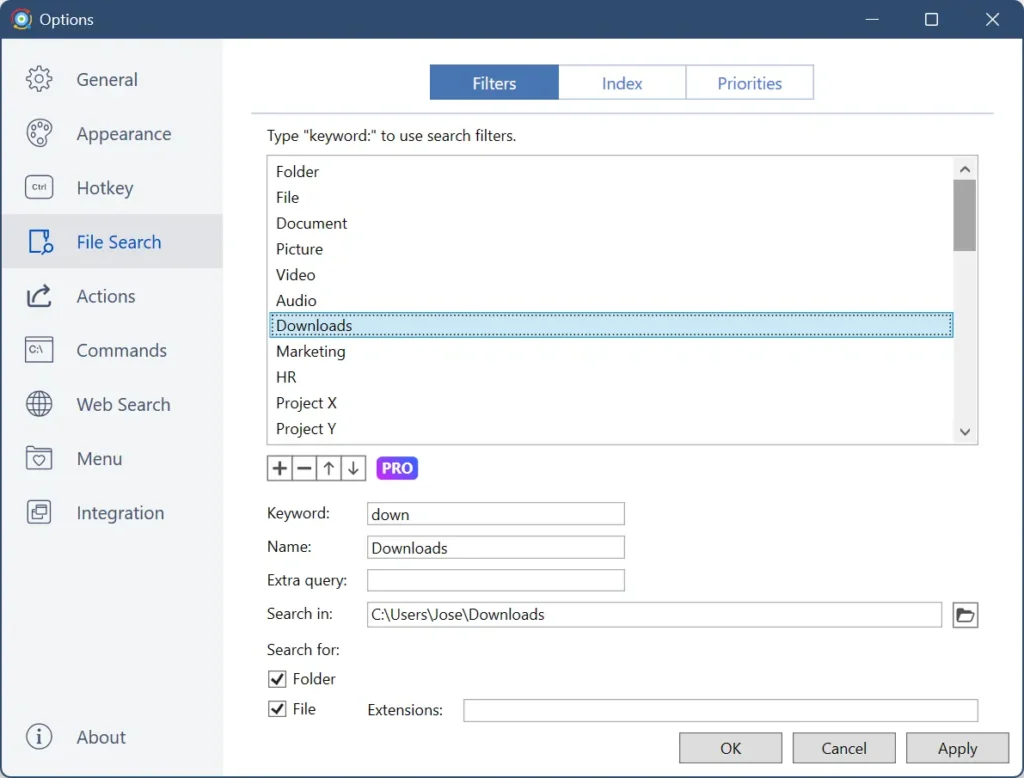
My filter is simple:
| Setting | Value |
| Keyword | down |
| Name | Downloads |
| Search in | C:\Users\Jose\Downloads |
| Search for | Folder + File |
Then I can use searches like:
down pdf
down invoice
down setup
down zip
down screenshot
down report
There is one important nuance here.
If I just downloaded a file from Edge or another browser, I can usually open it directly from the browser’s download list. In that exact moment, the browser is probably faster.
The Downloads filter becomes more useful later.
For example:
- you downloaded a PDF in the morning and need it again in the afternoon;
- Microsoft Teams saved an attachment into Downloads;
- a business app exported a file there;
- an installer or ZIP file was downloaded by another tool;
- you know the file is recent, but you do not want to open Downloads and sort by date.
In those cases, I do not want to open the folder, change the view, sort the files, and scan a long list manually.
I start the Downloads filter and type part of the name, extension, or format.
That is often enough.
Project-specific searches: the best use case
The Downloads filter is useful, but project filters are the stronger use case.
If you work with multiple projects, customers, departments, or clients, you probably have repeated folder structures and similar file names.
For example, different projects may all contain files called:
contract.pdfreport.xlsxmeeting-notes.docxinvoice.pdfpresentation.pptxrequirements.docx
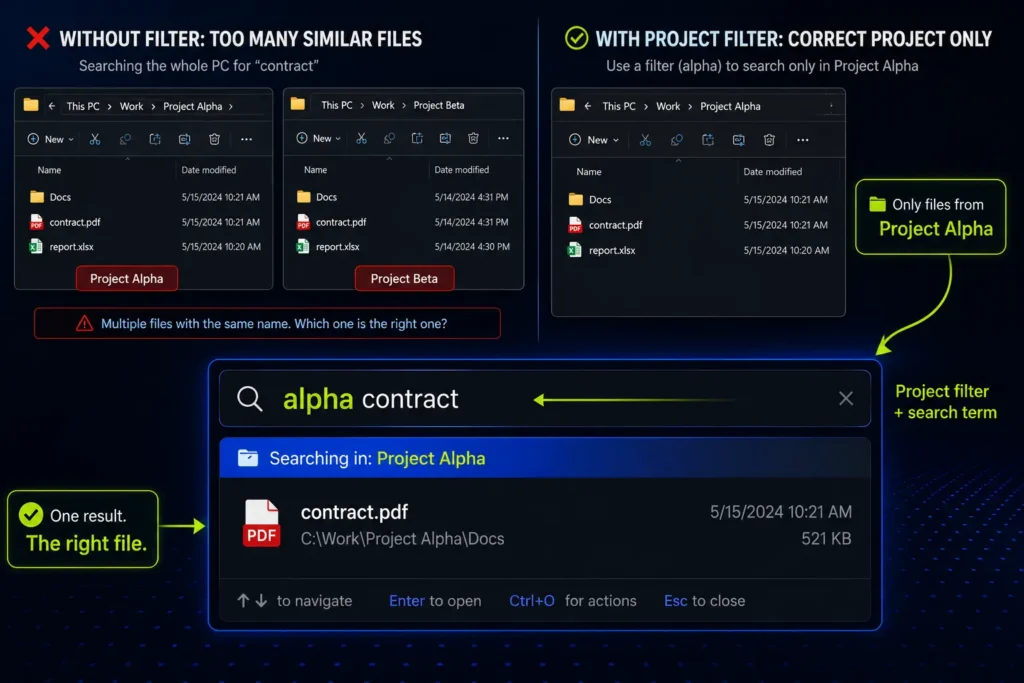
If you search your whole PC for contract, you may get several correct-looking results. The problem is that only one of them belongs to the project you are currently working on.
A project filter solves that by narrowing the search before the file name enters the picture.
For example, you could create filters like:
| Project or client | Keyword | Search in |
| Project Alpha | alpha | Main Project Alpha folder |
| Client Blue | blue | Main Client Blue folder |
| Finance archive | fin | Finance folder |
| Blog assets | blog | Blog project folder |
Then your searches become more intentional:
alpha contract
blue report
fin invoice
blog image
This does two things.
First, it makes results cleaner. You are no longer searching every similar file on your machine.
Second, it reduces the risk of opening, editing, attaching, or sending the wrong file.
That matters in real office work. Similar file names are not just annoying. They can create mistakes.
If two customers both have a file called contract.pdf, I do not want to rely on memory, folder scanning, or luck. I want the search itself to start in the correct customer folder.
That is why I usually enable both files and folders for project filters. Sometimes I want the document. Sometimes I want the folder that contains the document. Both are useful.
File type filters are useful, but I would keep them secondary
Listary can also help you filter by type of file.
The built-in filters already cover common categories like documents, pictures, videos, and audio files. You can also create custom filters for specific extensions if you often search for the same type of file.
For example:
- PDF files;
- Excel files;
- PowerPoint files;
- ZIP archives;
- screenshots;
- installers.
That said, I would not create a custom filter for every extension.
For PDFs, for example, I often just type:
pdf
That usually works because pdf is part of the file extension, not necessarily part of the file name.
So if I search for pdf, Listary often surfaces PDF files directly.
A dedicated PDF filter only becomes useful when you want cleaner results, or when you want to combine the file type with a specific folder or workflow.
For example, these are different levels of precision:
| Search | What it does |
pdf | Finds PDF files broadly, often because of the extension |
down pdf | Finds PDFs inside Downloads |
alpha pdf | Finds PDFs inside a specific project folder |
doc: budget | Uses a built-in document filter, depending on your Listary setup |
The point is not to create the most complex search setup possible.
The point is to remove the results you already know you do not need.
My recommended Listary filter setup
If you are starting from zero, I would not build a huge list of filters.
I would start with this:
| Filter | Example keyword | Why it is useful |
| Downloads | down | Find recent files saved by browsers, Teams, apps, installers, and exports |
| Main work project | short project keyword | Search only inside your active project folder |
| Client folders | short client keyword | Avoid confusing similar file names across clients |
| PDF filter | optional | Only worth it if typing pdf is not clean enough |
For most project and Downloads filters, I would enable both:
- Folder;
- File.
That gives you more flexibility.
If the result is a file, you can open it directly. If the result is a folder, you can jump into the project area and continue from there.
For keywords, use something obvious. A filter is only fast if you remember it without thinking.
Good keywords are short, but not cryptic:
downfor Downloads;blogfor blog assets;finfor finance;- a short project name;
- a short client name.
Bad keywords are clever abbreviations you will forget next week.
How I would use filters during a normal workday
Here is a realistic workflow.
Someone sends you a file in Microsoft Teams. You download it, but you do not need it immediately.
Two hours later, you need to attach that same file to an email or upload it into another business tool.
Instead of opening Downloads manually, you trigger Listary and type:
down pdf
Or part of the file name:
down contract
Another example.
You are working on Project Alpha and need the latest report. Your computer contains many files called report.xlsx, but only one of them belongs to this project.
Instead of searching globally, you type:
alpha report
That is the habit I want from filters: start narrow, then search.
It is faster, but more importantly, it is safer.
If you are new to Listary, start with my full Listary guide, where I explain the general file search workflow, Quick Switch, actions, and web search commands.
What not to do with Listary filters
Filters are useful, but it is easy to overdo them.
I would avoid these mistakes.
Do not create a filter for every folder
If you create 40 filters, you will stop remembering them.
Start with the folders where you lose time most often. For me, that means Downloads and active project folders.
Do not use keywords you have to decode
A filter keyword should feel obvious.
down is easy to remember. A random two-letter abbreviation may feel faster when you create it, but slower when you need to recall it under pressure.
Do not filter folders you almost never search
A filter should save time repeatedly.
If you search a folder once every three months, it probably does not deserve its own keyword.
Do not expect filters to replace a basic folder system
Listary filters help you find files faster, but they should not become an excuse to let every project become chaos.
You still need a minimum structure. Filters simply make that structure faster to access.
Do not confuse file search with content search
I use Listary filters mainly to find files and folders by name, location, and type.
That is different from searching inside the full text of every PDF, Word document, or PowerPoint file.
For this workflow, the goal is more specific: find the right file faster by searching in the right place first.
What to do after Listary finds the file
Finding the file is only the first step.
Once the result appears, Listary can help you continue the workflow. Depending on your setup, you can open the file, open the containing folder, copy it, copy its path, or open additional actions.
I will not repeat the full workflow here because this article is about filters.
But this is where filters become even more useful. You narrow the search with a project keyword, find the exact file, then take the next action without manually browsing through folders.
Final thought
The fastest search is not always the broadest search.
If you already know that a file is probably in Downloads, start there.
If you already know that a document belongs to a specific project, start inside that project.
That is what Listary filters are good at.
They let you search with context:
down pdf
alpha contract
blog image
folder: reports
For me, the minimum useful setup is simple: one filter for Downloads and one filter for each active project that I search often.
That is enough to make file search feel cleaner, faster, and less risky.
You do not need 50 filters.
You just need a few good ones for the folders where wasted search time keeps coming back.
Want more practical Windows productivity tips? If you like simple ways to make everyday work faster, I share more practical Windows productivity tricks in the TurboTasking newsletter.


