
Back-to-back meetings look efficient on a calendar.
In real life, they often make you late before the next meeting has even started.
Quick answer: In Outlook, go to Settings > Calendar > Events and invitations (or File > Options > Calendar > Calendar options in classic Outlook), turn on Shorten duration for all events, and choose whether to end meetings early or start them late by 5 or 10 minutes. Outlook will then use the shorter duration by default for new events you create.
One call runs over by three minutes. You still need to write down the action items. You need to open the next document. Maybe you need water. Maybe you just need ten seconds to remember what the next meeting is even about.
But Outlook does not know that.
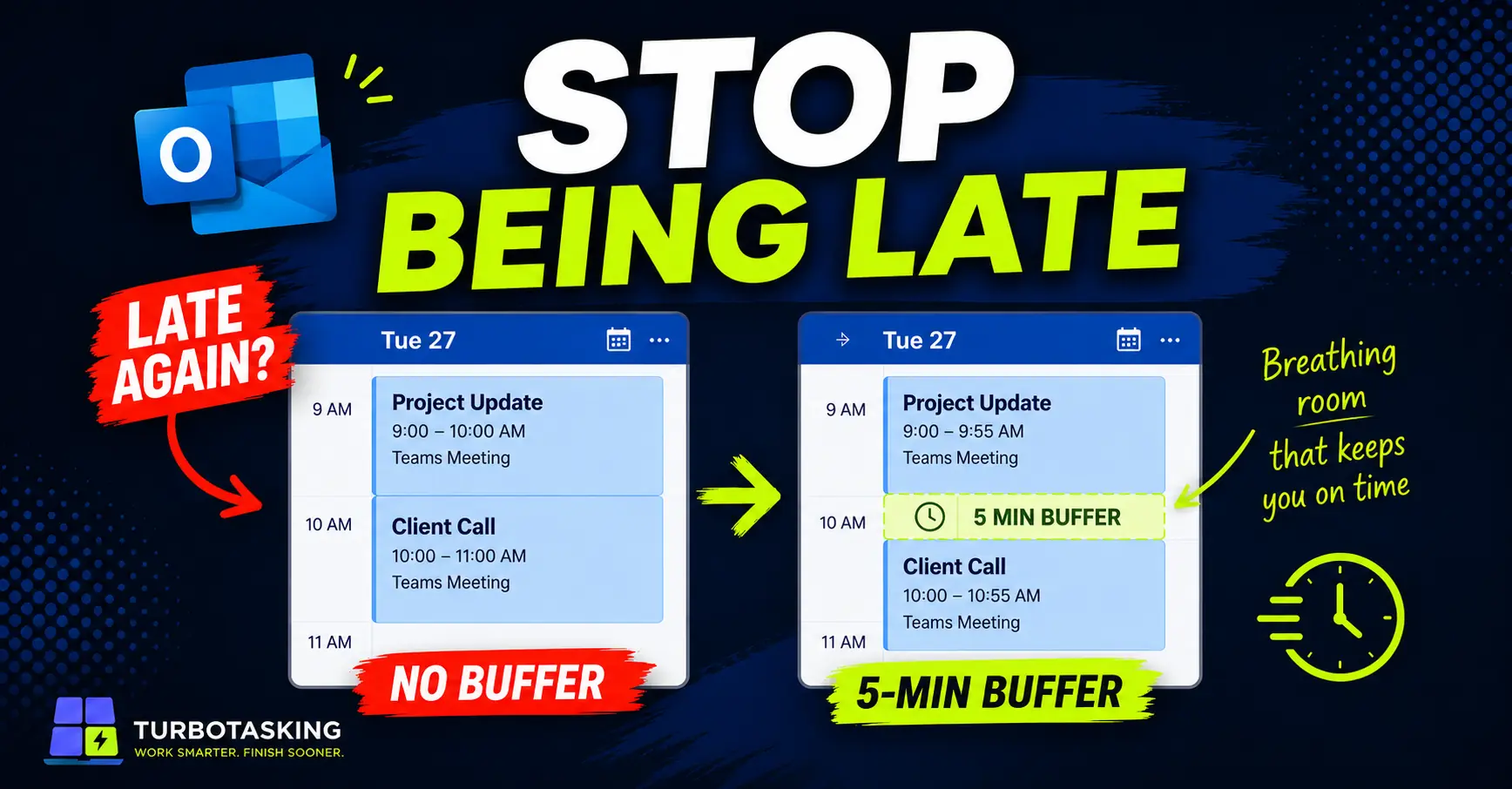
By default, your calendar can easily become a solid wall of meetings from 9:00 to 10:00, 10:00 to 11:00, and 11:00 to 11:30, as if switching context took no time at all.
That is the problem this small Outlook setting helps fix.
You can make new Outlook meetings end a few minutes early by default, so a 30-minute meeting becomes 25 minutes, and a 60-minute meeting can become 55 minutes.
It is not a complete meeting system. It will not magically fix bad agendas, unclear ownership, or people who keep talking past the end time.
But it gives your calendar one thing many office workers badly need: a small default buffer between meetings.
Key Takeaways
- Back-to-back meetings cause delays because context switching requires time.
- Outlook can shorten meetings automatically by ending early or starting late.
- A 5-minute buffer is usually the best default for both 30- and 60-minute meetings.
- The setting applies per account to future meetings you organize, without altering existing calendar invites.
In this article
Why back-to-back meetings make you late
The obvious problem with back-to-back meetings is that they leave no space between calls.
The bigger problem is that many meetings do not end exactly on time.
A meeting scheduled until 10:00 often really ends at 10:02. Then someone asks one last question. Then you need to check what was decided. Then you need to join the next call, where everyone else is already waiting.
That is how a small delay becomes a chain reaction.
One meeting runs over, and suddenly you are late to the next one. Because you joined that one late, you need a minute to catch up. Because you are behind, you leave that meeting with less clarity. Then the next one starts.
Nothing dramatic happened. Your calendar was just too tightly packed.
This is why a meeting buffer matters. Not because five minutes is a huge amount of time, but because zero minutes is often unrealistic.
This is not just a nice idea. Microsoft WorkLab has published research showing that short breaks between meetings can help the brain reset and reduce the buildup of stress across back-to-back meetings.
That matches what most office workers already feel. Going from one meeting straight into another is not neutral. It costs attention.
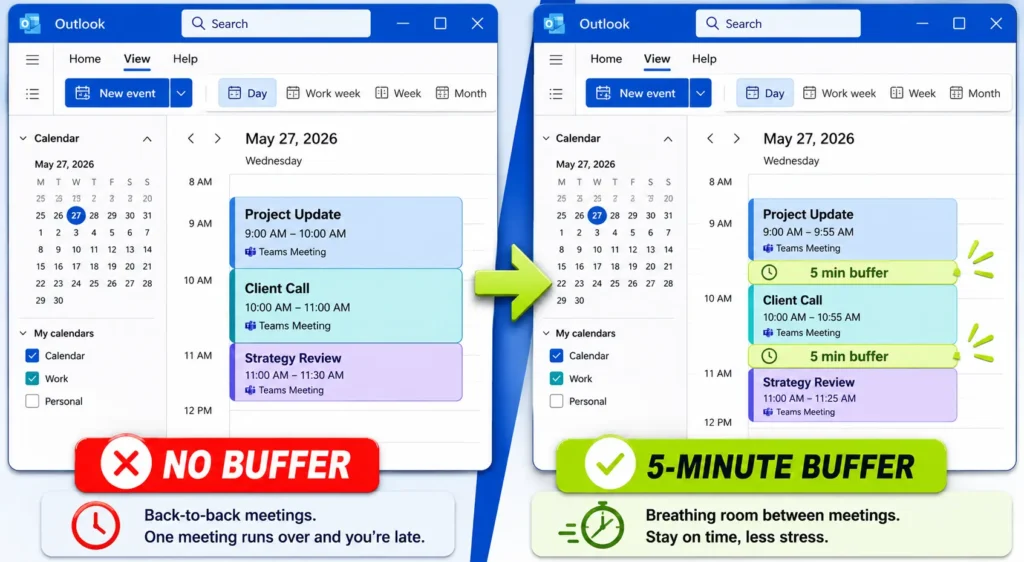
The small Outlook setting that creates a meeting buffer
Outlook has a setting that can shorten new events automatically.
Depending on your version of Outlook, it may be called something like Shorten duration for all events or Shorten appointments and meetings.
The idea is simple.
- A 30-minute meeting can end after 25 minutes.
- A 60-minute meeting can end after 55 minutes.
- Longer meetings can also be shortened by a custom number of minutes.
This does not mean every meeting must end early forever.
It changes the default duration when you create new meetings. If a specific meeting really needs the full time, you can still change the end time manually.
That is what makes this setting practical in a normal office environment. You are not creating a rigid rule. You are changing the default from “fill the whole block” to “leave a little breathing room unless there is a reason not to”.
How to end Outlook meetings early by default
The exact steps depend on which version of Outlook you use.
New Outlook and Outlook on the web
New Outlook for Windows and Outlook on the web share the same calendar settings. Note that this setting is configured per account, so if you manage multiple mailboxes, check each calendar account individually.
- Open Outlook or sign in to Outlook on the web.
- Select Settings (the gear icon).
- Go to Calendar.
- Open Events and invitations.
- Turn on Shorten duration for all events.
- Choose End events early (or Start events late).
- Select how many minutes to shorten events under one hour.
- Select how many minutes to shorten events that are one hour or longer.
- Save your changes.
Classic Outlook
- Open Outlook.
- Go to File.
- Select Options.
- Open Calendar.
- Find Calendar options.
- Turn on Shorten appointments and meetings.
- Choose End early (or Start late).
- Choose the number of minutes for meetings under one hour.
- Choose the number of minutes for meetings one hour or longer.
- Click OK.
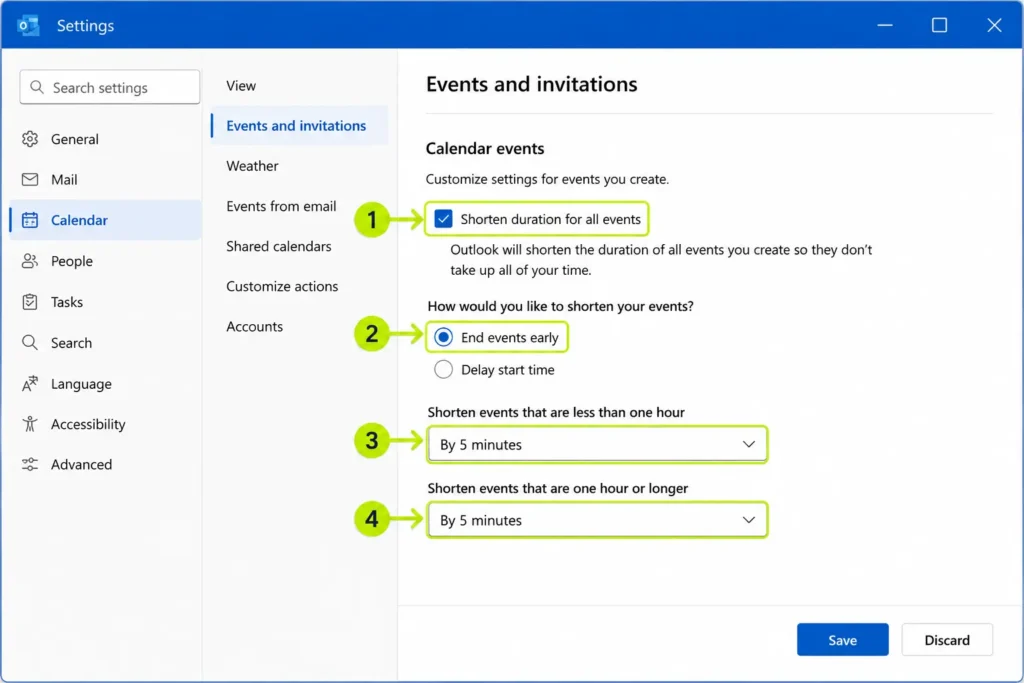
If the option is missing or greyed out: your organization may control this setting through an IT policy, so you might not be able to change it yourself.
End early vs Start late: which should you choose?
Outlook gives you two ways to create a buffer: end the meeting early or start it late.
Both create a gap between appointments, but they work differently in practice:
- End early (recommended default): A 30-minute meeting is scheduled for 10:00–10:25. This works best when people respect the scheduled end time, giving you a few minutes to jot down actions or take a quick break before your next commitment.
- Start late: A 30-minute meeting is scheduled for 10:05–10:30. This can work better in office cultures where previous meetings routinely run until the scheduled minute, because the buffer is protected before the next meeting officially begins.
If you are not sure which to choose, start with End events early. It feels more natural to most invitees and avoids confusion about why a meeting starts at an unusual time.
The settings I would start with
If you work in a normal office environment, start small.
My recommended default is:
- Meetings under 1 hour: end 5 minutes early.
- Meetings 1 hour or longer: end 5 minutes early.
This turns the classic 30-minute meeting into a 25-minute meeting, and the classic 60-minute meeting into a 55-minute meeting.
That is enough to create a useful buffer without making your meeting invites look strange.
If your calendar is full of long calls, workshops, or review sessions, you can consider using 10 minutes for meetings of one hour or longer.
But I would not start there unless your workplace already accepts that style. In many corporate environments, a 55-minute meeting feels normal. A 50-minute meeting can still feel unusual to some people.
The goal is not to make a statement. The goal is to stop your calendar from booking every minute of your day.
What this setting does not change
To set realistic expectations, keep in mind what this feature does not do:
- Existing calendar events: It only applies to new meetings you schedule after enabling the setting. It will not retroactively adjust meetings already on your calendar.
- Invites from other people: If someone else organizes a 30-minute meeting from 10:00 to 10:30, Outlook will not shorten it for you. The buffer only applies when you are the organizer.
- Other accounts: As noted earlier, the setting is saved per account. If you add a secondary work or personal account, you need to enable it there separately.
What to do with the 5-minute buffer
The biggest mistake is treating the buffer as extra work time.
It is not there so you can squeeze in another email, another Teams reply, or another tiny task that makes you late anyway.
Use the buffer to make the next meeting better.
- Write down the decision from the meeting that just ended.
- Capture your next action before you forget it.
- Open the document for the next call.
- Check who is attending the next meeting.
- Stand up, drink water, or reset your attention for a moment.
That may sound too small to matter, but this is exactly the kind of small workflow change that compounds during a busy workday.
Five minutes once is not much.
Five minutes between several meetings can be the difference between feeling constantly behind and feeling mostly in control.
When not to shorten a meeting
This setting should be your default, not a blind rule.
Some meetings still deserve the full scheduled time.
- External client meetings.
- Job interviews.
- Formal workshops.
- Important HR, legal, compliance, or finance discussions.
- Meetings where several people need protected discussion time.
In those cases, just change the end time manually when you create the meeting.
The point is not to make every meeting shorter at all costs. The point is to stop Outlook from assuming that the full calendar block is always needed.
A meeting buffer will not fix bad meetings
This setting is useful, but it is not magic.
If a meeting has no clear owner, no agenda, no decision to make, and no discipline around ending on time, a 5-minute buffer will not fix the real problem.
It will only reduce the damage.
That is still worth doing.
Many office productivity improvements are like that. They do not transform your entire workday in one move. They remove one small source of friction that repeats over and over again.
Back-to-back meetings are one of those repeated sources of friction.
When your calendar has no buffer, every meeting has to end perfectly on time for your day to stay on track.
That is a fragile system.
Adding a default buffer makes the system a little more realistic. If you want to see how much time meetings are actually consuming across your month, you can also build an Outlook meeting report in Excel to audit where your hours go.
The real win is making 25 and 55 minutes feel normal
The hidden benefit of this setting is that it changes what “normal” looks like when you create meetings.
Instead of automatically sending a 30-minute invite, Outlook suggests 25 minutes.
Instead of automatically sending a 60-minute invite, Outlook suggests 55 minutes.
That small change matters.
It reminds you that the meeting does not have to fill the whole block just because the calendar grid makes it easy.
It also sends a quiet signal to other people: this meeting has an end. We are not supposed to consume every available minute by default.
You do not need to announce a new productivity system. You do not need to ask the whole company to change. You do not need to rebuild your calendar from scratch.
Just change the default.
The next time you create a meeting, Outlook will leave a small gap at the end.
That gap is where you catch your breath, capture the next action, and arrive at the next meeting on time.
Small workflow fix: open your Outlook calendar settings today and make new meetings end 5 minutes early by default. Your future self will notice it the next time your calendar tries to stack calls with no breathing room.
If you also want to reduce inbox interruptions and regain control of your workday, pair this calendar buffer with our practical guide to spending less time in Outlook without missing important emails.
Want more practical Windows productivity tips? If you like simple ways to make everyday work faster, I share more practical Windows productivity tricks in the TurboTasking newsletter.