


Microsoft Edge has more keyboard shortcuts than you’ll ever need.
I don’t recommend learning them all.
If you spend your workday jumping between browser-based tools, PDFs, dashboards, Microsoft 365, ticketing systems, and documentation, a small set of shortcuts can remove hundreds of unnecessary trips to the mouse.
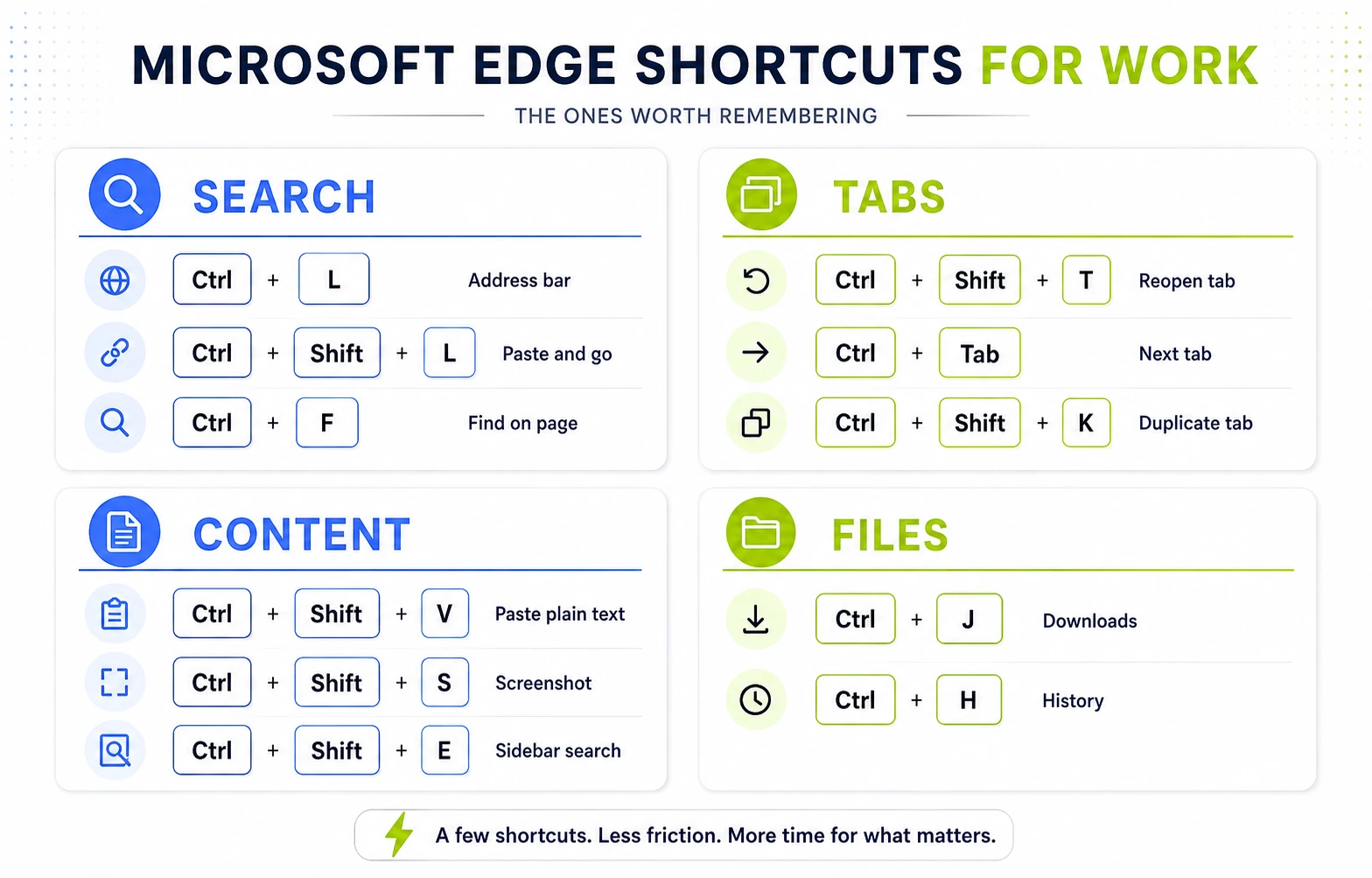
These are the Microsoft Edge shortcuts I think are actually worth learning for office work, including a few that are much less obvious than Ctrl+N and Ctrl+T.
Key Takeaways
- A few Edge shortcuts can save time every day.
- Focus on shortcuts for tasks you repeat often.
- Less mouse use means fewer small interruptions.
In this article
1. Search or open a copied link without reaching for the mouse
Ctrl+L — jump to the address bar
This one is basic, but it earns its place because of how often you can use it.
Instead of clicking the address bar, press Ctrl+L and start typing a search or URL immediately. You can also use F4.
But the more interesting shortcut is:
Ctrl+Shift+L — paste and go
Suppose someone sends you a URL in Teams or Outlook.
The normal workflow is:
- Copy the link.
- Switch to Edge.
- Click the address bar.
- Paste.
- Press Enter.
After copying it, Ctrl+Shift+L can do the last three steps at once.
If your clipboard contains a URL, Edge opens it. If it contains normal text, Edge searches for it instead.
This is one of those tiny shortcuts that feels insignificant until you start using it dozens of times a day.
2. Find the one thing you need on a long page
Ctrl+F — find on page
You probably know this one already. That doesn’t make it any less useful.
Long documentation pages, policies, reports, knowledge bases and online manuals are much faster to scan when you search for the exact project name, number, customer, clause or keyword you need.
Once the search box is open:
Ctrl+Gjumps to the next match.Ctrl+Shift+Ggoes back to the previous one.
That means you can search and move through every occurrence without touching the mouse.
3. Bring back a tab you closed by mistake
Ctrl+Shift+T — reopen the last closed tab
You close a tab.
Half a second later, you realise you still needed it.
Don’t open History and look for it. Press Ctrl+Shift+T.
You can press it repeatedly to reopen more previously closed tabs.
This is probably one of the highest-value browser shortcuts relative to how little effort it takes to remember.
4. Navigate a pile of tabs faster
Tabs are where browser-based office work gets messy.
A few simple shortcuts help:
Ctrl+Topens a new tab.Ctrl+Wcloses the current tab.Ctrl+Tabmoves to the next tab.Ctrl+Shift+Tabmoves to the previous tab.Ctrl+1throughCtrl+8jump directly to a specific tab.Ctrl+9jumps to the last tab.
The numbered shortcuts are particularly useful when you keep a few important applications in predictable positions.
For example, if Outlook Web is always your first tab and your ticketing system is always your second, Ctrl+1 and Ctrl+2 become almost automatic.
5. Duplicate a page before changing something
Ctrl+Shift+K — duplicate the current tab
This is one of my favourite lesser-known Edge shortcuts.
Imagine you have just built a useful set of filters in an online tool. You now want to change them, but you also want to keep the original results available for comparison.
Press Ctrl+Shift+K.
Edge creates a duplicate of the current tab, so you can change one version and keep the other untouched.
The same trick works well with dashboards, search results, documentation, forms and many browser-based business applications.
6. Search without leaving the page you’re working on
Ctrl+Shift+E — open search in the sidebar
Sometimes you need to look something up while keeping the current page visible.
Ctrl+Shift+E opens search in Edge’s sidebar instead of replacing your current tab.
That can be useful when you’re comparing information, researching a term from a document or checking a reference while completing a browser-based form.
It’s not something I use as often as Ctrl+L, but when you want both pieces of information visible at once, it can save a surprising amount of tab switching.
7. Paste text without importing someone else’s formatting
Ctrl+Shift+V — paste without formatting
Copy some text from a webpage and paste it into a web app, and you may also bring along its font, size, links, colours or other formatting.
Ctrl+Shift+V pastes the text without that formatting.
It’s particularly useful when moving text into browser-based email, documentation tools, forms, CMS editors or collaboration apps.
Not every web application handles pasted content in exactly the same way, but this is worth trying before manually fixing formatting afterwards.
8. Capture part — or all — of a webpage
Ctrl+Shift+S — open Edge Screenshot
Windows already has excellent screenshot tools, but Edge has one advantage when the thing you need to capture is a webpage.
Press Ctrl+Shift+S and Edge’s Screenshot tool lets you capture an area or the full page.
The full-page option is especially useful for long webpages that extend far beyond the visible screen.
You can then copy or save the result and paste it into Word, Excel, PowerPoint, OneNote, Teams or wherever you need it.
For sharing browser content at work, this can be much cleaner than taking several separate screenshots while scrolling.
9. Go straight back to something you downloaded or visited
Two very simple shortcuts solve two very common problems.
Ctrl+J — Downloads
If you’ve just downloaded a PDF, spreadsheet, export or attachment and can’t remember where it went, Ctrl+J takes you directly to your downloads.
Ctrl+H — History
If the page you need disappeared much earlier than your last closed tab, Ctrl+H opens your browsing history.
I think of them as two levels of recovery:
- Just closed it?
Ctrl+Shift+T. - Visited it some time ago?
Ctrl+H. - Downloaded it?
Ctrl+J.
Microsoft Edge shortcuts: quick reference
| What you want to do | Shortcut |
|---|---|
| Jump to the address bar | Ctrl+L |
| Paste a URL and open it, or paste text and search | Ctrl+Shift+L |
| Find text on the current page | Ctrl+F |
| Move through search results | Ctrl+G / Ctrl+Shift+G |
| Reopen a closed tab | Ctrl+Shift+T |
| Move between tabs | Ctrl+Tab / Ctrl+Shift+Tab |
| Jump directly to a tab | Ctrl+1 to Ctrl+8, Ctrl+9 |
| Duplicate the current tab | Ctrl+Shift+K |
| Open search in the sidebar | Ctrl+Shift+E |
| Paste without formatting | Ctrl+Shift+V |
| Take an Edge screenshot | Ctrl+Shift+S |
| Open Downloads | Ctrl+J |
| Open History | Ctrl+H |
Don’t try to memorize all of these
The goal isn’t to turn your keyboard into an exam.
Pick two or three shortcuts that match things you already do repeatedly.
If you constantly copy links, start with Ctrl+Shift+L.
If you work with lots of tabs, learn Ctrl+Shift+K and Ctrl+Shift+T.
If you regularly share information from webpages, try Ctrl+Shift+S.
Once those become automatic, come back and add another one.
Saving one second once doesn’t matter much.
Removing the same unnecessary action fifty times every workday does.
Using a corporate-managed PC? Your IT department can disable selected Microsoft Edge keyboard shortcuts through company policy. If one of these works on your personal PC but not your work computer, the shortcut itself may not be the problem.
Want more practical Windows productivity tips? If you like simple ways to make everyday work faster, I share more practical Windows productivity tricks in the TurboTasking newsletter.

