

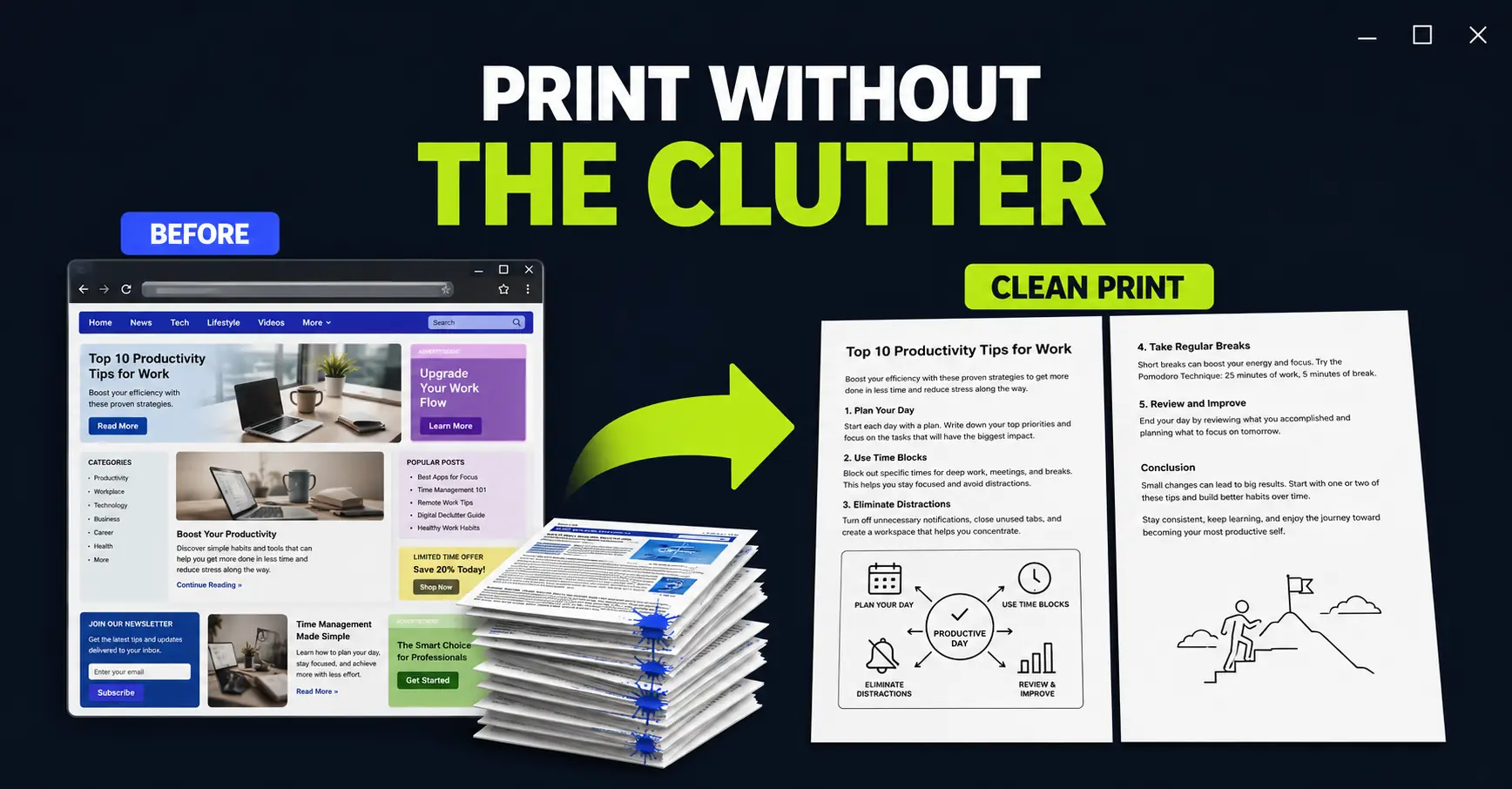
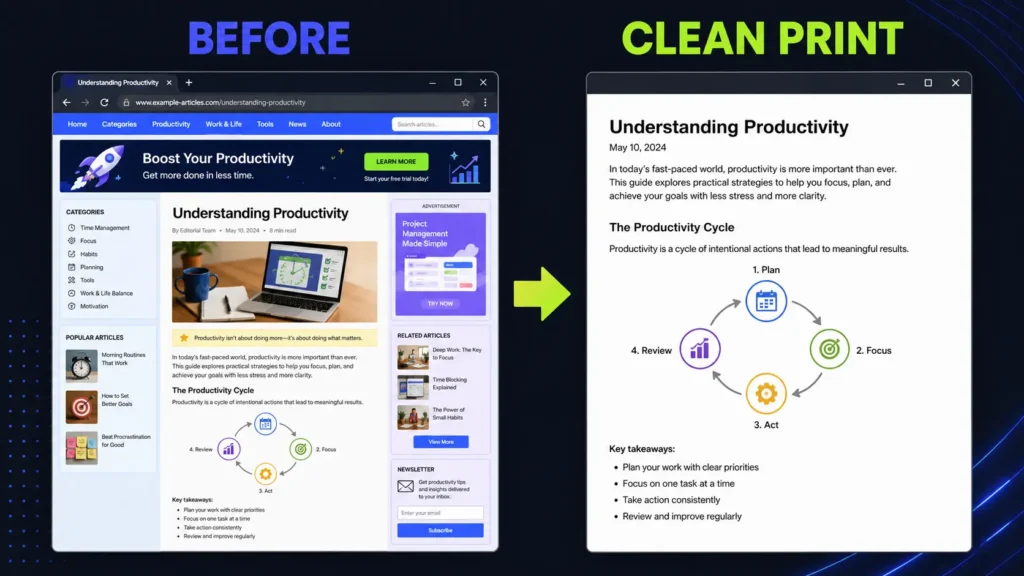
A web page that looks fine on screen can become a terrible printout: a navigation menu on page one, an oversized image on page two, a colorful banner on page three, and the information you actually need scattered somewhere in between.
PrintFriendly gives you a cleaning step before the print dialog. The PrintFriendly Chrome extension—and its Edge version—rebuilds the page in a simpler layout and lets you remove unwanted sections, images, and text before you use any paper or ink.
This guide focuses on one job: turning a cluttered public web page into a compact paper copy in Microsoft Edge or Google Chrome.
When cleaning a web page before printing is useful
Printing from the web is still useful when paper is easier to carry, annotate, share in a room, or keep beside a task. PrintFriendly is particularly helpful when the page was designed for browsing rather than printing.
For example, you might want to print:
- a public procedure or checklist to use away from your computer;
- equipment instructions to keep beside a device;
- a conference agenda, venue guide, or public travel information;
- a public report or regulatory update that you want to annotate by hand;
- selected vendor specifications for an offline comparison; or
- a public troubleshooting guide for a shared workstation.
The goal is not merely to hide ads. It is to keep only the information needed for the task, improve readability, and reduce the final page count.
Install the PrintFriendly Chrome extension—or the Edge version
PrintFriendly is currently available for both browsers. Older references and searches may call it Print Friendly & PDF, while the current store title can mention Reader Mode, PDF editing, screenshots, and other features. Use the vendor’s official pages below to avoid installing an unrelated extension with a similar name:
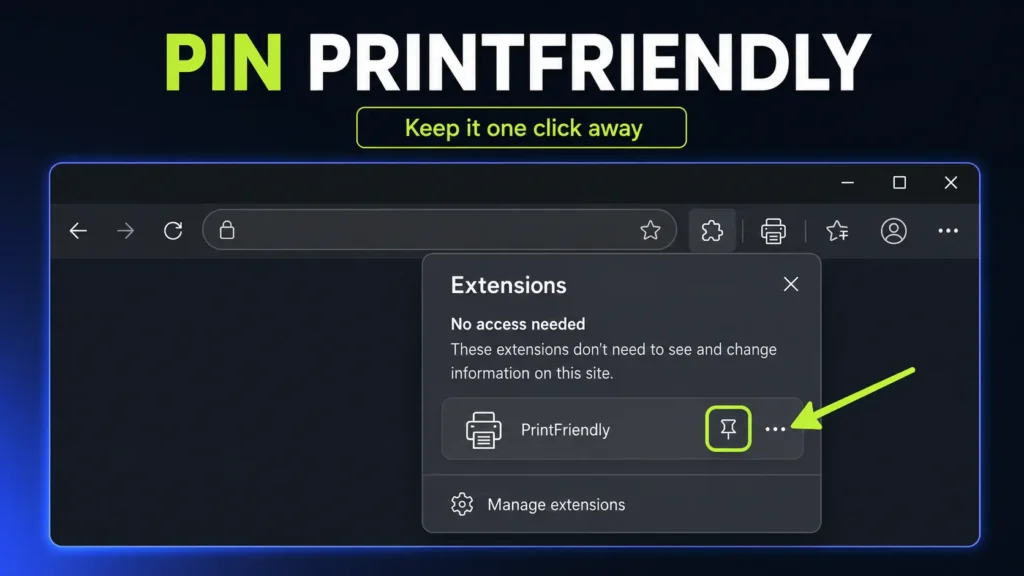
Install the extension, then pin it to the browser toolbar if you expect to use it regularly. In Edge, select the Extensions button beside the address bar, find PrintFriendly, and use the option to show it in the toolbar. Chrome has a similar Extensions menu.
If the installation button is unavailable on a work computer, your organization probably manages browser extensions. Do not try to bypass that restriction. Ask IT whether the extension is approved, or use the no-extension alternatives later in this guide.
How to print a web page without ads and clutter
- Open the web page you want to print. Make sure any section you need has loaded or expanded before continuing.
- Select the PrintFriendly extension. It opens a simplified version of the page and removes much of the surrounding navigation, advertising, pop-ups, and footer content automatically.
- Compare the result with the original page. Automatic cleaning is useful, but it can remove something important or retain something irrelevant. Check headings, tables, warnings, image captions, and links you need.
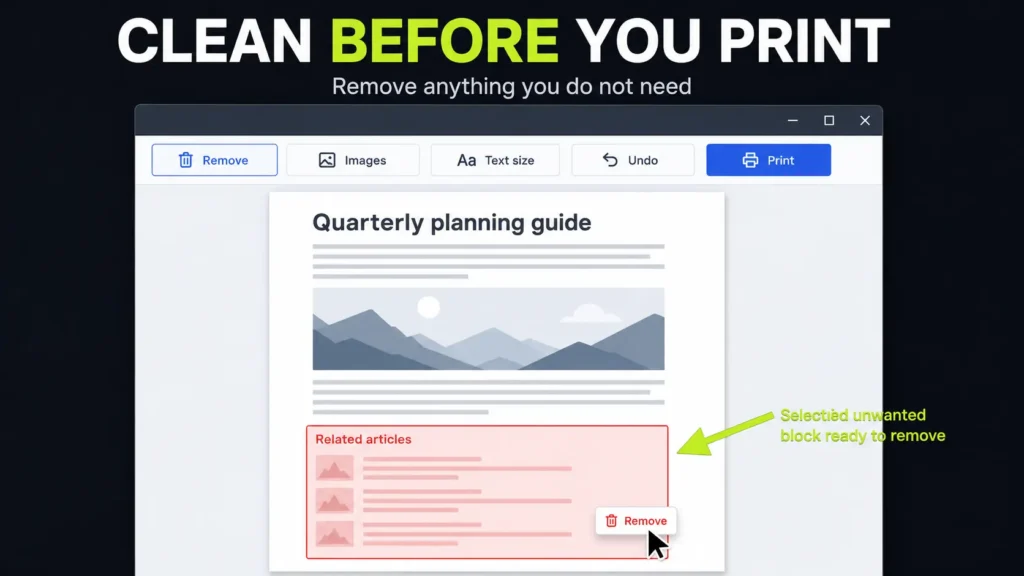
- Delete the remaining clutter. Use the delete/edit mode to remove complete sections. The current extension also supports click-and-drag removal when several unwanted elements sit together.
- Remove unnecessary images. Keep diagrams that help you complete the task; remove decorative photos, logos, thumbnails, and repeated graphics. This often produces the largest reduction in page count and ink use.
- Adjust the document. Change the text size if needed and check the paper size and margins. Smaller text may reduce the page count, but readability matters more than squeezing everything onto one sheet.
- Select Print. You can also save the cleaned result as a PDF when you need a stable offline copy but not a physical one.
Do one final ink-saving check in the print preview
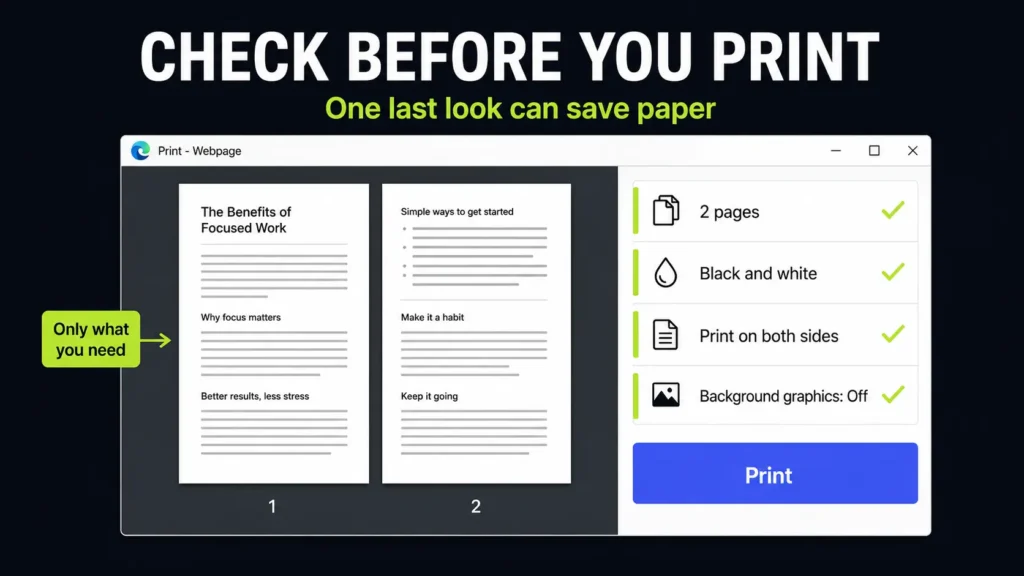
PrintFriendly cleans the content, but the browser or system print dialog controls the physical output. Before selecting Print, check these settings:
- Pages: Confirm that the document is as short as expected and that no nearly empty final page remains.
- Background graphics: Leave this disabled unless a background is necessary to understand the content.
- Color: Choose black and white or grayscale when color does not add information.
- Paper size: Select the format your office actually uses, normally A4 in Europe or Letter in the United States.
- Margins and scale: Adjust these only when the preview shows clipped text or an avoidable extra page.
- Duplex: Print on both sides when the printer supports it and the document will remain practical to use.
The standard Windows shortcut Ctrl+P opens the print dialog in both Edge and Chrome. In Edge, Ctrl+Shift+P opens the system print dialog if you need printer-specific options. Microsoft’s Edge printing guide explains the available preview settings.
PrintFriendly versus the normal browser print command
Try Ctrl+P first when a website already has a good print layout. Disabling Background graphics may be all you need.
PrintFriendly becomes useful when the normal preview still includes menus, related articles, large images, irrelevant sections, or awkward blank space. Its main advantage is selective editing: you can decide what belongs in the paper copy before opening the final print dialog.
Important precautions on a corporate PC
A browser extension that cleans a page must be able to inspect that page. The Chrome Web Store listing states that PrintFriendly handles website content, and the vendor’s privacy notice describes collection of technical and usage information. Its current terms also contain wording about internal business purposes alongside a separate statement that the browser extension is for personal, non-commercial use. Because that wording is not completely clear, verify your organization’s policy and the current terms before using it for work.
A sensible default is to use PrintFriendly only for public, non-sensitive pages that you would be comfortable opening through an external service. Do not use it on:
- intranet pages;
- customer or employee records;
- webmail or private conversations;
- internal dashboards and ticketing systems;
- unpublished reports; or
- any page containing credentials, personal data, or confidential business information.
Review the current PrintFriendly privacy policy and terms, and follow your company’s rules even if the extension store allows installation. IT administrators can allow, block, or deploy Edge extensions centrally, so an available installation button is not the same as company approval.
Two alternatives when you cannot install the extension
1. Use Edge Immersive Reader
On supported pages, press F9 in Microsoft Edge to enter Immersive Reader. It removes many distracting page elements. Then press Ctrl+P and inspect the preview.
This option requires no extension, but it gives you less control over individual sections and is not available on every page.
2. Use the website’s print view or the standard print dialog
Look for a Print, Printable version, or Download PDF button on the page itself. If none exists, press Ctrl+P, disable Background graphics, and print only the page range you need.
For confidential internal content, use only company-approved tools. Copying the necessary text into an approved Word document may take longer, but it avoids granting a third-party extension access to the original page.
Print the information, not the website
Before sending any web page to the printer, ask one question: which parts will I actually use on paper?
PrintFriendly lets you answer that question visually. Remove the navigation, promotional blocks, decorative images, and unrelated sections; check the page count; disable background graphics; and print only the useful result.
Want more practical Windows productivity tips? If you like simple ways to make everyday work faster, I share more practical Windows productivity tricks in the TurboTasking newsletter.


