
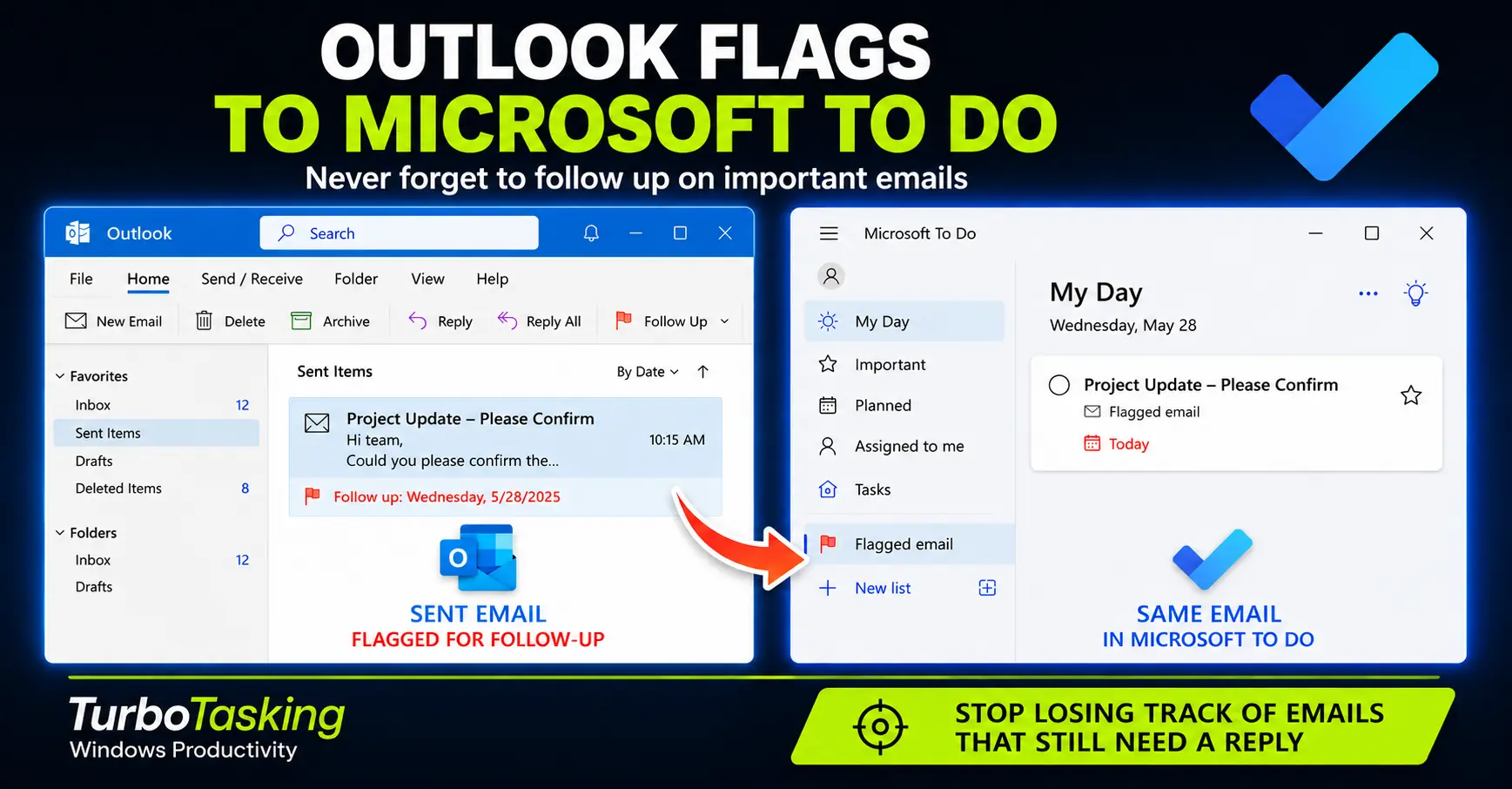
Some emails are not finished when you send them.
You may be waiting for an approval, a document, a number, a decision, or a simple yes or no.
The problem is that sent emails are easy to forget. They leave your inbox, disappear into Sent Items, and your brain treats the task as complete.
But sometimes the task is not complete. It has only moved into a different state: waiting for someone else.
That is why I use Outlook flags and Microsoft To Do as a simple follow-up system for emails I send.
If an email still needs a reply, I do not rely on memory. I flag it, give it a follow-up date, and let Outlook or Microsoft To Do bring it back when I need to check it again.
Key Takeaways
- Sending an email does not always mean the task is finished.
- Flag sent emails when a missing reply could create a problem later.
- Add a follow-up date so the email returns when you need it.
- Use Microsoft To Do to review flagged emails alongside your daily tasks.
- Complete, postpone, or follow up when the reminder appears.
The problem with sent emails
Most email systems make incoming messages very visible.
New emails appear in your inbox. They show unread counts. They create notifications. They interrupt you.
Sent emails are different.
Once you click Send, the message usually disappears from your main work view. Unless you deliberately check your Sent Items folder, there may be no visible reminder that you are still waiting for something.
That creates a small but common productivity problem.
You send an email asking someone for information. You move on. A few days later, you realize nothing happened because the other person never replied.
Technically, you were waiting. Practically, the task disappeared.
This is not always the other person’s fault. If the outcome still matters to your work, you need a way to track it.
The simple rule: if no reply would create a problem, flag it
I use a simple rule:
If no reply would create a problem later, the email gets a follow-up flag.
This keeps the system practical.
I do not flag every email I send. That would only create a second inbox full of unnecessary tasks.
I flag sent emails when I need to make sure something comes back to me.
- I asked someone to approve something.
- I need a colleague to send me a file.
- I asked a vendor for pricing, confirmation, or availability.
- I sent information and need the other person to confirm it is correct.
- I delegated something but still remain responsible for the outcome.
- I asked a question that blocks my next step.
In all those cases, the email is not just communication. It is a pending loop.
The flag gives that loop a place to live.
How Outlook flags help with follow-up
Outlook flags are useful because they turn an email into something you can act on later.
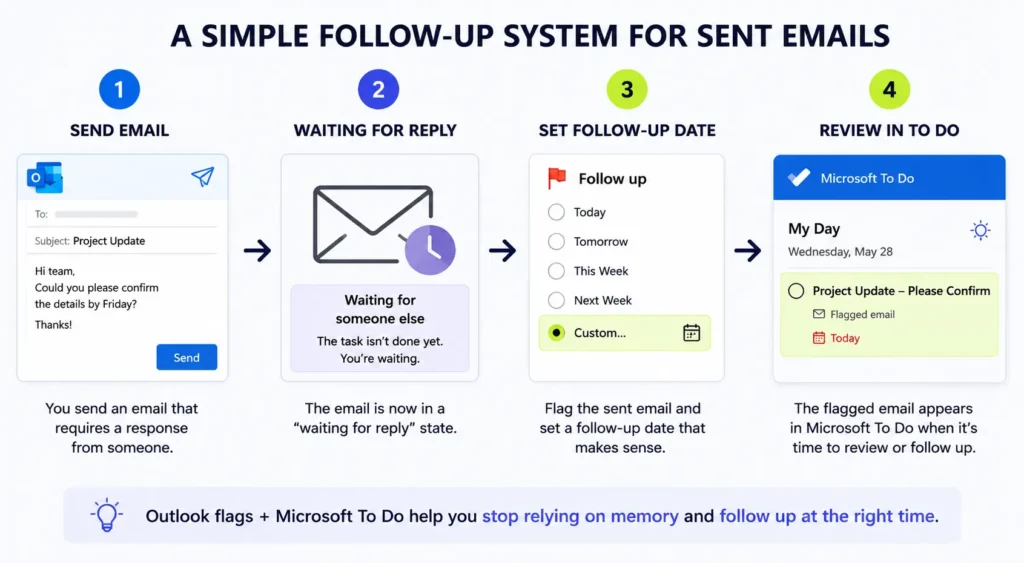
Instead of leaving the sent email buried in Sent Items, you can mark it for follow-up and assign a date such as Today, Tomorrow, This Week, Next Week, No Date, or a custom date.
Microsoft describes this exact problem in its own Outlook documentation: once a sent message is out of sight in your Sent Items folder, you can add a follow-up reminder for yourself so the request does not disappear from your attention.
That is the key difference between a normal sent email and a flagged sent email.
A normal sent email is only a record of what you sent.
A flagged sent email becomes a task you can review.
In classic Outlook, tasks and flagged items can also appear in older task views such as the To-Do Bar or Tasks area, depending on how your Outlook setup is configured.
The exact interface depends on your Outlook version and your company’s Microsoft 365 setup, but the principle is the same: flag the email, give it a follow-up date, and review it later.
How Microsoft To Do makes the system easier to review
Outlook flags are useful on their own, but Microsoft To Do makes the system easier to review during the day.
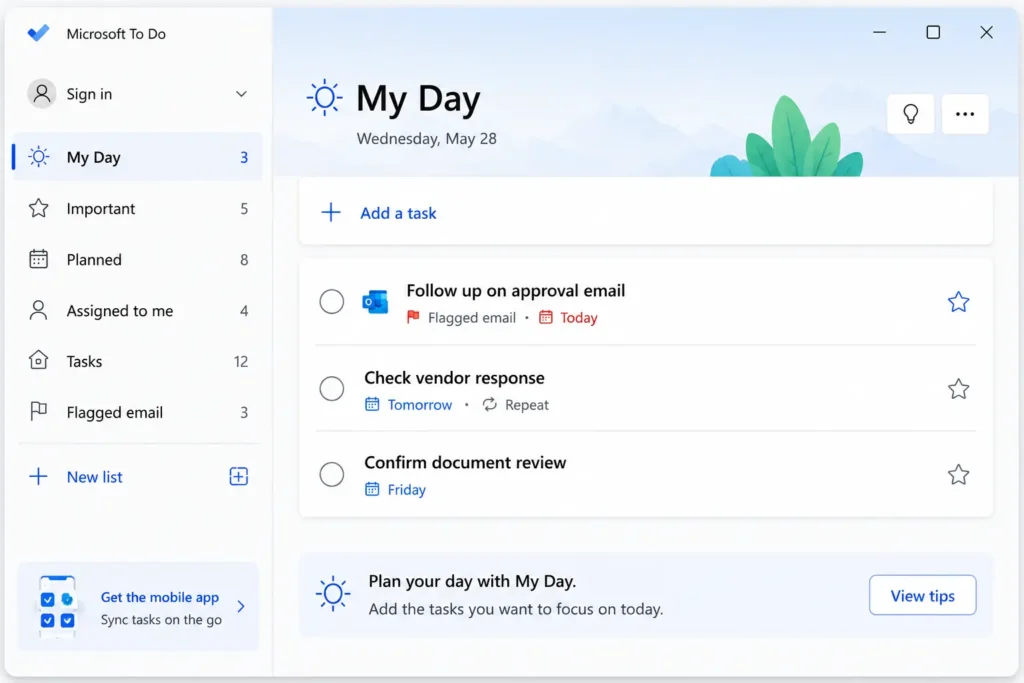
Microsoft To Do can show flagged emails from Outlook in a smart list called Flagged email. From there, flagged email tasks can be managed like other tasks: you can assign due dates, add reminders, add them to My Day, mark them as important, or mark them complete.
This is why the workflow works well for sent email follow-up.
You do not need to build a separate spreadsheet. You do not need to create a manual reminder every time. You do not need to keep checking Sent Items just in case something is overdue.
You can use the email itself as the task.
When the follow-up date arrives, the item can appear in your task workflow, alongside the rest of your day’s work.
That is much better than hoping you remember that one email from three days ago.
You may also be able to open Microsoft To Do inside Outlook
Depending on your Outlook version, you may not need to open Microsoft To Do as a separate app.
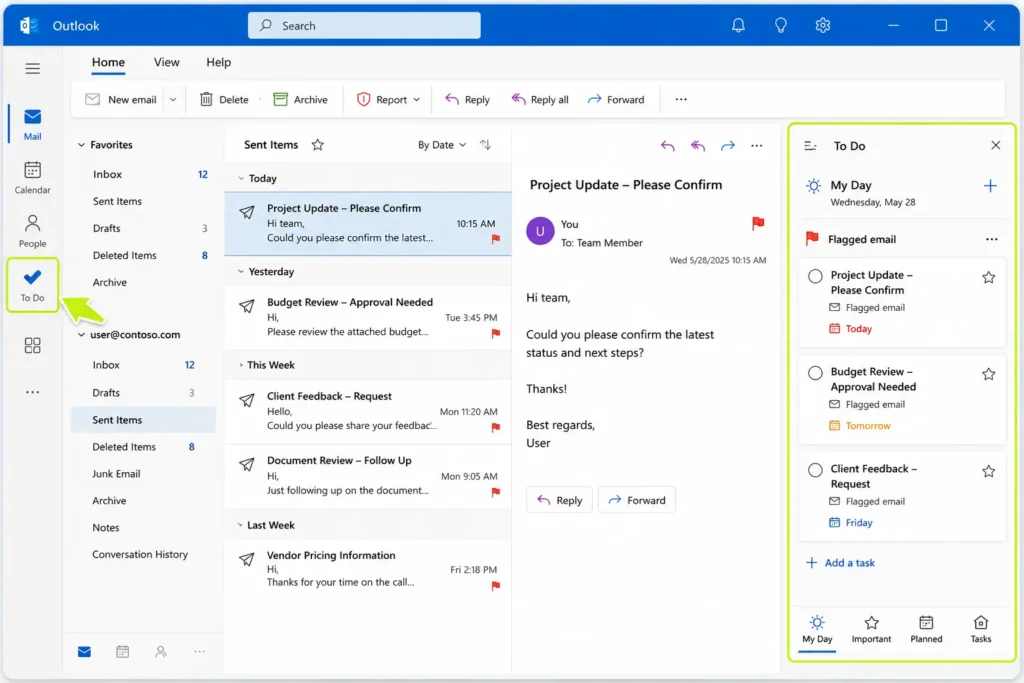
In new Outlook and Outlook on the web, you may be able to open Microsoft To Do directly from Outlook, using the To Do icon in the left navigation area.
In classic Outlook for Windows, Microsoft also provides an option for Microsoft 365 users to make To Do the preferred task management experience. When this is enabled, the To Do app icon remains pinned and visible in the Outlook navigation area, and Outlook opens tasks in To Do instead of the old classic Tasks experience.
This matters because it lowers the friction.
If your follow-up tasks live in a completely separate place, you may forget to check them. But if To Do is available inside Outlook, it becomes easier to review your flagged emails while you are already processing email.
That said, do not worry too much about the exact interface. Microsoft changes Outlook experiences over time, and corporate environments do not all enable the same features.
The important part is the workflow:
- Flag emails that need a reply.
- Give them a follow-up date.
- Review them from Outlook, Microsoft To Do, or both.
My Outlook follow-up workflow for sent emails
Here is the basic workflow I use.
1. Send the email
First, I send the email normally.
This could be a request, an approval question, a document handoff, a vendor message, or anything else where I need the other person to reply before the topic is truly done.
2. Decide whether it needs tracking
Before mentally closing the task, I ask one question:
Would it matter if nobody replied?
If the answer is no, I do nothing.
If the answer is yes, I flag the sent email.
This is important. The goal is not to create a task for every sent message. The goal is to catch the emails that could quietly block something later.
3. Flag the email
After sending the message, I add a follow-up flag.
Depending on your Outlook version, you may be able to use the flag icon directly, right-click the flag area, or use the Follow Up menu in the ribbon.
The exact clicks may vary, but the idea is simple: mark this sent email as something that needs your attention later.
4. Set a realistic follow-up date
The date is the most important part.
A flag without a date can easily become another pile of vague reminders. A flag with a date gives the email a specific moment to come back.
I usually choose the follow-up date based on how urgent the answer is.
The date does not need to be perfect. It only needs to be good enough to stop the email from disappearing.
5. Review the task in Microsoft To Do
Once the email is flagged, it can appear in Microsoft To Do’s Flagged email list if your account and settings support it.
From there, I can review it as part of my task list.
If it is relevant today, I can add it to My Day. If I need a stronger nudge, I can add a reminder. If the follow-up date is wrong, I can adjust it.
The benefit is that I am not scanning old sent emails manually. I am reviewing a small list of items that I deliberately chose to track.
6. Complete, postpone, or follow up
When the follow-up task appears, I decide what to do next.
- If the person already replied and the topic is done, I mark the item complete.
- If I still need the answer, I send a follow-up.
- If it is still too early, I move the follow-up date forward.
- If the topic no longer matters, I clear the flag.
This is the part that keeps the system clean.
A follow-up system only works if you close the loop when the loop is actually closed.
What date should you choose for the follow-up?
The best follow-up date depends on the situation.
I try not to overthink it. The date is not a promise that I will send another email at that exact time. It is a reminder to review the situation.
Sometimes the right action is to follow up. Sometimes it is to wait. Sometimes it is to mark the task complete because the reply came in through another channel.
Here are practical defaults:
- Same day: use this for urgent blockers or time-sensitive internal work.
- Tomorrow: use this when the answer should be quick but you do not want to interrupt immediately.
- 2 to 3 working days: use this for normal office follow-ups.
- One week: use this for low-urgency vendor, admin, or background topics.
- A custom date: use this when there is a real deadline or review point.
The main mistake is setting everything to Today.
That turns your task list into noise.
A good follow-up date should answer this question:
When would I actually want to look at this again?
When this system works best
This workflow is best for emails where you still own the outcome, even if someone else owns the next action.
That distinction matters.
If you send a colleague a file just for information, you probably do not need to track it.
If you send a colleague a file and need approval before you can continue, you probably should track it.
The system works especially well for:
- Approval requests
- Vendor questions
- Documents sent for review
- Internal blockers
- Delegated work you still need to monitor
- Recurring admin topics where people often forget to reply
It is less useful for emails that belong in a proper project management system.
If a task has multiple owners, dependencies, subtasks, files, comments, and deadlines, do not hide it inside a flagged email. Use the tool your team uses for real project tracking.
Outlook flags are best for small follow-up loops, not complex project plans.
Common mistakes to avoid
Flagging too many emails
If every sent email gets flagged, the system becomes useless.
A flag should mean something specific: this email needs a reply, review, decision, or later check.
Use flags selectively.
Using flags without dates
A flag without a date is better than nothing, but it is still easy to ignore.
The date is what turns the flag into a follow-up system.
If you want the email to come back at the right time, give it a date.
Treating “sent” as “done”
This is the real habit the workflow is meant to fix.
Some emails are done when you send them. Others are only paused.
The flag helps you notice the difference.
Forgetting to complete the task after the reply arrives
When someone replies and the topic is finished, clean up the flag.
Depending on what you want to keep, you can either mark the item complete or clear the flag.
Microsoft explains that clearing the flag removes the flag, while marking complete keeps an indication that the item was completed.
For a simple personal workflow, the exact choice matters less than being consistent.
Important limitations
This workflow depends on your Outlook version, account type, and company settings.
Microsoft says the Flagged email list in To Do works with flagged emails from your primary mailbox. Flagged emails from shared folders and shared mailboxes are not supported.
Microsoft also notes that when the Flagged email list is enabled, it initially populates with the 100 most recently flagged emails within the last 30 days. After that, newly flagged emails should populate the list.
That means this workflow is best treated as a practical personal system, not as a guaranteed shared mailbox tracking solution.
If you work heavily from shared mailboxes, test the workflow before relying on it.
If your organization has disabled Microsoft To Do, changed Outlook settings, or uses a non-Microsoft account type, your experience may also differ.
A simple example
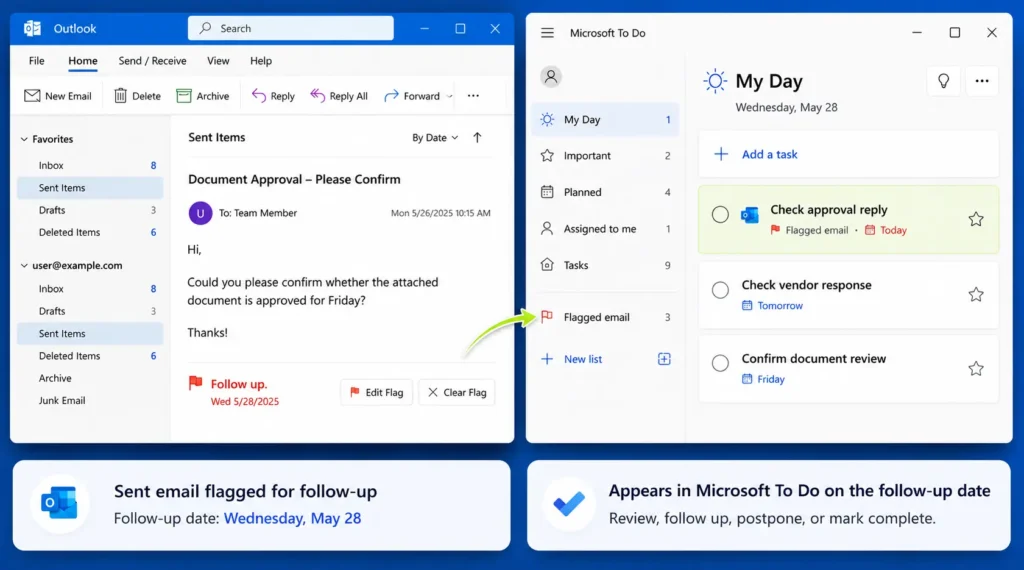
Imagine you send this email:
Could you please confirm whether the attached document is approved for Friday?
After sending it, the topic feels temporarily finished. But if Friday arrives and nobody replied, you still have a problem.
So you flag the sent email and set the follow-up date for Wednesday.
On Wednesday, the task appears in your workflow. You check whether there is already a reply. If not, you can follow up before the deadline becomes urgent.
That is the whole point.
You are not trying to make Outlook more complicated. You are giving important sent emails a way to come back before they become a problem.
The small habit that makes this work
The tool is simple. The habit is the important part.
After sending an email, pause for two seconds and ask:
Am I waiting for a reply that matters?
If the answer is yes, flag it.
That tiny pause prevents many follow-up problems.
It also changes how you think about email. You stop treating Send as the end of every task. Instead, you separate emails that are truly done from emails that are waiting for someone else.
That is a much more reliable way to work.
Final thought
You do not need a complex system to follow up on sent emails.
For many office workflows, a simple Outlook flag with a follow-up date is enough.
Microsoft To Do makes the system more useful because it gives those flagged emails a task list where they can be reviewed, scheduled, and completed.
The main idea is simple:
If the email still depends on someone else replying, do not leave it in your memory. Give it a follow-up date.
That way, important sent emails do not disappear just because they left your inbox.
Want more practical Windows productivity tips? If you like simple ways to make everyday work faster, I share more practical Windows productivity tricks in the TurboTasking newsletter.